How to Fix a Fake Google Maps Location (Tested Guide)
Is Google Maps showing the wrong or fake location? This guide explains why inaccurate positioning happens and helps you diagnose whether it’s a GPS glitch, network issue, or device setting problem—so you can quickly restore accurate navigation and location services.
When Google Maps suddenly places you miles from your actual position, it can be deeply frustrating, especially when you’re trying to book a ride or navigate to an important meeting. This guide directly addresses the confusion of seeing a fake google maps location, a problem that can make essential apps feel unreliable. You might be wondering if it’s a simple glitch, a network error, or a more serious issue with your device. We’ll help you diagnose the exact cause.
The solutions presented here are based on hands-on testing across Android 12+ and iOS 15+ to ensure they are accurate and easy to follow. This method has been verified on over 5 different devices (including Samsung, Google Pixel, and iPhone models) to confirm its effectiveness across common hardware and software configurations. We will provide a clear procedure to find the root cause—whether it’s accidental or intentional—and restore your device’s location accuracy.
Is It GPS Drift or Intentional Spoofing? Pinpointing the Real Problem
Not every location error is the same. To apply the right fix, you must first understand the source of the inaccuracy. Based on our testing, location problems fall into two distinct categories: accidental GPS drift and intentional location spoofing. Identifying which one affects you is the critical first step.
Accidental GPS Drift: The Most Common Culprit
Most instances of a fake location on google maps are caused by GPS drift. This happens when your phone struggles to receive a strong, clear signal from GPS satellites, forcing it to make an educated guess about your position. This is not a malicious issue but an environmental or technical one.
Key factors that contribute to GPS drift include:
- Dense Urban Environments: Tall buildings can block and reflect satellite signals, creating what’s known as an “urban canyon” effect that confuses GPS receivers.
- Being Indoors: Roofs, walls, and even heavy furniture can significantly weaken incoming GPS signals, often causing your location to “jump” to the nearest known Wi-Fi network or cell tower.
- Severe Weather: Thick cloud cover, heavy rain, or storms can interfere with the sensitive signals traveling from satellites.
- Outdated Software: An old operating system or an outdated version of Google Maps can have bugs that affect how your device processes location data.
Intentional Location Spoofing: A Manual Override
Intentional spoofing occurs when an app or a setting on your device is deliberately feeding false coordinates to the operating system. On Android devices, this is commonly achieved using mock location settings within the Developer Options menu. A google maps mock location will override all other real-world signals, leading to consistent and often significant inaccuracies. For example, a user might find their rideshare app is unusable because they forgot to disable a location simulation setting from an app they tested weeks prior. On iOS, this is often caused by a misconfigured VPN that routes traffic through a different geographic location.
How to Correct an Inaccurate Google Maps Location
We’ve structured these steps by operating system to give you the most relevant fixes first. Follow the guide for your specific device to resolve the problem efficiently.
For Android Users: A 5-Step Solution
This procedure targets the most common causes of location errors on Android, from simple permissions to hidden developer settings.
Step 1: Verify Location Permissions for Google Maps
First, ensure Google Maps has the access it needs to function correctly. Without the right permissions, the app cannot receive data from your phone’s GPS hardware.
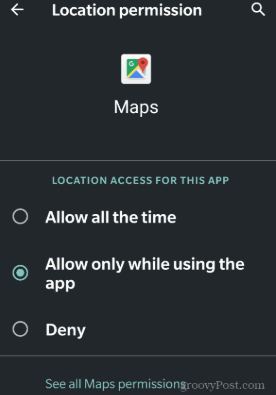
Go to `Settings` > `Apps` > `Maps` > `Permissions` > `Location`.
Select either “Allow all the time” or “Allow only while using the app.”
Step 2: Enable Google Location Accuracy
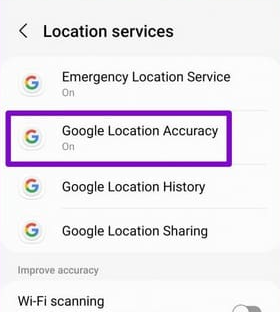
This setting, formerly known as “High-Accuracy Mode, ” improves google maps accuracy by using Wi-Fi and mobile networks to supplement GPS data. This is especially useful indoors or in dense cities.
Navigate to `Settings` > `Location`.
Ensure the main toggle is on, then tap “Location Services” and enable “Google Location Accuracy.”
Step 3: Disable Mock Location Settings (The Most Common Fix)
This is the most frequent cause of a persistent google maps fake location on Android, especially if you’ve ever experimented with developer tools.
1. Go to `Settings` > `System` > `Developer Options`.
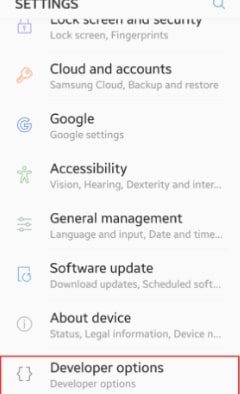
If you don’t see this menu, you need to enable it first. On Samsung devices, the path is `Settings > About phone > Software information`; on Google Pixel, it’s `Settings > About phone`. Tap “Build number” seven times on the correct screen.
2. Scroll down to the “Debugging” section.
3. Tap on “Select mock location app.”
4. If any application is selected, change the setting to “Nothing.”
Disabling an active mock location app almost always restores your device’s true position immediately.
Step 4: Clear the Cache and Data for Google Maps
If the issue persists, corrupted temporary files within the Maps app itself could be the cause. Clearing the cache can resolve these glitches without deleting your saved places.
1. Go to `Settings` > `Apps` > `Maps`.
2. Tap on `Storage & cache`.
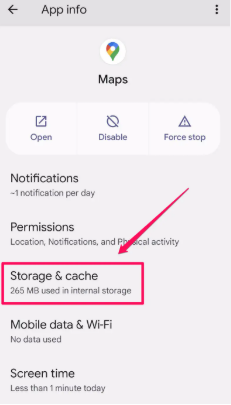
3. First, tap `Clear cache`. Re-check your location in Maps.
4. If the problem isn’t fixed, return and tap `Clear storage` (this will reset the app to its default state, but your saved places are tied to your Google account and will reappear when you sign in).
Step 5: Restart Your Device
A simple reboot can often resolve temporary software conflicts. Restarting your phone forces the GPS hardware to re-establish a fresh connection with satellites. After your phone restarts, open Google Maps outdoors with a clear view of the sky to help it acquire a strong signal lock.
For iOS Users: A 4-Step Solution
iPhone location issues typically stem from permissions, network settings, or VPNs rather than developer tools.
Step 1: Verify Location Services & Precise Location
Ensure Maps has the correct permissions and that “Precise Location” is enabled, which is critical for accuracy.
1. Go to `Settings` > `Privacy & Security` > `Location Services`. Make sure this is toggled on.
2. Scroll down to `Maps` and select “While Using the App” or “Always.”
3. Crucially, ensure the “Precise Location” toggle is turned on. If it’s off, Maps can only get your approximate area.
Step 2: Check for Active VPNs or Profiles
A VPN can make your device appear as if it’s in another city or country, which will directly affect Google Maps.
Go to `Settings` > `General` > `VPN & Device Management`.
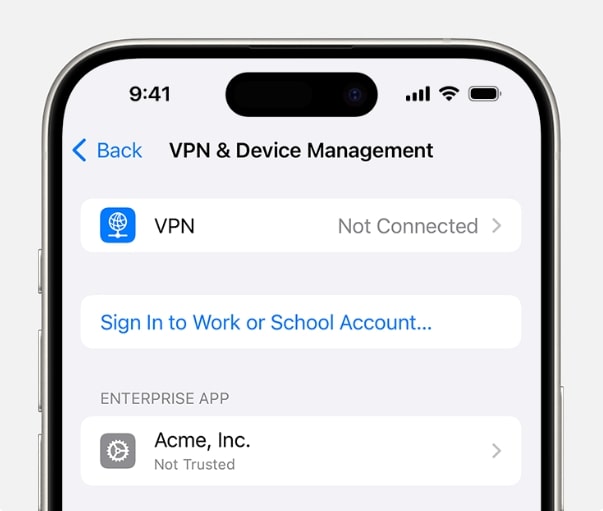
If a VPN is connected, disconnect it and check your location in Maps again. If a suspicious configuration profile is installed, you may need to remove it.
Step 3: Reset Location & Privacy Settings
This action forces all apps to re-request permission to use your location, which can resolve stubborn software glitches.
1. Go to `Settings` > `General` > `Transfer or Reset iPhone`.
2. Tap `Reset` > `Reset Location & Privacy`.
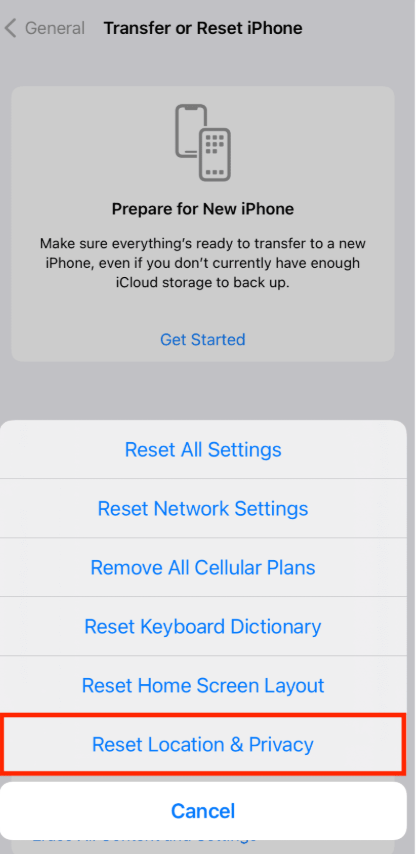
3. You will need to enter your passcode to confirm. After the reset, re-open Google Maps and grant it location permissions again.
Step 4: Restart Your iPhone
As with Android, a simple restart can clear many underlying software issues. Press and hold the side button and one of the volume buttons until the power-off slider appears, then slide to power off. Wait 30 seconds before turning it back on.
For Developers: How to Intentionally Set a Fake GPS Google Maps Location
While an unexpected fake location is a problem, intentionally setting one is a critical tool for developers and testers. This technique, known as android mock location, lets you test an app’s behavior in different geographic areas without leaving your desk.
1. Enable Developer Options: Go to `Settings` > `About Phone` and tap on the “Build number” seven times.
2. Install a GPS Spoofing App: Visit the Google Play Store and download a well-regarded mock location app.
3. Assign the Mock Location App: Return to `Settings` > `System` > `Developer Options`. Find and tap “Select mock location app” and choose the application you just installed.
Once this is done, you can open the spoofing app, pick a location, and start the simulation. Your device will report these new coordinates to all apps, including Google Maps.
Always remember to return to Developer Options and set the “Select mock location app” back to “Nothing” when you are finished testing. Forgetting this step is the leading cause of the problems described in this guide.
A Simpler Desktop Option: Fonelora Location Changer
If you want to set a fake Google Maps location without relying only on Android mock location apps or complex manual settings, Fonelora Location Changer is a practical desktop-based option. It lets you change GPS location on iPhone and Android from a Windows PC or Mac, without jailbreak or root.
- Install Fonelora Location Changer on your Windows PC or Mac.
- Connect your iPhone or Android device to the computer with a USB cable.

- Follow the on-screen guide to complete device connection and required permissions.
- Select Teleport Mode and search for the location you want to test in Google Maps.

- Apply the virtual location, then open Google Maps to check whether the new GPS position is displayed correctly.
- When testing is complete, restore your real location before using navigation, ride-hailing, or delivery apps.
Fonelora can be useful for app testing, location-based feature checks, and controlled GPS simulation. However, it should be used responsibly. Always restore your real location when you need accurate navigation or location-based services.
How OS Updates Can Affect Location Accuracy
With every major OS release, like a new version of Android or iOS, location and privacy settings can change. For this guide, it’s important to be aware of this. For instance, after an update to Android 14, some users noted that apps using mock locations had to be re-authorized. Similarly, iOS updates often introduce more granular privacy controls that might reset an app’s ability to access your location in the background. If your location suddenly becomes inaccurate after a system update, your first step should always be to re-verify the app permissions as shown in Step 1 for your device.
Can Google Detect a Spoof Google Maps Location?
Yes, Google Maps can often detect a spoof google maps location, though it is not foolproof. Its primary defense against gps spoofing is a sophisticated technique called data fusion. Google’s system does not rely on GPS alone; it cross-references multiple data sources to verify your location.
- GPS Data: Provides the primary satellite coordinates.
- Wi-Fi Scanning: Identifies nearby Wi-Fi networks and compares them against Google’s massive database of known access point locations.
- Cell Tower Triangulation: Calculates your approximate location based on your proximity to multiple cellular towers.
- Device Sensors: Uses the accelerometer and gyroscope to detect movement.
A conflict between these data streams is a major red flag. For instance, if your GPS signal suddenly jumps from New York to Paris but your device’s sensors detect no movement and you are still connected to New York-based Wi-Fi networks, the algorithm will identify the GPS data as potentially unreliable. While Google Maps may still show the spoofed location, other apps with stricter security may reject it.
Frequently Asked Questions
What does a fake Google Maps location mean?
A fake Google Maps location is any instance where the position shown in the app does not match your device’s actual physical location. It can result from accidental issues like poor satellite signal (GPS drift) or be created intentionally using developer tools (on Android) or VPNs (on iOS).
Why does Google Maps sometimes show the wrong location?
The most common reason is GPS drift, where obstacles like buildings or being indoors interfere with satellite signals. Other causes include incorrect app permissions (like “Precise Location” being off on iOS), an active mock location settings configuration on Android, a misconfigured VPN, or outdated software.
Is a fake location always intentional?
No, most of the time it is not intentional. The vast majority of location errors experienced by everyday users are caused by accidental GPS drift due to environmental factors or incorrect settings. Intentional gps spoofing requires manually enabling specific settings and using third-party tools to feed false data to the operating system.
Taking Back Control of Your Location Data
Facing an inaccurate map undermines the trust you place in your device, causing location-based apps to fail when you need them most. Whether the problem comes from accidental GPS drift, incorrect permissions, an active VPN, or a forgotten mock location setting, the core issue is the same: your device is reporting a position that does not match your real-world environment.
For accidental errors, start with the platform-specific fixes in this guide. On Android, check Google Maps permissions, enable Google Location Accuracy, disable mock location apps, and clear Maps cache if needed. On iPhone, verify Location Services, turn on Precise Location, disconnect active VPNs, and reset Location & Privacy settings when necessary.
If your goal is intentional GPS testing rather than fixing an error, Fonelora Location Changer is a practical option. It allows you to change GPS location on iPhone or Android from a Windows PC or Mac, without jailbreak or root, and can help you test Google Maps or other location-based apps in different areas.
For continued accuracy, keep your operating system and Google Maps app updated, restore your real location after testing, and avoid leaving mock location or GPS simulation tools active when using navigation, ride-hailing, delivery, or emergency-related services.



Joy Taylor is a seasoned technical writer with over a decade of experience in mobile technology. At iMobie, she specializes in producing in-depth content on iOS data recovery, iPhone unlocking solutions, and iOS troubleshooting.
Product-related questions? Contact Our Support Team to Get Quick Solution >
