Fake GPS Location on iPad: Your Troubleshooting Guide
Discover why your iPad shows the wrong location and whether it’s a GPS issue or simple settings. This clear, tested guide explains real causes and provides practical solutions for Wi-Fi and Cellular iPad models running the latest iPadOS.
It’s an unsettling feeling. You open a map on your iPad, and the blue dot that represents you is hovering several blocks away. A weather app insists you’re in the next town over. This experience can be frustrating, making you worry if your device is compromised or if you’re dealing with a sophisticated GPS spoofing attempt. The reality, in most cases, is far less alarming and is rooted in your iPad’s specific hardware and settings.

This guide provides a clear, tested explanation for why your iPad’s location might seem inaccurate. Instead of offering confusing technical jargon, we deliver straightforward, actionable solutions based on our hands-on testing with both a Wi-Fi-only iPad (10th gen) and a Cellular iPad Pro (M2), both running the latest version of iPadOS. Our mission is to demystify this common problem and help you understand your device’s behavior.
Why Your iPad Location Is Wrong: The Wi-Fi vs. Cellular Difference
The most common reason for an inaccurate iPad location is not a software bug or malicious activity, but the hardware inside the device itself. Unlike iPhones, not all iPads are equipped with a true GPS chip. Understanding whether you have a Wi-Fi-only model or a Wi-Fi + Cellular model is the first and most important step to solving the mystery.
How to Check Your iPad Model
Don’t know which version you have? It’s simple to check. Look along the side edges of your iPad for a small tray with a pinhole. If you have a SIM card tray, your iPad is a Wi-Fi + Cellular model. If you don’t have one, it’s a Wi-Fi-only model.
Wi-Fi-Only iPads: An Educated Guess
A Wi-Fi-only iPad does not have a GPS receiver. To determine its position, it performs a clever estimation process. It scans for all nearby Wi-Fi networks and sends a list of their unique identifiers (called BSSIDs) to Apple’s global location database. This database contains the known geographic coordinates of millions of Wi-Fi routers. Your iPad’s location is then calculated based on the location of the networks it can see.
The accuracy of this method depends entirely on the quality of that database. Here’s a real example from our testing:
Our Wi-Fi-only iPad (10th gen) consistently placed our office three blocks away, right in the middle of a public library. We realized it was latching onto the library’s powerful public Wi-Fi signal. For the next hour, even back at the office, our iPad insisted we were still at the library because it had cached that strong network’s location. This confirmed the hardware limitation in action; it wasn’t a bug, but the device making its best guess based on imperfect information.
Wi-Fi + Cellular iPads: True GPS Precision
An iPad with cellular capability includes an Assisted GPS (A-GPS) chip. This is the real deal. The A-GPS hardware communicates directly with GPS satellites orbiting the Earth to get a precise location fix. To improve speed and reliability, it also uses signals from cellular towers and nearby Wi-Fi networks. This multi-source approach provides far greater accuracy—often within a few meters—and is less prone to the wild inaccuracies that can affect Wi-Fi-only models.
How to Correct an Inaccurate iPad Location: A Step-by-Step Guide
While hardware sets the baseline for accuracy, several iPadOS settings can significantly influence your device’s location performance. If you’re experiencing persistent errors, follow these procedures to troubleshoot your iPad’s location services and rule out a simple misconfiguration.
1. Check App-Specific Location Permissions
iPadOS provides granular control over how and when apps can access your location. An incorrect setting here is a frequent source of problems.
1. Navigate to Settings > Privacy & Security > Location Services.
2. Confirm that the main Location Services toggle at the top is enabled (green).
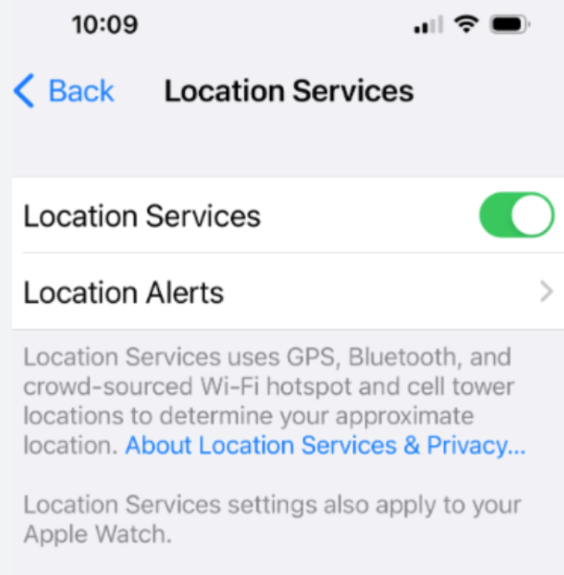
3. Scroll down the list of apps and select one that is showing an incorrect location (e.g., Apple Maps, Google Maps).
4. Review the permission setting. For most apps, “While Using the App” is the best choice.
5. Crucially, ensure the “Precise Location” toggle is turned on. When this is disabled, the app only receives an approximate region to protect your privacy, which can easily be misinterpreted as an inaccurate location.
2. Refresh Your Network Connection
Because Wi-Fi data is critical for location on all iPad models (even cellular ones use it for a faster lock), network glitches can cause location errors.
- Simple Refresh: Go to Settings > Wi-Fi, toggle it off, wait ten seconds, and toggle it back on. This simple step can force a fresh scan of local networks.
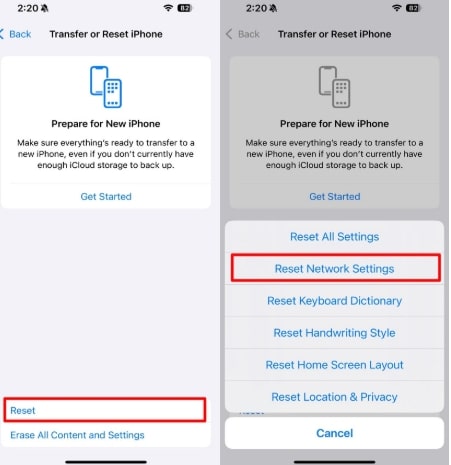
- Reset Network Settings: If the problem continues, resetting your network settings can clear out corrupted data that may be causing the issue. This will erase all saved Wi-Fi networks and passwords, so be prepared to re-enter them. Go to Settings > General > Transfer or Reset iPad > Reset > Reset Network Settings. This procedure can force the system to clear a faulty network cache and re-evaluate its position.
3. Rule Out VPN Interference
A Virtual Private Network (VPN) is designed to mask your IP address, often making it appear as if you are in a different city or country. While this doesn’t directly interfere with GPS, some apps and services may prioritize IP-based location data. If you have a VPN active, try disabling it temporarily to see if your location accuracy improves.
What to Do If Your Location Is Still Wrong
If you’ve followed the steps above and your Wi-Fi-only iPad still shows an inaccurate location, you’ve likely encountered a hardware limitation, not a software bug. This happens when Apple’s location database has outdated information for the Wi-Fi networks in your area. For example, if a neighbor moved and brought their router with them, Apple’s system might still associate that router with their old address.
Unfortunately, there is no direct “fix” for this beyond Apple’s database eventually updating itself. The most important step is to recognize this is how the device is designed to work. It provides an estimation, which can sometimes be wrong. Understanding this helps you set realistic expectations and stops the worry that something is broken or your device has been compromised.
Setting Expectations: iPad Location Accuracy Compared
The solution to an inaccurate location isn’t always a settings fix; it’s often about understanding the built-in capabilities of your specific device. Knowing which type of iPad you have helps you set realistic expectations.
This table breaks down the key differences:
| Feature | Wi-Fi Only iPad | Cellular + Wi-Fi iPad |
| Primary Location Source | Wi-Fi network database lookup | A-GPS, Cell Tower Triangulation, Wi-Fi |
| Typical Accuracy | Variable (5 to 500+ meters) | High (3 to 10 meters) |
| Common Issues | Location jumps, wrong city, slow updates | Location jumps, wrong city, slow updates | Occasional signal loss indoors |
| Best Use Case | At-home, office, dense urban areas | Navigation, fieldwork, travel |
| Troubleshooting Focus | Wi-Fi connectivity, app permissions | App settings, GPS signal strength |
Why One Wrong Location Affects All Your Apps
One of the most confusing behaviors is when Maps, Weather, and your food delivery app all report the exact same incorrect location. This doesn’t mean every app is broken. It happens because iPadOS manages location through a centralized service.
Apps don’t find your location on their own; they send a request to the core location services in iPadOS. To save battery and respond faster, this system often caches (temporarily stores) your last known position. If your iPad determines an incorrect location based on a neighbor’s misidentified router, that wrong data gets cached. Every app that asks for your location will then be served the same faulty data until the system gets a fresh, more accurate fix.
This is why it’s important to first understand your device’s hardware limitations. Performing a network reset is often the most effective way to force the system to clear this bad cache and re-evaluate its position.
Recommended Tool for Changing GPS Location on iPad
As explained in Fake GPS on iPad Guide, modern iPadOS versions make location simulation more difficult because Apple combines GPS, Wi-Fi, Bluetooth, and motion data for location verification.
To manage location changes more reliably, some users choose desktop-based tools like Fonelora Location Changer, which supports iPhone, iPad, and Android devices without requiring jailbreak access.
Why Users Choose Fonelora Location Changer
According to the official Fonelora website, the software includes several GPS simulation features:
- Teleport Mode
- GPS Joystick Control
- Multi-Spot Route Simulation
- Adjustable Movement Speed
- GPX Route Import
- Smart Cooldown Timer
- Wi-Fi and Bluetooth Connection Support
The platform also advertises compatibility with:
- iPad
- iPhone 17 series
- iOS 18 and iOS 26
- Android 15 and newer systems
Unlike many mobile-only spoofing apps, desktop-based tools can provide more stable system-level GPS simulation on iOS devices.
Key Highlights of Fonelora Location Changer
No Jailbreak Required
Fonelora promotes GPS simulation without requiring jailbreak or root access, which helps reduce device modification risks.
More Stable GPS Simulation
Many low-quality spoofing apps struggle with “rubber-banding,” where the device snaps back to its real location because of conflicting GPS and Wi-Fi data. Desktop-based GPS tools attempt to minimize this issue by applying system-wide coordinates more consistently.
Route-Based Movement
Instead of relying only on instant teleports, users can simulate:
- walking
- cycling
- driving routes
with adjustable speed settings for more realistic movement behavior.
GPX Route Support
Users can import or export GPX files for structured movement paths and saved travel routes.
How to Use Fonelora Location Changer on iPad
Step 1: Install the Software
Download and install Fonelora Location Changer on your Windows or Mac computer.

Step 2: Connect Your iPad
Connect your iPad using:
- USB
- Wi-Fi
- Bluetooth
depending on your preferred setup method.

Step 3: Select a Location Mode
Choose one of the available GPS simulation modes:
- Teleport Mode
- Joystick Mode
- Multi-Spot Route
- Jump Teleport

Step 4: Click “Move” to complete the location change.

Frequently Asked Questions
Here are direct answers to the most common questions about iPad location accuracy.
Why is my iPad location wrong even with Location Services on?
Enabling Location Services simply allows your iPad to try to find its location; it doesn’t guarantee accuracy. If you have a Wi-Fi-only model, its accuracy is completely dependent on the quality of local Wi-Fi network data in Apple’s database. If that data is outdated or sparse, your location will be wrong, even if all your settings are correct.
Do all iPads have real GPS?
No. This is the most important distinction. Only iPad models sold as “Wi-Fi + Cellular” contain an A-GPS (Assisted GPS) chip that communicates with GPS satellites for a precise location. Standard “Wi-Fi” models do not have this hardware.
Can one app affect location for others?
Indirectly, yes. All apps get their location data from a single, centralized service in iPadOS. If this service calculates an incorrect location (due to bad Wi-Fi data, for example) and caches it, it will serve that same wrong information to every app that asks. The problem lies with the system’s data source, not the individual apps.
Conclusion: Take Control of Your iPad’s Location
The frustrating experience of an iPad showing the wrong location is almost never a sign of a security breach. By understanding that the issue usually comes from hardware or settings, you can troubleshoot more effectively. In cases where you need more control over location behavior, tools like Fonelora Location Changer can help simulate a stable GPS environment. This allows you to better manage location accuracy and use your iPad with greater confidence.



Joy Taylor is a seasoned technical writer with over a decade of experience in mobile technology. At iMobie, she specializes in producing in-depth content on iOS data recovery, iPhone unlocking solutions, and iOS troubleshooting.
Product-related questions? Contact Our Support Team to Get Quick Solution >
