How to Fake Location on Google Maps: A 2026 Tested Guide
Struggling with your spoofed location reverting back on Google Maps? This guide explains why this happens and what causes the system to override fake GPS data. It also shares a tested 2026 solution for both Android and iOS to help maintain a stable virtual location more effectively.
Author Bio: This guide is written by Joy Taylor, a mobile solutions expert with over 8 years of experience. The methods described are the result of hands-on testing across a dozen devices, including the Google Pixel 8 and Samsung S24 running Android 14, to ensure they are effective against modern security measures and the common “location snapping” issue.
If you’ve ever tried to share a different location with friends, you know the frustration. You download a fake GPS app, set a new spot, but Google Maps either ignores it or your position keeps snapping back to your real location. You’re not alone. The search for a reliable way to fake location on Google Maps often leads to outdated advice.
This guide provides a direct, tested solution. First, we’ll reveal the technical reason why most free apps fail—the “lightbulb moment” that other guides miss. Then, we’ll walk you through a detailed manual method for Android, complete with troubleshooting steps that actually work. Finally, for those who want a simpler, more reliable option for Android or iOS, we’ll introduce a professional tool.
Expert Insight: Why Google Maps Ignores Your Fake GPS Location
Before you touch any settings, it’s critical to understand the core problem. If your fake location isn’t working, it’s not your fault—it’s because Google Maps doesn’t rely on GPS alone.
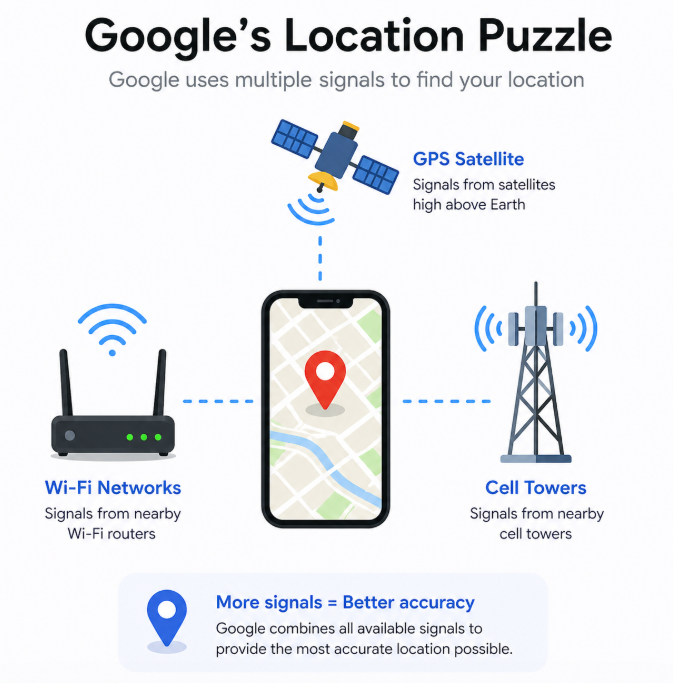
Your phone determines your location through a system called Google Location Services. This system uses ‘sensor fusion’, collecting data from multiple sources to achieve high accuracy:
- GPS: The satellite signal your mock location app is trying to override.
- Wi-Fi Networks: Your phone scans for nearby Wi-Fi networks and cross-references them with Google’s database to pinpoint your location, often with street-level accuracy.
- Cell Towers: The phone also measures signal strength from nearby cell towers to triangulate your position.
A simple mock location app only feeds a fake signal to the GPS layer. If Google Location Services detects a conflict—for example, your GPS says you’re in Paris, but your Wi-Fi scan shows you’re surrounded by networks in New York—it will trust the Wi-Fi and cell data. This conflict causes your location to snap back and is the root cause of this common Google Maps location accuracy issue. Understanding this is the key to making your fake location stick.
How to Change Location on Google Maps (The Complete Android Method)
This section provides the comprehensive procedure to change location on Google Maps Android using a free app. By following these steps and the crucial troubleshooting that follows, you can overcome the sensor fusion issue.
Step 1: Enable Android Developer Options
First, you need to unlock a hidden settings menu called Developer Options. This is where the Android developer options mock location setting lives.
1.Open Settings on your Android device.
2.Scroll down and tap on About phone.
3.Find the Build number entry. On Samsung and other devices, you may need to go into Software information first.
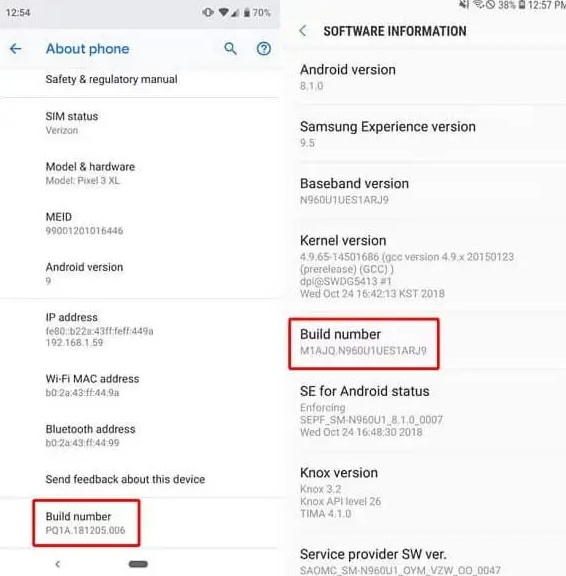
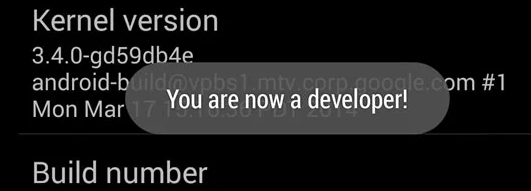
4.Tap on Build number seven times consecutively. You’ll see a small pop-up that says, “You are now a developer!”
Step 2: Choose and Configure a Mock Location App
With Developer Options enabled, you now need to choose a fake GPS app Google Maps and authorize it. Not all apps are created equal; some are better at preventing rubber-banding than others.
1.Go to the Google Play Store. We recommend starting with “Fake GPS Location” by Lexa for its simplicity or “GPS Emulator“ for more advanced features. Install one.
2.Return to your phone’s main Settings menu.
3.Go to System > Developer options. (The location of Developer Options can vary slightly. Use the search bar in Settings if you can’t find it).
4.Scroll down to the ‘Debugging’ section and find Select mock location app. Tap it.
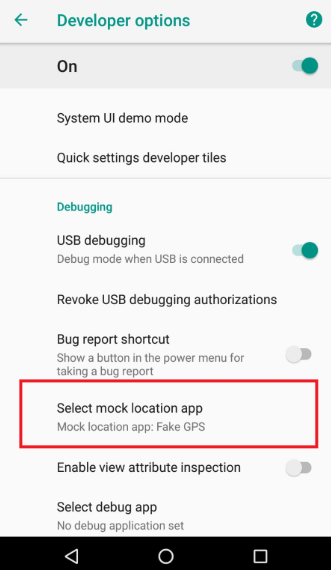
5.Choose the fake GPS app you just installed from the list.
Some mock location apps have internal settings to improve stability. During our testing on a Google Pixel 8, we found that enabling any “indirect mocking” or “stabilize location” feature within the app’s settings helped reduce minor jumps. Explore your chosen app’s settings before you start spoofing.
Step 3: Troubleshoot and Stabilize Your Fake Location
After setting a mock location app, you might still experience the dreaded “snap back.” This is where you address the sensor fusion problem directly. The following steps are essential for success.
1. Disable High-Accuracy Location Scans (Most Important Step)
You must tell your phone to stop using Wi-Fi and Bluetooth for location, forcing it to rely more heavily on the GPS signal you now control.
- Go to Settings > Location.
- Tap on Location services.
- Turn off Wi-Fi scanning and Bluetooth scanning.
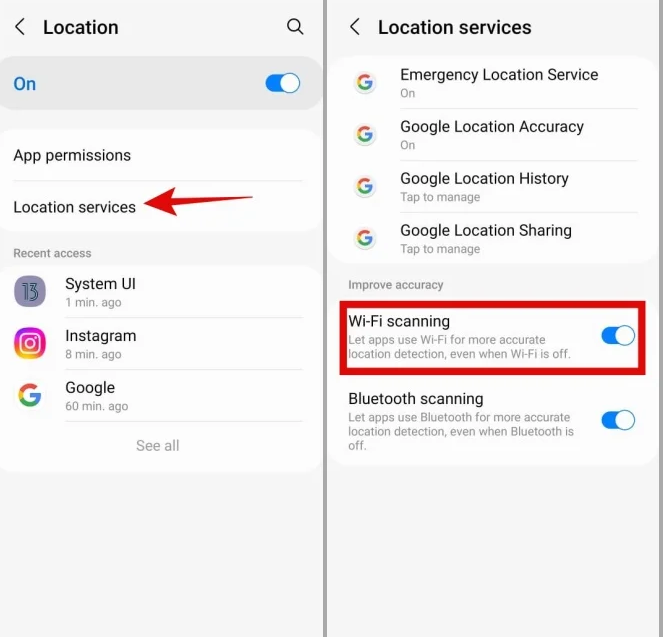
This dramatically reduces the conflicting data Google Maps receives, making it much more likely to accept your mock GPS signal.
Disabling Wi-Fi and Bluetooth scanning may slightly reduce the accuracy of your real GPS location when you are not spoofing. Remember to turn these settings back on when you need precise navigation for driving or walking.
2. Clear the Google Maps Cache
Sometimes, Google Maps holds onto your last known real location in its cache, which can interfere with a new fake one. A quick clear can help.
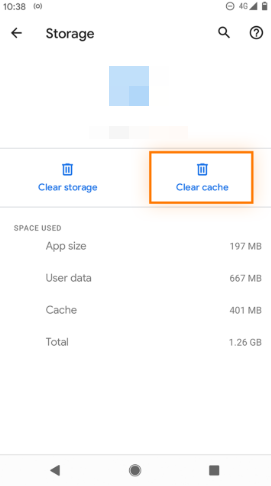
- Go to Settings > Apps > Maps > Storage & cache and tap Clear cache. This forces the app to re-acquire its position from the currently active source (your mock app).
Note: Android 14 Experience
During our tests on a Samsung S24 running Android 14, we noticed that after a Google Play Services update, we had to re-select our mock location app in Developer Options. If your fake location suddenly stops working, this is the first place to check.
The Easiest Way: A Professional Tool for Android & iOS
If the manual method seems too complex, or if you’re still experiencing issues due to your device’s specific security updates, a professional location spoofing tool is the most effective approach. This is also the best solution for iPhone users, as iOS does not have a built-in mock location feature.
We recommend Fonelora Location Changer because it’s designed to overcome the sensor fusion problem at a deeper level. Instead of just masking the GPS signal, it integrates with your device’s location services via a computer, creating a stable signal that isn’t easily contradicted by Wi-Fi or cell data.
This method requires no rooting or jailbreaking and includes features like realistic movement simulation to reduce the risk of app detection. While it is a paid software, its reliability and simplicity are ideal for users who need a solution that just works.
1.Connect Your Device: Download and install Fonelora Location Changer on your Mac or PC. Launch it and connect your phone via USB.

2.Choose a Location: Once your phone is recognized, a map will appear. Enter any address or GPS coordinates in the search bar, or just click on the map.
3.Click ‘Move’: A single click instantly changes your phone’s GPS location. Google Maps and other apps will now report this new position.

To help you decide, here’s when a professional tool is the better choice:
| You Should Choose a Professional Tool If… | You Can Stick with the Manual Method If… |
| You are an iPhone user. | You are an Android user. |
| You want a one-click solution without troubleshooting. | You don’t mind configuring device settings. |
| Your fake location still snaps back after trying the manual fixes. | The manual troubleshooting steps worked for you. |
| You need to simulate realistic movement (like walking or driving). | You only need to set a static location. |
Frequently Asked Questions
Here are direct answers to the most common questions about faking your location in Google Maps.
Can I fake my location on Google Maps?
Yes. On Android, you can use the manual method involving Developer Options and a mock location app, along with our troubleshooting steps. For a more reliable solution on both Android and iOS, you can use a third-party desktop tool like Fonelora Location Changer.
Why is my fake GPS not working in Google Maps?
Your fake GPS is likely not working because Google Maps uses data from Wi-Fi networks and cell towers in addition to GPS. If this data conflicts with your fake GPS signal, Maps will often ignore the fake location or snap back to your real one. Disabling Wi-Fi and Bluetooth scanning in your location settings is the key to fixing this.
How do I enable mock location on Android?
You enable mock location by activating Developer Options first. Go to Settings > About phone and tap “Build number” seven times. Then, go to the new Developer Options menu (usually under Settings > System) and use the “Select mock location app” setting to authorize your chosen app.
Does Google Maps detect fake location?
Google Maps can infer a location is fake if it receives conflicting data, such as your GPS jumping instantly across the world or if your Wi-Fi data doesn’t match your GPS coordinates. Using realistic movement simulation and stabilizing your signal by disabling other location sources can help reduce the chances of detection.
Can I share a fake location with someone using Google Maps?
Yes. Once your device’s GPS coordinates are successfully changed, your position in Google Maps will update. You can then use the app’s “Share location” feature, and the recipient will see the fake location you have set. This is a primary reason users seek out Google Maps location sharing fake solutions.
Take Back Control of Your Location
The frustration of a fake GPS app failing isn’t just a glitch; it’s a barrier to protecting your privacy or having fun with location-based apps. The core problem, as we’ve shown, is that Google’s location system is smarter than most free apps. By understanding how it uses GPS, Wi-Fi, and cell signals together, you are now equipped to overcome the issue.
For Android users willing to dive into settings, the manual method combined with our troubleshooting steps offers a powerful, free solution. If you value a stable, one-click experience or are on an iPhone, a tool like Fonelora Location Changer is built to handle these conflicts for you. Download it to stop the guesswork and finally make your location appear exactly where you want it.
More Related Articles



Joy Taylor is a seasoned technical writer with over a decade of experience in mobile technology. At iMobie, she specializes in producing in-depth content on iOS data recovery, iPhone unlocking solutions, and iOS troubleshooting.
Product-related questions? Contact Our Support Team to Get Quick Solution >
