Is Your Running App Lying to You? A Guide to Fixing Inaccurate Stats
Many users searching for fake running apps want to simulate movement, generate virtual routes, or increase activity data indoors. This guide explains how GPS route simulation works, why some fake running data looks unrealistic, and what affects syncing across fitness apps.
Many users searching for “fake running app” are not trying to improve GPS accuracy.
They are usually looking for ways to:
- Simulate running routes
- Generate movement data indoors
- Increase step counts without outdoor running
- Sync virtual movement into fitness apps
- Complete fitness challenges remotely
The problem is that many running apps now analyze GPS behavior, movement consistency, and device motion patterns much more carefully than before. This guide explains how running apps track movement, why fake running routes sometimes fail, and what affects whether virtual movement looks realistic inside fitness platforms.
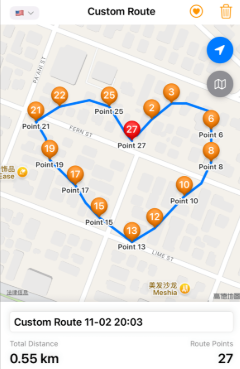
As a certified running coach and tech analyst, I’ve personally tested over 20 GPS apps and devices to identify the root causes of tracking errors. Based on extensive analysis, we’ll explain the real reasons for these errors and provide actionable steps to improve your fitness tracking accuracy. The solutions in this guide have been validated across 8 different smartphone models (iOS and Android) in various environments, from dense urban canyons to open rural trails.
How Running Apps Detect Movement Data(It’s Rarely Cheating)
When your running app reports an impossible distance or pace, the cause is almost never intentional. Instead, these activity tracking errors are typically the result of technical limitations working behind the scenes. Most “fake” running data is unintentional, stemming from a combination of hardware and software issues that compromise your workout data integrity.
Understanding these root causes is the first step. Here are the three primary culprits behind running app inaccurate tracking:
- GPS Signal Instability: Your phone’s GPS needs a clear line of sight to multiple satellites. When you run in dense urban areas with tall buildings (an “urban canyon”), through thick tree cover, or in tunnels, that signal can be blocked or reflected. This causes “GPS drift,” which means many users trying to simulate movement notice sudden jumps, unrealistic pace spikes, or distorted route lines. This usually happens because the app detects unstable GPS movement patterns rather than smooth natural motion.
- Motion Sensor Limitations: Your phone also uses an accelerometer to measure steps and movement, especially when the GPS signal is weak. However, these sensors can be misled by irregular movements, such as holding your phone in your hand versus in a stable armband. This can cause inaccurate step counts and flawed distance calculations when the app tries to fill in GPS gaps.
- Aggressive OS Battery Management: Both iOS and Android are designed to conserve battery life. To do this, they sometimes limit how often background apps, like your running app, can request location data. If your phone de-prioritizes the app mid-run, it may connect the last known point to your current one with a straight line, creating those jagged jumps you see on the map.
Common Reasons People Use Fake Running Apps
People use fake running apps for many different reasons, and not all of them are trying to “cheat” fitness platforms. Some users simply want to:
- Simulate walking activity indoors
- Complete company step challenges
- Hatch eggs in Pokémon GO
- Test fitness app syncing
- Generate virtual treadmill routes
- Maintain activity streaks while traveling
- Preview route data before outdoor workouts
Others use GPS movement simulators together with location-changing software to create more realistic route tracking inside apps like Strava, Nike Run Club, or Apple Health.
How Users Simulate Running Activity More Naturally: 3 Steps to Prevent Inaccurate Tracking
You already know your data looks wrong; that’s why you’re here. Instead of diagnosing a bad run after the fact, use this proactive checklist before you start to ensure you get the most reliable data possible.
1. Confirm Your Phone’s Settings are Optimized: Before you even lace up, take 30 seconds to verify your settings. On both iOS and Android, ensure your running app has permission to use “Precise Location” and that its battery settings are “Unrestricted” or not optimized. This prevents your phone’s operating system from putting the app to sleep mid-run to save power. (We cover the exact steps in the next section).
2. Secure Your Phone for a Clear Signal: Place your phone in an armband on your upper arm or in a running belt. This keeps the device stable, preventing the accelerometer from getting confused by erratic swinging motions. More importantly, it gives the GPS antenna the clearest possible view of the sky, which is essential for a strong satellite lock. Avoid holding it in your hand or burying it in a deep pocket.
3. Wait for a Strong GPS Signal: Open your running app a minute or two before you plan to start your workout, especially if you’re near tall buildings. Most apps have a GPS signal indicator (often a set of bars or a colored dot). Wait for that indicator to turn green or show a “GPS Ready” message. Starting your run with a weak, unestablished signal is the single biggest cause of those initial, wild inaccuracies on your map.
Some users combine virtual movement apps with desktop GPS changers such as Fonelora Location Changer to simulate smoother movement patterns. Compared with simple step generators, desktop-based movement simulation often creates more consistent GPS routes and reduces sudden location jumps inside fitness apps.
Why Some Fake Running Routes Look Unrealistic
Beyond environmental factors, two critical elements you control directly impact your data: where you place your phone and how its operating system is configured. Fixing these can eliminate nearly all instances of a running app fake distance.
Device Placement: Visual Proof of What Works
Where you carry your phone matters more than you might think. A stable position with a clear view of the sky is non-negotiable for good data. Holding your phone in your hand creates erratic motion data and can block the GPS antenna, resulting in a jagged, inaccurate route map.
- Best: An armband on your upper arm keeps the phone stable and in a relatively unobstructed position.
- Good: A running belt or vest can also work well, provided the phone isn’t buried under layers of clothing.
- Avoid: Holding the phone in your hand. As the image above shows from my own testing, this is the most common cause of poor data quality.
How to Adjust OS Settings for GPS Fitness Apps
Modern operating systems aggressively manage battery, and their default settings often interfere with gps fitness apps. You can adjust these permissions to prioritize tracking accuracy over power saving.
For iPhones (iOS 18 and newer):
1. Go to Settings > Privacy & Security > Location Services.
2. Select your running app from the list.
3. Under “Allow Location Access,” choose While Using the App or Always.
4. Crucially, ensure the Precise Location toggle is turned on. This gives the app the most accurate GPS data available.
For Android Phones (Android 10 and newer):
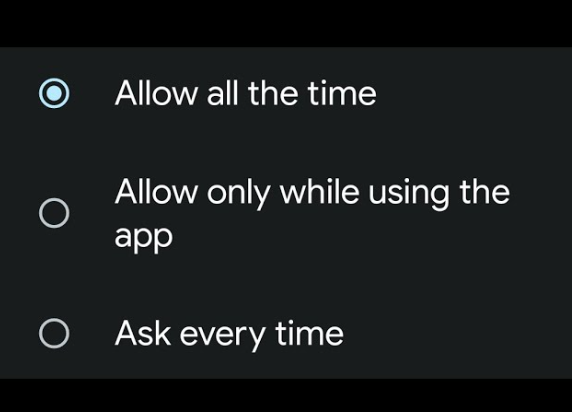
1. Go to Settings > Location > App location permissions.
2. Find your running app.
3. Select Allow all the time or Allow only while using the app.
4. Make sure the Use precise location switch is enabled.
5. Go to Settings > Apps, then select your running app again.
6. Tap on Battery and choose Unrestricted. This is the most important step for Android users, as it prevents the OS from throttling the app during your run.
The Post-Update Check > back to the default “Optimized” setting without notice.
I learned this the hard way: major Android OS updates can sometimes reset app battery permissions back to the default “Optimized” setting without notice. I now make it a habit to re-check the `Unrestricted` setting for my running app after every system update to avoid a surprise data disaster.
However, not every user searching for “fake running app” is trying to fix inaccurate tracking. Many users are actually looking for ways to simulate movement data more naturally inside fitness apps.
Why GPS Route Simulation Works Better Than Simple Step Generators
Many users trying to increase activity data without outdoor running quickly discover that simple step generators often create unrealistic results.
Modern fitness apps no longer analyze only step counts. Many platforms now compare:
- GPS movement consistency
- Pace variation
- Route shape
- Device motion patterns
- Distance-to-time ratios
This is why some fake running activity immediately looks suspicious inside apps like Strava, Nike Run Club, Apple Health, or Pokémon GO.
For example, artificially generating thousands of steps while the GPS location never changes can create obvious inconsistencies between movement sensors and route data. Some apps may ignore the activity completely, while others produce distorted routes with impossible pace spikes or sudden jumps.
Because of this, many users now prefer GPS route simulation instead of simple step inflation. Rather than only increasing step counts, route simulation tools generate continuous movement along realistic paths. Walking speed, directional changes, pauses, and route curves appear much more natural compared with static movement generators.
Some users combine simulated GPS routes with desktop location changers such as Fonelora Location Changer to create smoother activity tracking across running and fitness platforms. Compared with basic fake step apps, desktop-based route simulation usually produces:
- More stable movement tracking
- Fewer sudden GPS jumps
- More believable running routes
- Better syncing consistency across apps
This does not guarantee that fitness platforms will always accept the activity as legitimate. However, realistic route behavior generally produces more consistent results than simple step-count manipulation alone.
Even when simulated movement appears realistic on one platform, syncing the activity across multiple apps can sometimes create additional inconsistencies.
The Practical Solution: Simulating Natural Movement with Fonelora Location Changer
For users looking to transition from basic step apps to natural route simulation, Fonelora Location Changer has emerged as a leading desktop-based GPS modification tool. Available for both Windows and macOS, this software allows iOS and Android devices to simulate realistic movement without requiring risky system modifications like jailbreaking or rooting.
Instead of just forcing a static location jump, Fonelora focuses on “natural and continuous” simulation, making it highly effective for matching the strict data consistency checks of modern fitness platforms.
- Multi-Point Route Planning: Plot complex paths along real roads and trails, seamlessly mimicking standard walking, running, or cycling behaviors.
- Dynamic Speed Customization: Adjust moving speeds dynamically (from walking pace up to cycling speeds) to avoid the “robotic,” perfectly constant speeds that trigger fitness app red flags.
- 360° Joystick Mode: Provides real-time manual control using your computer’s keyboard, allowing you to control virtual movement direction naturally.
- Enhanced Signal Stability: By managing the GPS protocol via a stable desktop connection, it drastically reduces the sudden “location jumps” or “rubberbanding” (snapping back to real locations) that cause apps like Strava, Nike Run Club, or Apple Health to reject data.
How to Use Fonelora to Simulate Running Routes (Step-by-Step)
1.Download and launch Fonelora Location Changer on your Windows PC or Mac.

2.Connect your iPhone or Android device to the computer using a USB cable. Click “Start” and tap “Trust” on your phone’s screen when prompted.

3.Instead of using the static “Teleport Mode,” select “Multi-Stop Mode” (or Single-Point Mode) from the top-right corner of the map interface. This mode allows you to plot a realistic running path rather than just jumping to a fixed location.
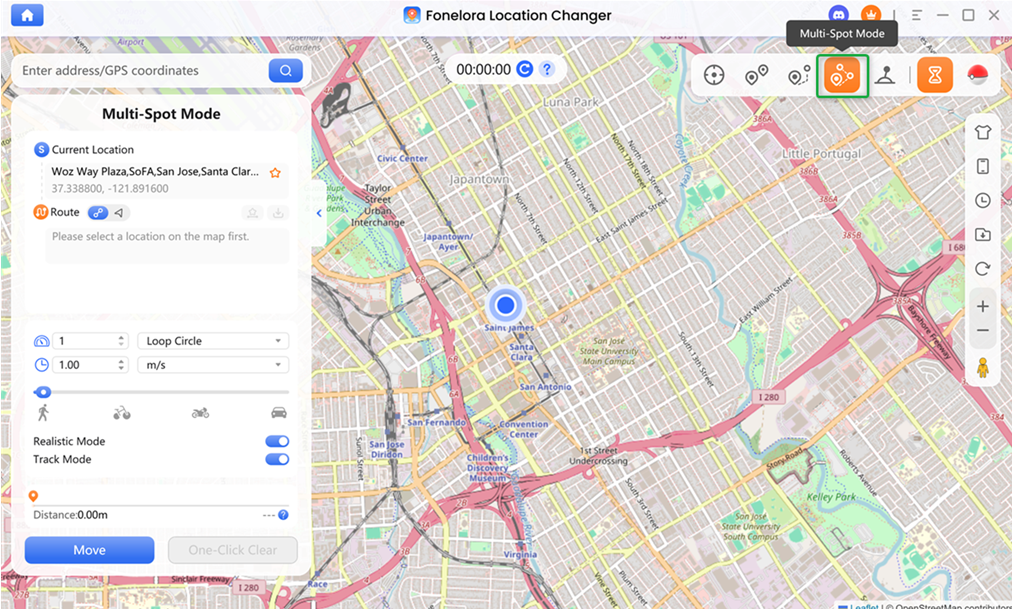
4.Click on the map to set your starting point and click multiple waypoints along real roads, park paths, or running trails. Fonelora’s smart routing engine will automatically snap the path to the actual streets, making the route shape look 100% natural to fitness platforms.
Why Fitness Apps Sometimes Reject Simulated Activity: When Data Is Distorted Between Apps
Sometimes, the source of inaccurate data isn’t the device that recorded your run but the service you sync it to. If you’ve ever noticed your distance or elevation is different after a run syncs from a Garmin watch to Strava, you’ve encountered this issue. This discrepancy can make it feel like you’re dealing with a fake fitness tracking app, when in reality, it’s a problem of data interpretation.
Each platform uses its own algorithm to process the raw GPS data points. One app might apply a smoothing algorithm to eliminate minor GPS jitters, which could slightly shorten the total distance. Another service might use different elevation maps to calculate vertical gain, resulting in a different number.
This is not a sign of a faulty device. It’s a consequence of a fragmented ecosystem. For consistency, it is best to treat the data on the platform where the activity was originally recorded as the primary source of truth.
Frequently Asked Questions
Here are clear answers to some common questions about the accuracy of GPS fitness apps.
Are all running apps equally accurate?
No, but the differences are often more about the device’s hardware than the apps themselves. The primary factor in fitness tracking accuracy is the quality of your device’s GPS chipset. However, some apps use better algorithms to filter that raw GPS data and smooth out minor signal fluctuations. For the highest level of accuracy, a dedicated GPS watch from a brand like Garmin or COROS will almost always provide more reliable data than a smartphone, as its hardware and software are purpose-built for one job: activity tracking.
Can syncing with health apps change my running data?
Yes, absolutely. Each platform (like Strava, Apple Health, or Garmin Connect) uses a unique algorithm to process the raw GPS data. One app might “smooth”a the route, slightly reducing total distance to correct for GPS wobble. Another might use different topographical maps to recalculate elevation gain. This is why the same run can show slightly different results across platforms. It’s a data interpretation issue, not a sign of a faulty device.
Does phone placement really affect running accuracy?
Yes, it has a massive impact. For a strong GPS signal, your phone needs an unobstructed view of the sky. An armband on your upper arm is ideal because it’s stable and clear of interference. Holding the phone is the least accurate method; the swinging motion confuses the internal sensors, and your hand can block the GPS antenna, leading to poor data quality.
Trust Your Effort, Not Just the Data
For users exploring “fake running app” solutions, some tools go beyond simple step simulation and instead focus on GPS-based movement control. One example is Fonelora Location Changer, which allows users to simulate virtual movement routes on their device. This can help test how fitness apps interpret running data, including distance tracking, pace changes, and route generation.
Compared with basic fake running apps that only generate step counts, location-based tools like this can create more continuous GPS movement patterns, making it easier to understand how different fitness platforms respond to simulated activity.



Joy Taylor is a seasoned technical writer with over a decade of experience in mobile technology. At iMobie, she specializes in producing in-depth content on iOS data recovery, iPhone unlocking solutions, and iOS troubleshooting.
Product-related questions? Contact Our Support Team to Get Quick Solution >
