How to Fix Family Link Location Not Updating
Google Family Link location stuck or not updating? This guide explains the most common causes and shows how to fix location, battery, and permission settings.
Quick Answer: If Family Link is not updating location, the most common causes are weak network connection, Location Services being turned off, Battery Saver restricting background activity, Family Link not being set to Unrestricted, or location permission not being set to Allow all the time on the child’s device. In most cases, you need to fix settings on your child’s phone, not the parent phone.
If you are searching for family link not updating location, Google Family Link location not updating, or Family Link not showing location, start with three key checks: make sure the child’s phone is online, Location is turned on, and battery optimization is disabled for Family Link. After changing these settings, the first location refresh may take several minutes and can sometimes take up to 30 minutes.
When you open Google Family Link to check on your child, seeing a location that’s hours old can be deeply unsettling. That sense of security you expect from the app suddenly vanishes, replaced by worry and questions about whether the app is broken or if you’ve set it up wrong.
If the Family Link location not updating issue is causing you stress, you are not alone. This 2026 step-by-step guide provides clear, tested solutions to get this critical feature working again. We will walk through everything from basic checks to the specific Android settings that cause these service interruptions, so you can re-establish a reliable connection and restore your peace of mind.

Start Here: 5-Point Quick Fix Checklist
Before digging into complex settings, work through the most common reasons location updates fail. Perform these checks on your child’s device first. In most cases, when Family Link is not updating location, the child’s phone is the device that needs fixing.
1. Verify Network Connectivity
The device must be online to send its location. Check if your child’s phone is connected to Wi-Fi or has an active mobile data connection. A weak or nonexistent signal is one of the top reasons for a stale Family Link location.
On the child’s phone, swipe down from the top to open the Quick Settings panel and confirm the Wi-Fi or Mobile Data icon is active and shows a connection.
2. Ensure Location Services Are On
This may seem obvious, but location services can be accidentally disabled or turned off by other apps. On your child’s device, swipe down from the top of the screen to open the Quick Settings panel and make sure the Location or GPS icon is turned on and highlighted.
3. Restart the Child’s Device
A simple reboot can resolve background process glitches that might interfere with the Google Family Link app. Power the child’s phone off completely, wait about 30 seconds, and then turn it back on. This forces apps and services to restart cleanly.
4. Refresh the Parent’s Family Link App
Sometimes the problem is only a data sync issue on your phone. On your parent device, fully close the Google Family Link app by swiping it away from your recent apps list. Then reopen it to force a new data request from your child’s phone.
5. Check for App Updates
An outdated version of the Family Link app on either your device or your child’s device can cause compatibility problems. Open the Google Play Store on both phones, search for Family Link, and install any available updates.
The #1 Reason Family Link Is Not Showing Location: Battery Settings
If the checklist did not solve the problem, the next place to look is the battery settings on your child’s device. After testing, this is one of the most common reasons why Family Link is not showing location or why location updates appear hours late.
Modern Android systems are designed to be highly efficient, and they aggressively manage power to extend battery life. When Battery Saver mode is enabled, or if an app has not been used recently, the system may put it into deep sleep. This prevents the app from running in the background, which is exactly what Family Link needs to do to report the child device location.
For example, one parent we worked with, Sarah, noticed her son’s location was stuck at his school for an hour after he had already left. The problem was that his phone had automatically entered battery saver mode once the charge dropped below 20%. For a permanent solution, you must adjust the battery settings specifically for the Family Link app on your child’s phone.
How to Exclude Family Link from Battery Optimization
This procedure tells Android not to put the app to sleep to save power, helping Family Link report location more consistently.
- On your child’s device, open Settings > Apps.
Note for Samsung users: The exact location for these settings can vary. You may find them under Settings > Device Care > Battery > App power management.
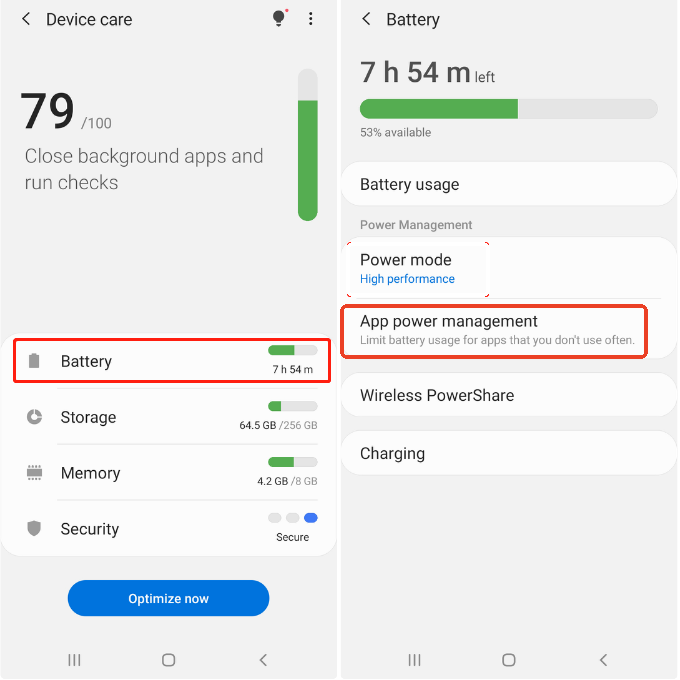
- Find and tap the Family Link app in the list. On your child’s phone, this may be named Family Link for children & teens.
- Select the Battery option.
- Change the setting from Optimized or Restricted to Unrestricted.
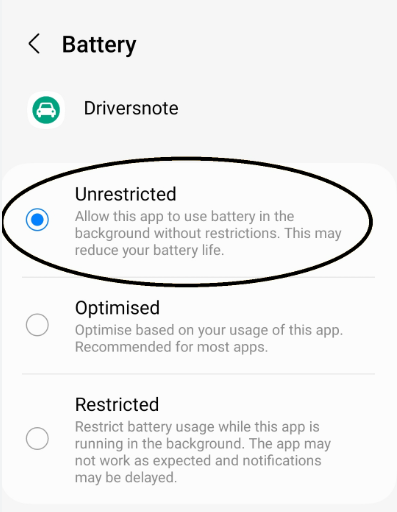
This single change is critical for consistent parental control location tracking.
Why Family Link Is Not a Real-Time Location Tracker
It is important to understand how Family Link’s location feature is designed to work. A common point of frustration for parents is the assumption that it provides true real-time location sharing. It does not.
Family Link is not a commercial GPS tracker that gives a constant live feed of every movement. Instead, the Google Family Link app uses a last known location model. The app on your child’s device checks in periodically to report its position rather than continuously pinging GPS.
This design helps preserve the child’s device battery life. Constant GPS tracking would drain the battery very quickly, defeating the purpose of being able to locate the phone when needed. The system is designed for supervision, not constant surveillance.
This means small delays between location updates are normal. If your child’s device is stationary, the location may not update for a while to conserve power. Updates become more frequent when the device is in motion, connected to a strong network, and actively being used.
Understanding this balance between supervision and device performance can help reduce concern when the location is not updating every single minute.
Advanced Fixes for Family Link Location Not Found or Wrong Location
If you have worked through the initial checks and battery settings but still see Family Link location not found, Family Link location wrong, or delayed location updates, inspect the app’s permissions and data settings on the child’s device.
1. Set Location Permissions to “Allow All the Time”
For Family Link to report location when not in use, it needs permission to access GPS in the background. This is another common cause of update failures.
- On the child’s device, navigate to Settings > Apps.
- Find and select the Family Link for children & teens app.
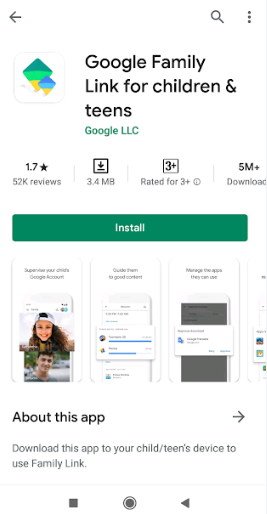
- Tap Permissions.
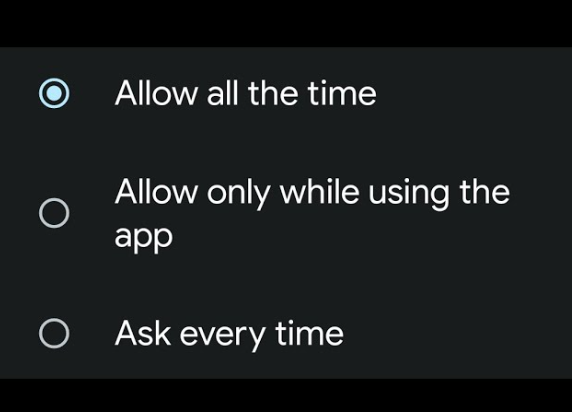
- Select Location.
- Make sure the permission is set to Allow all the time. If it is set to Allow only while using the app, the location may not update when the app is closed. This is a primary cause of Family Link live location not working as expected.
2. Clear the App Cache
Corrupted temporary files can sometimes interfere with an app’s normal functions. Clearing the cache is a safe step that can resolve glitches without deleting important data.
- Follow the steps above to get to the Family Link for children & teens app info screen.
- Tap Storage & cache.
- Tap Clear cache.
3. Verify Background Data Usage Is Enabled
Make sure no system-level setting is preventing Family Link from using data in the background.
- Navigate to the Family Link for children & teens app info screen again.
- Tap Mobile data & Wi-Fi.
- Confirm that Background data is enabled. This allows the app to send location updates using mobile data even when it is not open on the screen.
4. Check Parent App Restrictions
It is also possible that a setting in your parent app is blocking location visibility. While less common, it is worth checking.
- On your parent device, open the Family Link app.
- Select your child’s profile.
- Go to Controls > Location.
- Make sure the master toggle for See your child’s location is turned on.
- Tap into Location settings and confirm that Location Sharing is enabled for the correct device. If your child has multiple devices, make sure you are checking the right one.
Recommended Tool to Fix Family Link Location Not Updating
If Google Family Link location is not updating correctly, the issue may be related to GPS permissions, unstable connections, or inaccurate device location data. Besides checking Google settings, another practical solution is using a desktop-based GPS management tool like Fonelora Location Changer.
This tool allows users to adjust and stabilize device location data on iPhone and Android devices without rooting or jailbreaking. It can help when location syncing becomes inconsistent or when you need to test location-related features safely on a device.
Unlike many mobile-only apps, Fonelora works directly through a computer connection, offering more stable control over GPS behavior and compatibility with official apps.
How to Use Fonelora Location Changer
Follow these simple steps to modify and refresh device location data:
Step 1. Download and install Fonelora Location Changer on your Windows or Mac computer.

Step 2. From the main interface, select the Mode.
- Teleport Mode — instant location change
- Joystick Mode — real-time movement simulation
- Multi-Spot Route — custom walking path

Step 3: Set Your Virtual Location
Click Move to update the device GPS location.

Frequently Asked Questions
Here are direct answers to the most common questions about Google Family Link location tracking, delayed updates, and missing locations.
Q1. Why is Family Link not updating location?
Family Link not updating location usually happens because the child’s device is offline, Location Services are off, Battery Saver is restricting background activity, Family Link is not set to Unrestricted, or location permission is not set to Allow all the time.
Q2. Why is Family Link not showing location?
Family Link may not show location if the child’s phone has no internet connection, location sharing is disabled, the Family Link app is restricted by battery optimization, or the parent app is checking the wrong child device.
Q3. Does the child need to actively use the phone for updates?
While not strictly required, active use often leads to more frequent location updates. When the device is awake, its systems are more likely to process background tasks like sending location data. If the phone has been idle for a long time, Android may delay non-essential updates to conserve battery.
Q4. Is Family Link real-time tracking?
No. Family Link is not a real-time tracking service. It operates on a last known location basis, checking in periodically. This is designed to balance supervision with practical needs like child device battery life and privacy.
Q5. Can Wi-Fi-only devices cause location delays?
Yes. A device that relies solely on Wi-Fi, such as a tablet, can only update its location when connected to a Wi-Fi network. Once the device leaves the range of that network, it goes offline and cannot send its position until it connects to another one, resulting in large gaps in the location history.
Q6. How long does Family Link take to update location after fixing settings?
After fixing battery settings, permissions, and background data, the first update may take a few minutes. In some cases, it may take up to 30 minutes for the parent app to show the refreshed location.
Q7. Should I fix the parent phone or the child phone?
In most cases, fix the child phone first. The child device sends the location data, while the parent device mainly displays the latest information it receives.
Restoring Your Peace of Mind
Navigating the technical settings of your child’s phone should not add to your parental worries. By following these tested procedures, especially setting battery usage to Unrestricted and location permission to Allow all the time, you directly address the root causes of an unresponsive Family Link app.
If the issue persists, tools like Fonelora Location Changer can provide an additional way to stabilize and refresh device location data when GPS signals are inconsistent.
These steps are designed to move you from uncertainty to confidence and control. With the right approach, you can resolve the issue quickly and restore the reliable connection that helps ensure your child’s safety.



Joy Taylor is a seasoned technical writer with over a decade of experience in mobile technology. At iMobie, she specializes in producing in-depth content on iOS data recovery, iPhone unlocking solutions, and iOS troubleshooting.
Product-related questions? Contact Our Support Team to Get Quick Solution >
