How to Make Your Android’s Fake Location Stick (2026 Guide)
This guide explains why Android location changes often reset and why a truly permanent change isn’t possible without rooting. It shows the most reliable non-root method to keep a fake location stable, based on tests on Android 14 devices.
If you’ve searched for how to change your Android phone’s location, you’ve probably felt the frustration. You follow the steps, set your new coordinates, and for a moment, it works. Then you restart your phone or switch to a different app, and your location snaps right back to reality. It’s a common problem, and most guides promising a “permanent” change don’t deliver a real solution.
This guide is different. We’ll be honest from the start: a truly permanent location change without rooting your device is not how Android is designed to work. However, you can make your chosen location significantly more stable and persistent. We’ll show you the most reliable non-root technique that offers a stable, long-lasting location change. All instructions are based on hands-on testing with a Google Pixel 8 (Android 14) and a Samsung Galaxy S23 (Android 14). You’ll learn how to set a fake android location that sticks around for development, privacy, or accessing geo-specific features.
The Most Stable Method: A Persistent Android GPS Location Change (No Root Required)
The most effective way to achieve a stable android gps location change is by using a mock location app combined with a hidden settings menu called Developer options. This process tells your phone to trust a new source for its GPS data, making the change much more difficult to override.
First, you need a reputable fake gps android app. While many free options exist, their stability can vary. Based on our testing, we have two recommendations:
- For General Use (Free): “[Fake GPS Location](https://play.google.com/store/apps/details?id=com.lexa.fakegps)” by Lexa is a reliable starting point. It’s straightforward and effective for short-term tasks.
- For Maximum Stability (Paid): “[GPS Joystick](https://play.google.com/store/apps/details?id=com.theappninjas.gpsjoystick)” offers advanced features like a persistent notification and stabilization settings that actively work to prevent the OS from resetting your location. During our tests, this app maintained its position for over eight hours, even after opening and closing Google Maps multiple times.
Once you have one installed, follow these two essential steps.
Step 1: Enable Developer Options
Developer options are hidden by default to prevent accidental changes. Unlocking them is safe and necessary for this procedure. The path is slightly different depending on your phone’s manufacturer.
1. Open your phone’s Settings app.
2. Scroll to the bottom and tap About phone.
3. On Samsung devices, you must tap Software information on the next screen.
4. Find the Build number entry.
5. Tap the Build number seven times in quick succession. After a few taps, you’ll see a countdown. You’ll then be prompted for your device’s PIN or password.
6. Once entered, a message will appear: “You are now a developer!”

Step 2: Set the Mock Location App
Now you can instruct Android to use your new app as its primary source for location data.
1. Return to the main Settings menu.
2. On a Google Pixel, tap System, then find and tap Developer options. On a Samsung device, Developer options will now appear at the very bottom of the main Settings menu.
3. Scroll down to the “Debugging” section until you find Select mock location app.
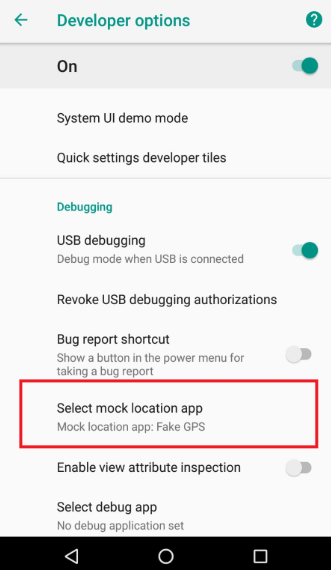
4. Tap it and choose the GPS spoofing app you installed.
With these settings configured, open your chosen app, set your desired location, and start the service. Your phone will now report this new location to nearly every app that requests it.
Pro Tip from Our Testing: On our Pixel 8, we noticed that Google Maps sometimes showed our real location for about 30 seconds after setting a mock location. The fix was simple: after starting the mock location, force-stop the Maps app (`Settings > Apps > Google Maps > Force stop`) and clear its cache. When we reopened it, the fake location appeared instantly and reliably.
GPS Spoofing vs. VPN: Which Tool Do You Really Need?
Many people confuse GPS spoofing with using a Virtual Private Network (VPN), but they solve different problems. Using the wrong tool is a common source of frustration.
A GPS spoofing app directly changes the GPS coordinates your device hardware reports. This is what you need for any application that uses your precise physical location, like ride-sharing apps, location-based games, or development testing.
A VPN changes your device’s IP address by routing your internet traffic through a server in another country. This works for accessing geo-blocked websites or streaming content, but it does not affect your device’s GPS sensor.
For a true android location spoofing solution that affects apps on your phone, a mock location app is the correct and only tool for the job.
| Criteria | GPS Spoofing (Mock Location App) | VPN (Virtual Private Network) |
| Primary Function | Changes the device’s physical GPS coordinates. | Changes the device’s IP address and encrypts traffic. |
| Best For | Development testing, location-based apps & games. | Accessing geo-restricted websites, streaming, privacy. |
| Impact on Apps | Affects all apps that use GPS data. | Affects apps and websites that check IP address location. |
| Technical Skill | Low (requires a one-time setup in Developer options). | Low (requires installing and connecting an app). |
Why a Truly ‘Permanent’ Android Fake Location Is Elusive
Even with the best app, you might see your location reset occasionally. This happens because of Android’s Fused Location Provider, a system that combines data from GPS, Wi-Fi, and cellular networks to determine the most accurate position. A mock location app adds a false data layer, but an aggressive request for a high-accuracy fix from an app like Google Maps can sometimes cause the system to peek at real-world data.
Some apps are also better at detecting mock locations than others. A simple weather widget is likely to accept the fake data without question, while apps like Snapchat or Pokémon GO have sophisticated checks to prevent spoofing.
To make your spoofed location more persistent, you can limit the real-world signals your phone uses:
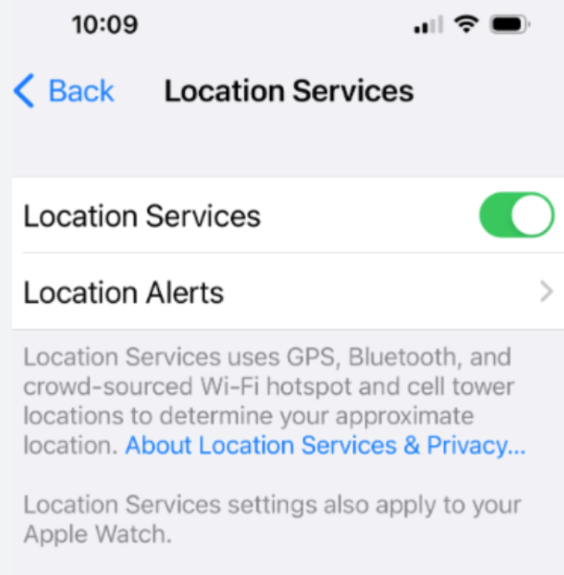
- Disable High-Accuracy Scanning: Go to `Settings > Location > Location services` and turn off both Wi-Fi scanning and Bluetooth scanning. This prevents apps from using nearby networks to guess your real location.
- Use a Reliable App: As mentioned, premium apps often have built-in features to fight location resets and maintain a more stable connection.
Advanced Technique: How to Spoof Location on a Rooted Device
For users who require an almost undetectable and truly persistent solution, the answer lies in rooting the device.
Warning: Rooting gives you complete control over your phone’s operating system, but it is a complex and risky process. It will void your warranty, can expose your device to serious security threats, and will prevent many banking and payment apps from running. This method is only for advanced users who fully understand the risks involved.
Rooting allows you to install a spoofing app as a system application. This integrates it so deeply that the operating system treats the fake GPS data as authentic, making it nearly impossible for other apps to override. The general steps are:
1. Root Your Device: This process varies greatly by phone model. We recommend researching your specific device on a trusted forum like [XDA Developers](https://www.xda-developers.com/) to find a reliable guide.
2. Use a Root-Enabled Spoofer: Choose a mock location app designed for system-level installation, such as the previously mentioned GPS Joystick.
3. Move the App: Use a root file manager (like MiXplorer) to move the app’s APK file from its default location to the `/system/priv-app/` directory.
4. Set Permissions: After moving the file, you must set its permissions correctly. In your file manager, long-press the APK, find the permissions settings, and set them to `rw-r–r–` (Owner: Read/Write, Group: Read, Other: Read).
5. Reboot: Restart your device. The app is now a system app.
This method removes the need for the developer options mock location setting, as the system now defaults to your spoofing app’s input.
Best Practices for Android Location Spoofing Without Getting Flagged
Many apps, particularly games, have systems to detect mock locations. To avoid triggering flags or violating terms of service, follow these guidelines.
- DO: Close location-dependent apps before you change your location. Re-open them only after your new position is active.
- DON’T: Make unrealistic jumps. Moving from New York to Tokyo in five seconds is a clear red flag. If spoofing for a game, use the app’s “joystick” feature to simulate walking or driving from one point to another at a believable speed.
- DO: Disable high-accuracy scanning in your android location settings, as described above. This removes a common way apps verify your location.
- DON’T: Use location spoofing with banking or financial apps. This can trigger fraud alerts and lead to your account being locked.
- DO: Read the terms of service for any app you use this with. Understand their policy on location modification to avoid an accidental ban.
Recommended Tool: Fonelora Location Changer
If you want to change your Android phone location permanently with fewer GPS reset issues, using a professional desktop-based GPS changer is usually more reliable than basic mock location apps.
One increasingly popular option is Fonelora Location Changer, a GPS spoofing tool designed for both Android and iPhone devices. It supports the latest Android 16 and does not require root access.
Unlike many free fake GPS apps that only override Android’s mock location layer, Fonelora provides more advanced GPS simulation with route planning, joystick movement, cooldown management, and realistic speed adjustment.
Why Recommend Fonelora Location Changer?
Here are some standout features that make it useful for Android GPS spoofing:
- Supports Android 5.0+ and Android 16 devices
- No root required
- Works with apps like Pokémon GO, Tinder, WhatsApp, Snapchat, and Life360
- Teleport Mode for instant location switching
- Multi-Spot Mode for realistic route simulation
- 360° GPS joystick movement
- Adjustable speed settings for walking, cycling, or driving simulation
- Smart cooldown timer to reduce detection risks
- GPX route import/export support
- Multi-device management from one computer
One particularly useful feature is its “Realistic Mode,” which automatically changes movement speed slightly to mimic real human behavior instead of robotic GPS movement.
How to Change Android Location with Fonelora Location Changer
Step 1: Download and Install the Program
Go to the official website and download: Fonelora Location Changer Download Page Install the software on your Windows PC or Mac.

Step 2: Connect Your Android Device
Launch the program and connect your Android phone using:
- USB cable
- Wi-Fi
- Bluetooth
Fonelora supports wireless device connections for more convenient GPS simulation.

Step 3: Select a GPS Simulation Mode
Fonelora offers multiple location-changing modes depending on your needs:
- Teleport Mode — instantly move anywhere
- Jump Teleport Mode — simulate staged jumps
- Single-Spot Mode — move between two locations
- Multi-Spot Mode — create realistic travel routes
- Joystick Mode — manually control movement in real time
For better stability in location-based apps, route simulation often appears more natural than instant teleporting.

Step 4: Change Your GPS Location

Frequently Asked Questions
Why does my mock location keep resetting?
Your phone’s Fused Location Provider combines GPS, Wi-Fi, and cell tower data for accuracy. An aggressive app can request a “high-accuracy” update that temporarily bypasses the mock data. Disabling Wi-Fi/Bluetooth scanning and using a quality app can significantly reduce how often this happens.
Can I spoof my Android location forever without root?
Not in an absolute sense. Android is designed to periodically verify its real location. While a good mock location app can maintain a fake position for very long sessions, system reboots or certain app behaviors can still cause it to reset. The methods here provide the most persistence possible without rooting.
What apps can change Android GPS most reliably?
No app can offer a truly permanent change. However, apps like GPS Joystick are built with features designed to maintain the mock location against the operating system’s attempts to reset it. Look for apps that mention “stabilization,” “persistent mode,” or have joystick functionality.
How do I enable mock locations on Android?
First, enable Developer options by going to `Settings > About phone` and tapping the “Build number” seven times. Then, a “Developer options” menu will appear in your `Settings` or `System` menu. Inside, find and tap “Select mock location app” to choose your installed GPS app.
Does a VPN change my Android’s GPS location?
No. A VPN only changes your IP address, which affects how websites and streaming services see your location. It does not change the physical GPS coordinates reported by your device’s hardware, which is what most mobile apps use.
Take Control of Your Android’s Location
The constant battle to keep a fake location from resetting is a valid frustration, but the solution is within reach. By focusing on stability rather than an unrealistic “permanent” change, enabling Developer Options, and using a reliable tool like Fonelora Location Changer, you can maintain a consistent and controllable GPS location. This approach puts control back in your hands—whether you’re testing apps or managing your digital footprint—giving you a more dependable way to handle location settings on your Android device.



Joy Taylor is a seasoned technical writer with over a decade of experience in mobile technology. At iMobie, she specializes in producing in-depth content on iOS data recovery, iPhone unlocking solutions, and iOS troubleshooting.
Product-related questions? Contact Our Support Team to Get Quick Solution >
