How to Stop Someone From Spying on Your Phone (2026 Guide)
This guide explains how to tell if someone is spying on your phone and how to stop it safely. It covers proven steps to find and remove threats and secure your device, with methods tested on the latest iPhone and Android systems.
You notice your phone battery draining unusually fast. Your location somehow keeps getting mentioned by someone you never shared it with. Random apps appear active in the background, and suddenly you start wondering: “Is someone spying on my phone?”
This fear is more common than most people realize. Modern smartphones constantly collect location, microphone, camera, and browsing data. In some cases, suspicious apps, hidden permissions, or shared tracking settings can expose far more information than users expect.
The good news is that most phone spying situations are preventable once you know what to look for. This guide focuses on practical ways to identify suspicious activity, stop location tracking, protect your privacy, and reduce the chances of someone monitoring your iPhone or Android device.
Common Signs Someone May Be Monitoring Your Phone
Most users do not discover phone monitoring immediately. Usually, the first warning signs appear as small device abnormalities that slowly become harder to ignore.
One of the most common signs is unusual battery drain. Spyware and tracking apps often run continuously in the background, consuming battery even when the phone is not actively being used.
Another common symptom is device overheating. If your phone becomes warm while idle, background tracking services or hidden monitoring apps may be constantly transmitting data.
Users should also pay attention to unusual microphone or camera activity. On iPhone and Android devices, small indicator dots now appear when the microphone or camera is active. If these indicators appear unexpectedly, certain apps may still be accessing hardware permissions in the background.
Other warning signs may include:
- Random location sharing
- Suspicious Bluetooth activity
- Unknown apps with accessibility permissions
- Increased mobile data usage
- Browser redirects or pop-ups
- Delayed shutdown or restart behavior
While these symptoms do not always confirm spyware, multiple signs happening together should not be ignored.
How to Check If Your iPhone Is Being Tracked
Apple devices are generally more secure than older Android systems, but location tracking and monitoring can still happen through shared permissions, Find My settings, or hidden configuration profiles.
Start by reviewing location permissions carefully.
Go to:
Settings → Privacy & Security → Location Services
Check which apps have:
- Always Allow
- Precise Location
- Background access
Many users are surprised to discover old apps still tracking location long after they stopped using them.
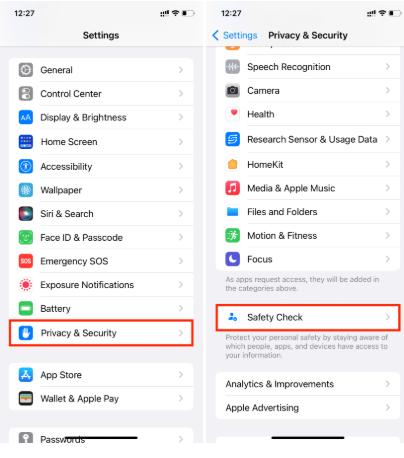
Next, review Find My sharing settings. Some users accidentally continue sharing their location with family members, former partners, or friends without realizing it.
You should also check for unknown configuration profiles:
Settings → General → VPN & Device Management
If you see profiles you do not recognize, remove them immediately.
Another useful step is checking microphone and camera permissions:
Settings → Privacy & Security
Review which apps can access:
- Camera
- Microphone
- Bluetooth
- Photos
- Contacts
Removing unnecessary permissions significantly improves privacy protection.
How to Check If Your Android Phone Is Being Monitored
Android devices offer more flexibility, but that also creates more opportunities for hidden tracking apps or malicious permissions.
One of the most important areas to check is Device Admin Apps.
Go to:
Settings → Security → Device Admin Apps
If you see apps with administrator access that you do not recognize, disable them immediately.
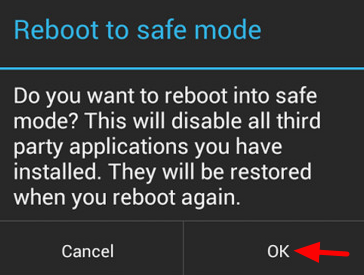
Next, review Accessibility permissions. Spyware apps often abuse Accessibility Services because they provide deep control over the device.
Go to:
Settings → Accessibility
Disable suspicious services that should not require advanced permissions.
Android users should also inspect installed apps carefully. Hidden spyware sometimes disguises itself using generic names like:
- System Service
- Device Health
- Update Service
- Wi-Fi Tool
If an app looks suspicious, check:
- Battery usage
- Data usage
- Permissions
- Installation source
Apps installed outside the Google Play Store deserve extra attention.
How to Stop Apps From Tracking Your Real Location
Location tracking is one of the most common forms of phone monitoring today. Many apps continuously collect GPS information even when they appear inactive. To reduce tracking, first disable unnecessary background location permissions.
Then review:
- Bluetooth scanning
- Nearby device scanning
- Wi-Fi scanning
- Background app refresh
These systems can still expose location behavior even when GPS is disabled.
If you are worried that certain apps may keep showing or refreshing your real location, you can also use a desktop-based location tool like Fonelora Location Changer. It helps you change or simulate your GPS location on iPhone and Android without jailbreak or root, which is useful for reducing real-time location exposure in social apps, dating apps, tracking services, or location-based platforms.
How to Change Your Phone Location with Fonelora
Step 1. Install Fonelora Location Changer on your Windows or Mac computer.
Step 2. Connect your iPhone or Android phone to the computer.

Step 3. Choose a location mode and select the place you want to use.
Step 4. Apply the new GPS location and check the app you want to protect.

Compared with basic fake GPS apps, desktop-based tools usually provide more stable location simulation and reduce common problems like GPS jumping, rubber-banding, or sudden location resets.
Note: Fonelora Location Changer does not remove spyware or make your phone completely anonymous. It is a location privacy tool, so you should still review app permissions, remove suspicious apps, and secure your accounts.
Why Many “Spyware Protection” Apps Do Not Actually Help
A common mistake is downloading random “anti-spy” apps immediately after suspecting monitoring. Ironically, some of these apps collect additional personal data themselves.
Many free security apps rely heavily on:
- intrusive ads
- aggressive permissions
- constant background scanning
- unnecessary tracking
Instead of installing multiple unknown apps, users should first focus on:
- reviewing permissions
- removing suspicious apps
- updating the operating system
- resetting privacy settings
In many cases, that alone solves the issue.
How to Protect Your Phone on Public Wi-Fi
Public Wi-Fi networks remain one of the easiest places for privacy exposure.
Coffee shops, airports, hotels, and shopping malls often use unsecured or poorly protected networks. Attackers on the same network may attempt to monitor traffic, redirect pages, or collect login information.
When using public Wi-Fi:
- Avoid online banking
- Disable automatic Wi-Fi reconnect
- Use HTTPS websites only
- Turn off file sharing
- Avoid entering sensitive passwords
Some users also combine lightweight proxy setups or privacy-focused browsers with location privacy tools to reduce exposure without running a full VPN constantly in the background.
Can Someone Spy on Your Phone Without Installing an App?
In some situations, yes.
Tracking can happen through:
- Shared Apple ID accounts
- Google account syncing
- Shared Find My access
- Browser session hijacking
- Cloud backups
- Social engineering
However, most advanced spyware still requires some form of device access or permission approval.
That is why reviewing account access and connected devices is extremely important.
Check:
- Google account devices
- Apple ID login sessions
- Shared family accounts
- Connected Bluetooth devices
Remove anything unfamiliar immediately.
What to Do If You Think Your Phone Is Compromised
If multiple warning signs continue appearing, take action quickly.
Start by:
- Changing important passwords
- Enabling two-factor authentication
- Removing suspicious apps
- Updating the operating system
- Resetting privacy permissions
If the behavior still continues, performing a factory reset may be necessary.
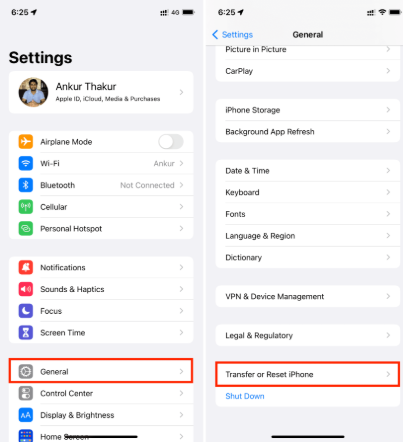
However, before resetting:
- Backup important photos
- Save contacts
- Export important files
Avoid restoring suspicious app backups afterward.
Reality Check: No Privacy Tool Makes You Invisible
Many users believe hiding their IP address or changing GPS location automatically makes them anonymous.
That is not true.
Modern tracking also relies on:
- browser fingerprinting
- account logins
- cookies
- device behavior
- social platform tracking
Even if your IP or GPS changes, logging into personal accounts still identifies you to those services.
Real privacy protection comes from combining:
- permission management
- careful app installation
- location control
- account security
- browsing hygiene
No single tool solves everything.
FAQ
Can someone spy on my phone through Wi-Fi?
Public Wi-Fi can expose browsing activity and login information, especially on unsecured networks. However, advanced spyware usually requires device permissions or app installation.
How do I know if someone is tracking my location?
Common signs include unusual battery drain, constant location sharing, suspicious app permissions, or someone knowing your movements unexpectedly.
Can iPhones get spyware?
Yes. Although iPhones are generally more secure, tracking can still happen through shared permissions, Find My access, malicious profiles, or compromised accounts.
Are fake anti-spy apps safe?
Not always. Some “security” apps collect excessive data themselves. Always download apps from trusted developers only.
Should I factory reset my phone?
If suspicious behavior continues after removing apps and resetting permissions, a factory reset may be the safest option.
Final Thoughts
Most phone spying situations are not caused by “Hollywood-style hackers.” More often, they come from excessive permissions, shared accounts, location tracking, or apps quietly collecting more information than users realize.
The most effective protection starts with awareness. Once you understand how apps track location, microphone activity, browsing behavior, and device permissions, protecting your privacy becomes much easier.
Instead of relying only on one privacy tool, focus on building safer habits:
- review permissions regularly
- limit unnecessary location sharing
- avoid suspicious apps and unknown APKs
- secure your Apple ID and Google account
- monitor unusual battery, data, camera, microphone, and GPS activity
If your biggest concern is real-time location exposure, you can also consider using Fonelora Location Changer. It helps you change or simulate your GPS location on iPhone and Android without jailbreak or root, which can be useful when you want to reduce unnecessary location visibility in certain apps or test location-based services more safely.



Joy Taylor is a seasoned technical writer with over a decade of experience in mobile technology. At iMobie, she specializes in producing in-depth content on iOS data recovery, iPhone unlocking solutions, and iOS troubleshooting.
Product-related questions? Contact Our Support Team to Get Quick Solution >
