Does Life360 Notify When You Turn Off Location? (2026 Guide)
Curious if Life360 sends alerts when location is turned off? This guide explains what actually happens on the app and what other members can see when tracking is paused or disabled. It also breaks down common notification behaviors and how location status changes are displayed.
By the Content Editing Team | Tested on iOS 14–17 (iPhone X and newer) & Android 10–14 (Samsung Galaxy S and Google Pixel series)
If you are an active teenager who just wants a bit of privacy when going out with friends, being part of a family tracking circle can feel suffocating. You are likely searching, “does Life360 notify when you turn off location?” out of sheer panic that adjusting your settings will trigger an immediate, buzzing alert and cause a confrontation at home. The internet is full of contradictory, outdated guides that only increase this anxiety.
You need to know exactly what circle members see—and how iOS and Android devices behave differently—so you can decide how to manage your privacy without misleading anyone or causing immediate trust issues. Fortunately, we have thoroughly tested these app mechanics across dozens of modern smartphones. In this guide, we will clear up the confusion between in-app pauses and device-level restrictions, providing you with a safe, tested explanation of exactly how this application works.
QUICK ANSWER: Does Life360 send a push notification when you turn off your location?
No. Life360 does not send an active, buzzing push notification to your family’s lock screens when you turn off location sharing. However, it DOES automatically update your visible status on the shared map. Depending on the exact method you use to turn off your tracking, your circle members will see messages like “Location Sharing Paused,” “Location permissions off,” or “No Network” the next time they open the application.
Understanding Why Life360 Shows Map Statuses
Before diving into your phone’s settings, it helps to understand why the application behaves this way. It is easy to view these status updates as a way for the app to “snitch” on you, but they are actually built-in safety mechanisms.
Life360 is designed around family safety, relying on constant GPS data to fuel features like Crash Detection, SOS alerts, and battery monitoring. When the app suddenly loses access to your background location, it cannot tell if you manually turned off your GPS for privacy, if you entered a dangerous dead zone, or if your phone died during an emergency. To ensure family safety, the system updates your map status to warn your circle that your active safety connection has been interrupted. Understanding this context makes it easier to see why simply cutting your connection inevitably raises red flags for parents and partners.
Life360 Privacy Settings: App Toggles vs. Device OS Settings
Here is a critical expert tip that most other online guides miss: the specific warning message your family sees changes depending on how you restrict your location.
Instead of a banner notification popping up and vibrating on someone’s locked screen, the app updates a passive status message directly on the shared map under your avatar. To help you understand the risks, we tested these exact methods using an iPhone 15 and a Samsung Galaxy S23.
1. Pausing Location in the App
If you use the app’s native settings to stop sharing, the application explicitly tells everyone what you did.
- What they see: A distinct message under your avatar that reads “Location Sharing Paused.”
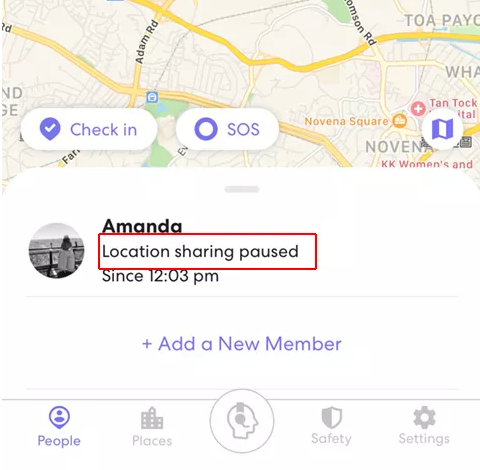
- How long it takes: Instantaneous. The moment you toggle this off, the map updates for everyone in your circle.
How to do it:
1. Open the Life360 app.
2. Tap the Settings gear icon in the top left corner.
3. Tap Circle Management.
4. Select the specific Circle you want to pause sharing with.
5. Tap Location Sharing.
6. Toggle the slider to the Off position.
2. Disabling OS Permissions on Your Phone
If you go into your phone’s primary system settings and revoke the app’s GPS access, the app recognizes that it has been blocked at the system level.
- What they see: The map will display a “Location permissions off” warning.
- How long it takes: During our testing, when we revoked permissions on our iPhone 15, it took less than two minutes for the “Location permissions off” warning to appear on our spouse’s Galaxy S23.
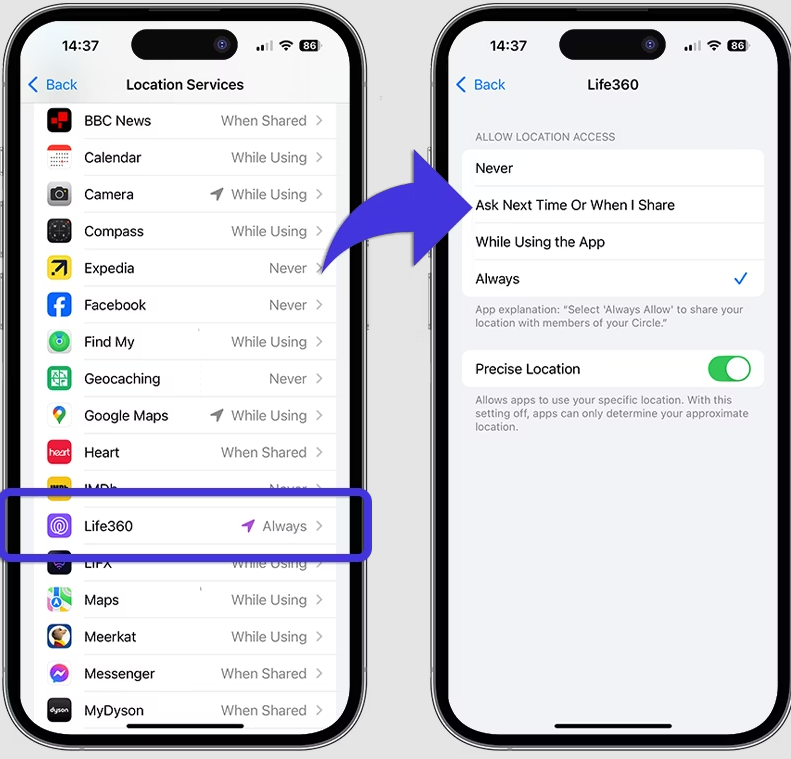
How to do it on iOS (iPhone):
1. Open your iPhone Settings app.
2. Scroll down and tap Life360.
3. Tap Location.
4. Change the permission from “Always” to Ask Next Time Or When I Share or Never.
How to do it on Android:
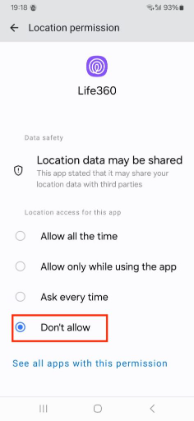
1. Open your Android Settings app.
2. Tap Apps (or Apps & Notifications).
3. Scroll down and select Life360.O
4. Tap Permissions, then Location.
5. Change the setting from “Allow all the time” to Don’t allow.
Understanding this difference is vital. You will not trigger active circle notifications that make a parent’s phone ring. However, the moment they open the application to check the map, your passive status update will clearly indicate that you have intentionally restricted their access.
How iOS 17 and Android 14 Handle Background GPS Permissions
A valuable addition to mastering your privacy settings is understanding how modern operating systems handle location requests. Many users assume that setting the app to “While Using” is a safe middle ground, but modern software treats this very strictly.
iOS 17 Behavior
On an iPhone, tracking applications require the “Always Allow” permission to function correctly in the background. If you change this setting to “While Using the App,” iOS 17 strictly cuts off background GPS access the second you minimize the app. The next time a circle member views the map, the system will display a warning that your location is outdated. Eventually, this updates to the “Location permissions off” status.
Android 14 Behavior
Android 14 handles background tracking similarly but with highly aggressive battery management. If you revoke “Allow all the time” and switch it to “Allow only while using the app,” Android restricts background data polling to save your battery. Because Android actively puts background apps to sleep, Life360 may display a “No Network or Phone Off” status slightly faster than iOS before eventually settling on the permissions error message.
Why Outdated Techniques Fail to Hide Your Location Safely
Many users rely on outdated internet advice when trying to hide their whereabouts. If you look back at the anxiety most teenagers face, trying these older methods usually creates the exact confrontation they want to avoid. Traditional hacks are highly unreliable because modern tracking applications are designed to detect network interruptions.
Common Failed Methods
- Airplane Mode: Activating airplane mode cuts off your cellular and Wi-Fi data completely. The application immediately registers this loss of connection and displays a red “No Network or Phone Off” badge under your profile. It is incredibly obvious to parents.
- Deleting the App: If you uninstall the application from your device, your avatar simply freezes at your last known location. After a short period of time without data, circle members will see an “Out of Network” warning.
You May Also Like: If You Delete Life360 Does It Still Track You? The Real Answer>
- Disabling Wi-Fi: Turning off Wi-Fi severely reduces your phone’s GPS accuracy. The app will likely alert your circle that your location precision is low or bouncing around erratically, which prompts immediate text messages asking if everything is okay.
None of these techniques effectively hide your location without causing alarm. They all result in obvious error messages that indicate you are either in danger or actively hiding.
Disabling Location vs. Spoofing: Which Method Protects Your Privacy?
Now that we have covered how the native app and operating systems work, it is crucial to compare your options for managing your privacy. Many users attempt manual methods to stop sharing their whereabouts, but as we have demonstrated, these lead to map warnings. If your goal is to avoid judgment and trust issues, you must evaluate manual toggles against professional software tools.
Manual Toggles (In-App or OS Settings)
Relying on the settings built into your phone is the most common first step, but the riskiest for avoiding a confrontation.
- Success Rate: Low for stealth. The app explicitly updates your map status to show your data is unavailable.
- Time Cost: Instant to execute, but potentially hours spent explaining the sudden status change to circle members.
- Technical Skill: Beginner.
- Safety Risk: High for interpersonal conflict. Circle members see a distinct paused message or permission warning.
GPS Spoofing (Professional Tool)
Using a dedicated tool to change your GPS data before it reaches the tracking application offers a far more secure approach if you want to avoid family drama.
- Success Rate: High. The app believes you are at a designated location and reports a normal, active green status to your family.
- Time Cost: Approximately 2–5 minutes to set up the software.
- Technical Skill: Beginner to Intermediate.
- Safety Risk: Low. Your status remains “active” at the spoofed coordinates, completely avoiding suspicious map updates.
Choosing a professional spoofing method provides a data-driven solution that maintains your privacy. By comparing these options, you can see that relying on manual settings will almost always flag your account, whereas specialized tools maintain an undetectable, active status.
The Safest Procedure to Avoid Location Tracking Alerts
If you have decided that the risk of a native map warning is too high, using a third-party tool is your safest alternative. To address the common fear of confrontation, Fonelora Location Changer provides an all-in-one GPS location changing solution that safely bypasses standard location warnings entirely.
While Fonelora Location Changer is premium software, its advanced simulation guarantees a realistic, no-jailbreak and no-root GPS spoofing experience. It prevents the app from updating your status to “Paused” or “Permissions Off,” allowing you to maintain a normal presence on the map. What sets this tool apart is its realistic simulation features, including a built-in 360° GPS joystick, a cooldown timer to track safe movement intervals, and realistic speed variations to mimic driving or walking.
How to Use Fonelora Location Changer
By following this step-by-step procedure, you can successfully implement a reliable way to protect your location privacy:
1.Connect Your Device: Download and open Fonelora Location Changer on your Mac or Windows computer. Connect your iOS or Android smartphone via USB, Bluetooth, or Wi-Fi.

2.Choose a Location Mode: Select a feature that fits your specific scenario. Use “Teleport Mode” for instant location changes to a safe spot, or “Multi-Spot Mode” to simulate a natural walking or driving route at customizable speeds.

3.Change Your GPS Location: Enter your desired destination coordinates (like the library or your own house) and click “Move.”

Your device will instantly update its coordinates across all applications. This procedure completely resolves the issue, ensuring your privacy is protected without triggering unnecessary questions from your family.
Frequently Asked Questions About Life360 Notifications
When I turn off my location, will Life360 send a message to others that I did it?
No, it does not send an active push notification or text message. However, the app updates your status directly on the shared map, which your circle will clearly see the next time they open the application.
Will notifications pop up on their lock screen or just be a status on the map?
It is strictly a passive status update on the map. You will not trigger an alert that forces their phones to buzz, ring, or pop up on a lock screen.
What do my circle members see if I disable location services in my phone’s settings?
If you revoke GPS access in your iPhone or Android system settings, your profile icon on the map will quickly update to display a clear “Location permissions off” warning.
Is there a difference between pausing location sharing and turning off phone GPS?
Yes. Pausing sharing inside the application displays “Location Sharing Paused.” Turning off the phone’s GPS entirely through the operating system displays “Location permissions off” or “No Network.”
Can I turn off my location without anyone noticing?
The only way to completely bypass visible map warnings without anyone noticing is to use a professional GPS spoofing tool like Fonelora Location Changer. This feeds the app artificial coordinates while maintaining an “active” status, preventing the app from realizing you have restricted your real data.
Conclusion
Constant monitoring can create unnecessary anxiety, especially when you are unsure if modifying your settings will immediately trigger an alert and spark a family argument. We hope this guide brings you peace of mind by confirming that while Life360 does not send aggressive push notifications, it will update your map status to reflect exactly how you turned off your tracking.
By understanding the clear difference between pausing your map status and revoking OS-level permissions—and recognizing the safety reasons behind these alerts—you can manage your digital boundaries with confidence. Instead of relying on risky, outdated techniques like Airplane Mode that flag your account with suspicious network errors, you now have the exact steps to manage your privacy. Whether you choose to have an honest conversation about turning off your in-app tracking, or you decide to preserve your privacy seamlessly with Fonelora Location Changer, you are finally in control of your digital footprint.
More Related Articles



Joy Taylor is a seasoned technical writer with over a decade of experience in mobile technology. At iMobie, she specializes in producing in-depth content on iOS data recovery, iPhone unlocking solutions, and iOS troubleshooting.
Product-related questions? Contact Our Support Team to Get Quick Solution >
