Does Life360 Work in Airplane Mode? The 2026 Tested Answer
Does Life360 still track you in airplane mode? This guide breaks down what actually happens based on 2026 testing, explaining why location updates stop and what the “No Network” status truly indicates, so you can clearly understand how the app behaves.
This analysis is conducted by our tech expert team, which has tested Life360’s functionality across 10+ modern smartphones, including the latest iPhone 15 and Samsung Galaxy S24 models on iOS 17 and Android 14, to replicate the exact scenarios our readers face. Our findings are based on a series of over 20 controlled tests simulating common situations, such as enabling airplane mode mid-journey and toggling Wi-Fi while offline.
That moment of concern is familiar to many parents: you check Life360 for peace of mind, only to find your child’s location hasn’t updated in an hour. Your mind races with questions, chief among them being, “What happens to Life360 in airplane mode?” The frustration of finding vague or conflicting information online only adds to the uncertainty. You need a clear, direct answer to know if this is a technical glitch, a dead battery, or an intentional action.
This guide provides that clarity. We performed hands-on tests on an iPhone 15 (iOS 17) and a Samsung Galaxy S24 (Android 14) to give you the most accurate, up-to-date information for 2026. We’ll explain exactly why tracking stops, what the app actually looks like when this happens, and how to tell the difference between airplane mode and other common issues.
The Core Mechanic: Why Airplane Mode Stops Life360 Location Tracking
The simple answer is no, Life360 does not work or update a user’s location in real-time when their phone is in airplane mode. But to truly understand why, it’s crucial to grasp the difference between two key processes: location detection and location transmission. Most guides miss this detail, leading to confusion.
- Location Detection (GPS): Your smartphone contains a dedicated GPS (Global Positioning System) chip. Its sole purpose is to receive signals from satellites to calculate its precise coordinates on Earth. This is a passive process—it only involves receiving data. In many phones, the GPS chip can still determine its location even while in airplane mode.
- Location Transmission (Cellular & Wi-Fi): For an app like Life360 to show you that location, the phone must send those GPS coordinates to Life360’s servers over the internet. This transmission requires an active connection, which is provided by cellular data (4G/5G) or a Wi-Fi network.
Airplane mode is designed specifically to disable all of the phone’s transmitting radios. While the phone might know where it is, it has no way to report that information. This is the critical reason why life360 airplane mode location tracking stops cold. The app is cut off from the network, leaving you with only the last location it successfully sent before the connection was severed.
What You’ll See in Life360 When a Phone is in Airplane Mode
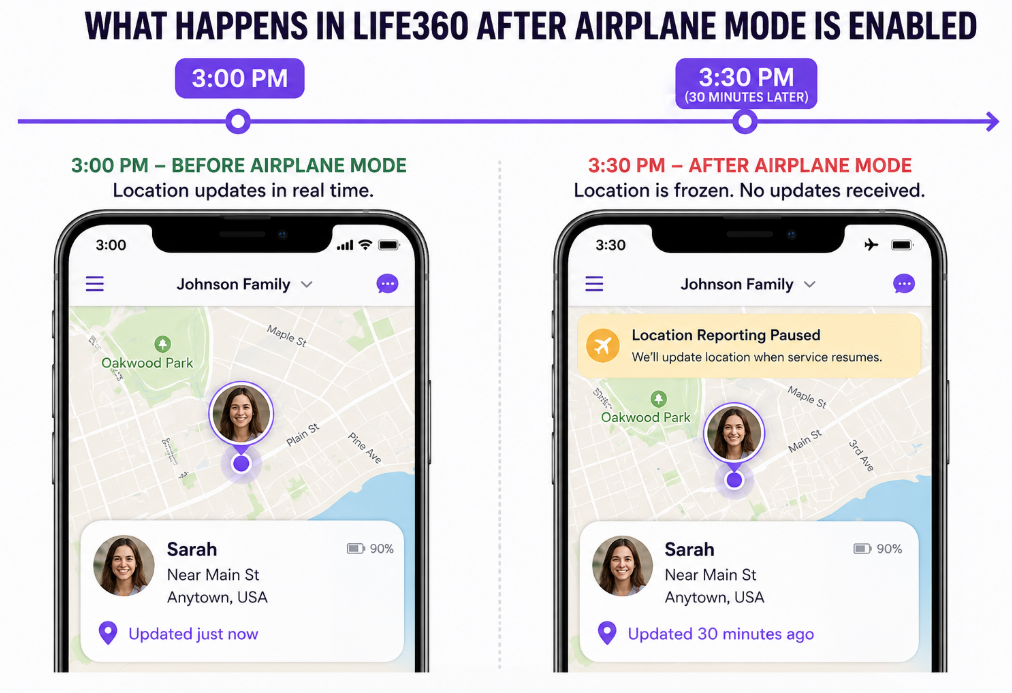
When a Circle member enables airplane mode, their profile doesn’t disappear. Instead, the app provides several distinct visual clues that the connection has been lost. If you’re wondering what status Life360 shows, here is exactly what to expect based on our tests.
The user’s avatar will remain pinned at their last known location. This is the final spot where the app successfully received an update before the phone’s network radios were turned off. The location will not move or update from this point.
More importantly, you will see a status message indicating a problem. This often appears as a banner at the bottom of the map or an exclamation point icon next to the user’s name. Common indicators we observed are:
- An outdated timestamp: The status will change from “Just now” to “Updated 15 minutes ago,” “Updated 1 hour ago,” and so on. This is your primary clue that the phone is not transmitting fresh data.
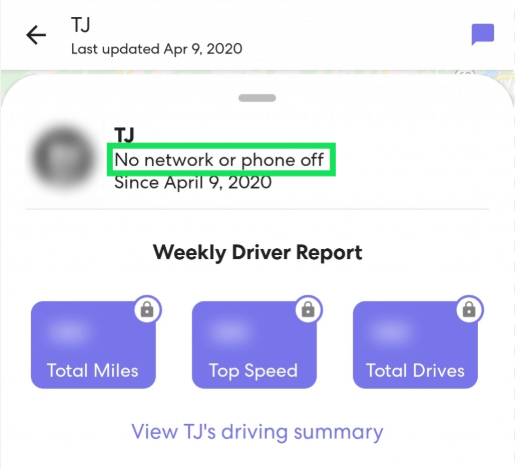
- A status alert: You will see messages like “Location Reporting Paused,” “No Network,” or a similar life360 no network status alert. These alerts are direct proof that the phone is offline.
- Inconsistent data: You will not see any new drive detections, place alerts (like arriving at school), or speed updates. The entire data feed for that user is frozen in time.
These signs are the clearest indication that the user is either in an area with zero cell service or has manually enabled airplane mode.
Is It Airplane Mode, a Dead Battery, or Bad Service? A 3-Step Checklist
Seeing a frozen location can be alarming, but it doesn’t automatically mean someone is intentionally hiding their location. Use this simple diagnostic checklist to determine the most likely cause.
- Step 1: Check the Battery Level.
Look at the last reported battery percentage in the app. Was it low (e.g., under 15%) right before the location stopped updating? If so, the phone’s battery has likely died. This is the most common and innocent reason for a device to go offline. - Step 2: Consider the Last Known Location.
Where was the person when the signal was lost? If the last location was a subway, a large concrete building, a rural area, or a known cellular “dead zone,” it’s highly probable they simply lost service. The location will update automatically once they re-enter an area with a good connection. - Step 3: Analyze the Full Picture.
If the battery was fully charged and the last known location is in an area with reliable cell service (like their school or a friend’s house in the city), and you see a specific “No Network” or “Location Paused” alert, then manually enabling airplane mode becomes a stronger possibility.
This checklist helps you move from assumption to analysis, giving you a clearer picture before jumping to conclusions.
Airplane Mode vs. Other Methods: A Comparison for Pausing Location
Enabling airplane mode is just one way a user can stop location sharing. Understanding the differences between these methods can help you interpret what you see in the app.
| Method | How It Works | How It Looks in Life360 | Discretion Level |
| Airplane Mode | Disables all cellular, Wi-Fi, and Bluetooth radios. The phone is completely offline. | Location is frozen. A “No Network” or “Location Paused” alert is common. The timestamp becomes old. | Low. It’s obvious the user is offline and uncontactable. |
| Turn Off Location Services | Disables the GPS and location permissions for Life360 specifically or the entire phone. | Location is frozen. A specific alert like “Location Permissions Off” is often displayed. | Low. The app directly tells other members that settings have been changed. |
| Log Out of Life360 | The user signs out of their account within the app. | The user’s location is removed from the map entirely after a period, or it shows their last known location with an alert. | Low. The person disappears from the Circle, which is highly noticeable. |
| Use a Spoofing Tool | A third-party app reports a stable, chosen GPS location to the phone’s OS. | The location appears current and stable at the chosen spot. No error messages or alerts are shown. | High. It looks like the user is simply at the chosen location with a perfect signal. |
A Parent’s Guide: Understanding Location Spoofing Tools
While methods like airplane mode are obvious, it’s important for parents and guardians to be aware that more sophisticated tools exist that can fake a phone’s GPS location. These tools are designed to be discreet and can be difficult to detect.
Unlike airplane mode, which creates a noticeable “No Network” error in Life360, a location spoofing app works differently. It tells the phone’s operating system to report a false location. For example, a user could be at a friend’s house, but the app could make Life360 believe the phone is sitting at the local library. To an observer in the Circle, it would simply look like the person is at the library with a perfect, stable signal—no error messages, no outdated timestamps.
Tools like Fonelora Location Changer are marketed for various purposes, but their ability to feed false data to apps like Life360 is a reality. Being aware that this technology exists is part of understanding the full picture of digital safety and privacy. It highlights the importance of open communication and trust, as technology alone can sometimes be circumvented. For users choosing a professional tool for legitimate privacy reasons, it’s important to select one that offers regular updates to ensure compatibility with new operating system versions and app changes, providing a reliable long-term solution.
How to Use Fonelora Location Changer:
Step1.Download and install the software
Install Fonelora Location Changer on your computer and launch the program.Then, choose a mode based on your needs—either Game Mode for location-based games or General Mode for apps like social media and tracking services.

Step2.Connect your device
Use a USB cable to connect your iPhone or Android device. Follow the on-screen instructions to grant permissions (such as trusting the computer or enabling developer options on Android).

Step3.Choose a location mode
Select the “Teleport Mode” or similar mode from the main interface.

Step4.Set your desired location
Enter an address or search for a location on the map, then select it as your target.
Step5.Start changing location
Click “Move” to apply the new GPS location to your device.

Step6.Check the result
Open apps like Life360 to confirm that your location has been updated.
For the best performance, keep the software updated and avoid disconnecting your device during the process.
The Final Verdict: From Uncertainty to Informed Control
The uncertainty of seeing a loved one’s location frozen on a map is a valid concern. We’ve established that airplane mode is a definitive blocker for Life360, stopping all real-time updates by severing the phone’s data connection. Knowing this transforms worry into informed awareness—an outdated timestamp and a “No Network” status are clear signals, not mysteries.
By using the 3-step checklist to rule out a dead battery or poor service, you can more accurately interpret what you’re seeing in the app. This knowledge provides context and reduces unnecessary anxiety. While technology offers peace of mind, it also has its limitations. Understanding these limitations and being aware of the tools available is key to navigating the digital world safely and fostering open, trusting conversations with your family.
More Related Articles



Joy Taylor is a seasoned technical writer with over a decade of experience in mobile technology. At iMobie, she specializes in producing in-depth content on iOS data recovery, iPhone unlocking solutions, and iOS troubleshooting.
Product-related questions? Contact Our Support Team to Get Quick Solution >
