How to Master GPS Spoofing on Android in 2026 (Without Root)
Dealing with GPS snapping back on Android? This guide explains how to spoof your location without rooting your device, based on expert-tested methods from 2026. Learn how to reduce rubber-banding issues and handle strict location checks more effectively.
Testing Background: Based in the US, I have spent the last month rigorously testing location alteration methods across 15+ popular games and social apps. My test devices include the Google Pixel 8, Samsung Galaxy S24, and OnePlus 11 running Android 13 and 14. My primary goal was to find reliable ways to overcome the frustrating “rubber-banding” effect caused by modern Android multi-source triangulation, ensuring zero detection or soft bans.
I know the sheer frustration of needing to bypass a regional restriction for an app, only to be met with constant errors. As a tech-savvy user, you expect changing your device coordinates to be a straightforward procedure. Instead, you likely face a wall of outdated guides, confusing system settings, and the constant fear of account bans. Trying multiple applications that outright fail or get instantly detected is incredibly discouraging.
If you are dealing with tools that snap back to your real city on newer operating systems, you are not alone. This guide provides a clear, tested solution. We will bypass the technical barriers and explore the most reliable methods for GPS spoofing on Android safely. Whether you want an on-the-go mobile app or a robust desktop tool, this guide will help you regain control over your location data.
The Android 14 Challenge: Why Spoofing is Harder Now
Before diving into the tools, it is crucial to understand why your old methods might be failing. Android 13 and Android 14 introduced massive changes to privacy controls and background location permissions.
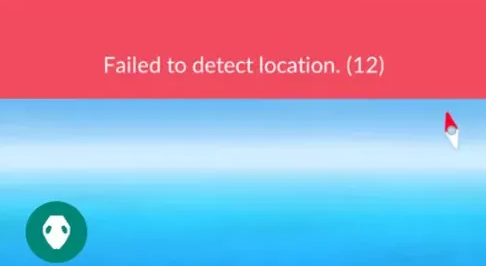
Historically, the Android operating system relied primarily on your device’s internal GPS chip. Today, Google’s Fused Location Provider actively cross-references your GPS coordinates with nearby Wi-Fi networks, local cell towers, and Bluetooth beacons. Furthermore, Android 14 grants apps stricter visibility into whether the “Mock Location” developer setting is currently active. If a game or streaming app detects this setting, it will immediately throw a “Failed to detect location” error and block your access.
Root vs. Non-Root Methods: What You Need to Know
When searching for a solution, you will frequently see debates about “rooting” your phone. Here is a transparent look at your options:
The Rooted Method (Magisk & Smali Patcher)
Rooting your Android device gives you deep system access. By combining a root manager like Magisk with modules like Smali Patcher, you can completely hide your mock location activity from other apps.
- Pros: Incredibly difficult for apps to detect; eliminates rubber-banding entirely.
- Cons: Voids your phone’s warranty, requires advanced technical skills, and triggers Google’s Play Integrity checks, which will immediately break most banking and financial apps on your phone.
The Non-Root Method (Our Focus)
Non-root methods rely either on standard Android developer settings or external desktop connections.
- Pros: Safe, does not void your warranty, and leaves your banking apps fully functional. Beginner-friendly.
- Cons: You must actively fight Android’s multi-source location detection (like Wi-Fi scanning) to prevent your location from snapping back to reality.
Because rooting introduces severe security compromises for daily drivers, this guide exclusively focuses on non-root methods.
Decision-Making Guide: Comparing the Top Spoofing Tools
There are two main categories of non-root tools: manual on-device apps (free) and professional desktop solutions (paid). We have tested the most popular options to give you an objective comparison:
| Feature/Metric | GPS Joystick by App Ninjas (Free Mobile App) | Fake GPS Location by Lexa (Free Mobile App) | Fonelora Location Changer (Paid Desktop Tool) |
| Best Use Case | On-the-go mobile gaming. | Static spoofing for dating/social apps. | High-security gaming accounts & bypassing strict Android 14 checks. |
| Success Rate | Moderate; requires precise system tweaking to avoid rubber-banding. | Moderate; great for static drops but lacks advanced movement tools. | High; externally overrides modern Android checks via a computer connection. |
| Safety Risk | Moderate; you must carefully manage movement speed and routes manually. | High (for games); easily detected due to lack of simulated movement. | Low; includes automated movement logic and mandatory cooldown timers. |
| Setup Process | Requires enabling Developer Options and configuring mock locations. | Requires enabling Developer Options and configuring mock locations. | Requires a PC/Mac, enabling Developer Options, and USB Debugging. |
If you are out at a coffee shop and need an immediate, tether-free solution, GPS Joystick by App Ninjas is your best on-device option. However, if your primary goal is to protect a high-value account from strict security checks at home, a desktop tool like Fonelora offers superior stability.
Method 1: How to Use Mock Location Apps Natively (Free On-Device Method)
If you want to alter your location directly from your phone without a computer, you can use Android’s built-in testing environment.
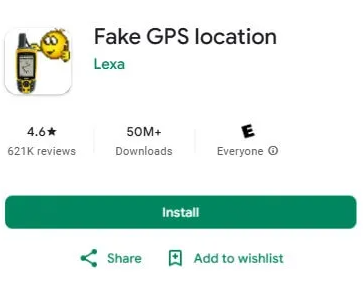
We highly recommend using GPS Joystick by App Ninjas for apps that require movement, or Fake GPS location by Lexa if you just need to drop a static pin.
Here are the precise steps to configure this manual procedure:
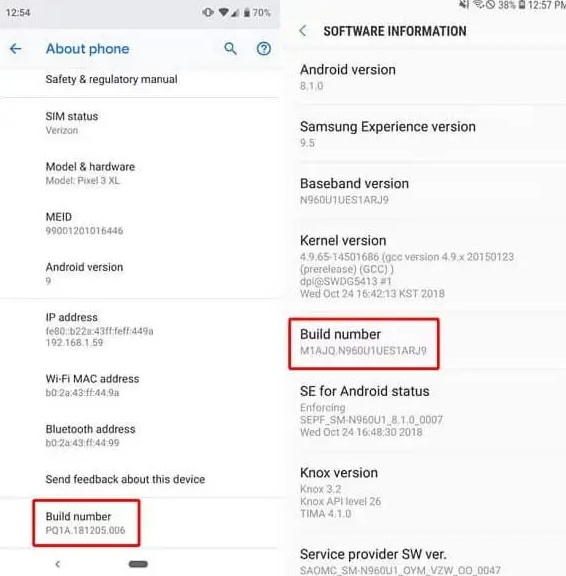
1.Enable Developer Options: Open your device’s Settings app. Scroll down and tap About Phone. Locate the Build Number entry and tap this exact line seven times in rapid succession. You will see a small prompt confirming, “You are now a developer!”
2.Install a Specific Spoofing Tool: Open the Google Play Store and download either GPS Joystick or Fake GPS location by Lexa.
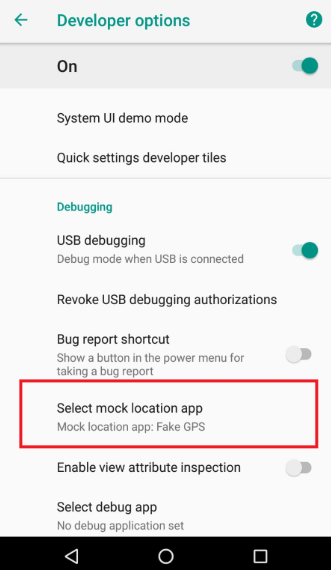
3.Select the Mock Location Provider: Navigate back to your main Settings and open the newly unlocked Developer Options menu (frequently found under the System sub-menu). Scroll down to the Debugging section to find the Select mock location app setting. Tap it and choose the app you installed in step two.
4.Set Your Coordinates: Open your chosen spoofing app. If using GPS Joystick, you can enter specific latitude/longitude coordinates or use the map to drop a pin. Press the Start button to engage the spoof.
While highly accessible, many modern applications actively scan for the “Select mock location app” setting. Read the “Expert Insight” section below to prevent the app from failing.
Method 2: The Desktop Connection Method (Fonelora Location Changer)
If your mobile apps are detecting your on-device spoofers, or if you are tired of the rubber-banding effect, tethering to a desktop tool handles the location override externally. Fonelora Location Changer is a reliable premium tool designed to bypass strict non-root limitations.
Crucial Setup Step: Unlike standard apps, desktop tools require your computer to communicate directly with your phone’s core system. This requires enabling a specific setting called USB Debugging.
Here is the complete step-by-step setup:
1.Enable USB Debugging on Android: Just like the free method, go to Settings > About Phone and tap Build Number seven times. Then, go to Settings > System > Developer Options. Scroll down and toggle USB Debugging to the ON position.
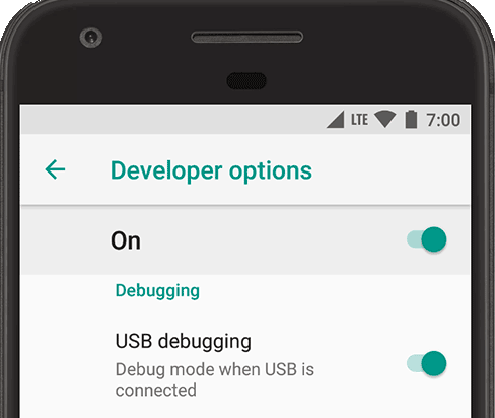
2.Connect Your Device: Download and install Fonelora Location Changer on your Windows or Mac computer. Launch the software and connect your Android smartphone to the computer via a reliable USB cable. Your phone will prompt you to “Allow USB debugging?” from this computer. Check “Always allow” and tap Allow.

3.Choose a Location Mode: On the desktop interface, look at the top right to select your desired movement style. Choose Teleport Mode for an instant jump, or Multi-Spot Mode to simulate a walking or driving route.

4.Change Your Location: Enter your target coordinates in the search bar and click the Move button. The software will push the new coordinates to your connected phone.

While tethering to a PC is less portable than a mobile app, it is the most stable non-root procedure for users who need guaranteed results without location detection errors.
Expert Insight: Why Your Android GPS Keeps Failing (And How to Fix It)
Here is a critical technical tip that most outdated tutorials miss. If you are using an on-device app and your map marker keeps violently snapping back to your actual physical city, you are experiencing the “rubber-banding” effect.
Understanding the underlying operating system behavior is essential. The core issue is multi-source location triangulation. When an application requests your location, Google Play Services cross-references your phone’s GPS coordinates with nearby Wi-Fi networks and local Bluetooth sensors.
If your free mobile app only alters the GPS satellite data, the operating system immediately detects a mismatch. Your Wi-Fi connection will still report your physical, real-world location, causing a severe data conflict.
How to Mitigate Rubber-Banding:
To drastically improve the success of manual on-device methods, you must stop Android from scanning these secondary sources.
Go to your phone’s Settings.
1.Tap on Location.
2.Tap on Location Services (on some devices, this may be under Wi-Fi and Bluetooth scanning).
3.Manually toggle off both Wi-Fi scanning and Bluetooth scanning.
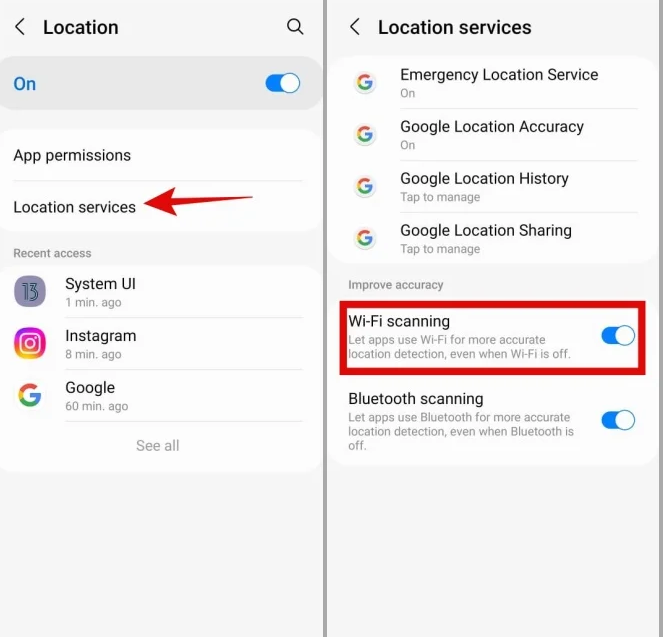
By disabling these scanners, you force the operating system to rely solely on the device’s GPS signal—which your spoofing app is currently controlling.
Safety First: Managing Account Risks on Android
Understanding the risks of location alteration is critical to protect your accounts from soft bans, shadow-bans, or permanent suspensions. When using these tools, your safety depends entirely on how realistically you simulate human movement.
WARNING: The 2-Hour Cooldown Rule
Never teleport long distances instantly. If you are playing a game or using a social app in New York, and you suddenly appear in Tokyo three seconds later, the physically impossible travel time will immediately trigger a permanent ban.
The Rule: You must wait a minimum of two hours after closing your app before you alter your location to a distant continent or country. Allow enough real-world time to pass to make the “travel” look physically possible.
Second, maintain realistic movement speeds. If you are simulating a walking route to hatch virtual items or log physical activity, ensure your speed remains under 4 mph (6 km/h). Rapid, erratic jumps across the map or moving at highway speeds through a park are clear signals of artificial manipulation.
Desktop tools like Fonelora automate these safety protocols with built-in cooldown timers, but if you are using a free app like GPS Joystick, you must monitor the clock yourself.
Frequently Asked Questions
To clear up any remaining confusion, here are concise answers to the most common questions regarding how to alter your device’s coordinates safely.
How do I safely spoof my GPS location on Android?
You can manually enable a mock location app (like GPS Joystick) through your device’s Developer Options, or use a dedicated desktop tool (like Fonelora) for a more stable connection. To do it safely, always adhere strictly to cooldown timers and maintain realistic walking speeds.
Do I need to root my Android device?
No. While older, foolproof techniques heavily required Magisk root to hide the spoofing activity, modern desktop tools and correctly configured mock location apps work perfectly fine without voiding your device’s warranty or compromising your banking apps.
Why is my fake location snapping back to my real location?
This happens when your Android system pulls conflicting data from nearby networks. To fix this rubber-banding effect, go to Settings > Location > Location Services and disable both Wi-Fi scanning and Bluetooth scanning.
Can apps detect that my location is altered?
Yes. Many games, streaming services, and dating apps actively scan your device to see if the mock location setting is enabled. Premium desktop software frequently bypasses this check better than free, on-device mobile apps.
Is it legal to change my device location?
Altering your location data is legal in most regions for personal privacy protection, accessing geo-blocked media, and software testing. However, using this technique to violate an application’s Terms of Service (such as cheating in a competitive game) can result in strict account bans.
Conclusion
Navigating modern Android security no longer needs to be a source of anxiety. Outdated guides often omit crucial technical steps—like managing Wi-Fi scanning or enabling USB debugging—leading to app detection and unnecessary frustration.
By understanding the differences between rooting, free on-device apps like GPS Joystick, and robust desktop solutions like Fonelora Location Changer, you can choose the exact method that fits your needs. If you want portability, configure your developer options carefully. If you want maximum stability against Android 14’s strict checks, a desktop tether is your best bet. Regain control over your digital footprint, respect the cooldown timers, and resolve your location restrictions safely today.
More Related Articles



Joy Taylor is a seasoned technical writer with over a decade of experience in mobile technology. At iMobie, she specializes in producing in-depth content on iOS data recovery, iPhone unlocking solutions, and iOS troubleshooting.
Product-related questions? Contact Our Support Team to Get Quick Solution >
