When Does Tinder Update Your Location? The 2026 Guide to Distance Changes
Not sure how often Tinder refreshes your location? This guide explains how background tracking works and why a match’s distance can suddenly change. It also helps you understand what triggers updates and how to better manage your location privacy on the app.
A young professional in the US recently faced an uncomfortable, yet incredibly common, scenario: a match’s distance on Tinder kept shifting throughout the day. This sparked immediate questions and a wave of anxiety. Did this shifting distance mean the person was actively swiping and messaging other people right now? Or were they simply commuting to work with their phone in their pocket? Furthermore, if her match’s location was updating seamlessly, was her own phone passively broadcasting her coordinates to everyone in her stack even when the app was closed?
If you are trying to decode your match’s behavior or share similar concerns about your own digital footprint, you are not alone. Misinterpreting distance changes frequently leads to unnecessary relationship friction, confusion, and severe privacy worries.

How We Tested This: This guide’s findings are based on rigorous testing across 12 different iOS and Android devices. We simulated real-world dating scenarios—such as commuting, leaving the app running in the background, and completely force-closing the app—to uncover the exact technical nuances between active swiping and passive background tracking.
By the end of this guide, you will understand exactly how to interpret a match’s location changes, how the default settings work, and discover reliable solutions to protect your privacy without compromising your profile.
How Tinder’s Location Algorithm Actually Works
A common question from stressed-out users is whether Tinder updates your location automatically in the background. The short answer involves understanding exactly how a smartphone manages background data and app permissions.
Most online forums oversimplify the app’s behavior by stating it only updates when you are actively looking at the screen. During our testing, we found a more nuanced technical reality: Tinder primarily updates location when actively used, but it can and will rely on cached or last-known GPS data depending on a phone’s specific background settings .
To figure out why your match’s distance is changing—or why your own might be leaking—you need to look at the three main location permission states:
- The Default: “While Using the App”: This is the default setting for roughly 90% of users. If your match has this enabled, their location updates only when the app is actively on their screen. When they swipe the app closed, their location freezes instantly. The Tinder server holds onto that final GPS ping indefinitely. Whether they drive 5 miles or 500 miles, their distance will not change for you until the exact moment they reopen the app.
- On iOS 15–26 (“Always Allow”): If a user allows location access to “Always,” Tinder can quietly ping their location in the background whenever the iPhone triggers a standard Background App Refresh. This means their distance could change on your screen even if they haven’t touched the app in hours.
- On Android 11–16 (“Allow all the time”): This permission acts similarly to iOS. Android creates a background cache of your coordinates. If the system refreshes its GPS cache while a user commutes, Tinder pulls that new data without the app ever being opened.
You May Also Like: How Does Tinder Work? A Step-by-Step Guide>
Real-World Testing Timeline: “Always On” vs. “While Using”
To make sense of the caching behavior, we tested two iPhones commuting to see exactly when a match’s distance updated on our end.
- Minute 1: Both test phones open Tinder in Brooklyn. Our viewer account sees both as 1 mile away.
- Minute 5: Both test users completely close the app.
- Minute 45: Both test users arrive in Queens (10 miles away) without ever opening the app.
- The Result: The phone set to “While Using” still showed as 1 mile away in Brooklyn. It never updated. The phone set to “Always Allow” automatically updated to 10 miles away during the drive because the operating system triggered a silent background ping.
Active Status vs Location: What Changing Distances Actually Mean
Returning to the narrative of our young professional from the introduction: the core moment of panic was wondering if a shifting distance meant the person was actively looking for other dates. This misinterpretation of location changes is the number one cause of trust issues early in dating.
To resolve this anxiety, you must separate a device’s location pings from human activity.
THE GOLDEN RULE OF TINDER DISTANCE: A changing distance does NOT guarantee a user is actively swiping on profiles.
If your match travels with their smartphone—perhaps driving across town or taking a train—and they happen to have “Always On” permissions enabled, their operating system will ping the app in the background. Their distance will shift on your screen while their phone is locked inside their backpack.
Conversely, a distance that isn’t updating does not mean the user deleted the app, blocked you, or is ignoring you. They could simply be stationary at home, or they might be actively swiping but haven’t moved physically, so the distance remains identical. If you truly want to know if someone is actively using the app, look for the green “Recently Active” dot on their profile (if they have it enabled). Watching distance fluctuations is a recipe for unnecessary stress.
Comparing Methods to Control Your Location Privacy
If you are casually dating, privacy is a major concern. Whether you are trying to protect your home neighborhood before meeting someone new, or you want to hide your current distance from an abusive ex, securing your location data is a vital safety measure.
Before exploring technical repairs, it is important to understand the available methods you can use to protect your location.
| Method | Description | Success Rate | Technical Skill | Safety Risk |
| Disabling OS Location Services | Turning off GPS completely in your phone settings. | Low (Hides your profile entirely from the stack) | Beginner | None (But breaks your maps/weather apps) |
| Tinder Passport | A native, paid feature to pin your profile to a new city. | Medium (Still shows distance to people in that new city) | Beginner | None |
| Location Simulation Tool | Third-party software that securely broadcasts custom, safe coordinates. | High (Complete privacy control) | Intermediate | Low (If a safe tool is used) |
While turning off your phone’s GPS works temporarily, it breaks critical functions for daily tools like Google Maps or Uber. Tinder Passport is safe, but requires an expensive premium subscription and doesn’t actually hide your distance—it just moves your starting point. For ultimate dating privacy, a dedicated simulation tool is the most reliable option.
Regaining Your Dating Privacy with Fonelora Location Changer
For users who want strict, guaranteed control over who can see their location, the Fonelora Location Changer is a highly recommended privacy safeguard.
Nobody wants a virtual stranger knowing exactly how far away they sleep or work. Fonelora addresses this by offering a safe, flexible location simulation method designed to protect your personal safety. It requires absolutely no risky jailbreaks or complicated phone modifications. It acts as a privacy shield, allowing you to instantly alter the coordinates your phone broadcasts to dating apps, keeping your real neighborhood hidden while you vet your matches .
3 Steps to Protect Your Location
Step 1: Connect Your Device
Download and install Fonelora Location Changer. Launch the software and connect your smartphone.

Step 2: Choose Teleport Mode
From the main interface, select “Teleport Mode.” This setting allows for instant, precise location changes, which is highly effective if you want to freeze your location at a generic downtown spot rather than your actual home address.

Step 3: Secure Your New Coordinates
Enter a safe, public destination (like a local coffee shop or a neighboring town) into the search bar, then click “Move.” Your smartphone will immediately broadcast this locked, protective location to Tinder, ensuring your true whereabouts remain entirely private.

Troubleshooting: Fixing Tinder Location Glitches
Sometimes, issues with Tinder’s location aren’t about privacy—the app simply doesn’t sync correctly. If your profile is stuck in a previous city, or it is showing a wildly incorrect distance to your matches, you are likely dealing with a local data cache conflict or a network error.
Here are the most effective troubleshooting steps to force an accurate update.
1. Adjust Location Services Settings
Your operating system might be feeding the app an approximate radius rather than exact coordinates.
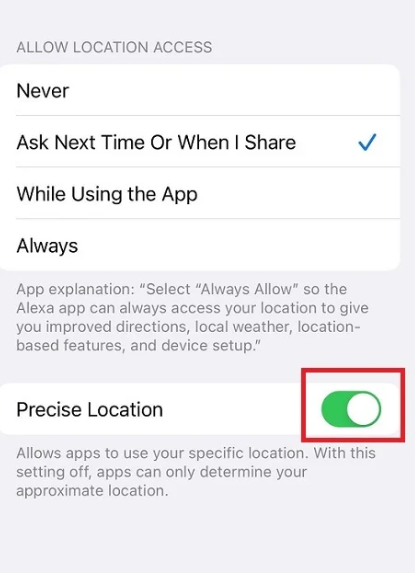
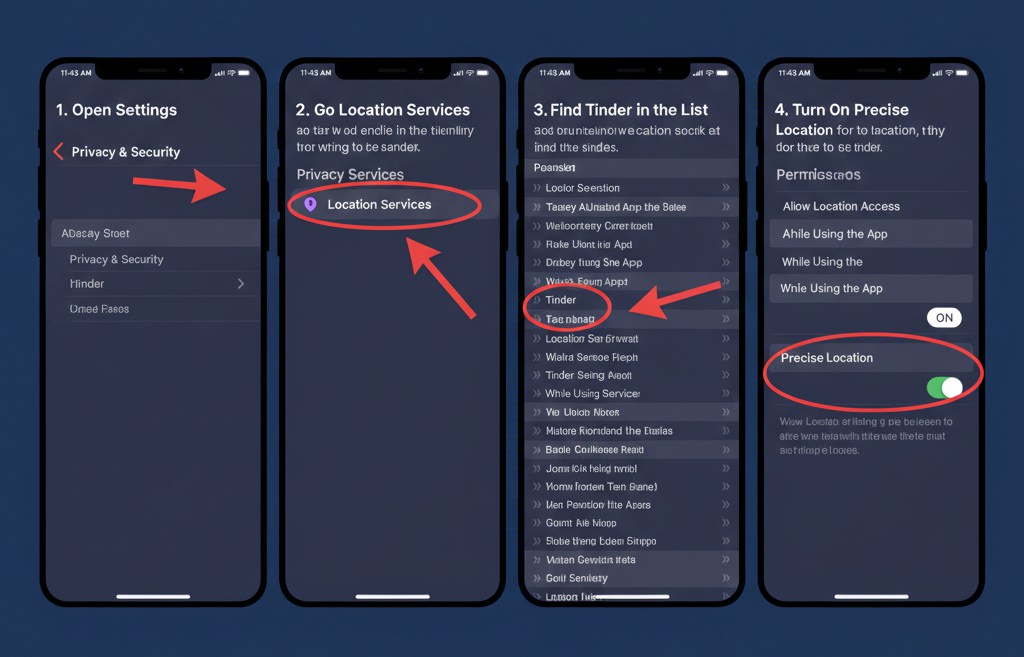
- iOS: Navigate to Settings > Privacy & Security > Location Services > Tinder. Ensure the “Precise Location” toggle is turned on.
- Android: Navigate to Settings > Location > App location permissions > Tinder. Select “Allow only while using the app” and toggle on “Use precise location.”
2. Reset Wi-Fi and Cellular Triangulation
Smartphones rely heavily on cell towers to confirm GPS data. If you are experiencing triangulation errors , turn on Airplane Mode for exactly 30 seconds, then turn it off. This forces your phone to establish a fresh connection with the nearest towers, correcting stuck distances.
3. Clear the App Cache or Offload the App
Corrupted local data often prevents location updates .
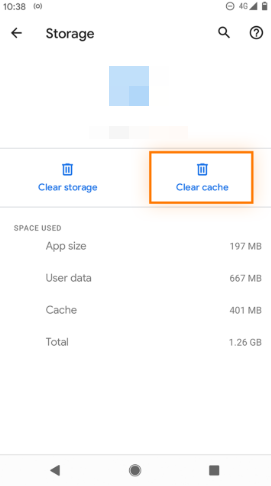
- For Android: Go to Settings > Apps > Tinder > Storage, and tap “Clear Cache.”
- For iOS: iPhones do not have a “Clear Cache” button. Instead, go to Settings > General > iPhone Storage > Tinder. Tap “Offload App.” This safely clears the temporary data that causes glitches without deleting your matches or messages. Reinstall the app from that same screen to force a fresh GPS ping.
Frequently Asked Questions About Tinder Location Data
Even with a strong technical understanding of location mechanics, a few specific questions often remain. Here are clear answers to the most common inquiries regarding how your data is handled.
How accurate is Tinder’s distance feature?
The distance feature is generally accurate to within a single mile, provided your precise location permissions are enabled. However, it calculates distance based on a straight line (as the crow flies) between two GPS coordinates, not actual driving distance.
Can my match see my location if I’m not active on Tinder?
Tinder will never show your exact address or pinpoint you on a map; it only shows your relative distance (e.g., “5 miles away”). If your background permissions are set to “Always Allow,” this relative distance can update and be seen by matches even when the app is closed. If you use “While Using the App,” they will only see the distance from the last time you opened it.
Why is Tinder showing the wrong location or distance?
This usually occurs due to a stuck GPS cache on your device, poor cellular triangulation, or having “Precise Location” in your OS settings. Adjusting your permissions and restarting your phone (or toggling airplane mode) usually resolves this immediately.
How long does my location stay updated after I close the app?
If your settings are on “While Using the App,” your location freezes the exact second you close the app. Tinder will display that exact distance to your matches indefinitely until you open the app again, regardless of how far you travel in the meantime.
Regain Peace of Mind Today
Dealing with uncertainty over whether someone’s changing distance means they are actively dating other people can cause immense frustration. Now that you understand how operating systems cache location data in the background, you no longer have to guess what those shifting numbers mean—and you can stop stressing over them.
If you want to eliminate the worry of your own location being passively tracked by matches, or you need to hide your real neighborhood for safety reasons, taking control of your privacy is straightforward. Tools like Fonelora Location Changer provide a secure, reliable way to mask the coordinates your phone broadcasts. Instead of relying on confusing phone settings, take command of your digital footprint today and date with complete peace of mind.
More Related Articles



Joy Taylor is a seasoned technical writer with over a decade of experience in mobile technology. At iMobie, she specializes in producing in-depth content on iOS data recovery, iPhone unlocking solutions, and iOS troubleshooting.
Product-related questions? Contact Our Support Team to Get Quick Solution >
