Why Is My Location Wrong on My iPhone? (Updated for 2026)
This guide explains why an iPhone may show the wrong location and how to fix it. It covers simple, tested steps to restore GPS accuracy and ensure Maps and location-based apps work correctly again.
It’s incredibly frustrating when your iPhone’s map shows you on the next street over or even in a different neighborhood entirely. When your iPhone is showing the wrong location, you’re not just dealing with a minor glitch; it’s a problem that affects navigation, safety features, and your trust in the device. This issue often stems from a weak GPS signal or a simple setting misconfiguration, causing errors in Maps, Find My, weather apps, and more.
This guide provides clear, tested solutions to restore your iPhone’s location accuracy and get you back on the map—exactly where you’re supposed to be.
5 Quick Settings to Check First
Before diving into more complex procedures, the most common causes for an iPhone location being wrong can be resolved by checking five critical settings. These adjustments take only a few minutes and often restore accuracy immediately.
1. Toggle Location Services Off and On
This simple action forces your iPhone to re-establish its connection to location data sources, like clearing out the cobwebs.
Go to Settings > Privacy & Security > Location Services.
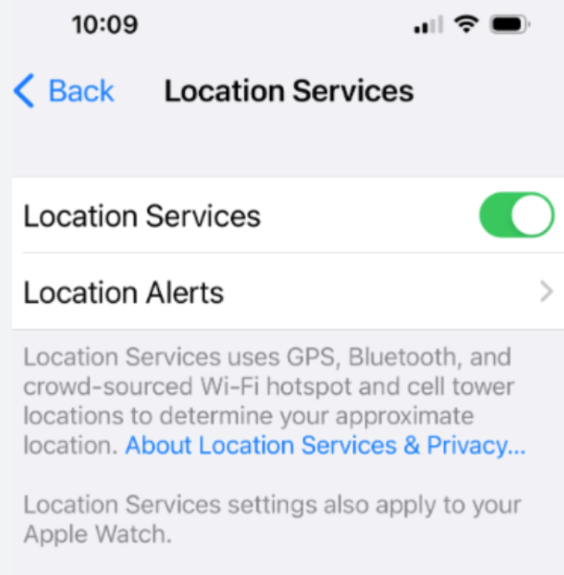
Turn the main Location Services toggle off.
Wait about 20 seconds, then turn it back on.
2. Enable Precise Location for Key Apps
Many apps need high-accuracy data to function correctly. If this is disabled, they can only see your approximate area. This is the single most common reason why one app (like Maps) is off while another (like Weather) seems fine.
Navigate to Settings > Privacy & Security > Location Services.
Select an app that is showing errors, like Maps or Find My.
Ensure the Precise Location toggle is enabled. This setting is critical for accurate navigation and tracking.
3. Keep Wi-Fi and Bluetooth On
Your iPhone doesn’t just use GPS. It relies on nearby Wi-Fi networks and Bluetooth beacons to refine its position, especially when you have a weak GPS signal indoors or between tall buildings.
Swipe down from the top-right corner to open Control Center.
Make sure the Wi-Fi and Bluetooth icons are blue (enabled), not white or gray.
4. Confirm Your Date & Time are Set Automatically
Incorrect time zone data can interfere with how your iPhone synchronizes with GPS satellites, a subtle issue that can cause significant location drift.
Go to Settings > General > Date & Time.
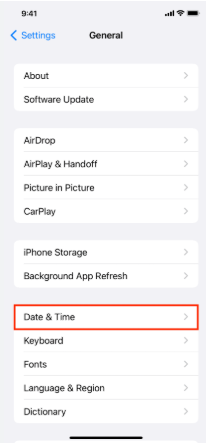
Verify that Set Automatically is turned on.
5. Review Critical Location System Services
Certain background services are essential for your iPhone’s core location features to work properly. While the list is long, a few are more important than others for accuracy.
Scroll to the bottom of the Location Services screen and tap System Services.
Ensure Compass Calibration and Setting Time Zone are enabled. Compass Calibration is vital for map orientation and turn-by-turn directions, while Setting Time Zone helps sync with satellite data. Another one to check is Networking & Wireless, as this improves location accuracy using Wi-Fi. You can safely leave most other services on their default settings.
How to Fix an Incorrect Location in a Single App (like Maps or Find My)
Have you ever noticed your location is correct in a weather app, but Apple Maps shows you a few blocks away? This usually points to a problem with that specific app, not your iPhone’s core GPS system. The two most common causes are incorrect app permissions or stale, cached data.
First, double-check that app’s individual permissions. Go to Settings > Privacy & Security > Location Services, find the app in question, set its permissions to “While Using the App,” and confirm Precise Location is on.
When Find My Shows an Old Location
The Find My app can sometimes show an old or cached location, often to conserve battery and data on the device being tracked. If a friend’s location seems outdated, the issue may be on their device, but you can try to force your iPhone to request a fresh update.
While force-quitting the app (swiping it closed from the app switcher) can sometimes trigger a refresh, it’s often a temporary fix. A persistently outdated location usually points to an issue on the other person’s end, such as:
- Their iPhone is off or in Airplane Mode.
- They have a poor internet connection.
- Their device is in Low Power Mode, which can reduce background location updates.
- They have Location Services turned off.
Why Your iPhone’s GPS Is Inaccurate: The Technology Explained
Understanding why you have the wrong GPS location on your iPhone starts with knowing how it finds you. Your device uses a system called Assisted GPS (A-GPS), which blends three technologies to determine your position.
1. GPS (Global Positioning System): This is the most accurate source. Your iPhone receives signals from satellites orbiting the Earth. It needs a clear line of sight to the sky to work effectively. Obstructions like tall buildings, dense tree cover, or even being indoors can block these signals.
2. Wi-Fi Positioning: When GPS is unavailable, your iPhone scans for nearby Wi-Fi networks. It cross-references these networks with Apple’s massive database of Wi-Fi hotspots and their known physical locations. This is how your phone can find you quickly indoors, but it can lead to errors if the database is out of date or a router has been moved from its original location.
3. Cellular Triangulation: As a final option, your phone can estimate its position based on its proximity to cell towers. By measuring signal strength from multiple towers, it can triangulate a general area. This is the least accurate method and is often the culprit when your location is off by several hundred meters.
This combination explains why your location might suddenly jump. If you walk inside, your phone loses its GPS signal and falls back to less accurate Wi-Fi and cell data, causing your position to drift.
Troubleshooting in Different Environments: Urban vs. Rural
Your surroundings dramatically affect location accuracy. Here’s how to troubleshoot based on where you are:
- In a City (Urban Canyon): Tall buildings block GPS signals, forcing your phone to rely on a dense but sometimes confusing mix of public and private Wi-Fi networks. If your location is off, try moving closer to a window or stepping outside for a moment to re-establish a satellite connection.
- In the Countryside (Rural Area): You may have a great view of the sky for GPS, but with few Wi-Fi networks and cell towers, your phone has no backup. If the GPS signal is weak due to weather or terrain, your location won’t update as quickly and may appear to lag behind your actual position.
Advanced Solutions for Persistent Location Issues
If the basic settings checks didn’t work and your iPhone’s GPS remains inaccurate, it’s time for more advanced solutions. These steps reset certain system settings and can resolve deeper software conflicts causing location services issues.
1. Reset Location & Privacy
This action erases all custom location permissions for your apps and privacy settings, returning them to factory defaults. It’s a great way to resolve glitches caused by a single app’s corrupted settings.
1. Navigate to Settings > General > Transfer or Reset iPhone.
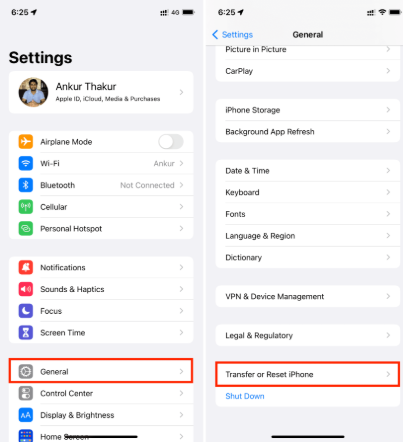
2. Tap Reset.
3. Select Reset Location & Privacy. You will need to enter your passcode to confirm.
2. Reset Network Settings
This is a more powerful step. This reset erases all network data, including saved Wi-Fi networks and passwords, cellular settings, and VPN configurations. This often resolves underlying connectivity issues that affect location accuracy.
We’ve seen cases where an iPhone repeatedly pins its location to a neighbor’s house. This often happens because the device has latched onto their stronger Wi-Fi signal. A Network Reset is the most effective way to fix this, as it forces your iPhone to forget all Wi-Fi networks and re-evaluate the best connection.
1. Go to Settings > General > Transfer or Reset iPhone.
2. Tap Reset.
3. Choose Reset Network Settings and enter your passcode. Your iPhone will restart.
Important: You will need to manually reconnect to your Wi-Fi networks by re-entering their passwords after your iPhone reboots.
3. Keep Your Software Updated
Finally, always make sure your iPhone’s software is up to date. Apple frequently releases iOS updates that include bug fixes and improvements for location services.
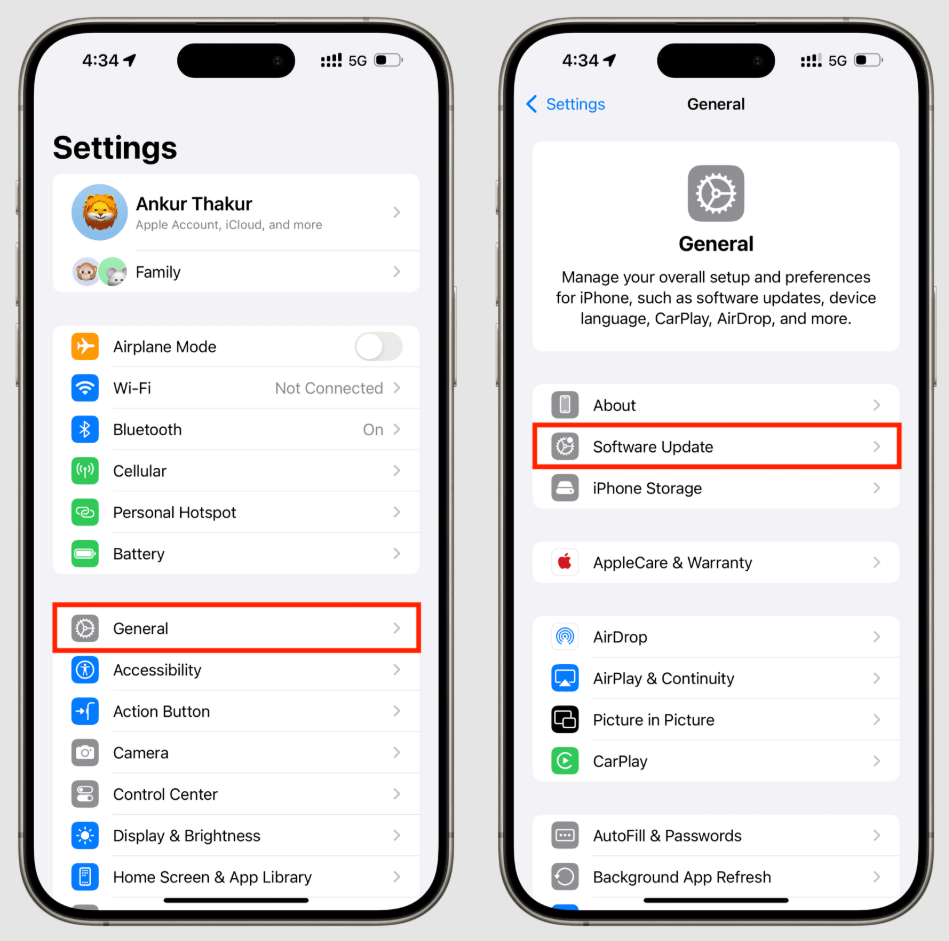
Check for iOS updates in Settings > General > Software Update.
Open the App Store and update your apps, especially navigation apps like Google Maps or Waze.
How to Choose the Right Location Settings for You
Managing your iPhone’s location settings is a balance between accuracy, privacy, and battery life. The best configuration depends on your needs. Use this table to fix a wrong location on your iPhone while protecting your other priorities.
| Setting / Option | Accuracy Impact | Battery Impact | Best Use Case |
| Precise Location: On | High | Medium | Navigation, ride-sharing, Find My, geo-tagging photos. |
| Precise Location: Off | Low | Low | Social media, news, or weather apps that only need your general city or region. |
| Wi-Fi & Bluetooth: On | High (Improves accuracy) | Low | Everyday use, especially in urban areas or indoors where GPS is weak. |
| Wi-Fi & Bluetooth: Off | Low (Reduces accuracy) | Negligible | Rarely recommended unless troubleshooting or in an area with no Wi-Fi/Bluetooth. |
| Per-App: “While Using” | High | Medium | The best balance for most apps, like Maps or restaurant finders. |
| Per-App: “Always” | High | High | Only for essential apps that need background tracking (e.g., severe weather alerts). |
By tailoring these settings on an app-by-app basis, you can get the high accuracy you need without draining your battery or giving unnecessary data to apps that don’t require it.
Need to Test or Change Your iPhone GPS Location?
The fixes above are designed to restore your real iPhone location when GPS becomes inaccurate. In most cases, you should start with Location Services, Precise Location, Wi-Fi, Bluetooth, and reset options first. However, there are also situations where you may need to intentionally test, adjust, or simulate your phone’s GPS location—for example, checking how a location-based app responds, protecting your real-time privacy, or troubleshooting whether an app is reading GPS data correctly.
For that kind of scenario, Fonelora Location Changer can be a useful desktop-based option. It helps iPhone and Android users change their device GPS location from a computer without jailbreak or root access, giving you more control than repeatedly changing app permissions or relying on unstable mobile GPS tools.
Unlike the settings above, which are meant to improve your real location accuracy, Fonelora Location Changer lets you choose a virtual location on the map and apply it to your connected device. You can also simulate movement along a route or use joystick-style movement when you need more flexible location testing.
Important: If your goal is to fix an inaccurate iPhone location, try the built-in iOS settings first. Use Fonelora Location Changer when you need to test, change, or simulate your own device GPS location for location-based apps.
How to Use Fonelora Location Changer
Follow these steps after installing Fonelora Location Changer on your computer:
Step1. Launch Fonelora Location Changer
Open FLC on your Windows or Mac computer and select the location-changing mode that fits your need.
Step2. Connect Your iPhone or Android Device
Use a USB cable or supported connection method to connect your phone to the computer. Follow the on-screen instructions to trust the computer and let FLC recognize your device.

Step3. Choose a New Location on the Map
Search for a city, address, landmark, or any specific place you want your phone to display. You can also drag the map pin manually to fine-tune the location.

Step4. Apply the Virtual GPS Location
Confirm the selected location in Fonelora Location Changer. Your connected phone will begin reporting the virtual GPS position to location-based apps.
Step5. Open the App You Want to Test
Launch Maps, Find My, a weather app, or another location-based app to check whether it reads the updated device location correctly.
Step6. Restore Your Real Location When Finished
When you no longer need the virtual location, use the reset option in FLC or restart your device to return to your actual GPS position.
Frequently Asked Questions
Why is my iPhone location wrong?
Your iPhone’s location is most often wrong because of a weak GPS signal, forcing it to use less-accurate Wi-Fi and cellular data. This happens frequently indoors, in dense cities, or in remote areas. Incorrect settings, such as having Location Services or Precise Location disabled, are also common causes.
Why does my iPhone show the wrong location in Find My?
The Find My app may show an outdated location if the device being tracked has a poor internet connection, has Location Services turned off, or is powered down. The app sometimes defaults to the last known location to save data. Try closing and reopening the app to force a refresh.
Why is my iPhone showing incorrect GPS coordinates?
Incorrect GPS coordinates are usually caused by environmental interference. Tall buildings, heavy cloud cover, or dense forests can obstruct the satellite signals your iPhone needs for high accuracy. In these scenarios, the device falls back on Wi-Fi or cellular data, which provides a less precise estimate of your location.
How accurate should my iPhone location be?
Under ideal conditions with a clear view of the sky, your iPhone’s GPS should be accurate to within 5 meters (about 16 feet). When using Wi-Fi positioning, accuracy typically ranges from 25 to 50 meters. When relying only on cellular data, accuracy can drop to several hundred meters or more.
Why does Maps show a different location on my iPhone?
If Apple Maps or Google Maps shows an incorrect location while other apps seem fine, the problem is likely with that specific app. This can be caused by incorrect permissions (ensure Precise Location is enabled for that app) or corrupted app data. Toggling the app’s location permissions or reinstalling it can often solve the issue.
Bottom line
Regaining control over your iPhone’s location services is essential for reliable navigation and peace of mind. The frustration of seeing the wrong GPS location on your iPhone is a common but solvable problem. By systematically working through these tested settings and reset procedures, you can address the root cause of the inaccuracy, whether it’s a simple software toggle or a more complex network data issue.
If your purpose is to restore your real position, the built-in iPhone fixes should always come first. If you need broader control for testing or temporarily changing how your phone reports GPS, Fonelora Location Changer can provide a more flexible desktop-based option.
You now have the knowledge to diagnose and fix these errors yourself, ensuring your device is a reliable tool for finding your way. Apply these solutions to restore your iPhone’s accuracy and navigate with confidence.



Joy Taylor is a seasoned technical writer with over a decade of experience in mobile technology. At iMobie, she specializes in producing in-depth content on iOS data recovery, iPhone unlocking solutions, and iOS troubleshooting.
Product-related questions? Contact Our Support Team to Get Quick Solution >
