Facing a glowing “iCloud Storage Full” notification right before buying a new iPhone can be a significant source of anxiety. Many users find themselves staring at their screens, unsure whether they should pay a recurring fee for more cloud space or simply plug their phone directly into a computer. When you need a reliable recovery method to upgrade, reset, or repair a device, guessing is not an option.
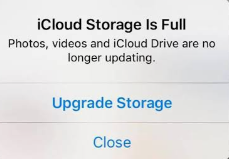
People often wonder if an iCloud backup or a local backup is safer for personal data, and it is incredibly common to confuse simple iCloud syncing with a complete, restorable device snapshot. This guide compares both approaches to help you avoid data loss. By evaluating cost, security, and restore speed—and providing exact step-by-step instructions for your specific computer setup—we can help you secure your digital life efficiently and regain confidence in your data protection strategy.
Comparing iPhone Backup Methods: Speed, Cost, and Security
Before choosing the best backup method for your specific situation, you must evaluate the core differences between cloud and local storage. Balancing the convenience of automated cloud backups against the recurring cost of monthly subscriptions is a common hurdle. To resolve this, we can measure both native Apple backup methods across key criteria: storage limits, time cost, and safety risks.
| Feature | iCloud Backup | Local Computer Backup |
|---|---|---|
| Cost & Storage | Free up to 5GB. Requires a paid monthly subscription for additional iCloud storage. | Completely free, assuming your computer has enough free storage space on its primary drive. |
| Restore Speed | Depends entirely on your Wi-Fi connection speed and bandwidth. | Generally much faster, using a direct USB backup connection. |
| Security | Protected by Apple servers, two-factor authentication, and optional Advanced Data Protection. | Secure, provided your computer is safe from malware and you check the encrypted backup option. |
| Convenience | Occurs automatically in the background when connected to power, locked, and on Wi-Fi. | Requires a manual connection via Finder, iTunes, or the Apple Devices app. |
For a full-device migration, restoring from a local backup is almost always more efficient because it bypasses internet bandwidth limitations. Conversely, iCloud provides seamless daily protection. Understanding these technical trade-offs empowers you to make a swift, informed choice regarding your own strategy.
Understanding iCloud Backup: Best for Daily Wireless Protection
To fully grasp your options, it is helpful to look closely at how cloud storage functions on your Apple ID. A frequent source of confusion is the distinction between iCloud syncing and an actual iCloud Backup.
iCloud sync keeps specific apps updated across all your Apple devices in real-time. For example, if you add a contact on your iPad, it instantly appears on your iPhone. An iCloud Backup is an entirely different procedure. It acts as a complete daily snapshot of your device, capturing app data, device settings, and your home screen layout. This snapshot occurs automatically overnight, provided your phone is locked, plugged into power, and connected to Wi-Fi.
This automatic Wi-Fi backup is excellent for everyday security. However, it comes with strict technical limitations. Apple only provides 5GB of free storage space, which is rarely enough for a modern device. Once you hit that cap, you must pay a monthly subscription fee to keep the backups running. Additionally, recovering a device from this snapshot is heavily dependent on your internet speed . For enhanced backup security, users should enable Advanced Data Protection to secure these files with end-to-end encryption on Apple’s servers.
Mastering Local iPhone Backups: Maximum Security and Faster Restores
Backing up your iPhone directly to a computer offers unparalleled control and speed, but it requires understanding your hardware options. Depending on your system, you will use Finder (on a Mac running macOS Catalina or newer), the Apple Devices app (on modern Windows PCs), or iTunes (for older macOS or older Windows setups).
A local backup transfers data via a physical cable, making it significantly faster than relying on an internet connection. In real-world testing, backing up a 128GB iPhone using a direct USB-C connection to a Mac takes roughly 15 to 20 minutes. Using an older USB 2.0 Lightning cable can extend this time to nearly an hour, but it still often outpaces downloading 128GB of data from the cloud.
How to Create a Local Backup on a Mac (Using Finder)
1. Connect your iPhone to your Mac using a compatible USB-C or Lightning cable.
2. Open a new Finder window from your dock.
3. Look under the “Locations” section in the left-hand sidebar and click on your iPhone.
4. If prompted, click “Trust” on your Mac screen, then tap “Trust” on your iPhone and enter your device passcode.
5. Navigate to the “General” tab and scroll down until you see the “Backups” section.
6. Select the radio button labeled “Back up all of the data on your iPhone to this Mac.”
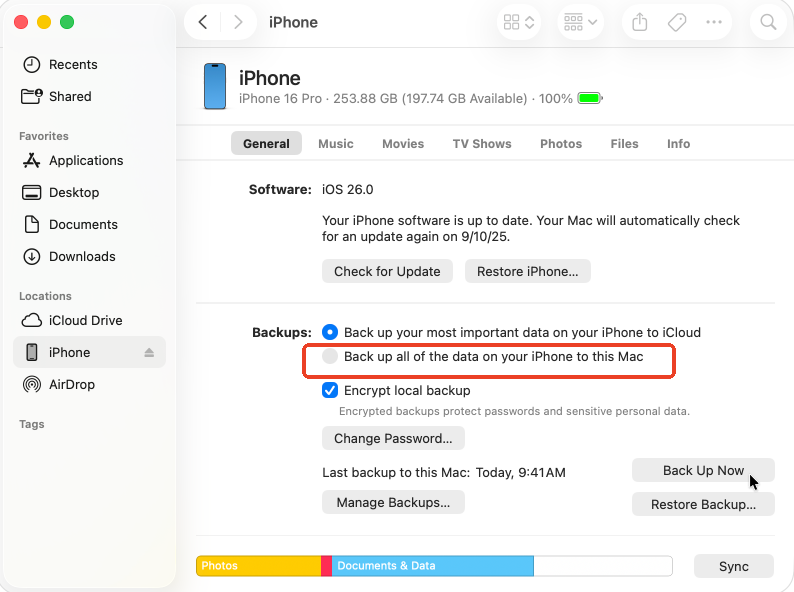
7. Check the box labeled “Encrypt local backup” to ensure passwords and Health data are saved.
8. Click the “Back Up Now” button to begin the process.
How to Create a Local Backup on Windows (Using the Apple Devices App)
- Download, install, and open the Apple Devices app from the Microsoft Store.
- Connect your iPhone to your PC using a compatible USB cable.
- Select your iPhone icon when it appears in the app’s sidebar.
- Click on the “General” menu item.
- Under the “Backups” heading, choose the option to “Back up all of the data on your iPhone to this computer.”
- Check the “Encrypt local backup” box.
- Click “Back Up Now” and keep the phone plugged in until the progress bar completes.
Addressing the Windows Storage Constraint
Anyone who has backed up an iPhone to a Windows PC knows a specific pain point: Apple automatically forces the backup file onto your primary C: drive. If you have a 256GB iPhone and only 50GB of free space on your C: drive, the process will fail. To bypass this obstacle, you must either clear space on your primary drive before beginning or use advanced command-line prompts (like creating a symlink) to redirect the backup folder to an external hard drive.
The Importance of Encryption
A frequent anxiety is that a local backup leaves your data vulnerable if the computer breaks or is stolen. A local backup is indeed only as secure as the machine it resides on. If you share a desktop PC or laptop, your data could be accessible to others. To lock down your information, you must check the box labeled “Encrypt local backup.”
This step is strictly required if you want to save highly sensitive information. Without checking this box, your backup will entirely exclude your Health data, Activity data, Wi-Fi settings, and saved passwords.
Executing an encrypted backup creates a highly secure, offline copy of your entire system. However, you absolutely must remember or safely store the specific password you set for this encryption. Apple cannot recover or reset this password for you. If you lose it, your backup is permanently locked, and you will completely lose access to all the data contained within it.
The Expert Recommendation: Implement a Hybrid Backup Strategy
Here is a critical tip that helps users avoid data loss: you do not need to choose just one method. The most secure approach is a hybrid backup strategy.
Instead of immediately paying for a higher storage tier when you hit your 5GB limit, you can adopt a strategic two-part solution. First, keep your basic iCloud syncing enabled for daily, automatic protection of your most critical data (like Contacts, Notes, and Calendars) over Wi-Fi. Second, right before completing a device migration or major iOS update, create a fully encrypted local backup on your computer.
This hybrid technique gives you the best of both systems. You get automated peace of mind from daily cloud check-ins, plus a robust, complete local copy for major transitions like factory resets, selling an old phone, or device repairs. It helps you save money on unnecessary cloud storage upgrades and guarantees you always have a secure offline copy ready for a high-speed restore.
Which Backup Strategy Fits Your Specific Needs?
To make the right choice, consider your unique circumstances:
- For Travelers: Rely heavily on iCloud backups and constant syncing. When away from your home computer, automatic cloud backups ensure your photos and messages remain secure if your phone is lost or stolen abroad.
- For Privacy-Focused Users: Encrypted local backups are the gold standard. By keeping your data offline on a secure, personal Mac, you minimize cloud exposure. You can combine this approach with disabling iCloud syncing for highly sensitive apps.
- For Users with Limited Computer Storage: If you have a 128GB laptop and a 256GB iPhone, a local backup might be physically impossible. In this scenario, upgrading your iCloud storage plan is the most practical and stress-free choice.
- For Families on a Budget: Instead of buying separate, expensive cloud storage tiers for every family member, use iCloud’s 5GB free tier for essential syncs (like contacts and calendars). Then, perform monthly local backups for each device on a shared family desktop to save on recurring subscription fees.
Beyond Standard Backups: Seamless Device Migration with AnyTrans
When users need a reliable data transfer before upgrading, standard backup methods occasionally present a significant obstacle: traditional restores require a full device wipe and will overwrite existing data. To address the common fear of accidentally losing your data or being forced into a factory reset, third-party software like AnyTrans offers an alternative designed for specific edge cases.
AnyTrans is a utility built to handle scenarios that standard Apple restores cannot smoothly accommodate. It is especially useful for users moving from Android to iPhone, or those attempting to merge data from an old phone onto a new one they have already started using. Instead of an “all-or-nothing” restore, AnyTrans features selective transfer capabilities. You can choose exactly which data types to move, such as SMS text messages with their attachments, and specific documents, creating a non-destructive procedure.
Crucially, it preserves your original photo album structure rather than dumping everything into a disorganized recent folder. It also supports WhatsApp transfers across different operating systems with fewer restrictions, entirely bypassing the need to factory reset your target device . By addressing specific user anxieties—like losing organized albums, dropping call logs, or overwriting recent text messages—AnyTrans provides a targeted solution for merging data safely.

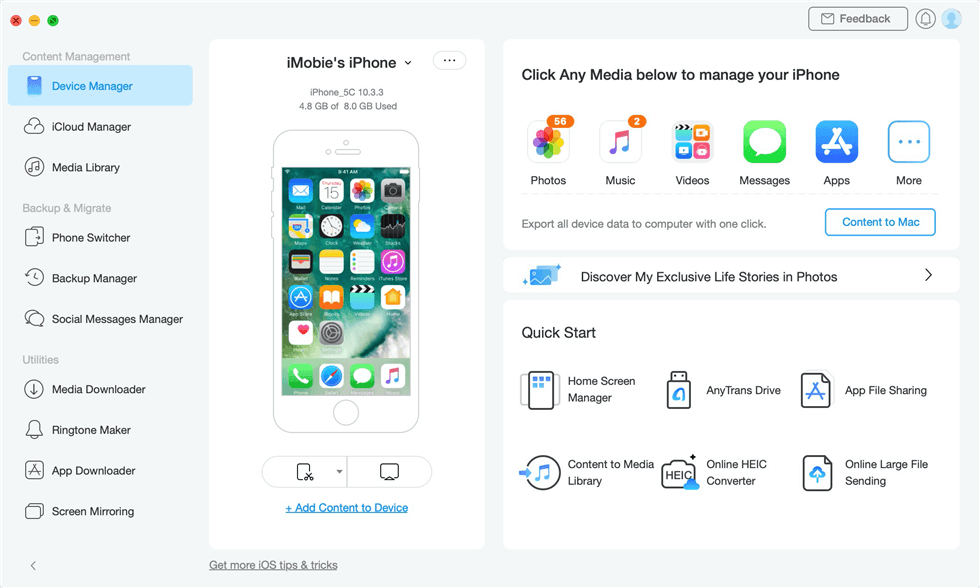
AnyTrans – Manage All Your Apple iProducts in 1 click
The complete iOS manager to transfer, manage, and back up your iPhone, iPad, iPod, iTunes, and iCloud content in a way easy, fast, and you like. As an all-in-one iOS manager, AnyTrans can easily help you take full control of your data without limits.
Frequently Asked Questions About iPhone Backups
To further clarify the advantages and disadvantages of each method, here are the answers to the most common queries regarding iPhone backups.
Q1: Does iCloud Backup include everything on my iPhone?
No. It automatically excludes data already synced to iCloud (such as Contacts, Calendars, and Photos if iCloud Photos is enabled), Apple Pay information, and Face ID settings. Users must understand the distinction between basic sync and a full backup.
Q2: Does local backup require iTunes?
Not always. On a modern Mac running macOS Catalina or newer, you will use Finder. On Windows, you can use the newer Apple Devices app or iTunes, depending on your specific operating system setup.
Q3: Why should I encrypt a local iPhone backup?
Encryption is functionally mandatory if you want to back up highly sensitive information, including Health data, Activity data, and saved passwords. It also protects your backup files from unauthorized access on shared computers.
Q4: Can I delete iCloud Backup if I have a local backup?
Yes, but doing so removes your automatic daily safety net. It is much safer to keep at least two backup copies in different locations, especially before executing major iOS updates or sending a device in for repairs.
Conclusion
Deciding between an iCloud and a local backup does not have to be a source of anxiety. By understanding the core differences in speed, security, and storage space limits, you can easily regain control of your personal data. Implementing a hybrid strategy provides you with daily automated protection alongside a secure, encrypted offline copy for unforeseen emergencies.
If you are preparing for a complex device migration—especially when switching operating systems or attempting to merge data without a forced factory reset—standard procedures occasionally fall short. Tools like AnyTrans offer a helpful alternative to overcome these specific migration obstacles. With selective transfer capabilities, you can move exactly what you need without overwriting existing data. Explore AnyTrans today for a secure, stress-free transition if you face these unique migration challenges.
AnyTrans – Manage All Your Apple iProducts in 1 click
- Break sync boundaries to transfer content freely across iPhone, iPad, iPod, iTunes, iCloud, and computer.
- Manage 27 types of iOS content from one handy place, taking care of all your important files.
- Back up data in your preferred way, including full, incremental, or automatic wireless backup.
- Batch import or export all/selected iOS data with one simple and quick click.


 AnyTrans ®
Seamlessly Manage Your iPhone, iPad, iPod, iCloud and iTunes Content
Free Download Free Download