If you are running low on in-game items and want to create a new waypoint, you first need to meet a strict level requirement. While many players search for ways to get a stop at their house, Niantic’s rules make this process challenging.
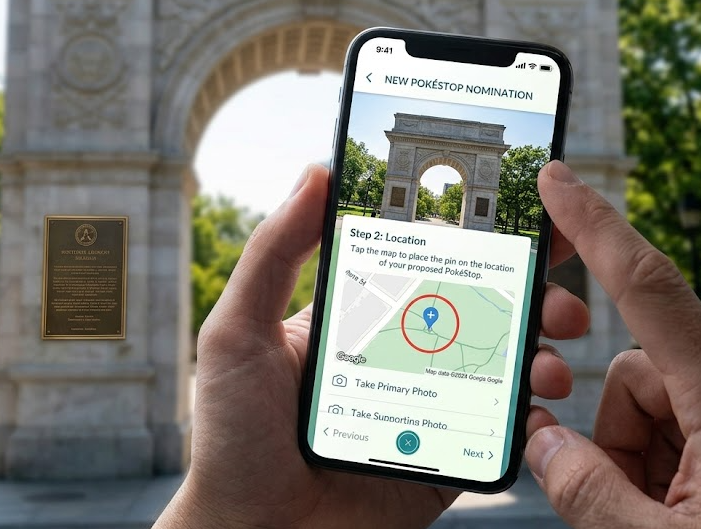
Here is the immediate answer to what it takes to nominate a PokéStop, along with other essential Pokémon GO tips and tools:
- Level 37 Requirement: You must reach at least Level 37 in Pokémon GO before the nomination feature unlocks for your account.
- The Niantic Wayfarer System: The process isn’t instant. Nominations are submitted to Niantic Wayfarer, a community review system where other players vote on your submission.
- Strict Approval Guidelines: Not every nomination gets approved. Submissions must meet strict public-access guidelines, meaning they must be visually unique, safe to access, and historically or culturally relevant.
Reaching Level 37 is a significant grind. Setting your expectations is important: nominating a PokéStop is a long process that can take weeks or months to see results.
How to Nominate a PokéStop in Pokémon GO (Official Steps)
Once you hit Level 37, the ability to suggest a new Point of Interest (POI) becomes available directly in the Pokémon GO app. Here is how to navigate the official in-game submission process:
- Open the Nomination Menu: Tap the Main Menu (Poké Ball icon), go to Settings, select Uploads, and tap New PokéStop.
- Set the Location: A map will appear. Drag the map to place the pin exactly where the object is located in the real world. Accuracy is critical for reviewers.
- Take a Primary Photo: Snap a high-quality, clear photo of the object you are nominating. Avoid blurry images, taking photos from a car, or including recognizable people or license plates.
- Take a Surrounding Area Photo: Take a wider shot showing the object in its surrounding environment. This helps Wayfarer reviewers verify that the POI exists and is safe for pedestrians to access.
- Add Details and Submit: Enter a descriptive title and a detailed description of the Wayspot. Finally, provide an explanation of why this object makes a great PokéStop based on official guidelines. Submit your nomination for the Niantic Wayfarer community to review.
After submitting, your nomination enters a queue. You will need to wait for local Wayfarer reviewers to vote on its eligibility.
Can I Make a PokéStop at My House?
It is incredibly frustrating to live in an area with no nearby PokéStops, especially when you just want to spin for a few items from your living room. Because of this, many players try to nominate a yard decoration, a mailbox, or a custom sign at their home address.
However, Niantic strictly forbids placing PokéStops on private residential property—specifically single-family homes.
Nominations located on private residential property will be immediately rejected by the Wayfarer review community. It is a hard rule established for privacy and real-world safety. Do not waste your time trying to trick reviewers or disguise your front yard as a public park; reviewers use satellite imagery and street view to verify locations, and residential nominations will always fail.
The Rural Reality Check: Eligible POIs and S2 Cells
Before you spend months grinding to Level 37 just to create a PokéStop, you need to verify if your real-world location actually supports one.
Use this checklist to self-diagnose your local POI potential:
- Do you have eligible landmarks nearby? Valid Wayfarer POIs include public parks, historical markers, churches, libraries, trail signs, and transit stations.
- Are you in a rural dead zone? If you live in an area with only generic businesses, empty fields, or residential homes, you will not have valid objects to submit.
- Have you checked S2 Cell density limits? Pokémon GO uses a mapping system called S2 Cells (specifically Level 17 cells). Even if you find a valid POI and it gets approved in Wayfarer, it will not appear in Pokémon GO if there is already an existing PokéStop or Gym in that exact same Level 17 cell.
If you lack public landmarks or are blocked by S2 cell limits, the official nomination route simply won’t work for you, no matter what level you are.
No POIs? The Practical Alternative to Making a PokéStop
If you are blocked by the Level 37 requirement, or you live in a rural dead zone with zero eligible landmarks, you might be looking for a workaround. It is important to clarify a technical reality first: no third-party tool can create or generate a new PokéStop on Niantic’s official servers.
Instead of trying to force a new stop into a rural area, the most practical alternative is to change location in Pokémon GO and virtually travel to areas where PokéStops already exist. This is where a guided desktop tool like Fonelora Location Changer becomes useful. It allows players with supported iOS and Android devices to change their GPS location and access dense city maps packed with items, bypassing the need to wait for Wayfarer approvals entirely.
| Feature | Official Wayfarer Nomination | Fonelora Location Changer |
|---|---|---|
| Requirement | Level 37 + valid public landmarks | Supported iOS/Android device connected to a desktop |
| Time Investment | Weeks or months of waiting for community votes | Immediate virtual access to existing items |
| Location Scope | Restricted strictly to your physical neighborhood | Ability to virtually travel to dense, item-rich city maps |
| Outcome | Creates a permanent public Wayspot | Accesses existing PokéStops privately |
How to Safely Access Existing PokéStops with Fonelora Location Changer
When dealing with location-based services (LBS) games, jumping around maps recklessly can trigger account risks. Fonelora Location Changer provides a guided workflow with built-in features to help manage LBS game movement responsibly under supported conditions.
Fonelora Location Changer
Realistic GPS movement simulation, flexible route control, easy no-modification setup, and support for gaming, social, privacy, and location-based testing in one platform.
Here is how the workflow operates:
1. Connect your device: Connect your supported iOS or Android device to your computer and launch Fonelora Location Changer. Enter Game Mode, which is designed specifically for LBS game workflows.
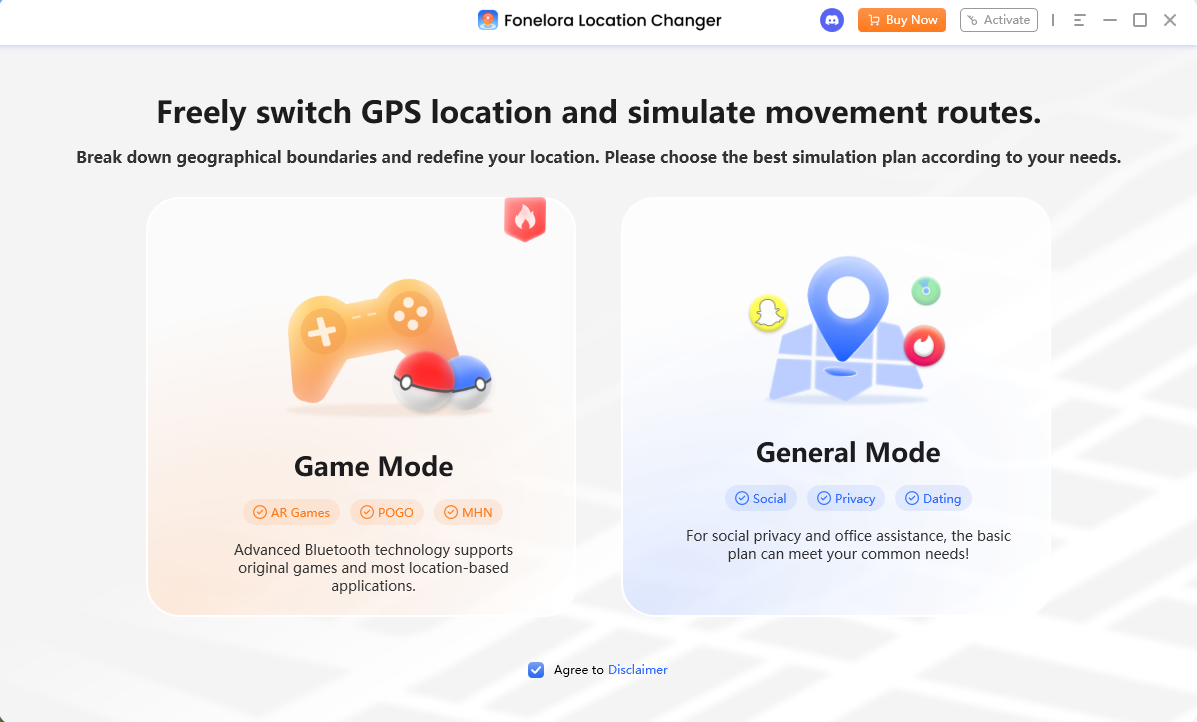
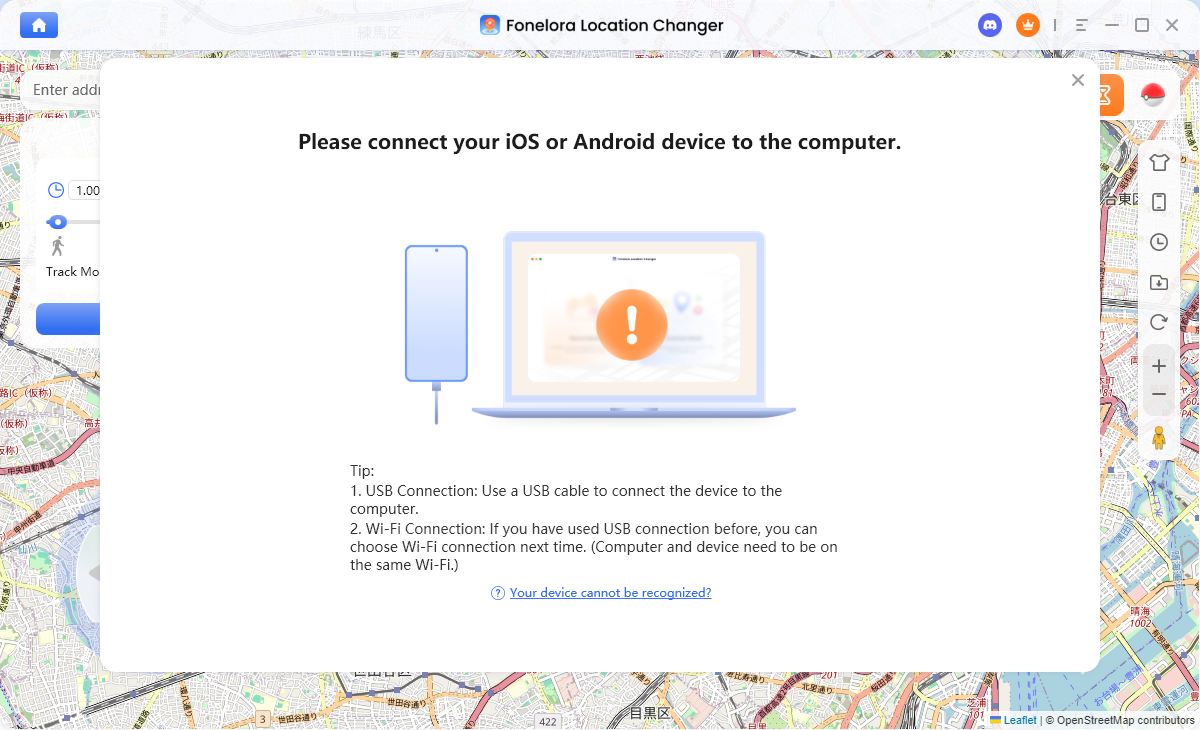
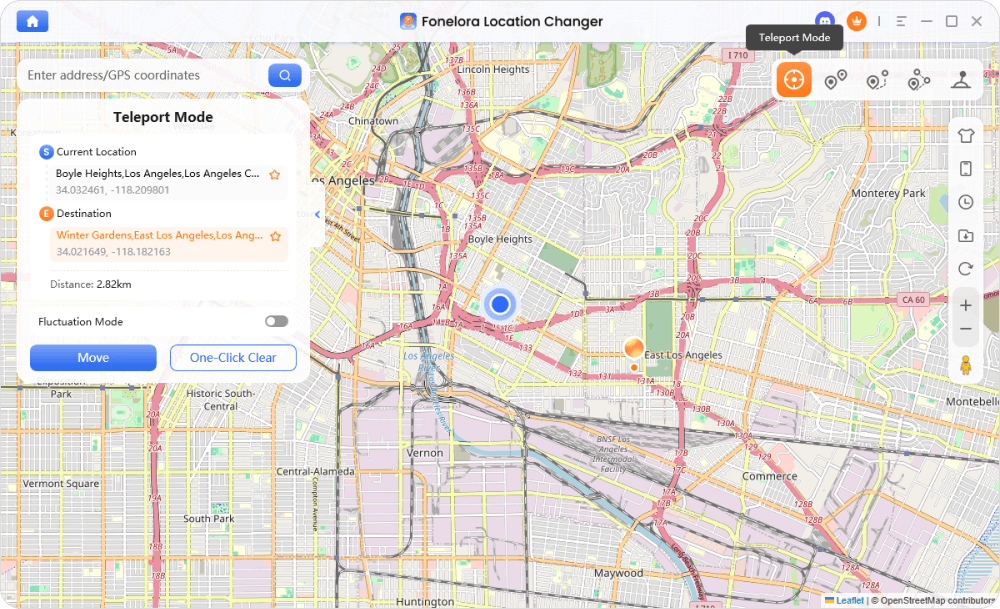
2. Select a dense destination: Use Teleport Mode to move your virtual location to an area known for having a high density of existing PokéStops, such as a major downtown area or famous public park.
3. Simulate natural walking: Once there, do not just jump wildly from stop to stop. Switch to Joystick Mode to simulate walking naturally between the PokéStops. This allows for real-time, ground-level movement control.
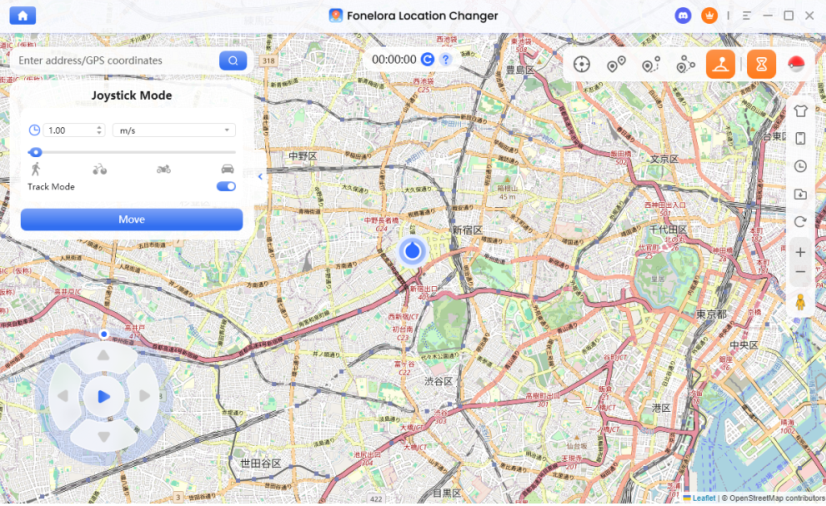
4. Observe the Cooldown Timer: This is the most crucial step for risk management. After teleporting a long distance, you must wait for this suggested countdown to finish before you attempt to spin any PokéStops or catch anything to adhere to Pokémon GO cooldown rules.
While features like Game Mode, Joystick movement, and Cooldown reminders help you manage virtual location safely, no tool guarantees 100% account safety. Always check app rules and use virtual movement responsibly.
Frequently Asked Questions
Q1: How long does it take for a PokéStop to be approved?
It varies wildly based on your region’s reviewer density. It can take anywhere from a few days to several months for the community to reach a consensus on your nomination.
Q2: Can you suggest a PokéStop if you live in a rural area with no landmarks?
It is very difficult. Even in rural areas, you must nominate eligible objects like local trail markers, public park signs, or historic plaques. Empty fields or private homes will not be accepted.
Q3: Why is my approved PokéStop not showing up in Pokémon GO?
Even if a Wayspot is approved in Wayfarer, Pokémon GO limits POI density using a mapping grid called S2 Level 17 cells. If there is already an existing PokéStop or Gym occupying that exact same Level 17 cell, your newly approved POI will not appear in Pokémon GO.
Conclusion: Skip the Grind and Explore Instantly
Creating a PokéStop is a grueling process restricted by high level requirements and strict rules. Instead of waiting months for an approval that might never come, Fonelora Location Changer offers an instant shortcut. It bypasses rural dead zones, giving you immediate virtual access to item-rich city hubs. Start exploring the global map and master your journey today!
Fonelora Location Changer
- Bluetooth Hardware Simulation for Safer GPS Spoofing
- Realistic Movement & Route Simulation
- No Root or Jailbreak Required
- All-in-One Solution for Games, Social Apps & Privacy