How to Mirror Android to PC Without Software
Discover how to mirror Android to PC without Software! Learn the easy steps to make it happen. Also, explore AnyMiro for a bigger, better viewing experience.

How to Mirror Android to PC Without Software
Screen mirroring your Android to the computer with ease.
- Fast response time within 10 ms and 60fps frame rate.
- A stunning visual experience with no color difference.
- Lag-free screen mirroring and 4k resolution.
Available for both Win & Mac
Are you looking for an easy method to access Android from PC? Do you want to know how to mirror Android to PC without Software? If yes, then we’ve got you covered!
While screen mirroring is becoming popular, users are finding convenient ways to do it. No doubt, there are many apps available for this job. However, most of them are either complex to use or don’t ensure the safety or privacy of your data.
In this article, we are going to explore a method to mirror Android to PC without using any Software. We will also explore a completely secure and reliable screen mirroring app.
So, let’s get started!
Table of ContentsHide
Mirror Android to PC Without Software, Is It Possible?
You must be wondering if it is possible to mirror Android to PC without Software. The answer is yes, it is! No doubt, screen mirroring has become a popular way to display a phone’s screen on a laptop or PC. The usual way to mirror Android to PC is by using third-party Software. However, setting it up without software can be a bit tricky.
Don’t worry! Technology has come a long way, and there are straightforward methods to do the job. Considering the need, tech developers installed the mirroring feature within the devices. Therefore, you won’t need to download or install any third-party software. Let’s move forward and see how to mirror Android to PC without Software.
Mirror Android to PC with Built-in Features
As discussed, there are straightforward for screen mirroring, and Wireless Display is one of them. It is a built-in feature of Windows, introduced in Windows 8.1. Since then, it has become a must-have for every new Windows. It is one of the reliable ways of mirroring.
The best part of Wireless Display is that you won’t need any cable or additional Software. You can directly use this feature to mirror Android to PC. However, you need to set it up to use it. So, let’s see how to set up a Wireless Display on a PC.
Steps to Setup Wireless Display
You can follow the instructions given below to set up the Window’s Wireless Display:
Step 1. Right-click the Windows Start button, then open Device Manager > Network Adapters. If you see Intel ® Dual Band Wireless-AC 3160, or something similar, your device supports Wireless Display.
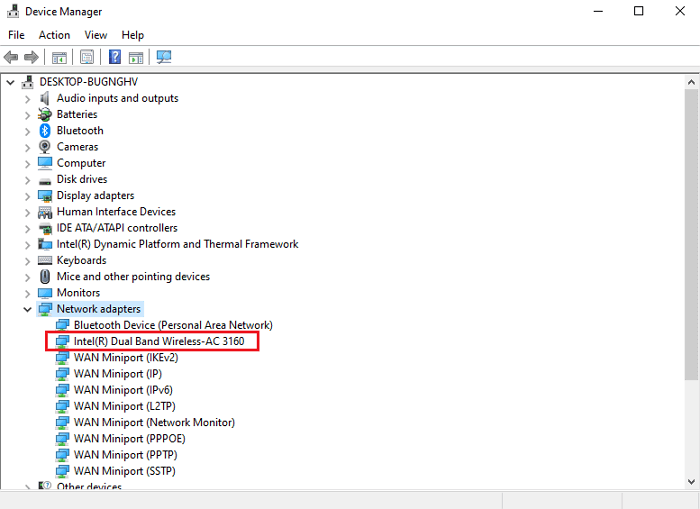
Check Wireless Display Supported File on PC
Step 2. Turn on the Wi-Fi and Bluetooth on your PC.
Step 3. Open the Windows Settings > System > Projecting to this PC. Scroll down and turn on the toggle as displayed in the below picture.
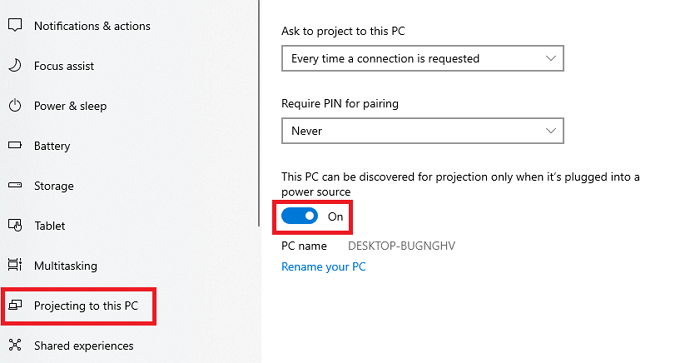
Enable Projecting on This PC
Once the toggle is enabled, your Wireless Display is all set to connect to an Android device.
Note: If you have Windows 11, the steps to access these settings are similar.
Steps to Mirror Android to PC
You can follow the instructions given below to mirror Android to PC:
Step 1. Open the Windows search bar. Type Connect, and select the Connect app, as shown in the picture below.
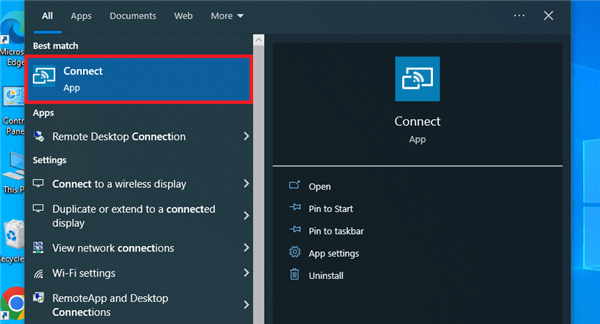
Open the Connect App
Step 2. Once the Connect app is opened, you will see the below display on your screen.
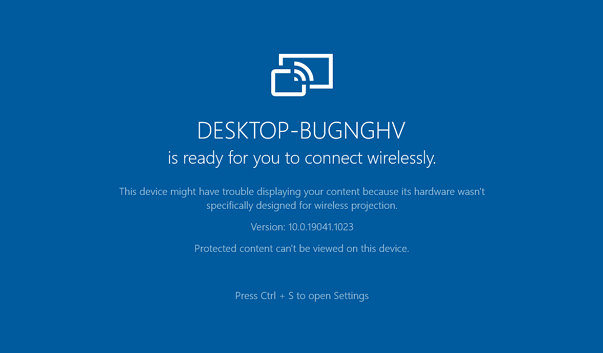
Wireless Display is Ready for Your Computer
Step 3. Open the quick settings menu and enable the Smart View or Cast Screen option. Select your PC and your phone screen will be displayed on your PC.
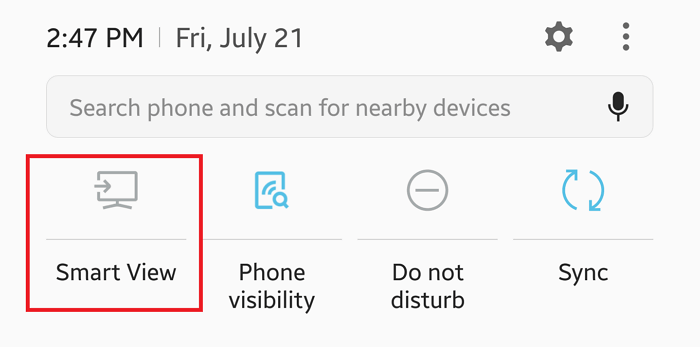
Enable Smart View to mirror Android to PC
Limitations of Wireless Display
No doubt, Wireless Display is convenient, but it has a few limitations, which are as follows:
- The quality of mirroring depends upon Wi-Fi stability.
- Some Android devices are not compatible with the Windows Wireless Display.
- It doesn’t support iOS devices.
- Users might face inconsistency in the audio transmission.
- Some apps and features may not mirror using the Wireless Display feature.
- Prolonged mirroring can cause device heating and battery drain.
However, if you find the Wireless Display tricky to set up, we have a more easy way to access Android from a PC. Let’s explore it!
[Easy Method] How to Mirror Android to PC with AnyMiro
If you want a more user-friendly and reliable way to mirror Android to PC, then AnyMiro is the solution! It is an amazing tool for screen mirroring with many useful features. Unlike Wireless Display, AnyMiro also supports iOS devices. It allows you to mirror any app or feature of your Android/iOS device to your PC without limitations.
Using AnyMiro comes with a lot of advantages. It offers a smooth mirroring experience with high-quality audio/visuals. It also lets you integrate it with your streaming tools to enjoy gameplay on a bigger screen. The best part? You don’t need to go through complex setups. The process of using AnyMiro is straightforward.
Key Features of AnyMiro
The features of AnyMiro that set it apart are as follows:
- Better Visual Experience
AnyMiro ensures that the colors are clear and sharp when you mirror Android to PC. It shows high-quality resolution up to 4k, just like your original screen, for the best visuals. - Auto-sync Audio and Visual
AnyMiro enhances the audio/visual experience. It automatically syncs the mirrored display with the background audio. It ensures that the timestamps are aligned and adjusted. - No latency and more stability
The best feature of AnyMiro is that it offers a lag-free and stable mirroring experience. If you are a gamer, you can enjoy your gameplay live streams without interruptions. - Fast Response Time
It offers a fast response time within 10 ms, a smooth 120Hz refresh rate, and a silky 60fps frame rate. This aspect makes the mirroring experience more smooth and stable. - Integration with Streaming tools
AnyMiro’s mirrored screen can be easily detected by popular live-streaming tools like OBS or Streamlabs. It offers seamless integration with your streaming setups.
These amazing features surely got you excited, and now you might be wondering how to use AnyMiro. Let’s have a look at the steps to access Android from PC using AnyMiro.
Steps to Mirror Android to PC Via USB
Here’s how you can mirror Android to PC via USB:
Step 1. Download and install AnyMiro’s app on your PC.
Free Download for all windows & 100% safe Free Download for all mac & 100% safe
Free Download100% Clean & Safe
Step 2. Launch the AnyMiro app and select Android as your mobile type.

Mirror Android to Computer
Step 3. Select USB as a connection mode, then connect your Android to your PC via a USB cable.
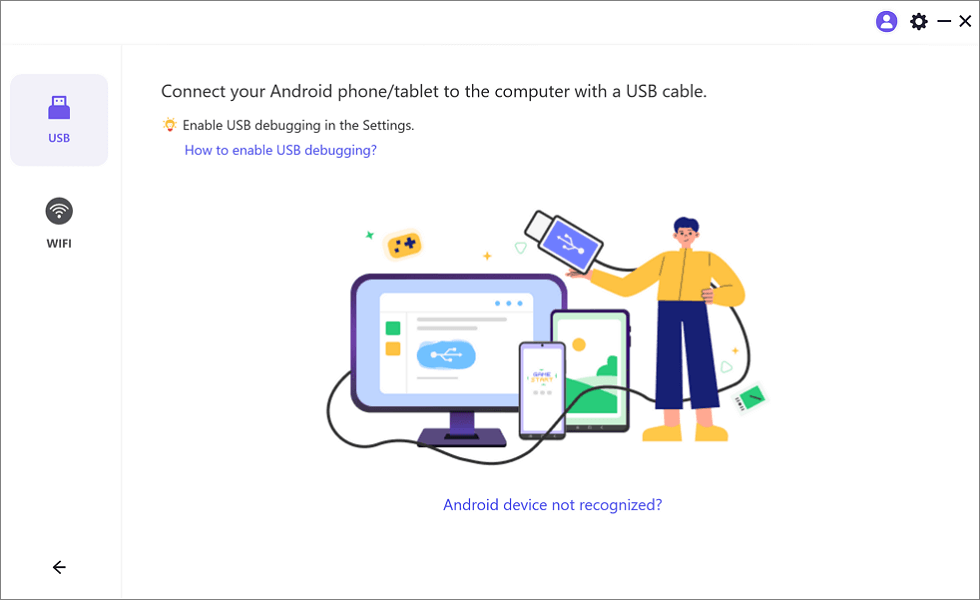
Mirror Android to Computer via USB
Step 4. Now enable USB debugging and select the MTP mode.
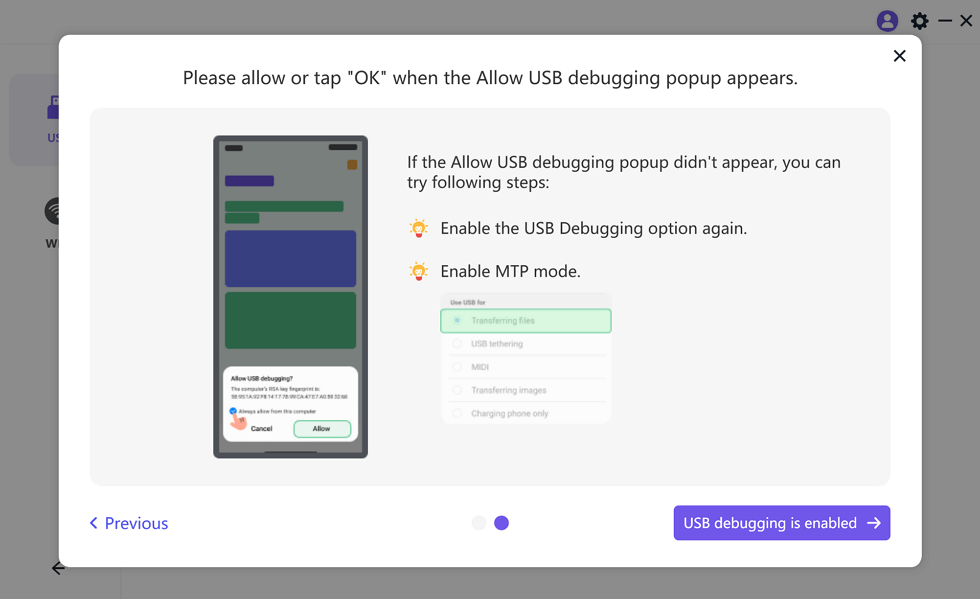
Enable USB Debugging and MTP Mode for a USB Connection
Step 5. Scan the QR code to download AnyMiro app on your Android, then tap USB connection.
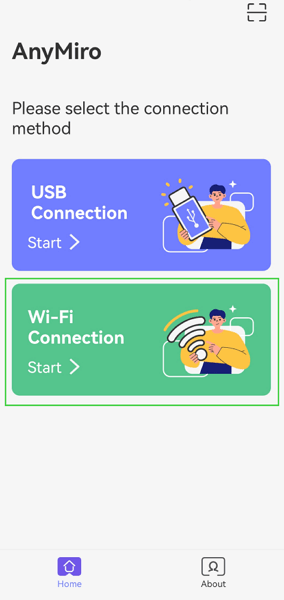
Select the Connection Method
Once your Android device is connected, you will see its screen mirrored on your PC.
Now, Let’s see how to mirror Android to PC wirelessly!
Steps to Mirror Android to PC Wirelessly
Here’s how you can display your Android screen on a PC wirelessly:
Step 1. Launch the AnyMiro app and select Android as your mobile type.
Step 2. Select WiFi mode to connect your Android device to your PC via WiFi.
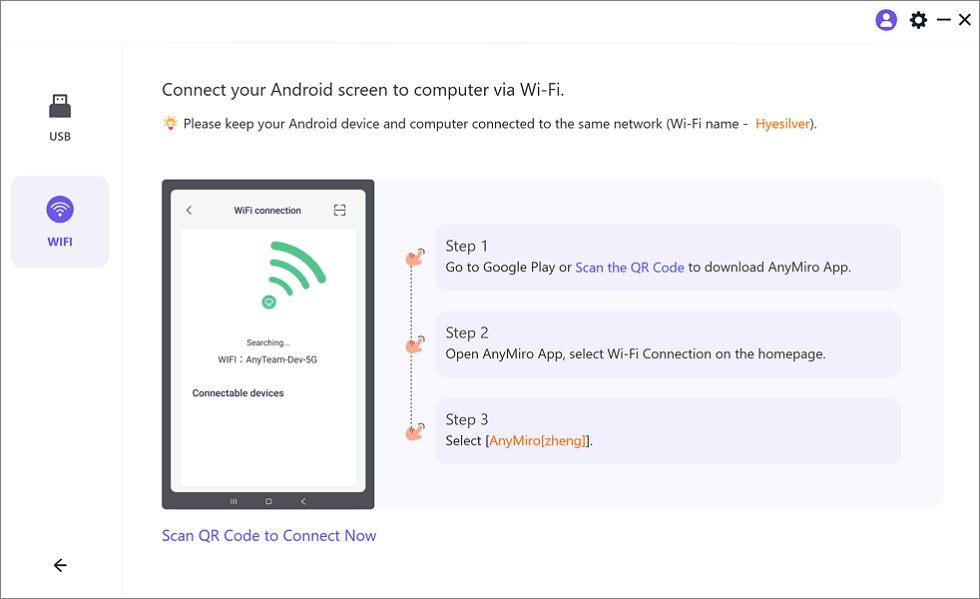
Mirror Android to Computer via WiFi
Step 3. Install AnyMiro on your Android device from Google Play, or you can scan the QR code as shown in the below picture.
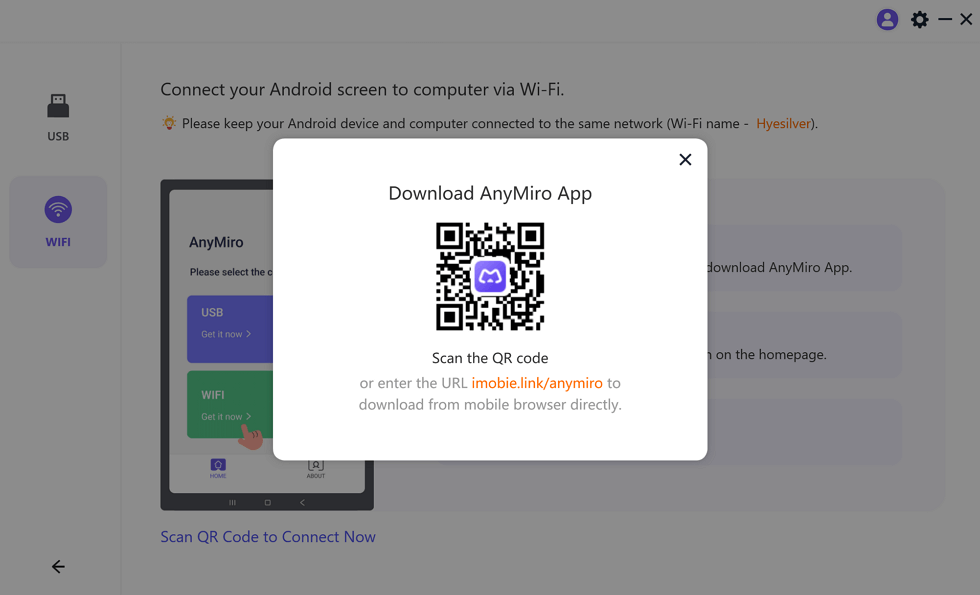
Download AnyMiro App on Your Phone
Step 4. Open the AnyMiro app on your Android phone and select Wi-Fi Connection on the home page.
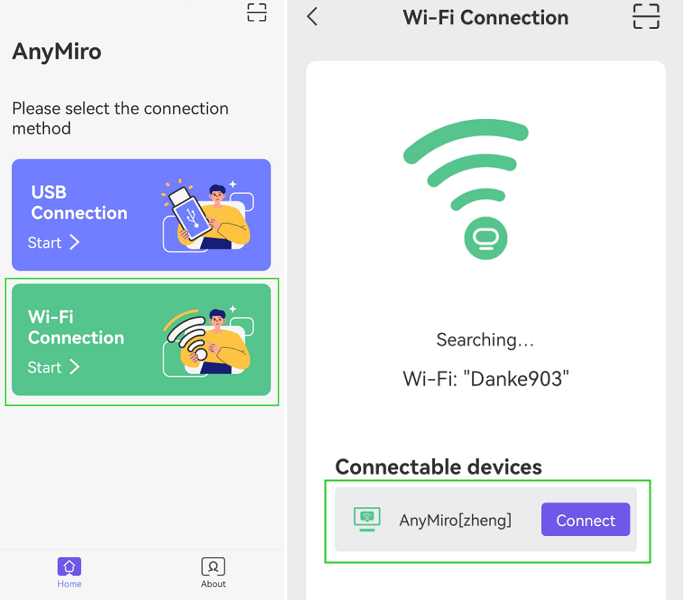
Tap WiFi Connection
Step 5. Now, select your PC from the list of connections.
Step 6. Once your device is connected successfully, you will see its display mirrored on your PC.
Do I Need to Root My Android when Mirroring it to PC?
You don’t have to root your Android to mirror it on your PC. Rooting can be complicated and risky. It refers to gaining administrative access to your Android OS. Rooting allows you to do deep customizations and access the restricted features.
However, screen mirroring doesn’t need any customizations, neither it is restricted. So, you can enjoy it the way it is. The methods discussed above, Wireless Display and AnyMiro, work perfectly without rooting. Rest knowing that with AnyMiro, you can mirror Android to PC without any technical tricks.
Conclusion
Hopefully, this article has helped you understand how to mirror Android to PC without Software. We also explored the step-by-step guide for using the Windows Wireless Display feature. We tried our best to ensure you enjoy your mobile content on a bigger screen hassle-free.
While various methods are available, they can be complex to set up or unreliable. Thus, we recommend AnyMiro! It is a user-friendly and reliable solution for screen mirroring. Unlike other methods, it ensures your data is safe and secure while mirroring.
So, download AnyMiro today and experience uninterrupted mirroring.
AnyMiro – Real-Time Screen Mirroring Tool
Free download AnyMiro to enjoy a fast, stable, and smooth screen mirroring experience. You can mirror for better game playing, video watching, or live streaming mobile phone content.
More Related Articles
Product-related questions? Contact Our Support Team to Get Quick Solution >
