How to Mirror Android Screen to PC Using Scrcpy
Are you still frustrated with screen mirroring on Android? Android phones lack AirPlay functionality and can’t directly transmit content to other devices. You often have to rely on third-party software to achieve it. Scrcpy is a good option for this purpose. Do you know how to mirror Android screen to PC using Scecpy? This article will provide you with the answers you need.

How to Mirror Android Screen to PC Using Scrcpy
Try a lighter and more powerful Scrcpy alternative – AnyMiro
- Fast response time within 10 ms and 60fps frame rate.
- A stunning visual experience with no color difference.
- Lag-free screen mirroring and 4k resolution.
Available for both Win & Mac
We all know that Apple devices have AirPlay functionality, which allows Apple devices such as iPhones, iPads, and Macs to wirelessly screen content. However, for Android users, generally need third-party software to achieve screen mirroring.
The number of Android users is quite large, so the demand to mirror Android to PC is also common. There are many screen mirroring apps available in the market for Android devices, and Scrcpy is a common choice. Scrcpy allows Android users to project their device’s screen onto a computer screen without the need for dedicated hardware. So do you know how to mirror Android screen to PC using Scrcpy? Reading this article will tell you how.
Table of ContentsHide
What Is Scrcpy?
Scrcpy is an open-source tool and screen mirroring app that allows users to mirror Android to PC and control it from there. This tool is highly popular for its simplicity, powerful features, and the fact that it doesn’t require root access. Users can use Scrcpy for various purposes, whether it’s showcasing mobile applications, playing Android games on a larger screen, remote troubleshooting, or even screen recording. It is compatible with multiple operating systems, including Windows, macOS, and Linux.
Here are the main features of Scrcpy:
- Low Latency Screen Mirroring: Scrcpy offers minimal delay, ensuring that what you see on your computer screen closely matches the real-time activity on your Android device. This is crucial for tasks like gaming and presentations.
- Cross-Platform Compatibility: Scrcpy is compatible with various operating systems, including Windows, macOS, and Linux, making it accessible to a wide range of users.
- USB and Wi-Fi Connectivity: Users can connect their Android devices to the computer via USB for a stable and low-latency connection. Additionally, Scrcpy supports Wi-Fi connections for added convenience.
You must want to know how to mirror Android screen to PC using Scrcpy. Please read the following part.
How to Mirror Android Screen to PC Using Scrcpy
To use Scrcpy, you need to ensure that your Android device and computer are connected, and Scrcpy is correctly installed. We will provide you with the basic steps to mirror Android screen to PC using Scrcpy.
Step 1: First, you need to install Scrcpy on your computer. You can find the corresponding download link on Scrcpy’s official GitHub page.
Step 2: Connect Your Android Device: Ensure that your Android device has Developer Options enabled and USB debugging mode activated. Connect your Android device to the computer using a USB data cable. You can also use the Wi-Fi connection option, but typically, an initial connection is established via USB during the initial setup.
Step 3: Run Scrcpy: Open the terminal or command prompt on your computer and navigate to the installation directory of Scrcpy. Then, enter the following command to launch Scrcpy:
scrcpy
Scrcpy will automatically detect and connect to the connected Android device.
Step 4: Once Scrcpy is launched, you will see the screen content of your Android device on your computer’s screen.
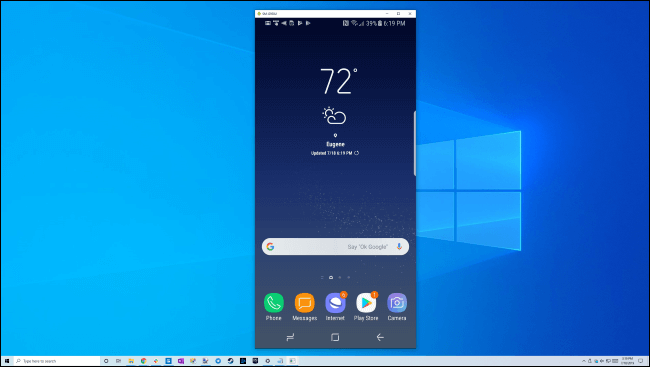
View Phone Screen on PC with Scrcpy
Best Android Screen Mirroring Apps
The above are all the steps to mirror Android screen to PC using Scrcpy. While Scrcpy is a powerful tool, it does have some potential drawbacks and limitations. Its configuration can be somewhat complex: For some users, configuring Scrcpy may pose some difficulties, especially for those who are new to it.
Therefore, we have recommended three user-friendly Android screen mirroring apps for you to choose from. You can select the one that suits you best.
1. AnyMiro [Recommend]
AnyMiro is our top recommendation among third-party screen mirroring software. It has gained favor among many users for its smooth and lag-free performance. AnyMiro is not limited to screen mirroring between Android devices; it also supports cross-platform and cross-device screen mirroring between Apple and Android devices, making it highly compatible.
It ensures stable mirroring connections, offering stable connection durations of up to 10 hours or more when connecting devices, making it ideal for watching videos or live-streaming games. It also supports two connection methods: USB data cable and Wi-Fi.
Here are the key features of AnyMiro:
- Stable Screen Mirroring with Zero Latency: AnyMiro offers stable and zero-latency screen mirroring, ensuring real-time responsiveness.
- High-Quality Display: AnyMiro supports up to 4K resolution, guaranteeing clear screen mirroring.
- Cross-Platform Compatibility: AnyMiro is compatible with Windows, macOS, Android, and iOS, supporting multi-platform connectivity.
- Effortless Streaming to Major Platforms: AnyMiro allows easy streaming of screen content to popular video-sharing platforms like YouTube.
Next, we will introduce two methods for you to use AnyMiro to mirror Android screen to PC. Before proceeding, you can visit the official AnyMiro website to download this software to your computer.
Free Download for all windows & 100% safe Free Download for all mac & 100% safe
Free Download100% Clean & Safe
How to mirror Android to PC via USB
Step 1: Launch AnyMiro and select the “Android” option on the main interface to connect your device.

Mirror Android to Computer
Step 2: Click on the USB icon while ensuring that your Android phone is connected to your computer via a USB data cable.
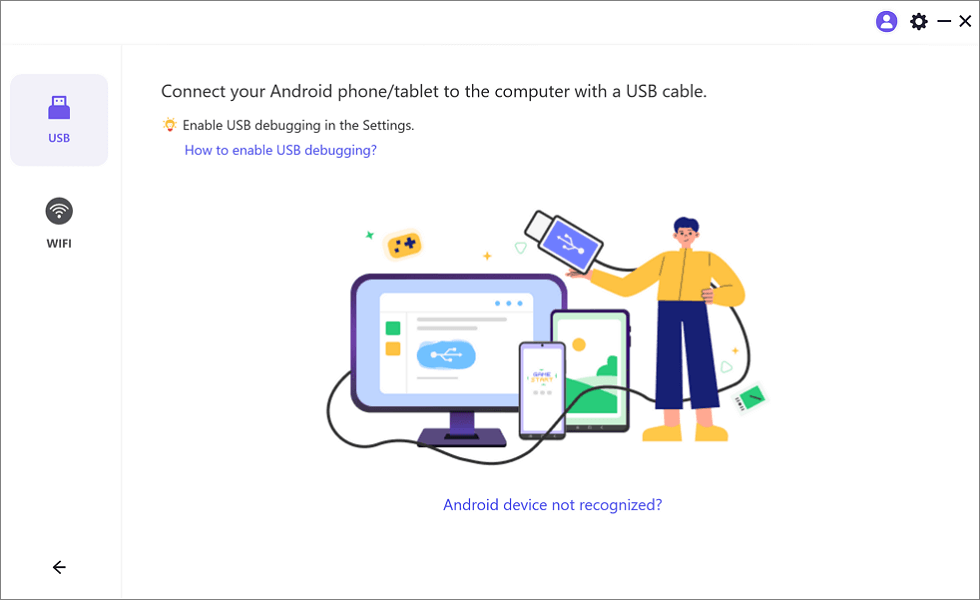
Mirror Android to Computer via USB
Step 3: Follow the on-screen guide to enable USB debugging and select MTP mode.
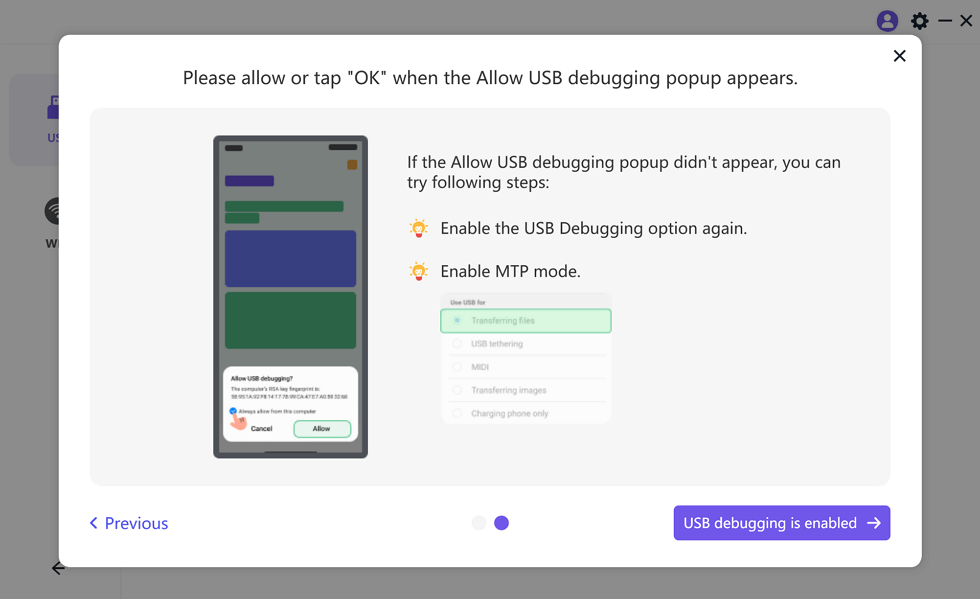
Enable USB Debugging and MTP Mode for a USB Connection
Step 4: Download the AnyMiro app on your Android by scanning the QR code.
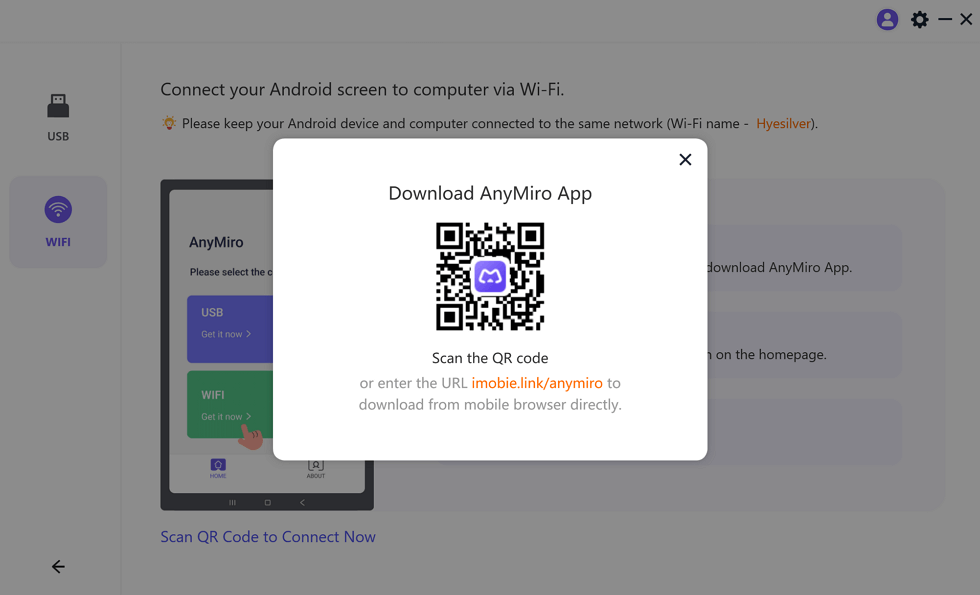
Download AnyMiro App on Your Phone
Step 5: Tap the USB Connection option, and wait for a few seconds, you will be able to successfully mirror Android to PC.
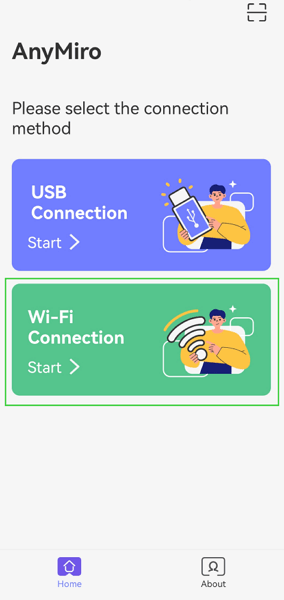
Select the Connection Method
How to mirror Android to PC wirelessly
Step 1: Similarly, select the Android device and enter the Wi-Fi mode for connection.
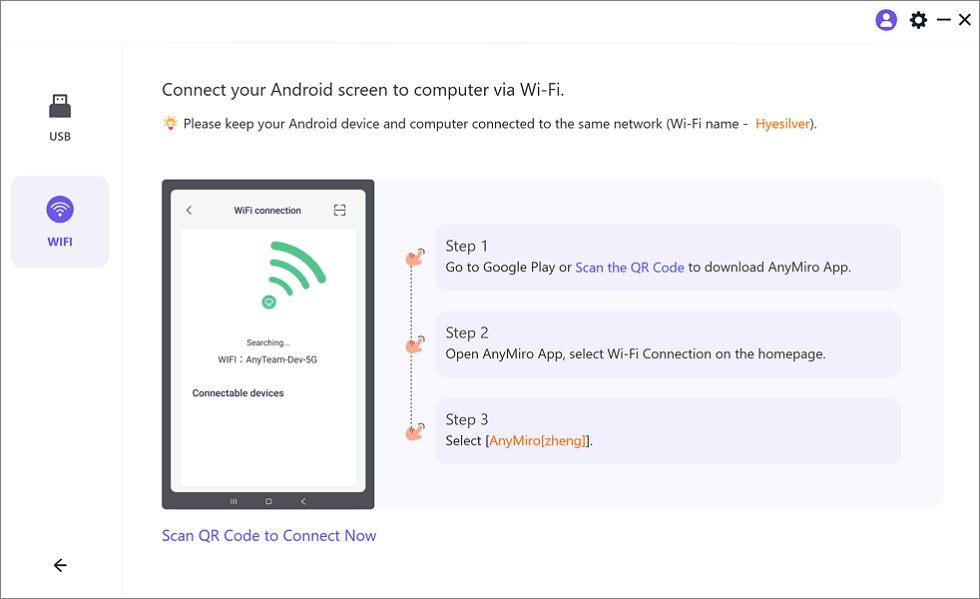
Mirror Android to Computer via WiFi
Step 2: Download the AnyMiro app on your Android device. Open the AnyMiro app on your Android device and choose Wi-Fi connection from the main page.
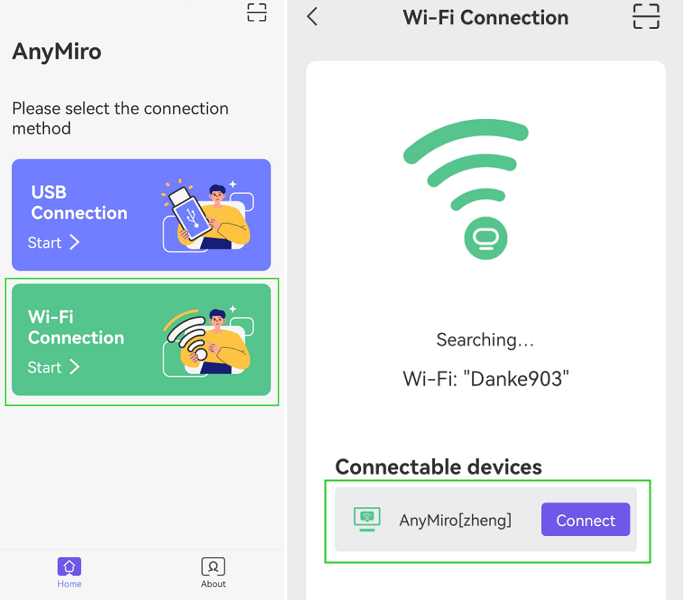
Tap WiFi Connection
Step 3: Simply select the name of the computer you want to cast to, and you will be able to successfully connect and mirror Android to PC.
2. LetsView
LetsView is a versatile screen mirroring and casting tool compatible with various platforms, including Android, iOS, Windows, and macOS. It facilitates screen sharing from mobile devices to computers or TVs for presentations, education, and entertainment.
Pros:
- Multi-Platform Support: Works seamlessly across multiple operating systems.
- User-Friendly: Easy-to-use interface for hassle-free screen mirroring.
- Wireless Connectivity: Offers wireless screen mirroring, reducing the need for cables.
Cons:
- Network Dependency: Relies on a stable network connection.
- Limited Advanced Features: May have fewer advanced customization options.
- Compatibility Challenges: Some devices may face compatibility issues.
3. Vysor
Vysor is a screen mirroring and device control software designed for Android devices, allowing users to mirror their Android device’s screen onto a computer screen and control it with a keyboard and mouse.
Pros:
- High-Quality Screen Mirroring: Offers clear and detailed screen mirroring.
- Wireless Connectivity: Supports both USB and Wi-Fi connections.
Cons:
- Network Dependency: Wireless mirroring may be affected by network stability.
- Limited Free Features: Some advanced features require a paid license.
- Compatibility Issues: May face compatibility challenges with certain devices.
FAQs
1. How to mirror Android to Windows 10?
The three screen mirroring Apps mentioned above are all suitable for mirroring Android screens to a PC (Windows 10). However, we recommend using AnyMiro for screen mirroring because it offers better stability.
2. Is it safe to use Scrcpy?
Yes, Scrcpy is generally considered safe to use. It is an open-source and reputable screen mirroring and control tool for Android devices.
3. How can I mirror my Android to my computer without the Internet?
You can mirror your Android device to your computer without the internet by using tools like Scrcpy or AnyMiro, which rely on USB connections for screen mirroring and control.
The Bottom Line
While we introduce how to mirror Android screen to PC using Scrcpy, this article also suggests revisiting AnyMiro for its exceptional stability, high-quality display, cross-platform compatibility, and seamless streaming capabilities. Users seeking a reliable and versatile screen mirroring solution are encouraged to explore AnyMiro as a compelling alternative to Scrcpy.
AnyMiro – Real-Time Screen Mirroring Tool
Free download AnyMiro to enjoy a fast, stable, and smooth screen mirroring experience. You can mirror for better game playing, video watching, or live streaming mobile phone content.
Product-related questions? Contact Our Support Team to Get Quick Solution >
