Netflix Chromecast Not Working? Here’s How to Fix It
This article contains methods to solve the “Netflix Chromecast not working.” The solutions include checking your network connection, troubleshooting the Chromecast gadget, and solving problems with the Netflix app.

Netflix Chromecast Not Working? Here’s How to Fix It
Try AnyMiro to mirror iPhone to PC for free via USB and WiFi.
- Fast response time within 10 ms and 60fps frame rate.
- A stunning visual experience with no color difference.
- Lag-free screen mirroring and 4k resolution.
It can be annoying to find that Netflix isn’t functioning on Chromecast when you want to view your preferred series or films. But fear not—this tutorial will assist you in fixing it! We offer support for multiple issues related to Wi-Fi connections, Chromecast malfunctioning, and Netflix application issues. We’ll take easy steps to troubleshoot your devices, check your network, and quickly get Netflix streaming again. Follow these easy Netflix Chromecast not working fixes and enjoy watching your favorite content smoothly.
Table of ContentsHide
Check Your Network Connection
Before solving the “Netflix not working on Chromecast” issue, ensure your network is perfect. Check that the Chromecast is set for the right wireless network. Sometimes, rebooting your modem and router solves most connection issues. To improve performance, ensure no signal interference and combine your devices. A stable connection is key for smooth streaming.
Is Chromecast Connected to Wi-Fi?
To stream Netflix using Chromecast, confirming your device is connected to Wi-Fi is important. If it’s not, Netflix won’t cast properly. Here’s how to check:
Step 1. Open the Google Home app on your mobile device.
Step 2. Tap on “Favorites” or “Devices.” Press and hold your Chromecast device’s title.
Step 3. Select “Device Information.”
Step 4. Tap on “Wi-Fi” to view or update the connection.
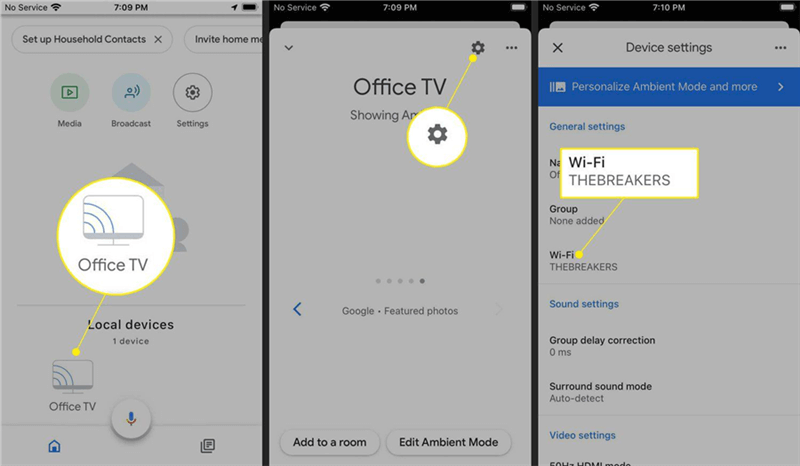
Check WiFi Network on Chromecast
AnyMiro – Real-Time Screen Mirroring Tool
Free download AnyMiro to enjoy a fast, stable, and smooth screen mirroring experience. You can mirror for better game playing, video watching, or live streaming mobile phone content.
Check Your Router and Modem
Does Netflix not stream to your Chromecast? It seems like there is an issue with the modem or the network you use. You should try rebooting these gadgets, as this might help to reconnect them. In addition, avoid any barriers, such as thick walls, as they weaken the Wi-Fi signal of your screen. For seamless streaming, a reliable, strong connection is necessary.
Troubleshooting Chromecast Device
It can be your Chromecast if Netflix is not working as expected on your device. It’s possible to have challenges resulting from old software or a poor Wi-Fi connection. First, start by toggling the power on and off your Chromecast and ensure the connection to the internet is good. The other solutions involve upgrading the latest version of Chromecast. A Chromecast settings reset could be helpful if issues continue. By following these easy steps, you can frequently fix the problem and resume hassle-free viewing of your favorite Netflix series and films.
Troubleshooting the Netflix App
If you’ve checked your network and Chromecast and the problem persists, the Netflix app could be the culprit. Here are a few easy ways to resolve common app issues.
Restart the Netflix App
One simple solution for streaming problems is to restart the Netflix app. Don’t just minimize the app—close it entirely. On the phone, up or tap the recent apps button to close Netflix on the phone. On a computer, shut down the browser or app. After reopening it, the app usually runs better and streams smoothly.
Update the Netflix App
An outdated app can cause problems. Look for upgrades for your phone in Google Play or Apple App Stores. Ensure your Netflix browser or app is current while using a computer. Additionally, ensure your TV’s built-in Chromecast app is current. Updates help the app run better.
Check Netflix Service Status
Before troubleshooting, check if Netflix is having service issues. Widespread outages can stop you from streaming. Check if there is an outage by going to Netflix’s official website or using a third-party service. If Netflix is unavailable, you must wait until it returns online. This method will save you time on subsequent troubleshooting procedures.
Bonus Tips for Cast Netflix: AnyMiro
AnyMiro is a fantastic tool that enhances your streaming experience, especially when casting Netflix on a larger screen. With AnyMiro, you can quickly mirror your iOS and Android screens to your PC. This implies that you can view your phone’s screen, audio, camera, and microphone simultaneously. Several devices can stream simultaneously, allowing everyone to enjoy various content together.
You can also record your screen in real-time to capture all you see and hear. Furthermore, you can capture crisp screenshots at any time. You can also live stream to websites like Microsoft Teams, Zoom, and YouTube. You can mirror your devices using a stable USB cable or Wi-Fi. AnyMiro can turn your phone camera into a 4K HD webcam if needed. You can even use your phone’s microphone for better sound. AnyMiro also lets you stream movies and shows from HBO Max and Spotify. If you want to cast Netflix smoothly, AnyMiro is a great choice that has all the features you need.
Key Features:
- You can mirror screens with audio to enjoy a complete viewing experience without lag or quality issues.
- Use your phone camera as a high-definition webcam that can support up to 4K for clear visuals.
- Stream videos and music from popular services like HBO Max and Spotify to a bigger screen easily.
- Record everything on your screen and any audio while mirroring so you don’t miss any important moments.
- Use helpful annotation tools to point out important details or ideas during mirroring clearly.
- Arrange multiple sources on your screen, making sharing easy and enjoyable for everyone involved.
To Cast Netflix from iPhone to PC & Mac
Step 1. Free download and install AnyMiro on your computer.
Free Download for all windows & 100% safe Free Download for all mac & 100% safe
Free Download100% Clean & Safe
Step 2. Open AnyMiro on your computer and choose “iOS/iPadOS.” Link your iPhone and the computer through a USB cable.
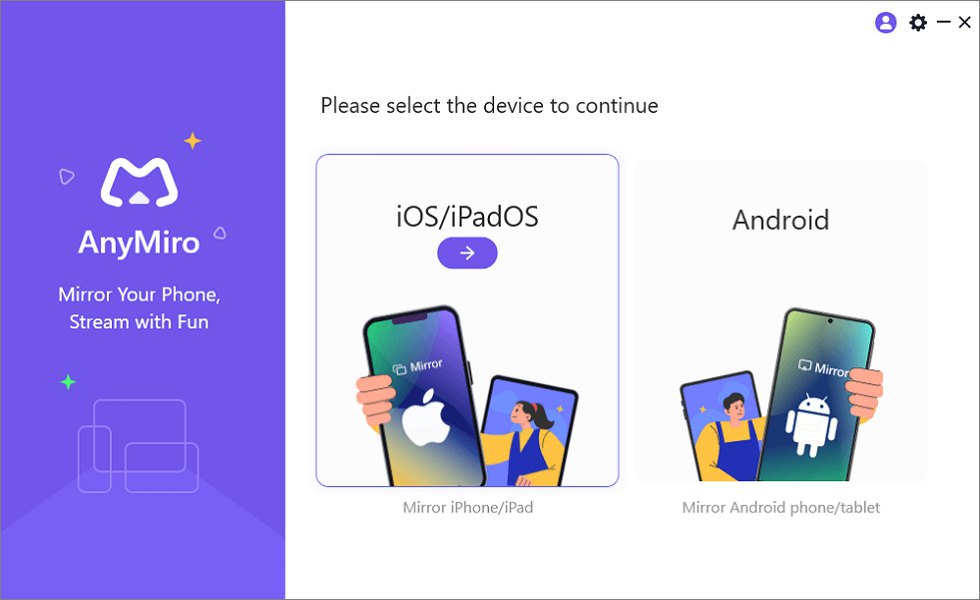
Mirror iPhone/iPad to Computer
Step 3. Select the “USB connection” option.
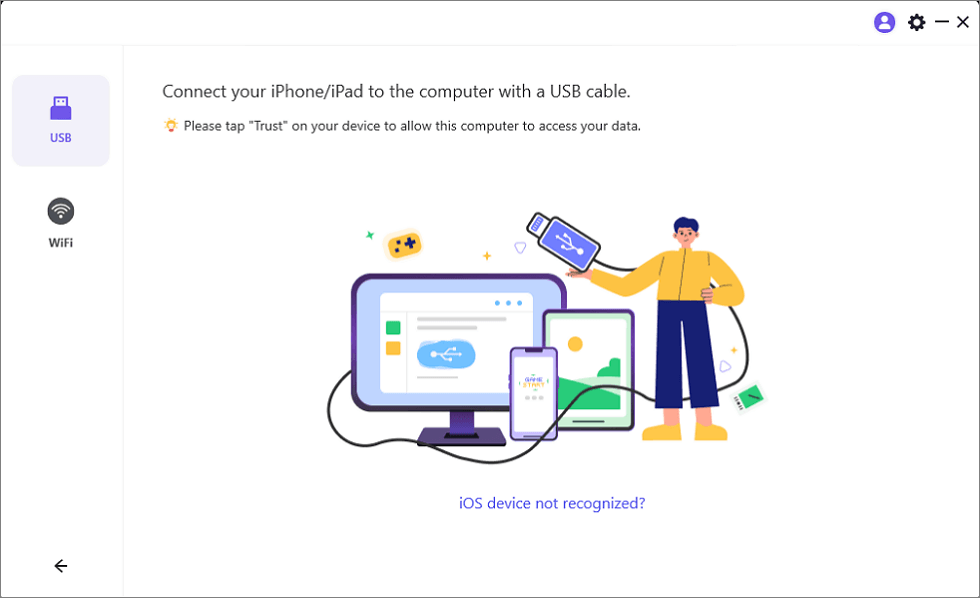
Connect Your iPhone/iPad with a USB Cable
Step 4. Your iPhone will prompt you to tap “Trust.” Tap “Trust” on your iPhone and enter your passcode. Your iPhone is now connected, and you can start high-quality screen mirroring immediately.
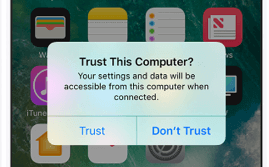
Trust Your Computer on iPhone
You can also mirror your iPhone / iPad Via Wi-Fi connection
Step 1. Open AnyMiro on your computer and select “iOS/iPadOS.” Click on the “Wi-Fi connection” option.
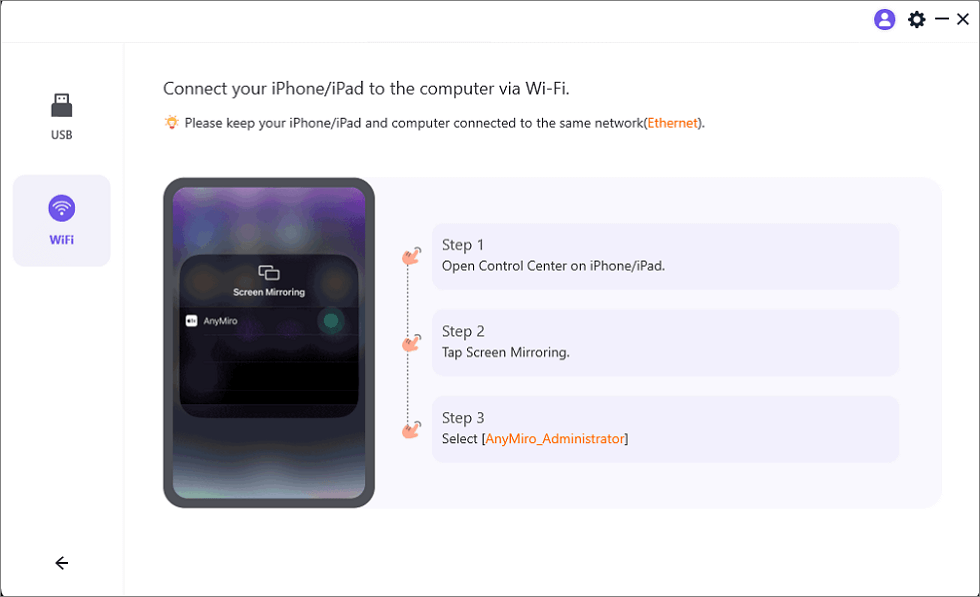
Mirror iOS to Computer via WiFi
Step 2. Check your iPhone and computer for the same WiFi connection.
Step 3. On your iPhone, swipe to access the Control Center, tap “Screen Mirroring,” and choose “AnyMiro_Computer Name.”
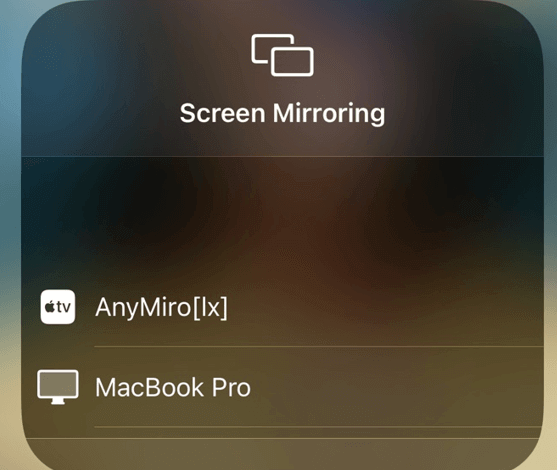
Select Your Computer from the List
Step 5. Once your device is detected, you can enjoy high-quality screen mirroring immediately!
To Cast Netflix from Android to PC & Mac
Step 1. Free download and install AnyMiro on your computer, then launch the app.
Free Download for all windows & 100% safe Free Download for all mac & 100% safe
Free Download100% Clean & Safe
Step 2. Choose the “Android” option to start the connection.

Mirror Android to Computer
Step 3. Select “USB” and connect your phone to the computer with a USB cable.
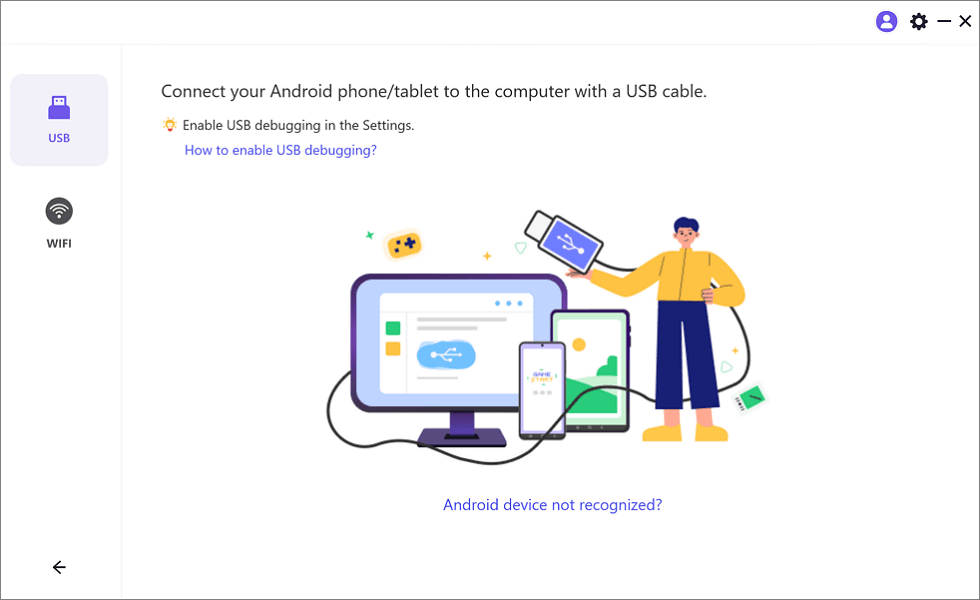
Select the USB Option for Screen Mirroring Android to PC
Step 4. On your mobile, enable “USB debugging” and choose “MTP Mode” when prompted.
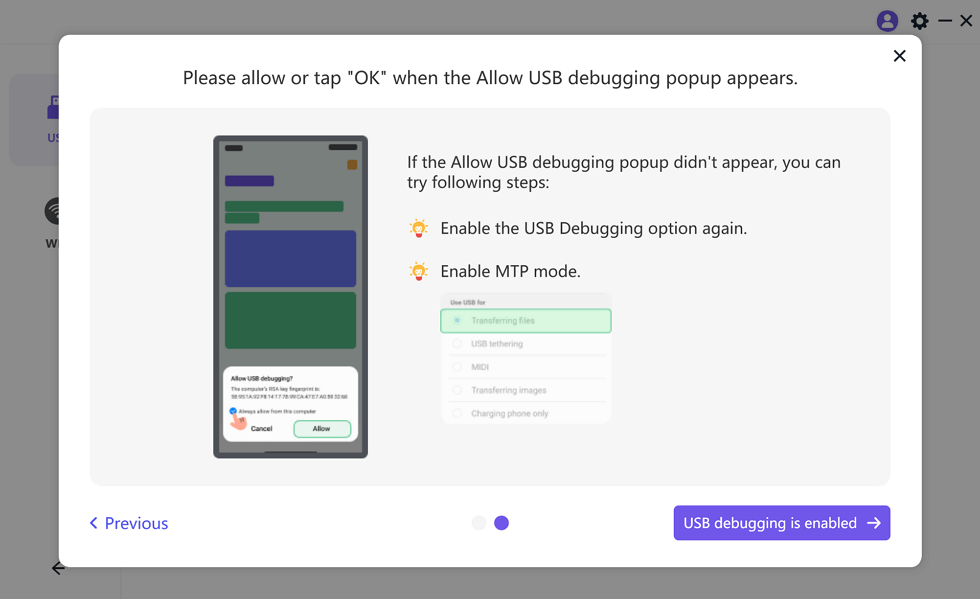
Enable USB Debugging and MTP Mode for a USB Connection
Step 5. Your phone’s screen will show on your computer, confirming successful mirroring!
You can also screen mirror Android phone to computer via Wi-Fi
Step 1. First, open the AnyMiro and select the “Android” option from the main menu.
Step 2. Click on the “Wi-Fi” icon to start the wireless connection.
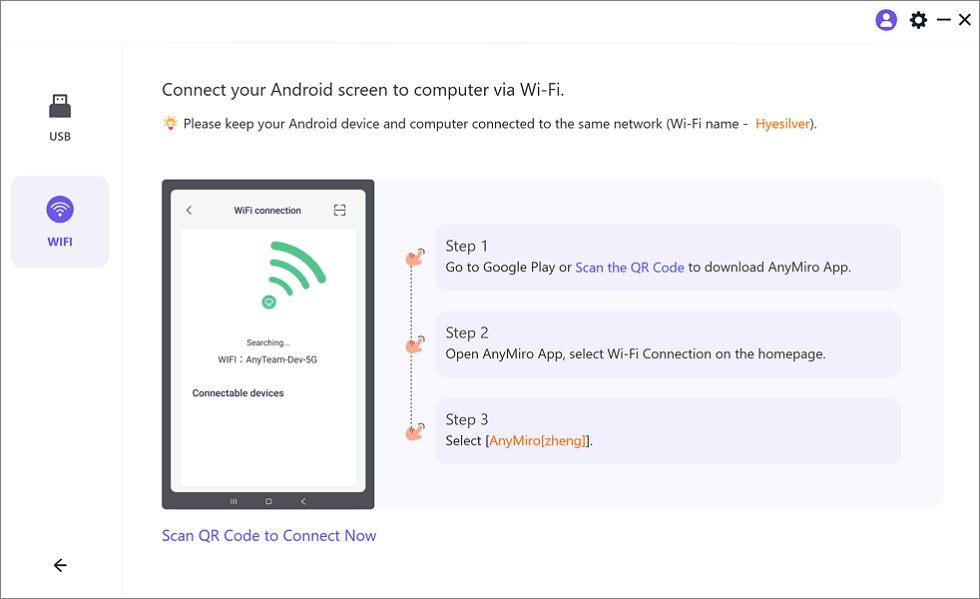
Mirror Android to Computer via WiFi
Step 3. On your phone, find AnyMiro on Google Play or scan the QR code to download the app.
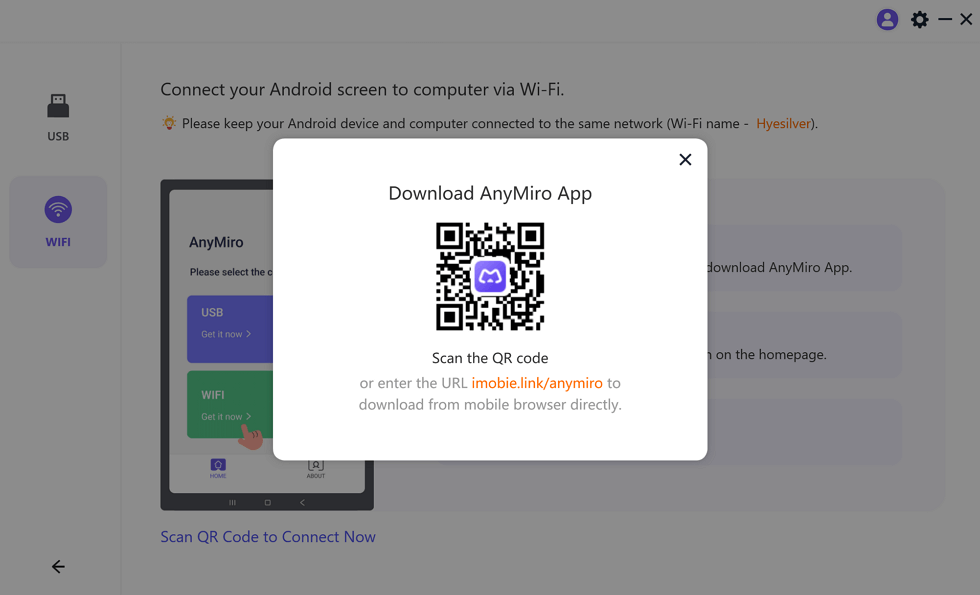
Download AnyMiro App on Your Phone
Step 4. Open the AnyMiro app on your phone and select “Wi-Fi Connection.” Choose your computer’s name from the list to mirror your phone’s screen.
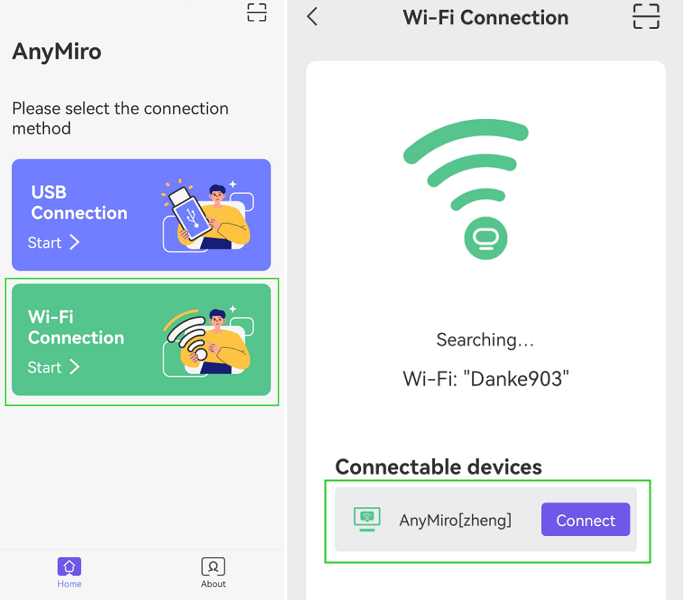
Tap WiFi Connection
FAQs on Netflix Chromecast Not Working
What makes it so hard to connect Chromecast to Netflix?
If you have problems with your Netflix Chromecast connection, it is wise to check Wi-Fi connection. Make sure both Chromecast and your device connect to the same network. If connectivity issues persisted, it is suggested to reset Chromecast.
Why does my Chromecast with Netflix have no audio?
If the sound is missing, check the volume of both the TV and Netflix apps. Also, check that the audio is configured correctly on your TV to take the audio output. You may get this by restarting Chromecast.
Can I stream Netflix from my cell phone if my Chromecast is not working?
Yes. If Chromecast isn’t working, you can cast from your phone. Just ensure you’re on the same Wi-Fi network. Alternatively, try using a tool like AnyMiro for seamless screen mirroring to PC in 4K quality.
Final Words
Check that your Chromecast and device are on the same Wi-Fi network before you try to watch Netflix on your Chromecast. This can be a temporary problem, so it is necessary to restart Chromecast and the Wi-Fi router to see if it is helpful. If a Netflix app has an issue, attempt to reboot or update the app. You can also reset your Chromecast if issues continue. It would help if you considered utilizing AnyMiro for a better casting experience. This tool is a dependable way to stream Netflix on your computer, making it simple to mirror your device’s screen.
Product-related questions? Contact Our Support Team to Get Quick Solution >
