How to Play Pokemon Games on iPhone & iPad
This guide will teach you how to play Pokemon games on iPhone and iPad. You can use GBA4iOS, Game Play Color, Happy Chick, and Delta emulators. Moreover, you can play mobile games on a PC using AnyMiro. Follow these simple steps and start playing today!

How to Play Pokemon Games on iPhone & iPad
Try AnyMiro to mirror iPhone to PC for free via USB and WiFi.
- Fast response time within 10 ms and 60fps frame rate.
- A stunning visual experience with no color difference.
- Lag-free screen mirroring and 4k resolution.
Consider being unable to locate your preferred Pokémon game in the App Store yet wanting to play it on your iPhone or iPad. Nothing turns up when you search. Do not be concerned! Playing Pokémon games on your iPhone is simple. You can utilize Pokémon emulators, which are specialized programs. These enable you to play Pokemon games on iPhone or iPad, such as those from the Game Boy or Nintendo DS. The top emulators, their installation, and how to begin playing will all be covered in this article. Additionally, you will discover which official Pokémon games are accessible through the App Store. Now, following these easy instructions, enjoy Pokémon on your iPhone or iPad!
Why Do You Need to Use a Pokémon Emulator for iPhone/iPad?
Here are the main reasons why you need a Pokémon emulator:
- Play Old Pokémon Games: Emulators allow you to play standard Pokémon games from Game Boy, Game Boy Advance, and Nintendo DS on your iPhone or iPad.
- Use Cheats Easily: Emulators let you use cheats quickly. You can switch between windows instead of opening and closing apps on your phone.
- Change Location in Pokémon Go: You can move around in Pokémon Go without walking. Use arrow keys or a joystick to explore the map easily.
- Play Without Internet: You can play your favorite Pokémon games offline, anytime, anywhere.
- Play with Multiple Account: You can use more than one Pokémon Go account simultaneously, making it easier to manage different profiles.
Play Pokémon Games on iPhone & iPad with Emulators [4 Options]
Now, let’s explore some options to play Pokémon Games on iPad and iPhone with emulators:
GBA4iOS
GBA4iOS is a highly efficient emulator that helps you play old Pokémon games directly on your iPhone and iPad. You can also use Cheat Codes to acquire new tricks in your favorite Pokémon games. It also has custom controller skins to personalize your gaming experience. It comes with plenty of excellent features, such as the Sustain Button, Controller Vibration, and Music Playback, that make it enjoyable and easy to use.
With smooth performance and easy setup, GBA4iOS is the best way to enjoy Pokémon on your iPhone or iPad. To use this emulator:
Step 1. Go to gba4iosapp’s official website on your iPhone. Tap “GBA4iOS 2.0“, then tap “Install” when asked.
Step 2. Open the app and tap “Continue” to give permission.
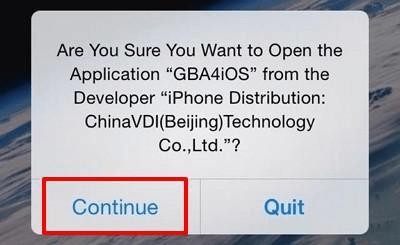
Tap Continue
Step 3. To add games, tap “Settings,” sign in to “Dropbox,” and turn on “Dropbox sync.” Or, tap “+,” choose a game (like Pokémon), and tap “Download.”
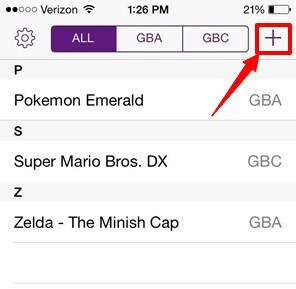
Tap Plus Sign
Step 4. Open the game from the “All” tab and start playing!
Game Play Color
Game Play Color is a simple and fun way to play classic Pokémon games on your iPhone and iPad. You can add local ROMs and enjoy beautiful cover art in your game library. The emulator also offers rich 8-bit audio for an authentic gaming experience. With saved games, you can continue where you left off, and offline support lets you play anytime, even without the internet. Moreover, Game Play Color is open source, making it a great choice for Pokémon fans who love retro gaming. To use this emulator:
Step 1. Open the Game Play Color website on Safari.
Step 2. Tap “Share” at the bottom, then select “Add to Home Screen“.
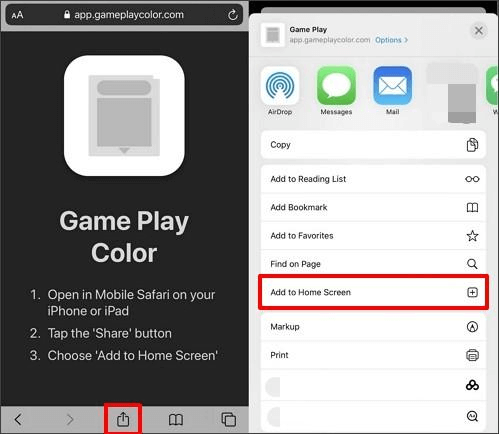
Select Add to Home Screen
Step 3. Tap “Add” on the pop-up. The Game Play Color icon will appear on your home screen. Tap it.
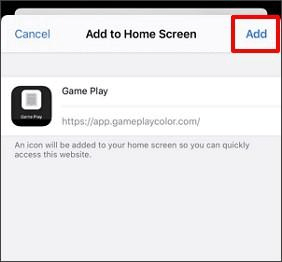
Tap Add
Step 4. Open the app, sign in to Google Drive, and copy the access code to sync your account.
Step 5. Your game ROMs will appear. Tap a Pokémon game to start playing!
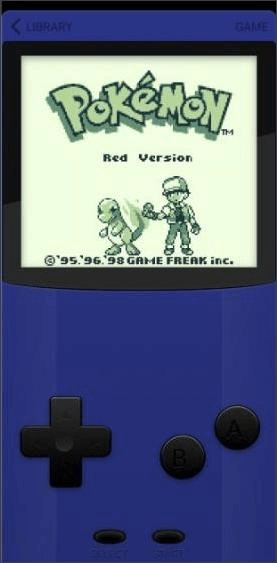
Play Pokémon Games
Happy Chick
You can enjoy vintage Pokémon adventures by converting your iPhone or iPad into a retro gaming console. The emulator’s built-in game library lets you download and play games without requiring separate ROM files. You can sync across several devices and back up your gaming progress using cloud saving. It is a great option for Pokémon fans due to its extensive feature set and easy-to-use design. For using Happy Chick:
Step 1. Open the Happy Chick website in Safari and tap “Download.”
Step 2. On the next page, tap “Install Now.”
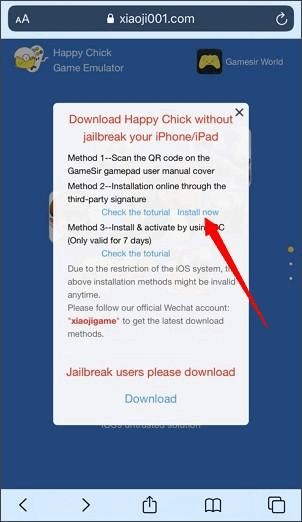
Tap Install Now
Step 3. Tap “Install HappyChick Link#1” and tap “Install” again. The app will appear on your home screen.
Step 4. Go to Settings> General> Device Management, then tap “Trust” to allow the app to work.
Step 5. Open Happy Chick, turn on the location, and start playing Pokémon games!
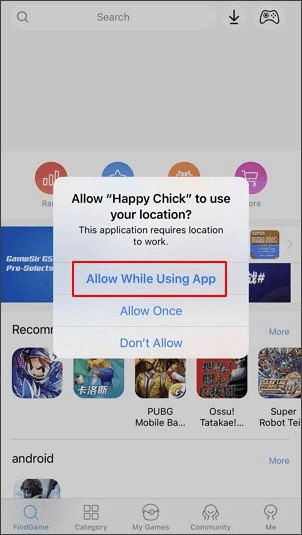
Enable Location
Delta
You can utilize Delta, a feature-complete, all-in-one emulator, to play retro Pokémon games on your iPhone or iPad. With the use of Delta Sync, your progress gets saved automatically on Google Drive or Dropbox.
It also features custom controller skins and game artwork for a better experience. Since the Apple App Store does not allow Delta, you need to use Emus4U to download it. Follow these easy steps:
Step 1. Open the Emus4U website in Safari and tap “Install Emus4U“.
Step 2. After it appears on your home screen, go to “Settings” > “General” > “Device Management“, then tap “Trust“.
Step 3. Open Emus4U, search for Delta, and tap “Get“.
Step 4. Tap “Install Emus4U ” on the pop-up. Then, go to “Settings” > “General” > “Device Management” and tap “Trust Delta“. Now, Delta is ready to use!
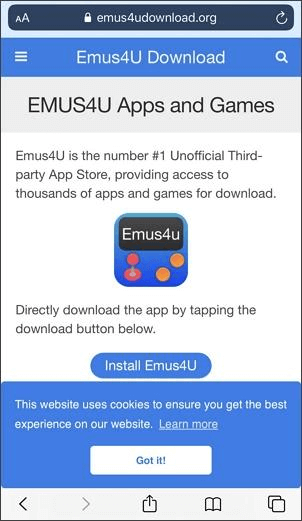
Tap Install Emus4U
Official Pokémon Games on The App Store
You can play official Pokémon games on your iPhone and iPad by downloading them from the App Store. These games are safe, fun, and are made by The Pokémon Company. They let you battle, collect Pokémon, and explore new adventures. Here are some of the best Pokémon games available:
- Pokémon GO – Catch Pokémon in the real world using your phone’s GPS.
- Pokémon UNITE – A team battle game where you fight in 5v5 matches.
- Pokémon Masters EX – Team up with famous trainers for exciting battles.
- Pokémon Café ReMix – Solve puzzles and run a cute Pokémon café.
- Pokémon Quest – Explore an island and battle with cube-shaped Pokémon.
Bonus Tip. How to Play Mobile Games on PC
Want to play mobile games on a bigger screen? AnyMiro is the perfect screen mirroring app for PC. With its steady and seamless connection, you may stream your phone’s screen without lag. AnyMiro offers top-notch graphics and real-time audio synchronization for an improved experience, whether you’re a gamer, content producer, teacher, or artist. With its 4K resolution compatibility, your phone and PC will have the same colors. To preserve your favorite moments, the software also lets you take screenshots and record your screen. AnyMiro makes gaming and streaming more enjoyable and polished by bringing your mobile material to life on a larger screen.
Key Features:
- Take advantage of lag-free screen mirroring for steady streaming for up to ten hours.
- You can effortlessly broadcast your phone’s screen to Facebook, OBS Studio, YouTube, and Twitch.
- Use screenshots and recordings to document and save your best creative or gaming experiences.
- Highlight key points with live annotations while mirroring your screen for better engagement.
- Stream mobile games and creative work with high-quality visuals and crystal-clear sound.
 AnyMiro – Real-Time Screen Mirroring Tool
- More than 10 hours of stable screen mirroring connection.
- Up to 4K resolution providing a stunning visual experience.
- Integrates with live streaming tools such as OBS and Streamlabs.
- Auto-sync video and background audio with timestamp adjustments.
Free Download
100% Clean & Safe
Free Download
100% Clean & Safe
Free Download 100% Clean & Safe
To use AnyMiro and play games on PC, follow these steps:
Play Mobile Games on PC Via USB:
Step 1. Free download and install AnyMiro on your computer.
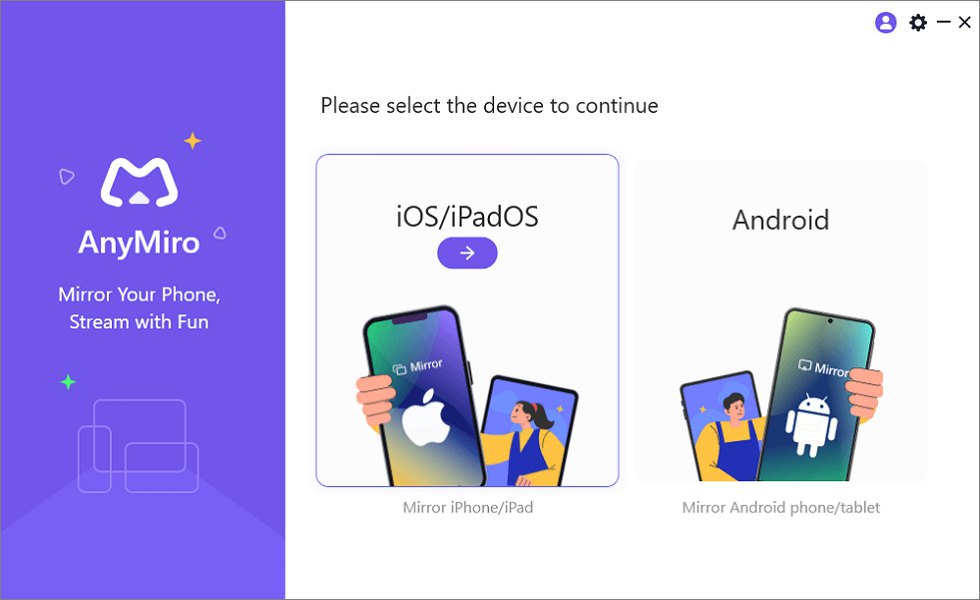
Step 2. Connect your iPhone or iPad to the computer using a USB cable. Open AnyMiro on your computer and click “iOS/iPadOS.”
Mirror iPhone to Computer
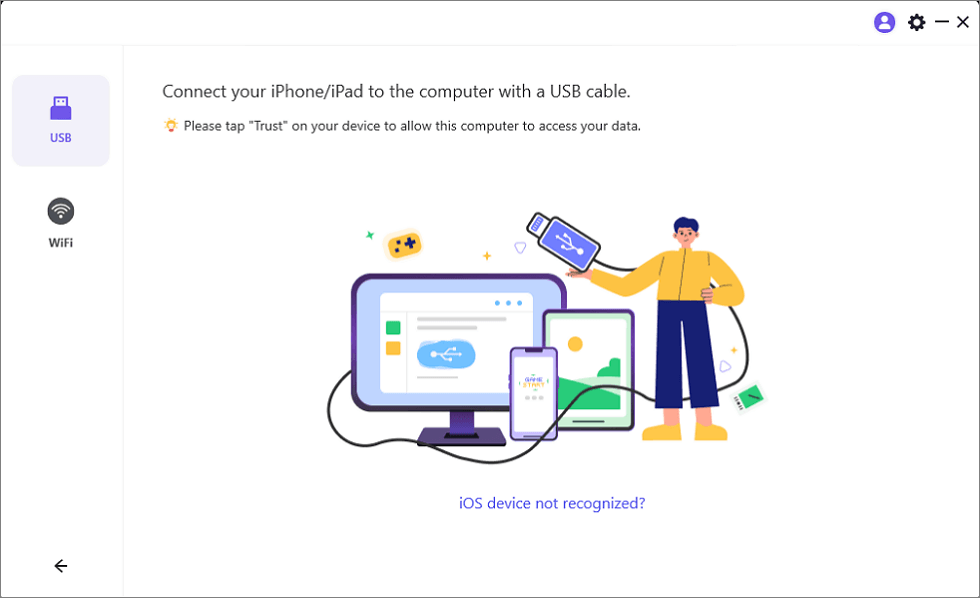
Step 3. Click on “USB connection” to proceed.
Connect Your iPhone/iPad with a USB Cable
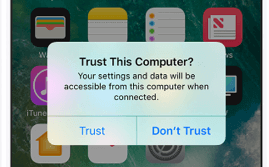
Step 4. On your iPhone or iPad, tap “Trust” when prompted.
Trust Your Computer on iPhone
Step 5. Enter your passcode if required, and your device will be ready for mirroring.
Play Mobile Games on PC Via Wi-Fi:
Step 1. Launch AnyMiro on your computer and select “iOS/iPadOS.” Click on “Wi-Fi connection” to continue.
Free Download for all windows & 100% safe Free Download for all mac & 100% safe
Free Download100% Clean & Safe
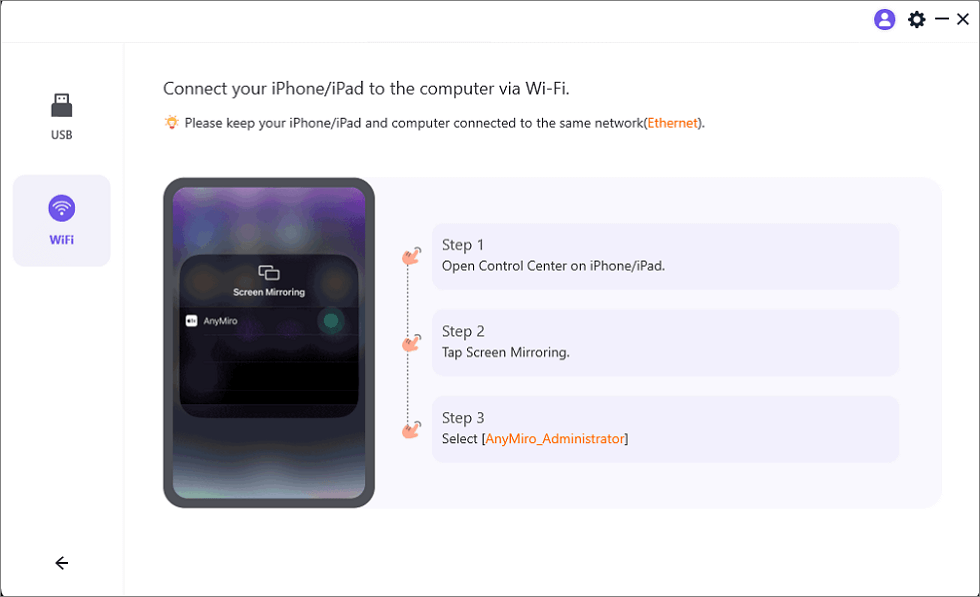
Mirror iOS to Computer via WiFi
Step 2. Ensure your iPhone/iPad and computer are connected to the same Wi-Fi network.
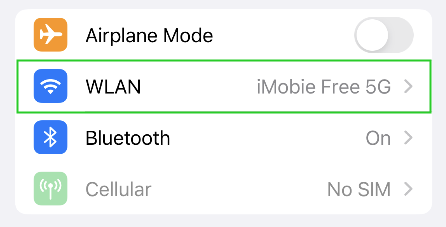
iPhone Connect the Same WiFi with Computer
Step 3. On your iPhone or iPad, open Control Center, tap “Screen Mirroring,” and choose “AnyMiro_Computer Name.”
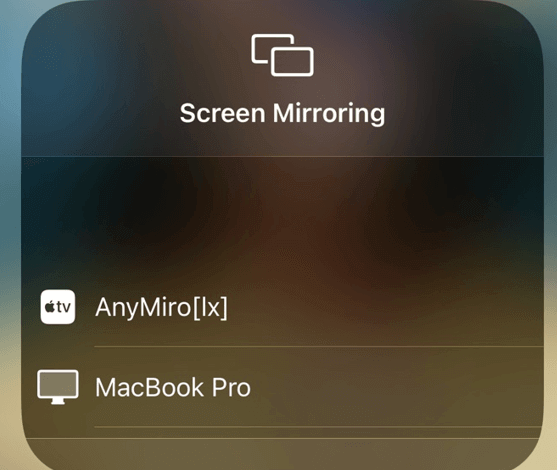
Select Your Computer from the List
Step 5. Your device will connect, and screen mirroring will start automatically.
FAQs on Play Pokémon Games on iPhone & iPad
Is it possible to play Pokémon on my iPhone by connecting a controller?
Yes, PlayStation and Xbox controllers are pluggable. The touch screen can be utilized by some emulators but it is more efficient using the controller since it eases the navigating and fighting within the game.
How do I play Pokémon games on my PC from my iPhone?
You can use AnyMiro to screen mirror your iPhone to a computer. This enables you to access a larger screen and more improved controls for enjoying Pokémon games. AnyMiro provides effortless screen mirroring so that you get the best experience.
Are Pokémon emulators safe to download on iPhones?
Most widely used emulators, such as Delta, are secure, but you should download them only from reliable sources. Proceed with caution when downloading game ROMs since some websites might contain malicious files.
Final Words
Emulators such as Delta and Game Play Color make it simple to play Pokémon games on your iPhone or iPad. You may enjoy traditional Pokémon adventures on your iPhone with these apps. For an improved experience, you can even attach a controller. You can utilize screen mirroring to show your game on a computer if you want to play on a larger screen. AnyMiro is a fantastic option for the greatest mirroring experience. It provides lag-free, fluid gaming with excellent graphics. You may easily play Pokémon games on a larger screen using AnyMiro. Try it for the best gaming experience!
Product-related questions? Contact Our Support Team to Get Quick Solution >
