10 Best Screen Sharing Websites
What makes screen sharing sites important? They allow easy collaboration, remote work, and online meetings, making tasks efficient and seamless. In this guide, discover the 10 best screen sharing websites, their standout features, and pricing to find the perfect tool for your needs.

[All You Need] 10 Best Screen Sharing Websites
Try AnyMiro to mirror Android and iPhone to PC for free.
- Fast response time within 10 ms and 60fps frame rate.
- A stunning visual experience with no color difference.
- Lag-free screen mirroring and 4k resolution.
Do you wish you could show your screen to others quickly and easily? Consider trying to instruct someone online or during a meeting when they cannot see your screen. It can be complicated and annoying. Worry not, as screen-sharing software and sites can resolve this issue in a few clicks. These tools allow you to share or mirror your screen to simplify life for personal tasks, remote employment, or online meetings.
In this article, we’ll examine the top 10 screen-sharing websites. We’ll discuss their features, costs, and how they can improve your teamwork in detail. No more confusion or delays – just smooth and simple sharing!
Table of ContentsHide
What are the Advantages and Disadvantages of Screen Sharing Sites?
The Easiest Way to Screen Mirror iPhone & Android to PC
Top 10 Screen Sharing Websites
- 1. Google Meet
- 2. Surfly
- 3. Dead Simple
- 4. Screenleap
- 5. CrankWheel
- 6. Zoom
- 7. AnyDesk
- 8. Demodesk
- 9. Whereby
- 10. Mikogo
FAQs on Screen Sharing Websites
What are the Advantages and Disadvantages of Screen Sharing Sites?
Screen sharing sites help people work together easily but also have a few challenges. Here’s a simple look at their pros and cons.
Advantages:
- It makes online meetings and teamwork more effective.
- It helps explain ideas visually instead of just talking.
- Great for training, teaching, or fixing technical issues.
- Saves time by reducing back-and-forth discussions.
- Allows remote access to share presentations or files.
Disadvantages:
- Needs a strong internet connection for smooth sharing.
- Free versions may have limited features or time restrictions.
- Risk of sharing private or sensitive information by mistake.
The Easiest Way to Screen Mirror iPhone & Android to PC
Do you wish you could easily mirror your phone screen to a PC? AnyMiro is the perfect solution! This reliable screen mirroring tool offers a stable and smooth experience, making it ideal for gaming, streaming, teaching, and more. High-resolution mirroring up to 4K ensures vibrant and clear visuals for Android and iPhone users. Enjoy low-latency audiovisual sync, making your streams perfect for Twitch and YouTube.
Features like live annotation allow you to highlight points in real time for presentations or teaching. Screenshot and recording options effortlessly capture every moment, which is great for saving key moments. Whether you’re a gamer or content creator, AnyMiro enhances your experience and unleashes creativity. Try it today for seamless screen mirroring!
Key Features:
- Allows you to continuously mirror your phone’s screen for up to ten hours.
- Supports live broadcasting on all major streaming sites, including Facebook, YouTube, and Twitch.
- Provides 100% color consistency for crisp, colorful images when screen mirroring is used.
- Provides easy-to-use tools for drawing and marking directly on the mirrored screen.
- Works perfectly for various needs like gaming, teaching, art, and even church events.
Here are the simple steps to use AnyMiro for mirroring your Android or iPhone screen to your PC:
Free Download for all windows & 100% safe Free Download for all mac & 100% safe
Free Download100% Clean & Safe
From iPhone to PC & Mac
Step 1. Free download AnyMiro on your computer and choose “iOS/iPadOS.”
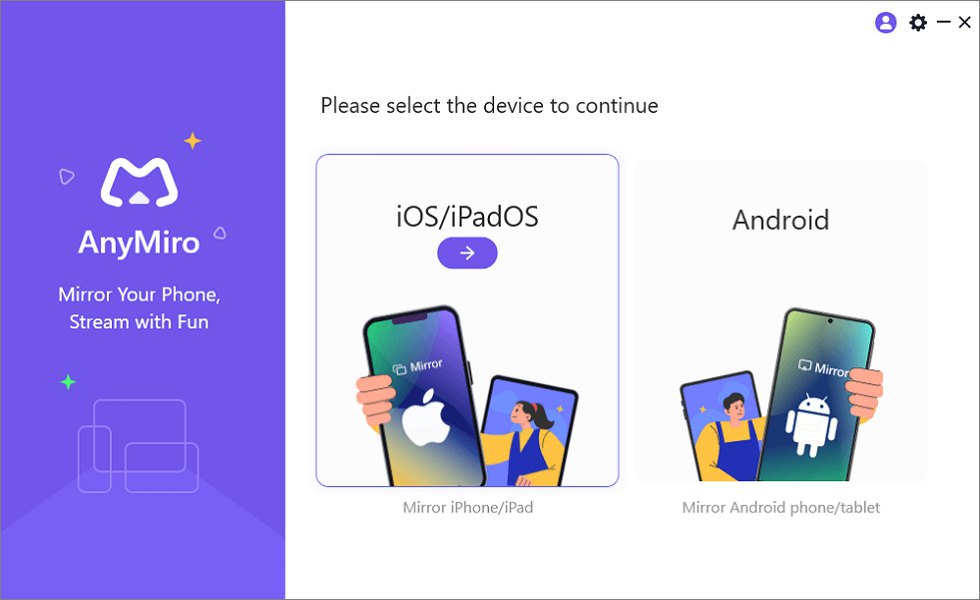
Mirror iPhone to Computer
Step 2. Select the “Wi-Fi connection” option.
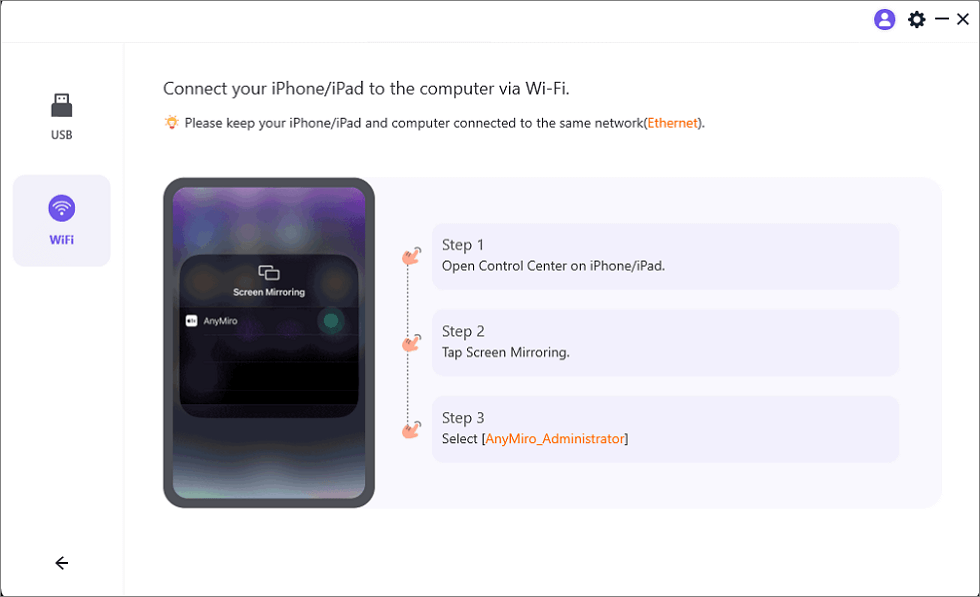
Mirror iOS to Computer via WiFi
Step 3. Ensure your iPhone/iPad and computer are connected to the same Wi-Fi.
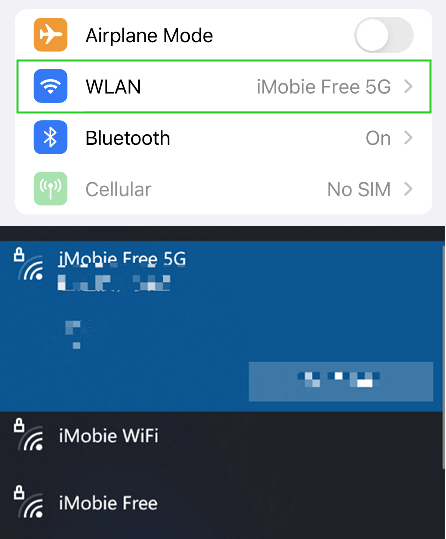
Connect to the Same WiFi
Step 4. On your iPhone or iPad, access Control Center, tap “Screen Mirroring,” and choose “AnyMiro_Computer Name.” Your device will connect, and screen mirroring will start.
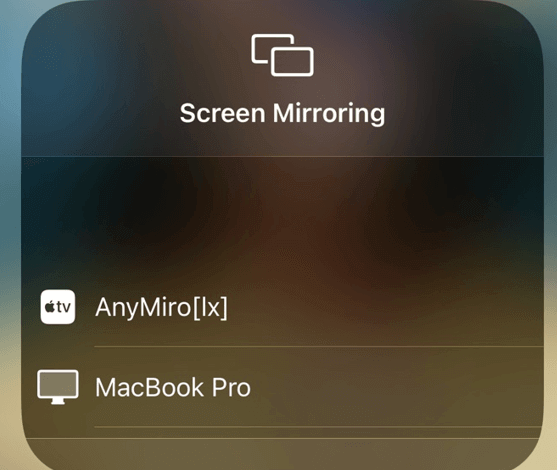
Select Your Computer from the List
From Android to PC & Mac
Step 1. Install AnyMiro on your computer and launch it. Click “Android” to initiate the setup.
Free Download for all windows & 100% safe Free Download for all mac & 100% safe
Free Download100% Clean & Safe

Mirror Android to Computer
Step 2. Choose “USB” and link your Android device using a USB cable.
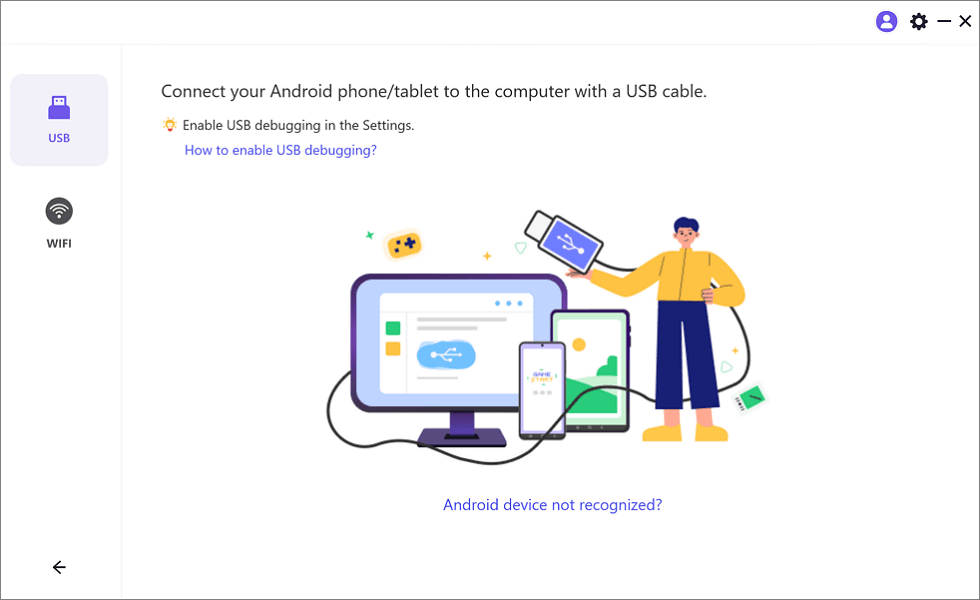
Select the USB Option for Screen Mirroring Android to PC
Step 3. Enable “USB debugging” and choose “MTP Mode” when prompted on your phone. Your phone’s screen will appear on your computer, confirming the connection.
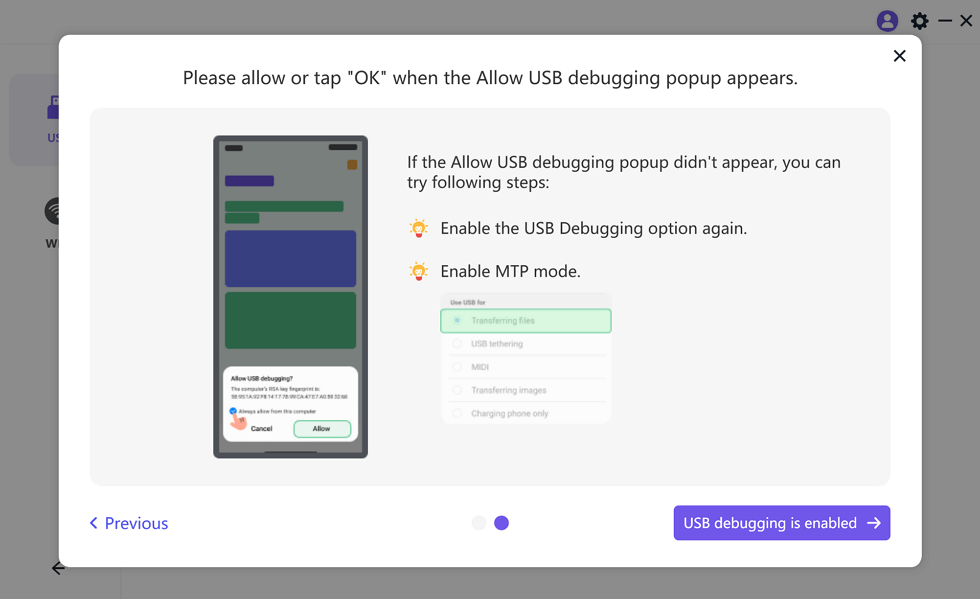
Enable USB Debugging and MTP Mode for a USB Connection
Top 10 Screen Sharing Websites
Now, let’s discuss the best 10 screen sharing websites:
1. Google Meet
Google Meet is a simple and safe video conferencing and screen sharing website for personal and professional meetings. Crystal-clear audio and video make global interaction easy. It is free for individual users and provides several helpful features, such as background customization and meeting scheduling.
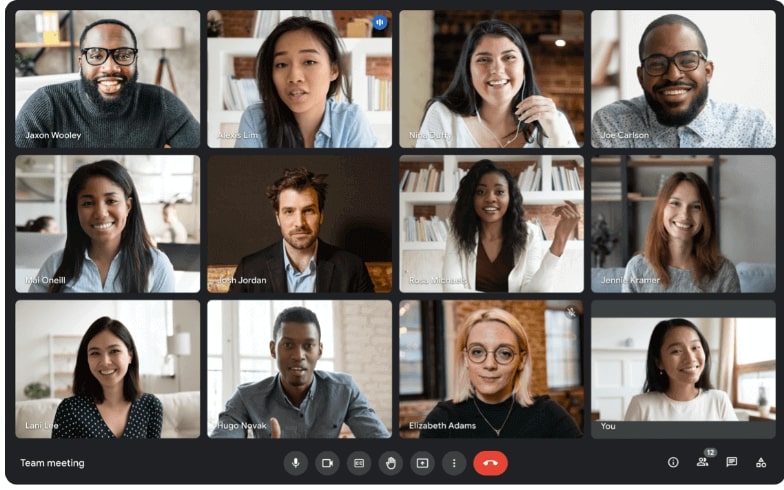
Screen Sharing Websites – Google Meet
Key Features:
- Provides clear video and audio even in low-light conditions.
- Allows you to share your screen, a specific window, or a Chrome tab during meetings.
- You can blur your background to keep the focus on you.
- Easily set up and join meetings directly from Gmail without switching apps.
Pricing:
- Free
- Business Starter: $6 per user/month
- Business Standard: $12 per user/month
- Business Plus: $18 per user/month
2. Surfly
Surfly is a flexible platform that allows for easy screen sharing, file sharing, video conferencing, interactive document editing, and co-browsing without installation or code. Because of its strong data security, it is perfect for sectors including e-learning, banking, and insurance.
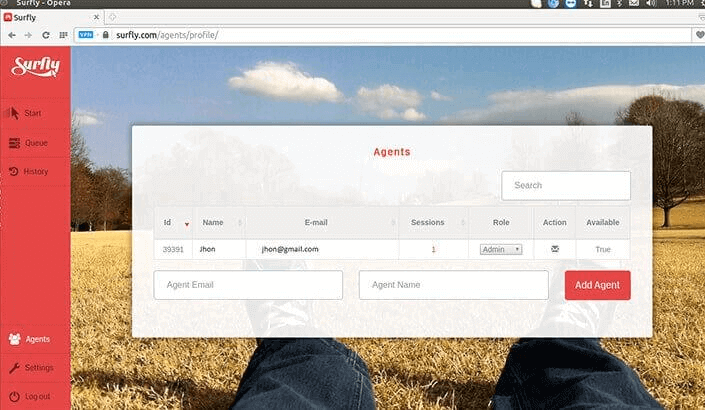
Screen Sharing Website – Suifly
Key Features
- Collaborate across web applications without additional installations.
- Communicate in real-time with high-quality video interactions.
- Streamline signing processes directly on the platform.
- Edit and share documents simultaneously with participants.
Pricing: Starting from $31/month
3. Dead Simple
Dead Simple Screen Sharing is a flexible and easy-to-use program created to improve online communication and teamwork. This free solution enables screen sharing during meetings and provides capabilities like file sharing, video, voice chat, and real-time collaboration without requiring users to register or log in.
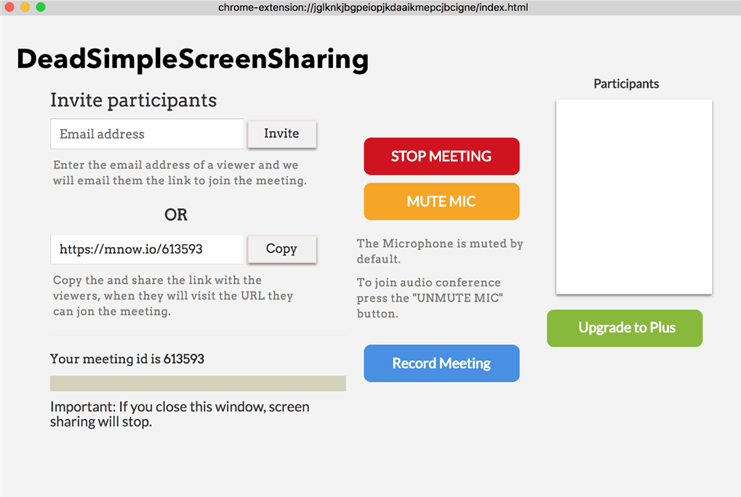
Screen Sharing Website – Dead Simple
Key Features:
- Share screens for unlimited time with no restrictions.
- Conduct high-quality video and audio conferences without extra costs.
- Share multiple screens simultaneously for improved collaboration.
- Join meetings instantly without creating an account, simplifying the process.
Pricing: Free
4. Screenleap
Screenleap offers an instant, hassle-free screen-sharing and video conferencing experience. It allows users to share their screen across any device with a browser, enabling smooth collaboration without requiring additional downloads. Its cloud-based platform also supports recording and offers seamless viewer access via simple registration.
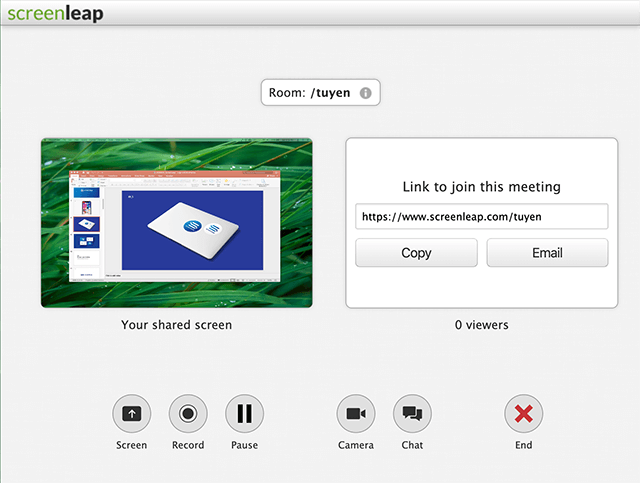
Screen Sharing Website – Screenleap
Key Features:
- Share your screen immediately with no need for software downloads
- Integrate live interaction into your website with a simple code snippet
- Viewers can join directly from any device without additional plugins
- Capture your sessions for future reference and easy sharing
Pricing:
- Free
- Basic: $15/month
- Pro: $31/month
- Company: $15-39/user/month
5. CrankWheel
Sales teams can engage with prospects instantaneously using CrankWheel, a robust screen-sharing solution that eliminates the need for complex downloads. It provides a range of features to increase interaction, live demos, and smooth remote control for any business. CrankWheel streamlines customer contacts and boosts sales success, making it ideal for service-based businesses such as digital agencies, insurance, and mortgage companies.
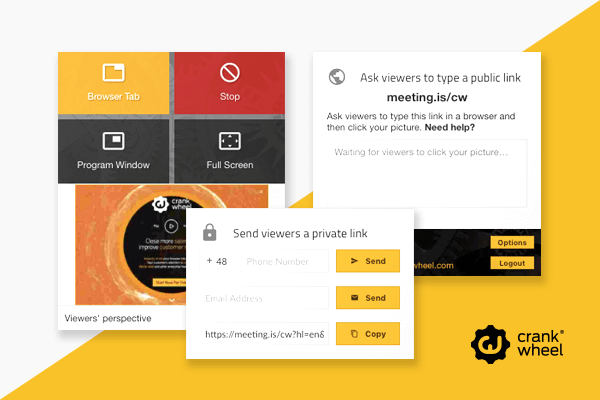
Screen Sharing Website – CrankWheel
Key Features:
- Send a link to prospects, enabling them to view your screen instantly on any device or browser.
- Allow customers to control the screen to fill out forms or finalize contracts in real time.
- Embed CrankWheel into your website to capture inbound leads and provide instant demos.
- Track how customers interact with your presentation, allowing you to tailor your approach.
Pricing:
- Free
- Essential: $29/user/month
- Pro: $39/user/month
- Team: $249/team/month
- Team Pro: $499/team/month
6. Zoom
Zoom meetings are a great tool for working remotely because they make it simple to connect with others. The tool offers screen sharing, excellent audio and video quality, and features like presenter controls and annotations. Additionally, you may join meetings straight from a link or without installing the app, making it easy for everyone to use.
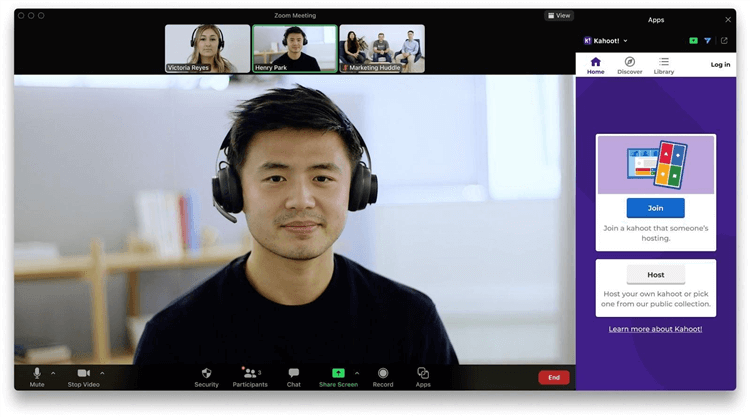
Screen Sharing Website – Zoom
Key Features:
- Ensures smooth communication, even in large meetings.
- Capture or share your screen for effective presentations.
- Host controls for seamless meeting flow and participation.
- Participants can highlight and draw on the shared screen for clarity.
Pricing:
- Basic (1 user): Free
- Pro (1-9 users): $13.32/month/user
- Business (10-250 users): $18.32/month
7. AnyDesk
Users can connect to and control other devices via the internet with AnyDesk, a quick and dependable remote desktop program. AnyDesk offers safe and convenient remote access to computers and devices. It is well-known for its excellent performance and low latency, making it perfect for personal and business use. Its user-friendly interface and cross-platform interoperability make accessing files remotely easy or offering technical support.
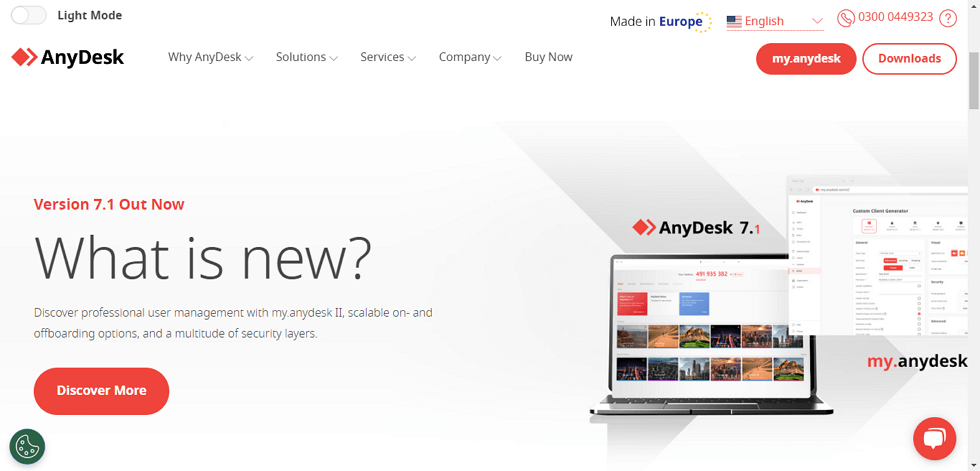
AnyDesk Official Webpage Interface
Key Features:
- Allows full control over remote devices, enhancing productivity and support.
- Delivers smooth, low-latency connections, even on low bandwidth.
- Compatible with Windows, macOS, Linux, iOS, and Android.
- Securely transfer files between devices during a remote session.
Pricing:
- Solo: $16.90/month
- Standard: $25.90/month
- Advanced: $57.90/month
8. Demodesk
Demodesk is a web-based meeting tool created for sales teams to interact with potential customers in real time. It provides a compact and effective setting for material presentation, eliminating the need to share a disorganized desktop. Demodesk’s improved workflows and automated features improve sales processes with its convenient screen sharing feature.
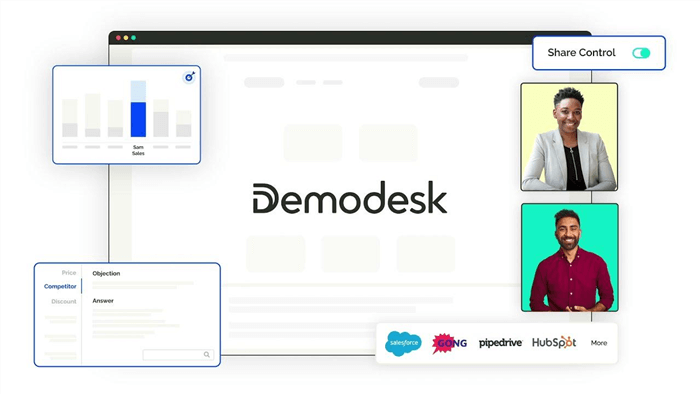
Screen Sharing Website – Demodesk
Key Features:
- Join meetings immediately through a browser; no downloads are required.
- Help sales representatives navigate meetings and guide prospects without interruptions.
- Automatically loads tailored slides, ensuring every meeting is customized.
- Simplifies the sales journey with automated tools to increase efficiency.
Pricing:
- Free
- Scheduling: €29/user/month
- Meeting: €79/user/month
- Coaching & AI: €49/user/month
- Enterprise: Custom pricing
9. Whereby
With a single click, users may join meetings using Whereby, a basic video conferencing software. With customizable rooms and real-time emoji reactions for more interesting discussions, it offers a simple method of remote collaboration. The platform is ideal for productive remote sessions with its screen sharing feature.
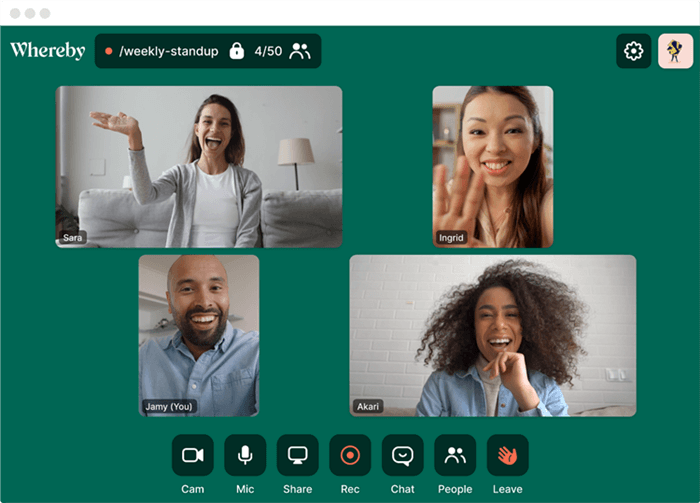
Screen Sharing Website – Whereby
Key Features:
- Join meetings instantly with just a link; no downloads are needed.
- Interact with participants in real time using live emoji reactions.
- Customize your Whereby room to reflect your brand or style.
- Host focused and efficient remote meetings with seamless video calls.
Pricing:
- Free
- Pro: $8.99/month
- Business: $11.99/month
10. Mikogo
Mikogo is a reliable, web-based screen-sharing platform that offers secure communication without downloads. Its 14-day free trial includes all features, making it easy to experience its full capabilities. Mikogo is ideal for remote meetings, webinars, and team collaborations.
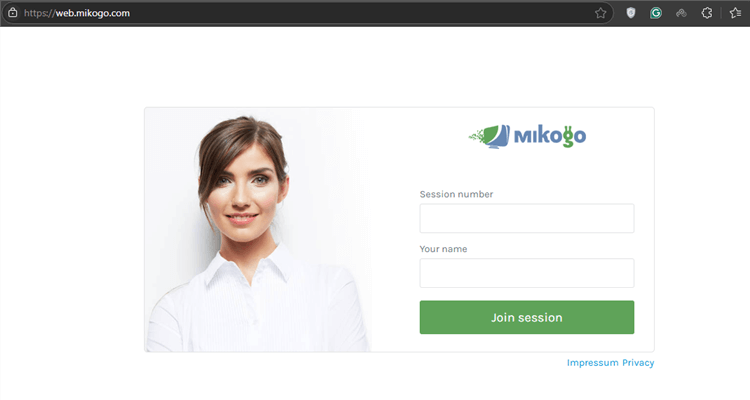
Screen Sharing Website – Mikogo
Key Features:
- Live video support for smooth communication during meetings or presentations.
- Session scheduler helps organize meetings efficiently with automated reminders.
- Switch presenter function lets you easily change who is in control of the screen.
- Drawing pad feature enables collaboration with live annotations during presentations.
Pricing: N/A
FAQs on Screen Sharing Websites
Is screen sharing secure?
Screen sharing can be secure if the platform uses encryption and proper access controls. Ensure to use trusted services like AnyMiro, which ensures that participants only see what is shared, preventing data breaches.
Can I share my screen on any device?
Yes, many screen sharing platforms, including AnyMiro, support cross-device functionality. This allows you to share your screen seamlessly between PCs, Macs, and mobile devices, even over Wi-Fi.
Do I need to install anything for screen sharing?
Some platforms require installation, but many, like AnyMiro, allow screen sharing directly through the browser without downloading. Thus, it is quick and easy to get started with screen sharing.
Final Words
To sum up, screen sharing is a crucial tool for remote collaboration because it makes it simple for teams and individuals to interact across many devices. Numerous platforms provide easy-to-use solutions that enable screen sharing without complex setups or downloads. For a seamless and secure experience, AnyMiro stands out as an excellent choice. It allows easy screen sharing via USB and Wi-Fi, ensuring your data is safe and your meeting runs smoothly. Try AnyMiro for effortless and efficient screen sharing.
AnyMiro – Real-Time Screen Mirroring Tool
Free download AnyMiro to enjoy a fast, stable, and smooth screen mirroring experience. You can mirror for better game playing, video watching, or live streaming mobile phone content.
Product-related questions? Contact Our Support Team to Get Quick Solution >
