How to Use Android Tablet as Monitor in 2026
Using an Android tablet as a monitor helps you multitask, boosts productivity, and expands your screen space. In this guide, you’ll learn simple ways to use Android Tablet as monitor, including built-in features and third-party apps. You’ll also find tips for screen-mirroring to a PC. Read more!

How to Use Android Tablet as Monitor in 2026
Try AnyMiro to mirror Android to PC for free via USB and WiFi.
- Fast response time within 10 ms and 60fps frame rate.
- A stunning visual experience with no color difference.
- Lag-free screen mirroring and 4k resolution.
Do you need more screen space for work or gaming but struggle to manage multiple windows on one display? A simple way to fix this is to use your Android tablet as a second monitor. This guide will show you three easy methods of using an Android Tablet as a Monitor. You can use wired connections for a stable display, wireless apps for a clutter-free setup, or the built-in second screen feature on some tablets. We will also explain how to mirror your tablet screen to a PC. Whether you need an extended display or a mirrored screen, these methods will help you maximize your tablet’s use. So, let’s begin to explore them in detail!
How to Use Android Tablet as a Monitor [3 Ways]
Here are the 3 best ways to use your Android Tablet as a Monitor:
Duet Display
Using Duet Display, you can convert your Android tablet to a second, performance-based screen for your Mac or PC. It is incredibly responsive and provides no-lag performance. Software upgrades are constantly being provided for better user experience and performance. Security is the topmost priority, and your information is safely stored in 256-bit end-to-end encryption. It does not require any external hardware in the shape of dongles or adaptors as it is software-based.
To apply this method:
Step 1. Begin by installing the Duet Display app on your PC and Android tablet after downloading it.
Step 2. Open the app on both devices.
Step 3. If you’re using the app for the first time, create a Duet Display account. Then, sign in on both devices. Go to the “Air” tab on your PC. You’ll find your device under “Discovered Devices.” Follow the instructions to find and connect your Android tablet.
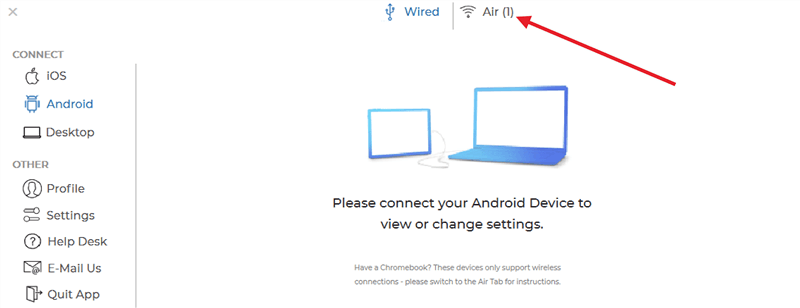
Click Connect Devices
Step 4. Once connected, your tablet will work as a second screen. Adjust display settings as needed.
Spacedesk
Spacedesk is a free application that uses your Android tablet as a second screen for your Windows computer. It can be accessed using WiFi, USB, or LAN. It assists in stretching or cloning your desktop for increased space. You can also utilize it to display ads or other content on numerous screens. For using Spacedesk:
Step 1. Download the Spacedesk app from the Play Store to your Android tablet and install Spacedesk on your PC.
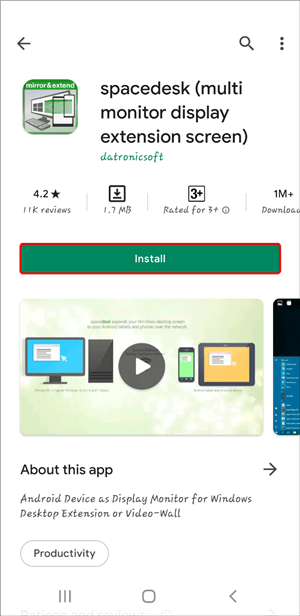
Install Spacedesk on Phone
Step 2. Install the Spacedesk driver on your Windows PC. Verify that your tablet and PC are linked to the same wireless network.
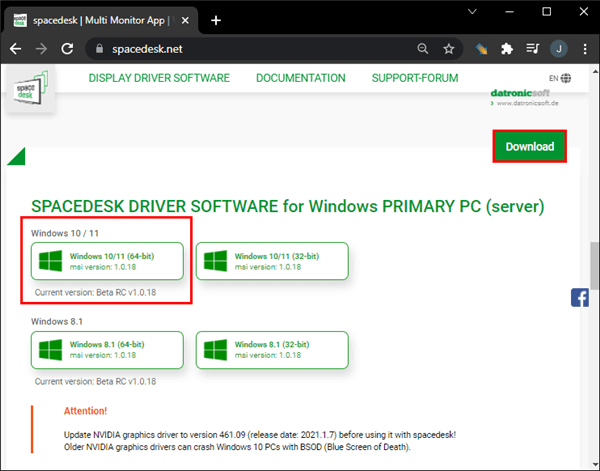
Install Spacedesk Driver on Windows
Step 3. Click the Spacedesk icon on your computer to enter “SpacedesK Driver Console.”
Step 4. Go to the “Network” tab and note the Server IPv4 Address.
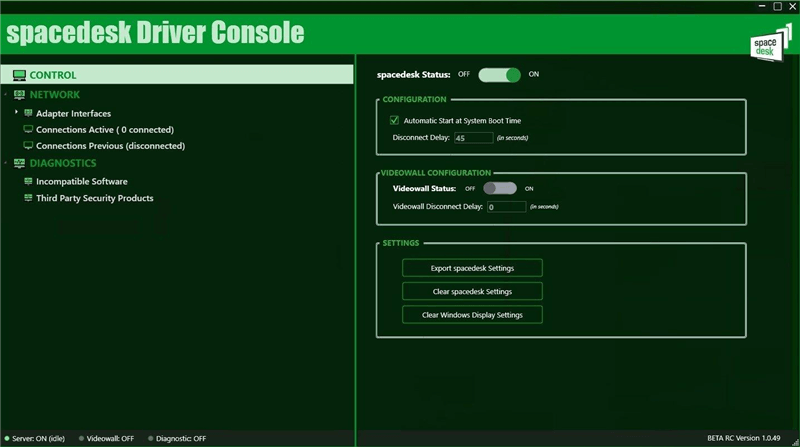
Note the IP Address
Step 5. Open the Spacedesk app on your tablet, tap “Connect,” enter the IP address, and select “Add”. Then, tap on “Connect” on the next screen to continue. Your PC screen will now be extended to your tablet.
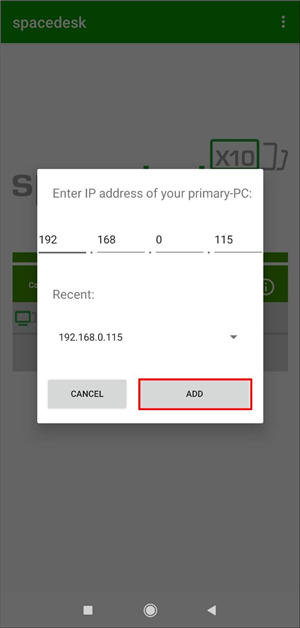
Enter IP Address
iDisplay
iDisplay is an app that turns your Android tablet into a secondary touch-enabled screen for your computer. iDisplay is USB- and Wi-Fi-compatible, so you can decide how to connect. It has a touch feature allows you to navigate desktop programs with your tablet. You can mirror your screen or create additional space for working. It’s compatible with macOS, Windows, iOS, and Android. For using iDisplay:
Step 1. Download and install the iDisplay app on both your Android tablet and your PC.
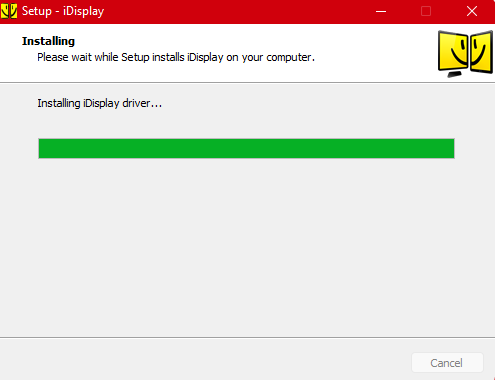
Install iDisplay on Both Devices
Step 2. Ensure your PC and tablet are connected to the same network.
Step 3. Open the iDisplay app on both devices.
Step 4. On your PC, click “Connect” in the iDisplay software.
Step 5. Select “Extend Desktop” on your tablet to use it as a second screen.
Step 6. Adjust the Resolution and Orientation from the iDisplay desktop software, then use your tablet as a monitor.
Use Samsung Tablet as Second Monitor via “Second Screen” Feature
Windows computers can use Samsung tablets with the SecondScreen capability as wireless second monitors. Mirroring a PC screen on a tablet can maximize available space and improve productivity. The setup is simple: Each device must be enough to share the same network using WiFi, and no cables or hardware are required. A Samsung tablet can be used as a second screen based on smooth connectivity. Let us move on and discuss in detail how this can be accomplished.
Step 1. Swipe down twice from the top of your tablet screen to open Quick Settings.
Step 2. Swipe right to find more options.
Step 3. Tap “Second Screen” to enable the feature.
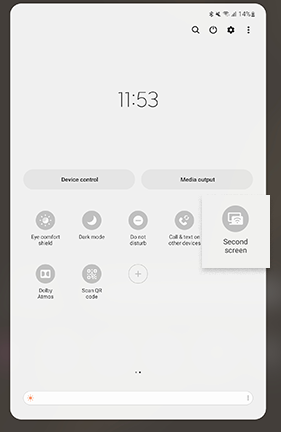
Second Screen Feature
Step 4. Select your preferred mode: “Drawing/Gaming” or “Video,” and keep this screen open.
Step 5. Press Windows + K on your PC, then select your tablet from the list.
Step 6. Your PC screen will now appear on your tablet. Use the toolbar to pin or unpin controls.
Step 7. Tap “Disconnect” when you’re done.
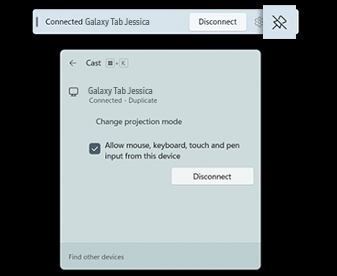
Tap on Disconnect
Bonus Tip. How to Screen Mirror Android Tablet to PC [Wireless & Wired]
 AnyMiro – Real-Time Screen Mirroring Tool
- More than 10 hours of stable screen mirroring connection.
- Up to 4K resolution providing a stunning visual experience.
- Integrates with live streaming tools such as OBS and Streamlabs.
- Auto-sync video and background audio with timestamp adjustments.
Free Download
100% Clean & Safe
Free Download
100% Clean & Safe
Free Download 100% Clean & Safe
AnyMiro is a powerful screen mirroring app that allows you to connect your Android tablet to a PC easily. It features reliable, smooth, and exceptional screen sharing, making it great for presentations, live streaming, and gaming. One such feature is the 4K resolution, which ensures a sharp, clear display without compromising quality.
It provides up to 10 hours of lag-free mirroring, guaranteeing a seamless streaming and gaming experience. For a more stable experience, you can pick between a wired USB connection or a wireless WiFi connection. You may quickly record or take screenshots, which can help you save significant moments. You can emphasize important topics in presentations by using the live annotation tool. AnyMiro offers a dependable and easy method for mirroring your Android tablet to a PC, regardless of your role—teacher, content developer, or gamer.
Key Features:
- Low-latency streaming helps you play games and watch videos without lag.
- Real-time audio sync ensures that sound and video stay perfectly matched.
- Easy screen recording allows you to save highlights instantly with one click.
- Live streaming support lets you mirror your screen to Twitch, YouTube, and Facebook.
- A user-friendly interface makes setting up and using the app quick and simple.
Now, let’s have a detailed look at the steps to screen-mirror an Android Tablet to a PC using AnyMiro:
Via USB:
Step 1. Free download and install AnyMiro on your computer, then open the software.
Free Download for all windows & 100% safe Free Download for all mac & 100% safe
Free Download100% Clean & Safe
Step 2. Click on “Android” to start setting up the connection.

Mirror Android to Computer
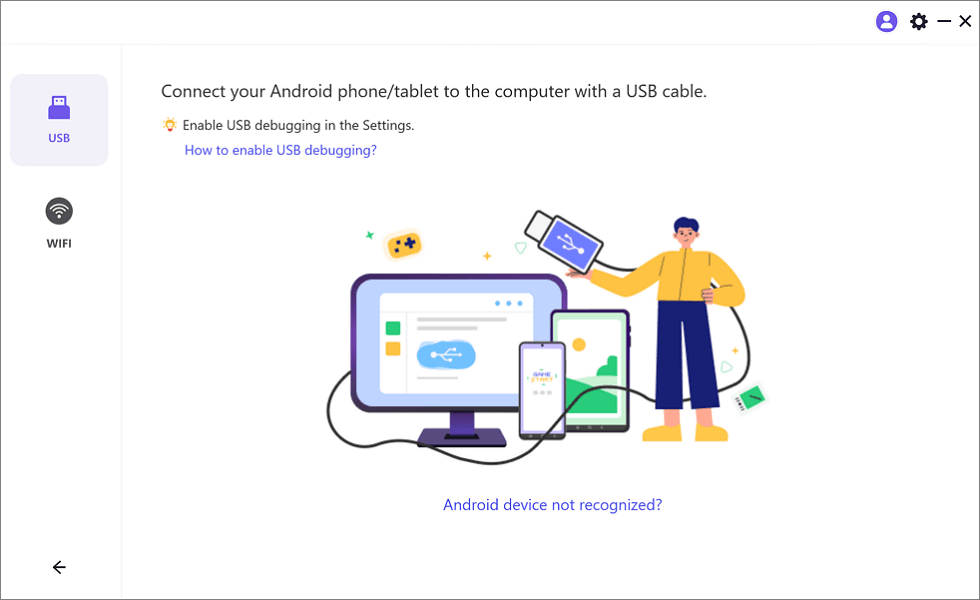
Step 3. Select “USB” and plug in your Android phone using a USB cable.
Select the USB Option for Screen Mirroring Android to PC
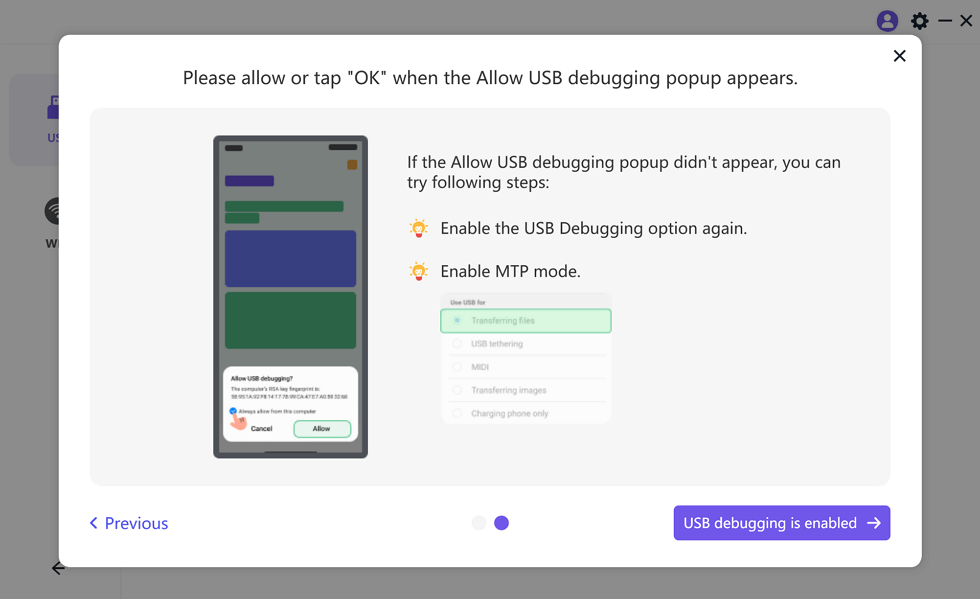
Step 4. Enable “USB debugging” on your phone and set it to “MTP Mode” when asked.
Enable USB Debugging and MTP Mode for a USB Connection
Step 5. Your Android screen will now be visible on your computer.
Via WiFi:
Step 1. Free install and launch AnyMiro on your PC or Mac. Click on “Android” to proceed with the connection.
Mirror Android to Computer
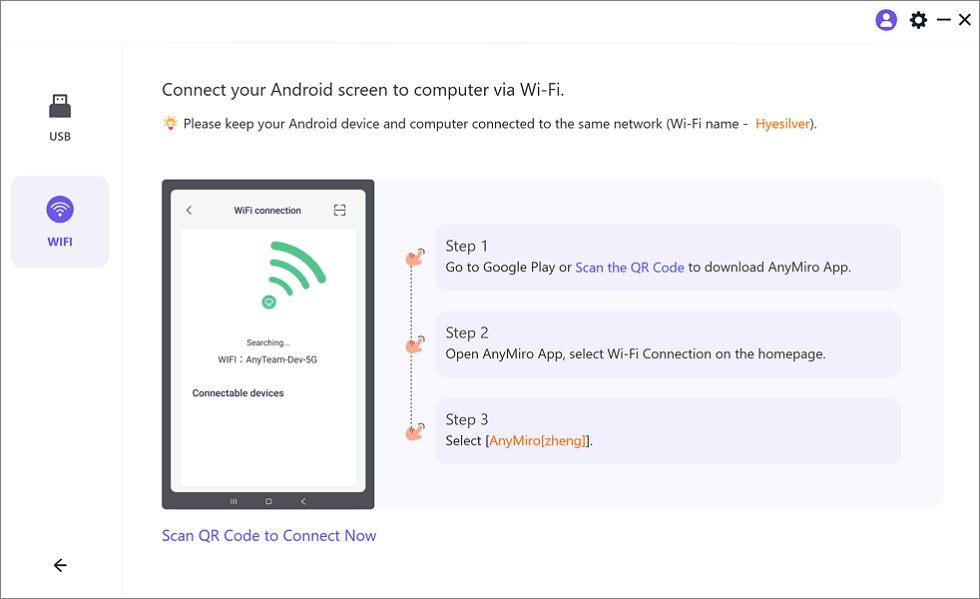
Step 2. Choose “WiFi” to begin wireless screen mirroring.
Mirror Android to Computer via WiFi
Step 3. Download the AnyMiro app from Google Play or scan the provided QR code.
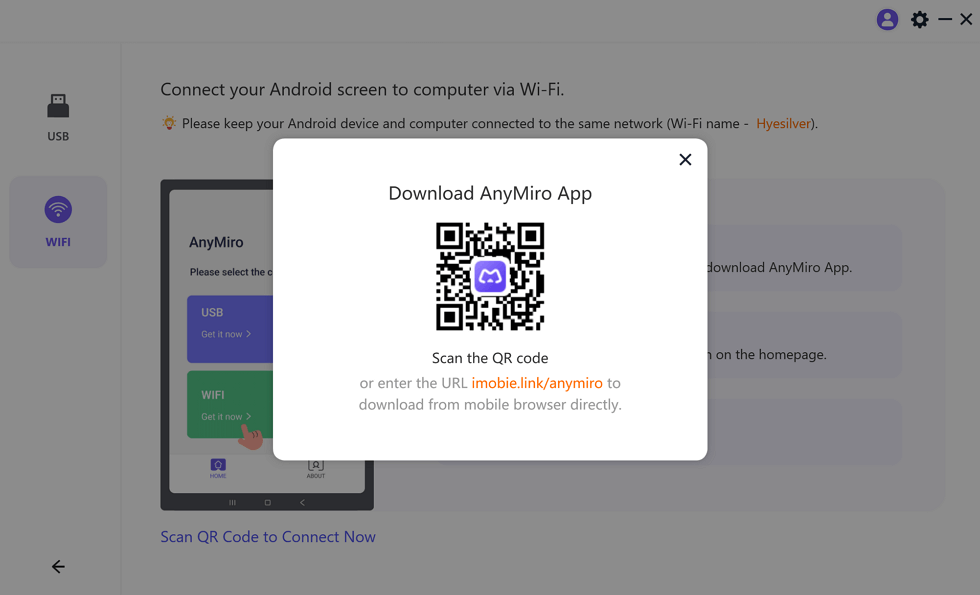
Download AnyMiro App on Your Phone
Step 4. Open the AnyMiro app and tap “WiFi Connection.” Select your computer’s name from the available devices, and mirroring will begin.
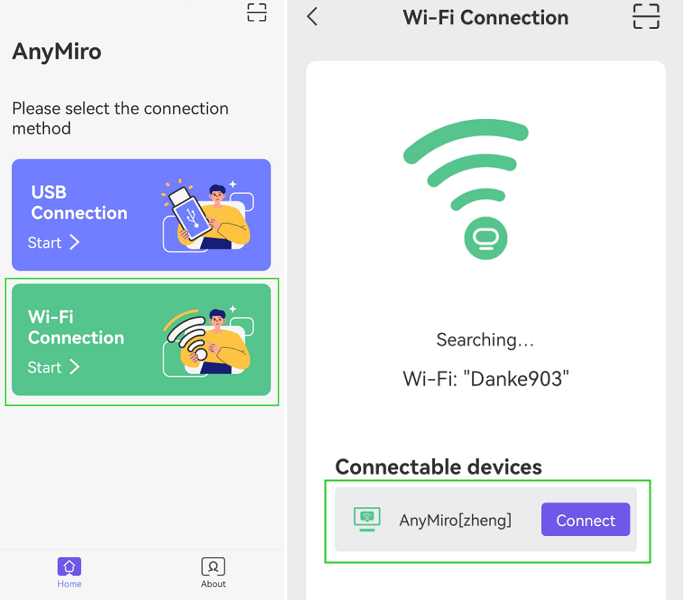
Tap WiFi Connection
FAQs on Using Android Tablet as a Monitor
Does using an Android tablet as a monitor cause lag?
It depends on the connection. USB connect [wired] has less lag, while WiFi might have slight delays due to being interruption in wireless connection. A strong WiFi signal and good apps help reduce lag.
Will using my tablet as a second monitor drain its battery fast?
Yes, screen mirroring drains more battery, particularly on WiFi. Battery life can be saved by keeping your tablet plugged in or by switching to power-saving settings.
Can an Android tablet be used as a monitor for gaming?
Yes, but for seamless gaming and minimal lag, USB is recommended. WiFi isn’t as good for fast-paced games because it can have lags.
Final Remarks
The best way to maximize productivity is to have an Android tablet as a second screen. Samsung tablet can be used as a second monitor and mirror or extend screen depending upon need using USB or WiFi. Numerous applications facilitate easy connectivity. Screen mirroring can be used for gaming, presentations, and live streaming as well. For the best experience, AnyMiro is highly recommended. It provides smooth, stable, high-quality screen mirroring for up to 10 hours without lag. Try AnyMiro for an easy and seamless screen extension today!
Product-related questions? Contact Our Support Team to Get Quick Solution >
