Ultimate Guide on Wireless Display Mobile to Laptop
In our work, wireless display mobile to laptop is a function we often need to use. However, many times, we encounter difficulties during the mirroring process, such as determining the most suitable method for mirroring with different devices. In this article, we will introduce what wireless display is and how to effectively mirror Android and iOS devices to laptops.

Ultimate Guide on Wireless Display Mobile to Laptop
Screen mirroring your iPhone and Android to the computer with ease.
- Fast response time within 10 ms and 60fps frame rate.
- A stunning visual experience with no color difference.
- Lag-free screen mirroring and 4k resolution.
Available for both Win & Mac
Whether in our daily lives or at work, screen mirroring phone to laptop is one of the functions we frequently use. During this mirroring process, we can choose wired or wireless methods to mirror our phone screens to the laptop. Wireless display mobile to laptop provides greater convenience without the limitations of physical cables. Most of the time, we opt for wireless displays for screen mirroring.
However, Android and iOS devices have different requirements for wireless display. Android users enjoy a more straightforward experience in Microsoft’s Wireless Display and can directly mirror their screens. For iPhone users, it may not be as clear to achieve wireless transmission on Microsoft laptops. So, what should you do? Read this article, and you will discover two methods for wireless display mobile to laptop. Don’t miss out.
Table of ContentsHide
What Is Wireless Display?
Wireless Display, often referred to as WiDi (Wireless Display Interface), is a technology that allows you to transmit audio and video content from one device to another without the need for physical cables. It provides a convenient way to share your screen mirroring your phone to a laptop, making it ideal for presentations, entertainment, and collaborations. Wireless Display is supported by various devices and is designed to enhance connectivity and versatility in the digital world.
Wireless Display is supported by a wide range of devices, including:
1. Smartphones and Tablets:
Many modern smartphones and tablets are equipped with Wireless Display capabilities. This allows users to mirror their device screens on compatible displays, such as smart TVs or projectors.
2. Laptops and Computers:
Wireless Display technology is commonly found in laptops and computers, particularly those with Intel processors. It enables users to extend their desktop or duplicate their screen wirelessly to external monitors or TVs.
3. Smart TVs and Monitors:
Smart TVs and monitors with built-in Wireless Display support can receive and display content wirelessly from compatible source devices.
For Android Users: How to Wireless Display Android to Laptop
If you’re an Android user, looking to wireless display mobile to laptop, you can utilize Microsoft’s Wireless Display feature. This method allows you to cast your Android screen to your Windows laptop effortlessly. Here’s a step-by-step guide on how to use Microsoft Wireless Display:
Prerequisites:
- Ensure that your Windows laptop supports Miracast, as Microsoft Wireless Display relies on this technology.
- Make sure your Android device is running a relatively recent version of Android, as older versions may not support this feature.
Step 1. Navigate to Start > Settings > System > Projecting to this PC.
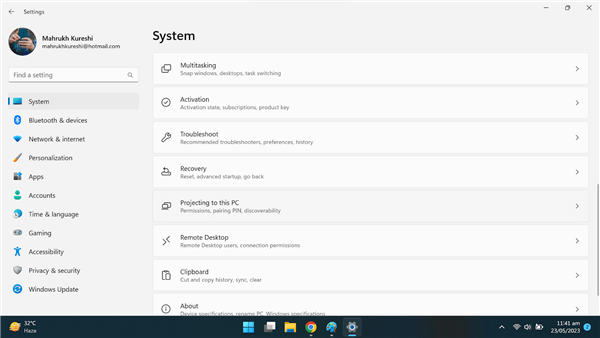
Click Projecting to This PC
Step 2. Within the “Projecting to this PC” settings, click on “Optional features.”
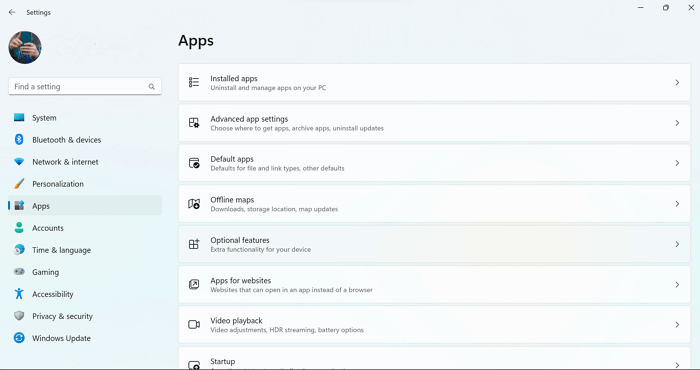
Go to Optional Features from Settings
Step 3. Opt to “Add a feature,” then type “wireless display.” Locate “Wireless Display” in the search results, check the box next to it, and hit “Install.”
Step 4. Once “Wireless Display” is installed, configure your projection preferences in the “Projecting to this PC” section within Settings.
Step 5. To initiate projection on the PC you wish to cast to, launch the Connect app by searching for “Connect app” in the taskbar’s search box, and select “Connect” from the search results.
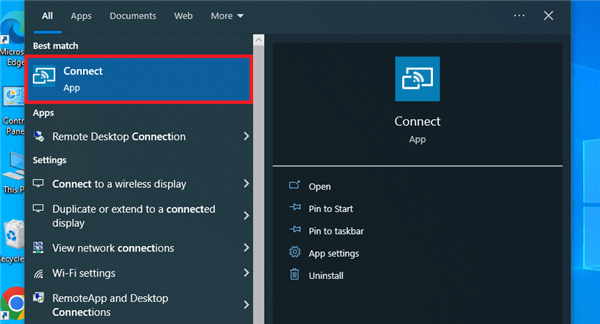
Open the Connect App on the Laptop
Step 6. On your Android device, swipe down from the top of the screen to open the Notification Shade. Look for the “Cast” or “Screen mirroring” option in the Quick Settings menu. In the list of available devices, you should see your Windows laptop’s name. Tap on it to initiate the connection.
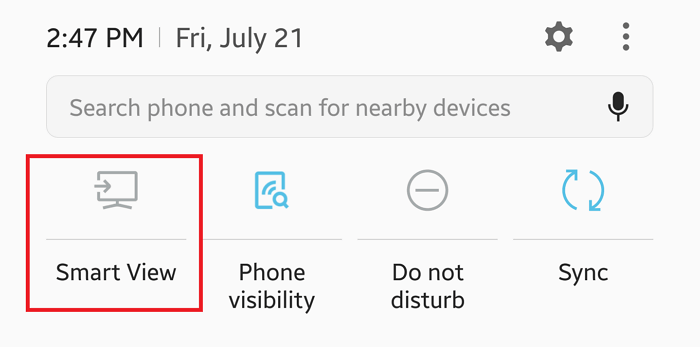
Use Android Built-in Feature to Screen Mirror
For iPhone Users: How to Cast Screen to Laptop Wirelessly
It’s important to note that Wireless Display mobile to laptop primarily supports Android phones. However, if you’re an iPhone user looking to cast your screen mirroring phone to laptop wirelessly, there’s an alternative solution: AnyMiro.
AnyMiro is a versatile screen mirroring tool that allows you to wireless display mobile to laptop via WiFi. Whether you’re an Android or iOS user, AnyMiro enables seamless phone-to-laptop display. It boasts cross-platform and cross-system screen mirroring, offering exceptional compatibility. Moreover, AnyMiro ensures lossless transmission, delivering content without color distortion and supporting resolutions up to 4K. Even when using WiFi for mirroring, it maintains a stable connection with no dropouts.
Here are the main Features of AnyMiro:
- Supports Both WiFi and USB Screen Mirroring:
AnyMiro offers flexibility by allowing users to choose between WiFi and USB screen mirroring methods, catering to various connectivity preferences. - Simplified Setup:
AnyMiro streamlines the mirroring process with an intuitive and straightforward setup, ensuring users can start mirroring their screens quickly and hassle-free. - Stable Mirroring Connection:
AnyMiro provides a reliable and stable screen mirroring connection that can last for more than 10 hours, ensuring uninterrupted and extended usage. - Fast and Responsive:
With an impressive response time of just 10 milliseconds, AnyMiro delivers a smooth and ultra-responsive mirroring experience, minimizing lag and latency.
How to Mirror iPhone to Laptop Wirelessly:
Step 1: Start by downloading and installing the AnyMiro application on your Windows laptop.
Free Download for all windows & 100% safe Free Download for all mac & 100% safe
Free Download100% Clean & Safe
Step 2: Open the AnyMiro application on your Windows laptop. Choose iOS/iPadOS and select the WiFi mode.
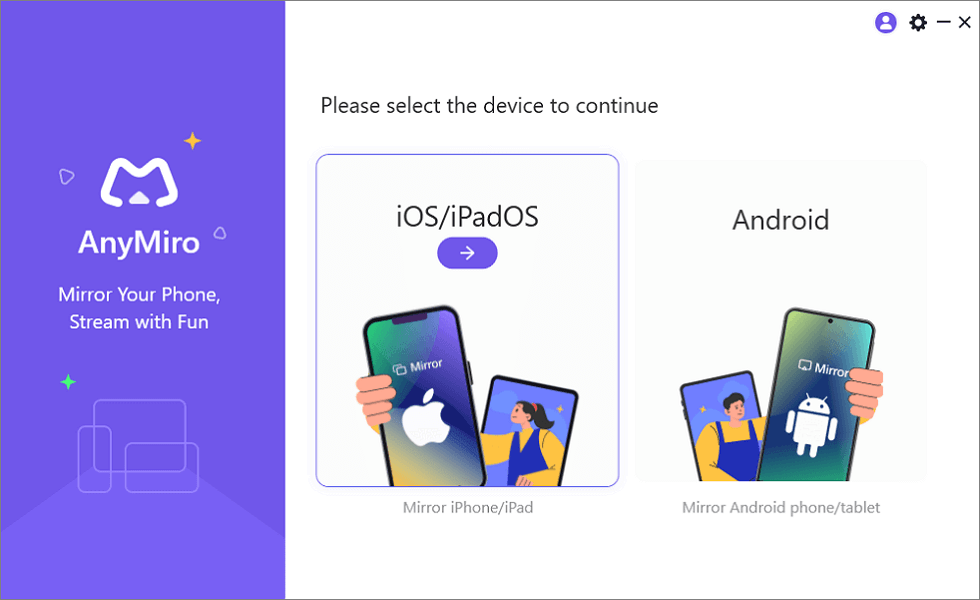
Mirror iPhone to Computer
Step 3: Ensure that your iPhone and Windows laptop are connected to the same WiFi network.
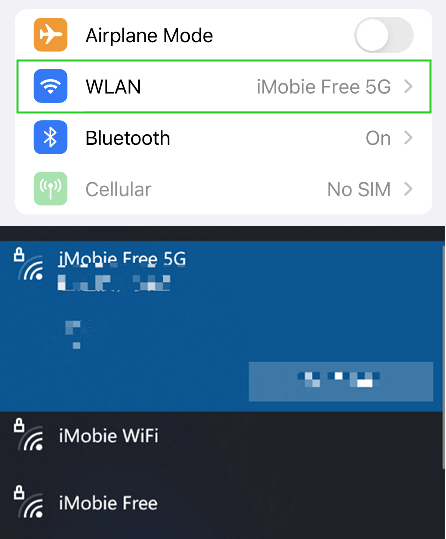
Connect to the Same WiFi
Step 4: Choose to mirror your iPhone via WiFi in AnyMiro.
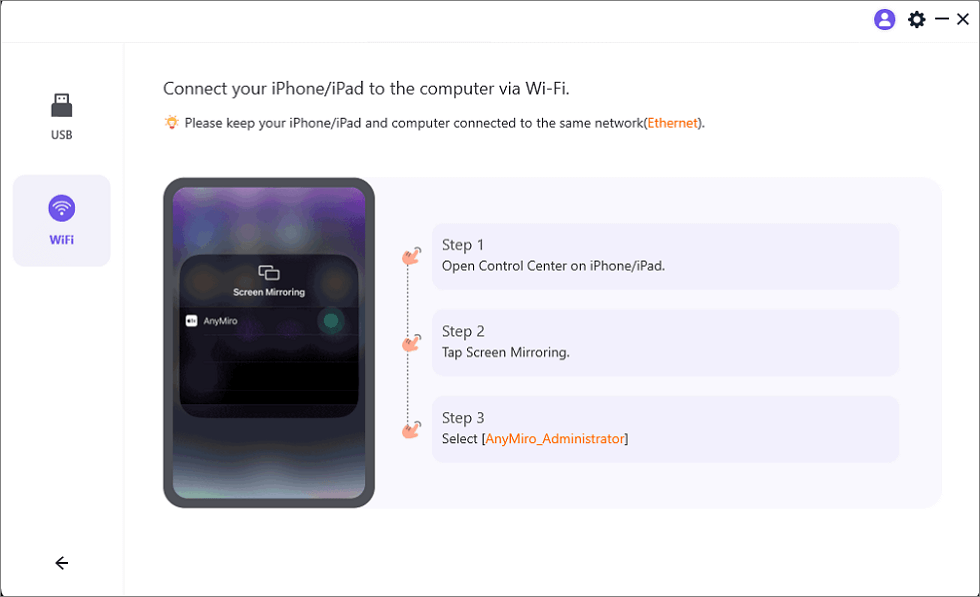
Mirror iOS to Computer via WiFi
Step 5: On your iPhone, open the Control Center. Tap “Screen Mirroring” and select your Windows laptop from the list of available devices.
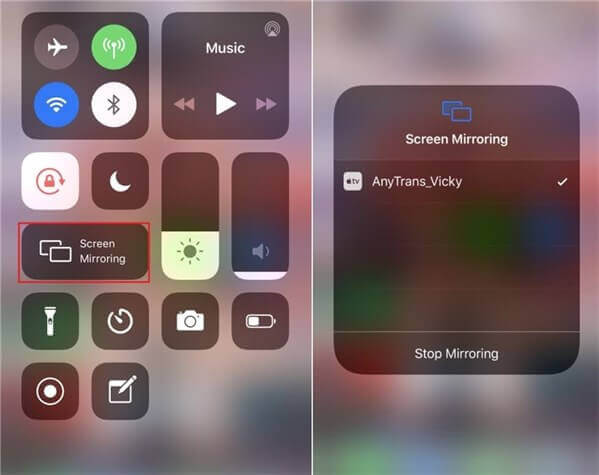
Tap the “AirPlay/Screen Mirroring” Button and Choose the Name AnyTrans_XXX
Step 6: Tap “Trust this Computer” on your iPhone. Once the connection is successful, your iPhone screen will be mirrored onto your Windows laptop.
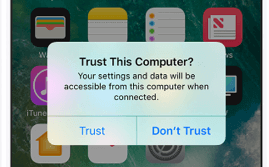
Trust Your Computer on iPhone
Wireless Display Problems
1. Why does my computer say“This PC doesn’t support Miracast”?
Your computer might show the message “This PC doesn’t support Miracast” because it may not have the required hardware or drivers needed to utilize Miracast. Miracast relies on specific hardware and software support for wireless screen mirroring, and if your computer doesn’t meet these requirements, it won’t be able to use Miracast for wireless displays.
2. Can I use Wireless Display on Windows 7?
No, Wireless Display (WiDi) is primarily designed for Windows 8.1 and Windows 10, and it is not natively supported on Windows 7. However, you can explore third-party applications and alternatives for screen mirroring on Windows 7, but the built-in Wireless Display feature is not available on this older Windows version. You can use AnyMiro to do wireless display mobile to laptop.
3. Does the PC need Wi-Fi for Miracast?
Yes, your PC needs a Wi-Fi connection to use Miracast. Miracast relies on Wi-Fi technology to establish a wireless connection between your PC and a compatible display device, such as a TV or monitor. Without Wi-Fi, Miracast won’t function, as it requires a wireless network for screen mirroring and content transmission.
The Bottom Line
In summary, wireless display mobile to laptop has become an indispensable tool for modern users, enabling seamless content sharing and presentations. While technologies like Miracast have their limitations and compatibility requirements, AnyMiro has emerged as a versatile solution that bridges the gap between different devices and operating systems. Whether you are an Android or iOS user, AnyMiro provides a user-friendly and stable platform for wireless screen mirroring.
AnyMiro – Real-Time Screen Mirroring Tool
Free download AnyMiro to enjoy a fast, stable, and smooth screen mirroring experience. You can mirror for better game playing, video watching, or live streaming mobile phone content.
Product-related questions? Contact Our Support Team to Get Quick Solution >
