How to Fix Wireless Display Sound Not Working Issue
In this guide, we will explore the reasons why Wireless Display sound not working and provide effective solutions to help you resolve sound problems and ensure seamless wireless display usage. Whether you’re using wireless displays for work, entertainment, or education, this guide is your go-to resource for troubleshooting and resolving sound-related complications.

How to Fix Wireless Display Sound Not Working Issue
Use screen mirroring tool AnyMiro as an alternative to Wireless Display.
- Fast response time within 10 ms and 60fps frame rate.
- A stunning visual experience with no color difference.
- Lag-free screen mirroring and 4k resolution.
Available for both Win & Mac
Wireless Display on Windows has become an integral part of our daily lives. It provides a remarkable level of convenience, allowing for the effortless sharing of both screen content and audio. This means that you can easily connect your Windows device to a larger screen without the fuss of dealing with tangled cables.
However, many people will encounter the issue that the Wireless Display sound not working. Such issues not only disrupt the smooth flow of work but can also make our entertainment and learning experiences less enjoyable. In this detailed guide, we’ll explore Windows wireless display technology. We’ll uncover the reasons for wireless display sound not working on Windows issues and provide practical fixes.
What is A Wireless Display?
Windows Wireless Display, also known as Miracast, is a built-in feature of the Windows operating system. It allows users to mirror Android to PC onto other screens or devices that support Miracast or wireless display standards, such as smart TVs, projectors, monitors, or Miracast-compatible wireless display adapters. This feature provides a convenient way for users to interact with and share content on larger screens without the need for any wired connections.
The benefits of Windows Wireless Display are as follows:
- Wireless Convenience: Windows Wireless Display eliminates the need for physical cables, providing a clutter-free and tidy workspace. This wireless connection makes it easy to connect and project content seamlessly.
- Mobility and Flexibility: Users can move around freely while projecting their screen content, making it suitable for presentations, interactive meetings, and dynamic discussions. You’re not confined to a single location by cables.
- User-Friendly: The feature is generally user-friendly, making it accessible to a wide range of users, including those who may not be tech-savvy. Setting up and using Windows Wireless Display is straightforward.
- Efficient Content Sharing: Whether in a professional setting or for personal use, it enables efficient content sharing. It’s ideal for presenting slideshows, sharing videos, or collaborating on documents in real time.
Why Is My Wireless Display Sound Not Working?
It’s not uncommon for users to encounter issues that Wireless Display sound not working. Here are several common reasons for sound issues specifically related to the Microsoft Wireless Display.
- Incorrect Audio Output Selection: Users often forget to select the correct audio output source, leading to sound issues.
- Hardware Connectivity Issues: Loose or improperly connected cables and hardware can result in sound problems.
- Outdated or Corrupted Drivers: Obsolete or corrupted display adapters and sound card drivers can lead to sound issues.
- Volume Control: Sound problems can arise from unintentionally muted or low-volume settings on either the Windows device or the wireless display.
- Firmware Updates: Outdated firmware on the wireless display device can lead to compatibility issues.
- Network and Signal Interference: A stable Wi-Fi network is essential for wireless display. Interference or a weak Wi-Fi signal can disrupt the audio stream, causing sound problems.
After knowing some possible reasons for the Wireless Display sound not working, please don’t worry. In the following article, we will assist you in resolving this issue.
Solution 1. Check Audio Output Settings
On your Windows device, make sure the Microsoft Wireless Display Adapter is selected as the audio output source. Right-click the volume icon in the taskbar and select “Sound” or “Sound settings” to verify the output device.
Solution 2. Update Drivers and Firmware
Visit the official Microsoft website or the manufacturer’s website for the Microsoft Wireless Display Adapter. Download and install the latest drivers and firmware updates. This can resolve sound issues related to outdated or incompatible drivers.
Solution 3. Volume Settings
Ensure that both the Microsoft Wireless Display Adapter and your Windows device’s volume settings are not muted or set to a very low level. Adjust the volume to an appropriate level.
Solution 4. Check Wi-Fi Connection
Make sure that your Windows device and the Microsoft Wireless Display Adapter are connected to a stable Wi-Fi network. Interference or a weak network connection can disrupt audio transmission.
Solution 5. Reconnect Devices
Try reconnecting the Microsoft Wireless Display Adapter to your Windows device. Sometimes, a simple reconnection can resolve temporary audio problems.
Solution 6. Use AnyMiro – The Best Screen Mirroring App
The various methods mentioned above are all about helping you solve wireless display sound not working issues internally. However, there’s an even better solution, which is to use a third-party screen mirroring software called AnyMiro. Since wireless display often encounters problems, we recommend using AnyMiro for a superior screen mirroring experience.
AnyMiro supports screen mirroring in both WiFi and USB modes, making it suitable for various locations and situations. You can opt for a USB data cable for screen mirroring when WiFi isn’t available. It also offers cross-platform connectivity, working seamlessly across Windows, Apple, and Android devices, ensuring high compatibility without any latency or lag.
When using AnyMiro, you will experience the following outstanding features:
- Zero Latency and Lag: AnyMiro offers a seamless screen mirroring experience with zero latency and lag. It supports screen mirroring for up to 10 hours while maintaining a stable connection, with a response time of just 10 milliseconds.
- Smooth Streaming to Major Platforms: AnyMiro effortlessly streams screen-mirroring content to major platforms, making it ideal for game streaming and content sharing.
- High-Quality 4K Resolution: Enjoy up to 4K high-definition picture quality, providing an exceptional visual experience whether you are watching videos, playing games, or giving presentations.
- Synchronized Audio and Video: Audio and video are perfectly synchronized, ensuring consistent audio-visual coordination.
Here are the steps of how to mirror Android to PC using Anymiro:
Step 1: Click the download button here or go to the official website to download AnyMiro.
Free Download for all windows & 100% safe Free Download for all mac & 100% safe
Free Download100% Clean & Safe
Step 2: Choose the “Android” option to connect your device.

Mirror Android to Computer
Step 3: Click the WiFi icon to link your Android device to WiFi.
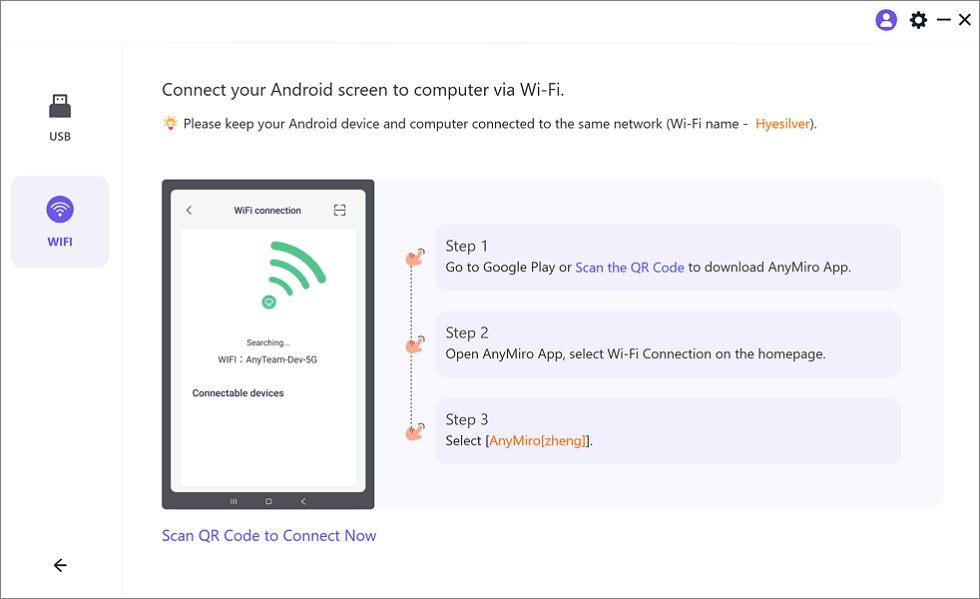
Mirror Android to Computer via WiFi
Step 4: Download the AnyMiro app on your phone. You can download it through Google Play or by scanning the QR code.
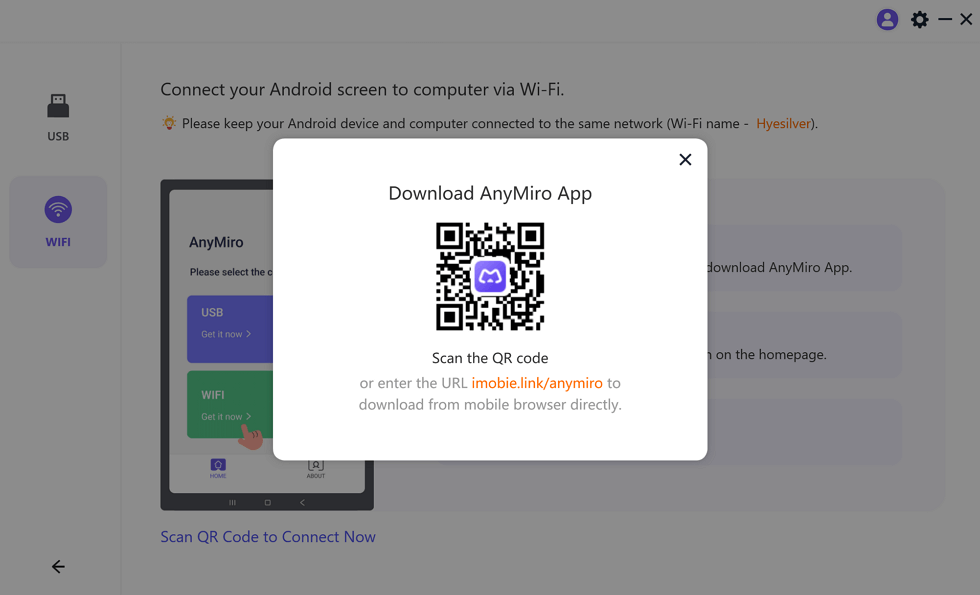
Download AnyMiro App on Your Phone
Step 5: Tap WiFi Connection and choose your computer to connect.
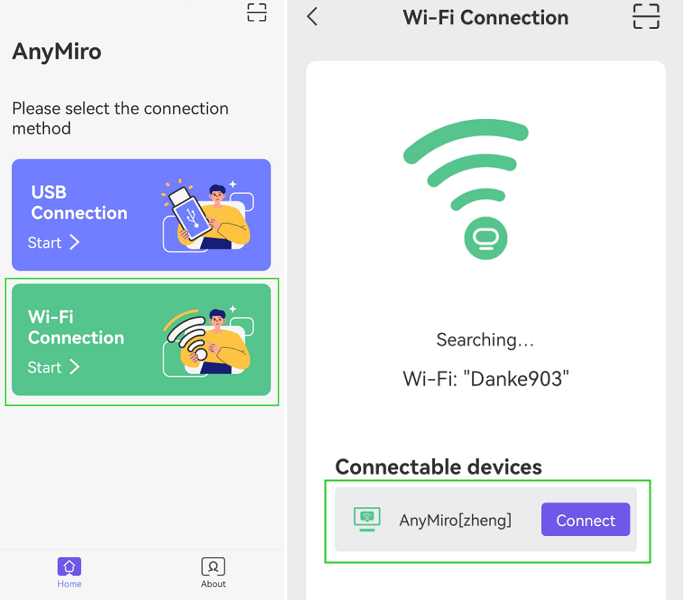
Tap WiFi Connection
Wait for a few seconds, you’ll see your Android screen mirrored on your computer’s display.
FAQs
1. How do I use a Wireless Display on my PC?
To use a Wireless Display on your PC, go to “Settings,” select “System,” then “Display,” and click on “Connect to a wireless display.” Choose the target device to project your PC’s screen wirelessly.
2. Where is the Wireless Display settings?
The Wireless Display settings can be found in the “Settings” app on your PC. Navigate to “System,” then “Display,” and look for the “Connect to a wireless display” option to access the settings.
3. How do I activate Miracast on Windows?
To activate Miracast on your Windows PC, ensure your device supports Miracast, open the “Action Center” from the taskbar, click “Connect,” and choose your desired Miracast-enabled display or adapter from the list that appears. Your PC will then establish a wireless Miracast connection, allowing you to project your screen onto the selected display.
The Bottom Line
This article discusses the common reasons for Wireless Display sound not working and provides solutions to address this issue. However, for a more effective solution, we recommend using AnyMiro as an alternative to Wireless Display for both wireless and wired screen mirroring. AnyMiro offers the advantages of enhanced convenience, stable connections with minimal disconnections, and superior screen mirroring quality.
AnyMiro – Real-Time Screen Mirroring Tool
Free download AnyMiro to enjoy a fast, stable, and smooth screen mirroring experience. You can mirror for better game playing, video watching, or live streaming mobile phone content.
Product-related questions? Contact Our Support Team to Get Quick Solution >
