Don’t know how to transfer from old iphone to new iphone when switching from old iPhone to the latest iPhone 17? Check this post now and easily grab 5 simple methods on how to transfer iPhone to iPhone (iPhone 17 supported), with or without iCloud/iTunes.
Speaking of mobile phones, Apple is definitely the industry giant. Every time a new series of iPhones is released, many people will place orders in the first place. And iPhone 17 series was released last September. Most iPhone users already have an iPhone, so data transfer from old iPhone to new iPhone like transferring contacts to the new iPhone is quite necessary at present.

Transfer Data from iPhone to iPhone 17
Need to transfer all data from iPhone to iPhone fast? This guide shows every official way (Quick Start, iCloud, iTunes) and the all-in-one iPhone data transfer tool – AnyTrans. Let’s check how to transfer data to a new iPhone with the possible methods.
| Solution | Best scenario | Difficulty |
| One-Click Transfer Tools | Full or selective transfer (including apps) without reset; works during or after setup. | ⭐ |
| Quick Start | Device-to-device copy during setup; convenient when both iPhones are on hand. | ⭐⭐ |
| iPhone Migration | Support to transfer all data wirelessly or using a wired connection. | ⭐⭐ |
| Transfer data with iCloud( Restore & Sync) | Transfer data without PC; requires stable Wi-Fi and enough iCloud storage; not a full migration. | ⭐⭐⭐ |
| iTunes (Finder) Backup & Restore | Computer-based full restore; can overwrite existing data on the target iPhone. | ⭐⭐ |
To transfer data to a new iPhone after setup, using an iPhone transfer tool can be easier. You can selectively transfer the targeted data to your new iPhone rather than spending much time waiting for the whole data transfer process. Here we are introducing some popular iPhone transfer tools and you decide which to try.
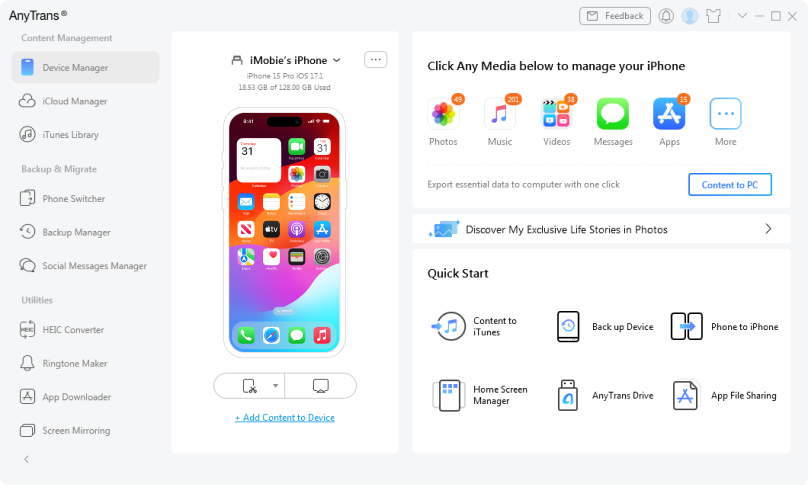
AnyTrans is a powerful one-click transfer tool that lets you move everything including contacts, photos, messages, videos, music, and even apps with ease. It supports cross-platform switching, selective transfer, and doesn’t require resetting your device. Below, you’ll find detailed steps for using AnyTrans as well as other popular solutions to help you complete your data migration effortlessly.
Download AnyTrans for free now to unlock a full-featured, one-click iPhone transfer experience. Select and move exactly what you want – no reset required, no hassle.
Free Download * 100% Clean & Safe
Install and launch the software > Choose “Phone Switcher” > Click on “Phone to iPhone” mode.

Choose Phone to iPhone to Migrate
Select the source device and target device > Click the “Next” button to continue.

Choose the Source and Target Phones and Click Next
Select the file categories you want to transfer, here we take Contacts as an example (Or you can Select All to move) > Click the “Next” button to start transferring data from old iPhone to new iPhone.

Check Contacts Box to Transfer
Besides, you can Transfer Data from iPhone to iPhone Selectively by choosing any single data you need, from the Device Manager of homepage.

Select Photos and Send to iPhone with Ease
As you can see, AnyTrans support everything you want to transfer quickly and easily:
Another tool for transferring data from iPhone to iPhone is PhoneTrans. It provides 3 models to complete iPhone switching in which you can use:
Now, you can follow the tutorial to transfer data from iPhone to iPhone.
Free Download * 100% Clean & Safe
Meanwhile, connect your iPhones to the computer. Then choose Phone to Phone on the left panel and click on Quick Transfer on the right. And then tap the Start Transfer button to go on transferring.

Choose the Quick Transfer Mode
Follow the instructions on PhoneTrans. Then you will see all the data you own listed on the screen, you can selectively choose the data you want to transfer from iPhone to iPhone. And also, you can wholly transfer data from one iPhone to the other iPhone. Click on Transfer Now to start data transfer.

Choose Data to Transfer from iPhone to iPhone
No matter you choose to transfer everything from iPhone to iPhone or selectively transfer data, PhoneTrans won’t take much time. After the transfer is completed, you will see there is a successfully transferred note on the screen.
Besides the Quick Transfer, you can also choose Phone Clone, Phone Merge to transfer data from iPhone to iPhone as you want. Just follow the instruction on the screen, you will figure the steps out easily.
Using the Quick Start feature is straightforward to transfer data from iPhone to iPhone. It is developed by Apple and is available for iPhone data transfer since iOS 11. With iPhone Quick Start, you can set up a new iOS device quickly using information from your current device. Check the steps for transferring iPhone data with Quick Start:
Turn on your new iPhone and bring it near your old device. The Quick Start screen will offer the option of using your Apple ID to set up your new iOS device.
Tap Continue, and wait for an animation to appear on your new device. Hold your old device over the new device, then center the animation in the viewfinder. Wait for a message that says Finish on New [Device Name], and then enter your old device’s passcode on your new device.
Set up your Face ID or Touch ID on the new iPhone, then enter your Apple ID password on your new device. If you have multiple iDevices, you need to enter all their passcodes.
The new device will give you the choice of restoring apps, data, and settings from your most recent iCloud backup or updating your current device’s backup and then restoring. Just select one backup that contains the data you want to use to set up your new iPhone. You can also choose whether to transfer iPhone settings.

iPhone Quick Start
If Quick Start is not working, and you want to transfer iPhone to iPhone after setup, and you want to transfer iPhone to iPhone after setup, try AnyTrans. This tool allows you to transfer everything to your new iPhone in one go – or pick exactly what to move – without erasing anything on the target device.
The most appealing feature of this update is iPhone migration. With this function, you are able to transfer data directly from your previous device to your new one. iPhone migration is a device-to-device transferring option, which provides you with two ways: Transfer from iPhone, and Download from iCloud directly. And with iPhone migration, you can transfer all your data wirelessly or using a wired connection.
Here are the steps of how to transfer data to a new iPhone with iPhone Migration:
Same as the Quick Start, start the setting-up process with the on-screen instruction: Put the new iPhone and old iPhone together. Follow the instructions to use your Apple ID to start the iPhone setup, then tap Continue. When an animation appears on your new iPhone, hold your old iPhone over the new iPhone, then center the animation in the viewfinder. Wait for a message that says Finish on your New iPhone.
Enter your old iPhone passcode on your new iPhone. Follow the instructions to set up Face ID or Touch ID on your new iPhone.
When you get to the Apps & Data screen, click Transfer Directly from iPhone. Keep the two devices near each other and plugged into power until the iPhone data migration process is completed.

Choose Transfer Directly from iPhone
Further Reading: What to Do When iPhone Migration Not Working >
We notice that most of you are visiting this guide on iPhone or iPad, and you may want to find a method to transfer data from iPhone to iPhone without computer. To be honest, you indeed can transfer data from one iPhone to another without a computer, but the only way is by using iCloud backup and iCloud syncing.
However, it has several shortcomings: takes you 30 to 60 minutes to make it; requires your Wi-Fi network enough fast; you may lose important data during transferring; media files (like Films, Apps, Music, Ringtones, iBooks, etc.) can’t be transferred, etc.
Make a backup of your old iPhone if you haven’t made one in advance.
Follow the steps to transfer data from iPhone to iPhone when setup: Turn on your new iPhone > Choose your language > Connect to Wi-Fi network > Set up Face ID or Touch ID and create a passcode > When you see the Apps & Data screen, choose to Restore from iCloud Backup option. This will help you transfer data from iPhone to iPhone with iCloud backup.

Restore iPhone from iCloud Backup
If you have already set up your new iPhone, so you don’t see the restore from the iCloud backup option. So how to transfer data to your new iPhone after set up? you can try:
On your new iPhone, go to Settings > General > Reset > Erase All Content and Settings > Erase iPhone > Set up your iPhone again > Select Restore from iCloud > Select the backup you just created.
Transferring data from one iPhone to another with iCloud syncing only supports several kinds of iOS data, like Photos (only Photo Stream), Email, Contacts, Calendar, Notes, Reminders, etc. Other files like Photos not in Photo Stream, Messages, Music, Ringtones, and Apps, are not on the supported list. Before transferring everything from one iPhone to another with iCloud syncing, there are three things you need to know firstly:
Step 1. On your iPhone, tap on Settings apps > Click your Apple ID’s profile > Select iCloud.
Step 2. Select the categories you want to transfer like, Photos, Contacts, Calendars, Reminders, Notes, etc., and then tap on it to turn it on one by one.

Transfer Data from iPhone to iPhone with iCloud Syncing
Wait for the process to finish. How long this process will last depends on the size of the data you want to transfer to your new iPhone and the speed of your network.
Transferring data from one iPhone to another isn’t a mystery with iTunes. That’s because before iCloud was featured on iOS 5, iTunes was the only way to transfer data from iPhone to iPhone. But now many products and services offer more straightforward and convenient iPhone to iPhone data transfer solutions and turn this iTunes’ tedious job into a simple process. But if you prefer iTunes to transfer from one iPhone to another, you can make it with the following steps:
Step 1. Back up your old iPhone with iTunes first, if you haven’t: Open iTunes > Connect your old iPhone to the computer.
Step 2. Click Device tab > Click Summary > Click This Computer in Backups column > Click Back Up Now.

Back Up Old iPhone with iTunes
Step 3. Connect another iPhone to the computer that you have backed up your old device in Step 1.
Step 4. Open iTunes on your computer and select the device tab.
Step 5. Select Restore Backup. Then choose a backup. Please make sure it’s the correct one by looking at the date and size of each if you have more than one iTunes backup.

Restore New iPhone from iTunes Backup
Step 6. If the backup file was encrypted, enter your password and unlock it when asked.
Step 7. Wait for the restore process to finish, then complete the rest of the setup steps on your iOS device.
Dozens of minutes will probably be needed. If possible, keep your device connected to an available Wi-Fi and in charge after setup, which allows photos, music, apps, and other content stored in iCloud to automatically download back to your iPhone.
When transferring data from one iPhone to another with iTunes backup, all the content in the iTunes backup will be restored to the iPhone no matter whether you want to restore all of them or not; and some media files (like Apps, music, ringtones, movies, iBooks, etc.) won’t be transferred during this process.
Choosing the right tool for iPhone data transfer is crucial. Considering transfer speed, data integrity, ease of use, and supported file types, and other limitations, we compared the solutions:
| AnyTrans | PhoneTrans | iTunes | iCloud Sync | iCloud Backup | |
| Transfer Media Files | |||||
| 1-Click Transfer | |||||
| Selectively Transfer | |||||
| No Data Loss | |||||
| Transfer Speed | Fast | Fast | Fast | Slow | Slow |
| No Internet Needed | |||||
| No Apple ID limit | |||||
| Availability | Free Trial | Free Trial |
As you can see, among all options, AnyTrans is the only solution that combines one-click full migration, selective after-setup transfer, and app moving – without Apple ID limits and without needing the internet. If you want a complete move in the shortest time, choose AnyTrans first.
1. Can you transfer data to iOS after you’ve already set up a phone?
Yes, no matter if you have set up an iPhone or not, you can transfer data with an iCloud backup or use AnyTrans to select what data you want to move.
2. Can I transfer data from old iPhone to new iPhone after setup?
Yes, you can transfer data from an old iPhone to a new one through the Quick Start method, iCloud backup, or using an iPhone transfer tool like AnyTrans for easy steps.
3. Why didn’t my apps transfer to my new iPhone?
Your apps may not transfer to a new iPhone directly like other data. If this is the case, you should check your App Store and re-download them.
With the help of the full guide on how to transfer data from iPhone to iPhone, you must have transferred everything you want on your iPhone, iPad, or iPod touch. If this post works for you, please share it with the people around you. If you have any questions, feel free to message us by clicking the Chat Window in the bottom right corner. Download AnyTrans to Explore More Now >
Free Download100% Clean & Safe
Product-related questions? Contact Our Support Team to Get Quick Solution >