If your Android phone keeps showing the startup logo, turning off, and starting again, it may be caught in a boot loop. But a phone that repeatedly restarts is not always experiencing the same failure as one that stays on a single logo screen.
The distinction matters, especially if you have photos, messages, or files that have not been backed up. A restart or a supported recovery option may leave that data intact, while a factory reset or firmware repair can erase it.
Before selecting a repair tool or wiping the phone, identify exactly where startup stops and which recovery options your device manufacturer supports.
First, Identify What Your Android Phone Is Actually Doing
Start with what you can observe on the screen. The startup symptom helps you choose a reasonable next action, but it does not prove which hardware or software component has failed.
| What you see | How to interpret it | What to check first |
|---|---|---|
| Logo appears, disappears, and appears again | The phone is repeatedly attempting to start without completing normal boot | Check the buttons, power supply, recent system changes, and available Safe Mode options |
| Logo or startup animation stays on the screen | The phone has not reached the normal Android interface, but a static screen alone does not establish the cause | Determine whether the device is completing a recent update or is no longer progressing |
| Phone reaches the Home Screen, then restarts unexpectedly | This is a running-system restart problem rather than necessarily a startup boot loop | Check apps, updates, available storage, and Safe Mode |
| Android Recovery, Fastboot, or Download Mode appears | The phone has entered a special system or maintenance state | Identify the exact mode and avoid selecting an erase or flashing operation without understanding it |
| Screen is black and no startup logo appears | The device may have a power, display, charging, or more fundamental startup problem | Check charging and hardware-related symptoms before treating it as a software boot loop |
If the phone is simply displaying a normal update screen, do not interrupt it solely because the animation appears slow. Some manufacturers warn that processing after an update may take substantially longer than an ordinary restart.
For example, Xiaomi’s official troubleshooting guidance explains that startup processing after certain system updates can take additional time. That is manufacturer-specific guidance, not a universal waiting period for every Android phone.
If the device becomes unusually hot, shows signs of battery damage, or remains unresponsive beyond the manufacturer’s expected recovery process, stop repeated attempts and seek appropriate support.
What Can Cause an Android Boot Loop?
An Android boot loop means that startup is not completing reliably. It does not automatically mean that the firmware is corrupted or that a factory reset is necessary.
Several different conditions can produce similar visible symptoms:
| Possible condition | Clue worth checking | What the clue does not prove |
|---|---|---|
| System update did not complete normally | The problem began immediately after an Android or manufacturer update | That the new firmware is permanently damaged or cannot recover |
| Third-party app or software conflict | The device can start in Safe Mode but not reliably in normal mode | Which individual app caused the issue without further testing |
| Power button or accessory interference | A case presses against a button, or a button does not move normally | That the entire startup problem is a software failure |
| Battery or charging problem | The phone shuts down unexpectedly or behaves differently when connected to appropriate power | That the battery is definitely the defective component |
| Storage or other internal hardware problem | Software recovery repeatedly fails, or there is independent evidence of physical damage | Which internal component failed without proper diagnosis |
These are diagnostic possibilities rather than conclusions. The most useful information is what changed before the first failure and whether the phone can still reach a different startup state.
Before Trying a Fix, Consider the Data You Cannot Replace
If the phone contains unbacked-up photos, recordings, messages, or work files, avoid starting with a factory reset.
First, use another device to check whether important information is already available through your Google Account, Google Photos, or another synchronization or backup service you previously enabled.
Finding some photos or contacts in the cloud does not establish that every locally stored file or application record is backed up.
Also, a device that cannot reach the Lock Screen may not allow a computer to access its user files. USB connectivity alone does not mean the computer can decrypt and read the phone’s stored data.
Do not treat data restoration from a backup as equivalent to preserving the data currently on the phone.
Step 1: Check the Power Button, Accessories, and Charging State
Before changing Android itself, check the parts of the phone that can affect its ability to start normally.
- Remove any case or accessory that could be holding down the Power or Volume buttons.
- Check whether the buttons press and release normally, without being physically stuck.
- If the battery may be discharged, connect a compatible charger and cable according to the manufacturer’s instructions.
- If the problem began after a drop, liquid exposure, or visible physical damage, consider hardware service before software repair.
These checks do not erase user data.
Google recommends examining the charging equipment and accessories when troubleshooting an Android device that will not turn on. Samsung also includes accessory and button checks in its startup troubleshooting guidance.
See Google’s charging and power troubleshooting and Samsung’s boot-loop support guide.
Step 2: Try the Correct Force Restart for Your Device
A force restart is a reasonable early step when the phone is no longer progressing. It requests a restart without intentionally wiping user data.
However, Android manufacturers do not all use the same button sequence.
| Device family | Manufacturer-documented restart option |
|---|---|
| Samsung Galaxy | On supported models, hold the Side key and Volume Down together for more than seven seconds until the phone restarts |
| Google Pixel | For a frozen device, Google’s Android troubleshooting guidance describes holding the Power button for an extended period to restart; check the instructions for your exact Pixel model |
| Xiaomi / Redmi / POCO | Button sequences and recovery options vary by model. Use the manufacturer’s instructions for the exact device and the screen currently displayed, especially if it is in Fastboot or Recovery Mode |
These are examples, not interchangeable instructions. Use the device manufacturer’s exact model-specific guidance if your phone is different.
If the phone returns to the Home Screen and remains stable, there is no reason to proceed immediately to firmware repair.
If it returns to the same frozen logo or repeats the startup cycle, move on to the next diagnostic check rather than repeatedly forcing restarts.
Step 3: Check Whether Safe Mode Is Available
Safe Mode starts Android with downloaded third-party apps temporarily disabled. It can help distinguish an app-related problem from one that also occurs without those apps running.
Safe Mode is useful only when the phone can get far enough through startup to enter it. A severe boot loop may prevent this entirely.
Samsung Galaxy
Samsung documents a Safe Mode startup procedure for supported Galaxy devices. The exact method can vary by model and software version, so this button-based procedure should not be treated as universal.
- Turn the phone off completely if possible.
- Start the device.
- When the Samsung logo appears, press and hold Volume Down.
- If successful, a Safe Mode label appears on the screen.
If the phone can still reach the Power menu, Samsung also provides a separate method for entering Safe Mode through that menu. Use the procedure appropriate for your device and its current startup state.
See Samsung’s official Safe Mode instructions.
Google Pixel
Pixel devices also support Safe Mode, but the available procedure depends on the model and whether the phone is currently on or off.
See Google’s Pixel Safe Mode instructions rather than assuming the Samsung sequence applies.
Xiaomi, Redmi, and POCO
Xiaomi documents Safe Mode troubleshooting for supported devices, including certain situations where Recovery Mode offers a Safe Mode option.
Check the actual options shown on your device and follow Xiaomi’s troubleshooting instructions.
What Does the Safe Mode Result Tell You?
| Observed result | Reasonable next action |
|---|---|
| Phone starts and remains stable in Safe Mode | Review recently installed or updated apps, remove likely problem apps one at a time, and restart normally |
| Phone still restarts in Safe Mode | An ordinary downloaded-app conflict becomes less likely; continue with manufacturer recovery guidance or service diagnosis |
| Safe Mode cannot be reached | Do not conclude that the hardware has failed. The device may be unable to reach the stage at which Safe Mode becomes available |
Safe Mode itself is not a factory reset. However, removing apps or changing settings can affect app data and configuration, so make changes deliberately.
Step 4: Understand What Android Recovery Can Actually Do
Android Recovery is a special maintenance environment. It may offer actions such as restarting, installing an authorized update, or wiping user data, depending on the device.
Entering a recovery interface is not the same as selecting a factory reset.
The available menu items are not universal across Android brands or software versions.
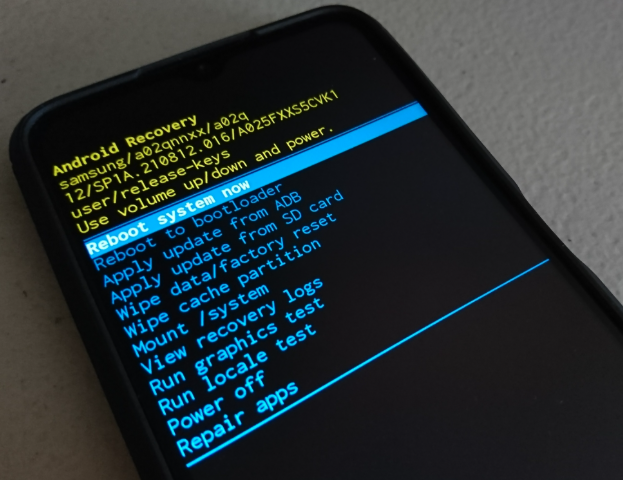
| Recovery option or system mode | What it generally means | Data consideration |
|---|---|---|
| Reboot system now (Android Recovery) | Attempts normal startup again | Does not intentionally erase data |
| Safe Mode, where available | Attempts startup with downloaded third-party apps temporarily disabled | Not a factory reset |
| Wipe cache partition, where available | Clears a dedicated cache partition on devices that provide this option | Not the same as wiping user data, but should only be used when documented for the device |
| Wipe data / factory reset (Android Recovery) | Resets the device and removes locally stored user data | Destructive; do not select casually |
| Fastboot / Bootloader Mode | A separate low-level maintenance environment available on supported Android devices. It can be used for certain bootloader and firmware operations but is not the same as Android Recovery | Entering the mode does not itself erase data. Subsequent unlocking or flashing operations may erase data or affect the device’s ability to boot |
| Samsung Download Mode | A Samsung-specific firmware maintenance environment used for supported computer-assisted flashing procedures. It is different from Android Recovery and Fastboot | Entering Download Mode does not itself erase data. The outcome depends on the firmware operation performed |
Important: Android Recovery, Fastboot, and Samsung Download Mode are different maintenance environments. Do not follow instructions intended for one mode while the device is in another. Always identify the screen displayed and confirm the manufacturer-supported procedure before proceeding.
Why “Wipe Cache Partition” Is Not a Universal Android Fix
Older Android repair tutorials frequently recommend wiping the cache partition after a failed update. That advice does not apply uniformly to current Android devices.
Android’s A/B and Virtual A/B update mechanisms changed how many devices install system updates. The Android Open Source Project explains that A/B updates work with separate system slots and do not require the traditional cache-partition approach used by older update mechanisms.
As a result, a modern Recovery menu may not include a Wipe Cache Partition option at all.
If the option is missing, do not substitute Wipe data / factory reset simply because its name looks similar.
Technical reference: Android A/B system updates.
Step 5: Choose Recovery Options Based on Your Phone Brand
Once a force restart and applicable Safe Mode checks have failed, the next step should depend on the manufacturer. Some devices have an official computer-assisted update or recovery path, while others require different procedures.
| Device | Official recovery route worth checking | Important limitation |
|---|---|---|
| Samsung Galaxy | Samsung Smart Switch Emergency Software Recovery, when a supported software-update failure qualifies for that workflow | Not a general-purpose solution for every boot loop; recovery and initialization may affect data |
| Google Pixel | Google’s Update and Software Repair tool for eligible Pixel devices | Some update operations may avoid a factory reset, while reset operations erase data |
| Xiaomi / Redmi / POCO | Manufacturer-documented Safe Mode, Recovery, and authorized service procedures | Recovery menus and firmware-installation methods vary by model; wiping data erases local information |
| Other Android brands | Brand-specific official software recovery or authorized service | Do not apply another manufacturer’s firmware packages or button procedures |
Samsung: When Smart Switch Emergency Recovery Applies
Samsung provides an Emergency Software Recovery workflow in Smart Switch for certain interrupted or failed software-update operations.
If a Samsung device failed during an applicable Smart Switch update process, review the recovery options offered for that device. This is different from assuming that every Galaxy phone stuck at the Samsung logo can be repaired through Smart Switch.
Follow Samsung’s Emergency Software Recovery guide. Review the on-screen consequences before beginning.
Google Pixel: Check the Update and Software Repair Tool
Google provides an official Update and Software Repair tool for eligible Pixel devices. The tool allows users to check available software update or reinstallation options using a computer and a USB cable.
The distinction between updating and reinstalling is important. An available update may not require erasing user data, but reinstalling the software resets the Pixel to factory settings and deletes local data.
Before proceeding, review the operation offered for your exact device and its data-loss warning. Neither the availability of the tool nor a successful software installation guarantees that a particular boot-loop problem will be resolved.
For factory reset instructions and recovery considerations, see Google’s official Pixel reset guidance.
Xiaomi: Do Not Confuse Recovery with a Required Data Wipe
Xiaomi’s support documentation distinguishes phones that are still processing an update from phones that repeatedly restart or cannot enter Android.
Some Xiaomi recovery environments offer Safe Mode. A separate Wipe Data operation is destructive and should not be treated as an ordinary restart option.
If the phone cannot start and the available manufacturer procedure would erase unbacked-up data, consider authorized support before proceeding.
Where DroidKit System Fix Fits
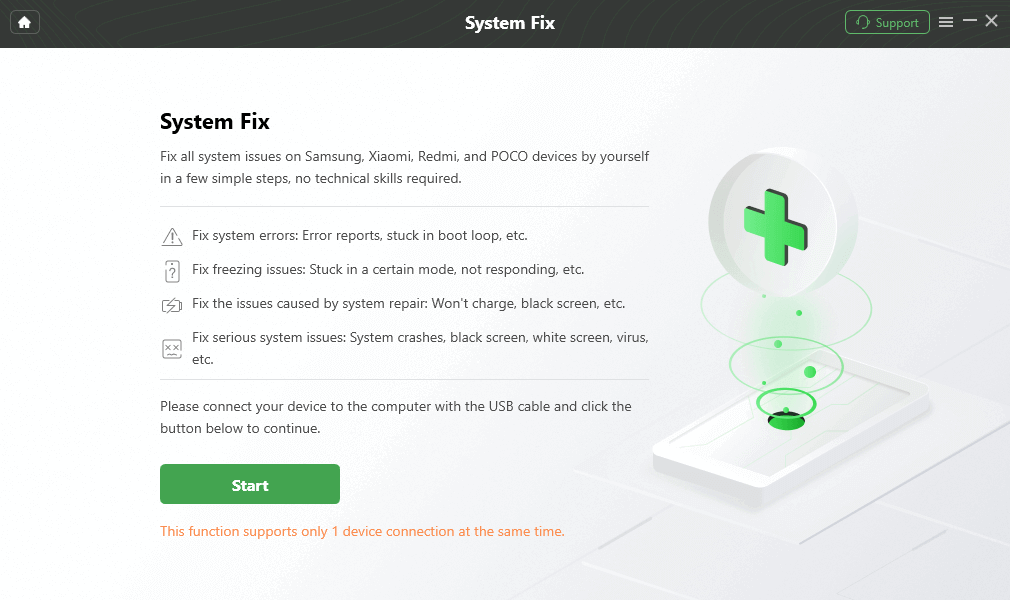
We develop DroidKit at iMobie. Its System Fix feature provides a guided computer-based repair workflow for supported Android devices and system problems, including certain boot-loop and stuck-on-logo cases.
Before starting: DroidKit System Fix is not guaranteed to preserve local data. According to DroidKit’s official System Repair documentation, repair may require resetting the device and can erase data. Check device compatibility and the consequences of the selected operation before proceeding.
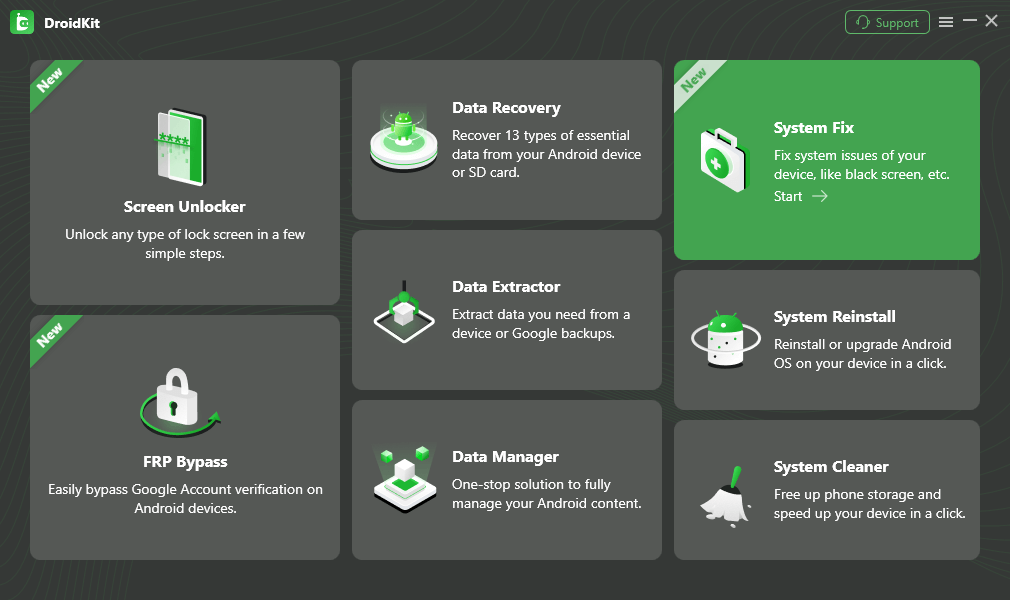
However, support is device-specific. DroidKit’s System Fix information lists Samsung, Xiaomi, Redmi, and POCO device families. This should not be interpreted as support for every model or every Android manufacturer.
The workflow involves choosing System Fix, connecting the device, selecting the appropriate device information, and following the repair instructions.
What Our Testing Revealed About Firmware Compatibility
During internal testing of DroidKit’s Android system repair workflows, we encountered situations where the repair process was affected by firmware compatibility rather than the Android version alone. This is an important distinction when troubleshooting a phone that cannot complete startup.
One issue involved a mismatch between the firmware package and the device’s regional configuration. A firmware package intended for a different variant may be unsuitable even when the phone belongs to the same model family.
Our testing also identified cases where firmware packages were not available directly through the software and required a separate download and import process. The available workflow depends on the device, firmware package, and DroidKit version.
Before attempting a firmware-based repair, check the following:
| What to check | Why it matters |
|---|---|
| Exact device model | Phones with similar names may have different model identifiers and firmware requirements. |
| Regional firmware variant | A package intended for a different regional or carrier configuration may not be suitable for the device. |
| Available firmware package | Not every required package can necessarily be obtained automatically through the repair software. Use only firmware sources and import procedures supported by the manufacturer or repair tool. |
| Repair workflow and data risk | A successful firmware installation does not guarantee that the original startup problem is resolved or that locally stored data will be preserved. |
What these observations do not establish: The internal records concern firmware operations and compatibility troubleshooting. They are not a controlled test of Android boot-loop recovery, and they cannot be used to calculate a repair success rate. Device compatibility and repair outcomes must be evaluated for the specific phone and software configuration.
Before using DroidKit, also confirm that the phone can enter the connection or maintenance state required by the selected workflow. A device with a damaged battery, failing storage, or another physical fault may need hardware diagnosis rather than software repair.
DroidKit can be a relevant option for a compatible device when the user understands the possible data consequences. It is not a guaranteed data-preserving alternative to factory reset, nor does it establish the root cause of a boot loop merely by detecting the phone.
When Is a Factory Reset Reasonable?
A factory reset becomes more reasonable when appropriate lower-data-risk options are unavailable or unsuccessful, and you have decided that restoring the device to a usable state is more important than preserving any remaining unbacked-up local information.
Before resetting, consider:
- Whether the device can still boot into Safe Mode or an official non-erasing update workflow.
- Whether important files exist in a verified cloud or computer backup.
- Whether you know the Google Account credentials previously associated with the phone.
- Whether additional manufacturer-account verification may apply after the reset.
- Whether physical damage makes a software reset unlikely to address the problem.
Google explicitly warns that a factory reset removes data from the phone. Information previously backed up to a Google Account may be restored, but that does not mean every application file or locally stored item will return.
See Google’s Android factory reset instructions.
For a device with irreplaceable unbacked-up data, an authorized diagnostic assessment may be preferable to immediately starting a destructive recovery operation.
When Should You Stop Trying Software Fixes?
A phone that repeatedly returns to the startup logo after appropriate recovery attempts may need a different diagnosis.
Stop repeated software attempts and consider manufacturer service if:
- The phone is overheating abnormally, shows signs of battery swelling, or has recent liquid or impact damage.
- The Power or Volume buttons are physically damaged or stuck.
- The manufacturer-supported update or recovery process repeatedly fails.
- The phone cannot reliably communicate with the computer during supported recovery procedures.
- The device still cannot complete startup after a properly completed, manufacturer-approved system restoration.
These symptoms do not individually prove hardware failure. They indicate that continuing to repeat the same software procedure may no longer be useful.
If you contact support, record the device model, the screen or message displayed, what changed immediately before the first boot failure, and the recovery steps already attempted. That information is more actionable than reporting only that the phone is “bricked.”
Questions That Matter Before the Next Recovery Attempt
Can an Android boot loop fix itself?
Some startup interruptions are temporary, especially around software updates. However, a device that continues cycling through the same startup sequence without progressing should not be assumed to recover automatically. Follow the manufacturer-specific guidance for the situation.
Does entering Android Recovery erase my phone?
Not by itself. Recovery is an environment that can offer several actions. The data consequence depends on the option you select. Choosing Wipe Data or Factory Reset is different from choosing Reboot System Now.
Can I copy photos to a computer while the phone is stuck on the logo?
Not necessarily. A connected cable does not automatically provide access to protected user storage. If Android cannot complete startup or the required authorization is unavailable, ordinary file-transfer tools may not be able to read the phone’s local files.
Is a boot loop always caused by a failed Android update?
No. Update failures, app conflicts, power-button problems, charging faults, and internal hardware problems can produce overlapping symptoms. What happened before the failure and which startup states remain accessible are more useful than the logo alone.
Will system repair software always preserve my data?
No. The data impact depends on the tool, device, and repair operation. In particular, DroidKit’s System Repair documentation warns that some repairs may require resetting the phone and can erase data.
For an Android phone stuck in a boot loop or on its startup logo, the safest useful next step is the one supported by the actual device state and manufacturer—not whichever option promises the fastest repair. Identify the startup condition, check non-erasing paths, and understand the data consequences before moving to a reset or firmware operation.


