Proven 3 Methods to Download Amazon Prime Video on Laptops in 2025
This guide confirms that you can download Amazon Prime Video on a laptop and introduces three methods to do it. It covers Amazon’s official Prime Video app for Windows, a dedicated third-party downloader, and a free online tool. Each method includes step-by-step instructions to help you save videos for offline viewing.
Ever found yourself wanting to enjoy your favorite Prime Video show offline on your laptop for flexible watching? You’re not alone. The good news is that Amazon does allow downloading certain videos for offline viewing on laptops. However, there are some catches and limitations that we will explain later in this guide.
In this guide, we’ll explore three proven methods to get Amazon Prime Video downloads on a laptop so you can watch them anytime. We’ll cover Amazon’s official method and also introduce third-party solutions that give you more flexibility. Let’s get to it and ensure you never miss an episode, even without Wi-Fi!
Part 1. Can You Download Movies on Amazon Prime on a Laptop/Windows?
Yes, you can download Amazon Prime Video content onto a laptop, but only through official apps and with some restrictions. For example, the videos are stored in a proprietary format and can only be viewed within the Prime Video app.
Downloads usually expire after about 30 days if you don’t watch them, and once you start watching, you have just 48 hours to finish. Amazon also limits how many titles you can store at once (normally between 15 and 25 per account).
Then, in the next part, we will offer three proven ways to download Prime video on laptops. If you are interested, please continue to read.
Part 2. How to Download Amazon Prime Video on Laptops
There are three reliable methods to download Amazon Prime videos onto your laptop for offline watching. Let’s go through each method step by step.
Method 1. Download Prime Videos on Laptops via Third-Party Software
For those who want more control over downloads and save the MP4 file that won’t expire, a third-party downloader is the best option. These tools are designed to bypass Amazon’s DRM restrictions and convert Prime Video streams into standard video files that you can keep.
One highly-rated solution is Keeprix Video Downloader, an all-in-one desktop software for downloading streaming videos. You can use this tool to download Amazon Prime videos in ultra-high quality and save them as MP4 files that never expire.
Check out how you can use this software to download Amazon Prime Video on your laptop:
Step 1: Install Keeprix Video Downloader and Choose Amazon
Download and install the Keeprix Video Downloader on your computer and launch it. Then, click on the “Download Video” option in the left menu, then choose “Amazon” from the list of supported streaming services.
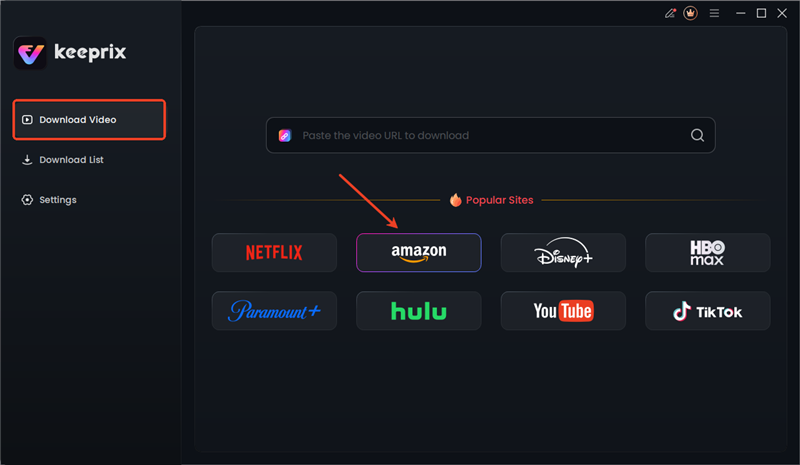
Choose Amazon in Keeprix
Step 2: Log in to Amazon Prime via Built-in Browser
Next, the software has a built-in browser for Amazon that will open Prime Video’s homepage within the app. Sign in with your Amazon Prime Video credentials as prompted.

Sign in to Amazon Prime Account in Keeprix
Step 3: Find the Video and Start Downloading
Afterwards, navigate to the video content you want to download and play it. Click the “Download” icon at the bottom right corner of the player interface to add the video to the download queue.
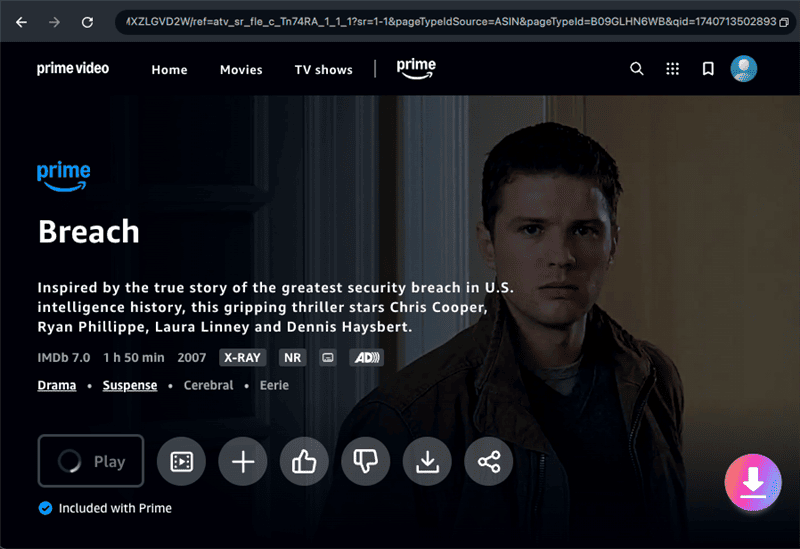
Download Prime Videos in Keeprix
Step 4: Customize Prime Video’s Download Settings
Following that, you can choose the resolution (e.g., 720p or 1080p HD), pick your preferred audio language, and select subtitle options. After confirming the settings, click the “Download” button to start the download process.
Once finished, you’ll find the video file in the output folder of your laptop you chose.
Method 2. Download Prime Videos on Laptops within Its Official App
Using the official app is straightforward and included with your Prime subscription, as there’s no extra cost. Here are the steps to use the official app for Amazon Prime Video download on a laptop:
Step 1: Install the Prime Video App and Sign in
Download the Amazon Prime Video for Windows app and install it properly. After that, launch the app on your laptop and log in with your Amazon account.
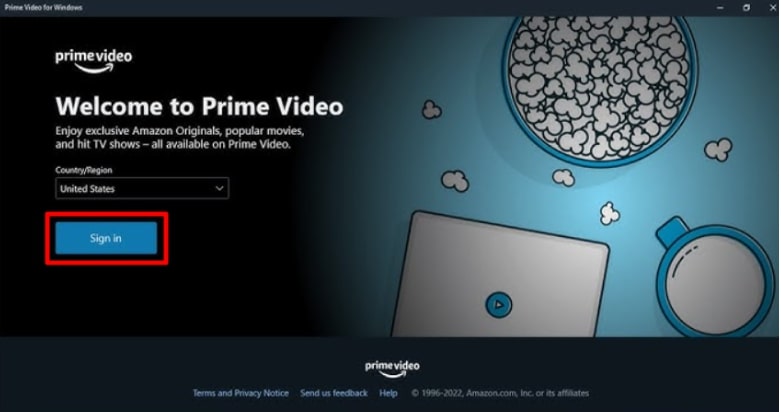
Sign into Prime Video Desktop App
Step 2: Find the Video and Click Download
Use the app’s search or browse the catalog to locate the movie or TV show you’re interested in. Click on the title to go to its detail page and hit the “Download” option.
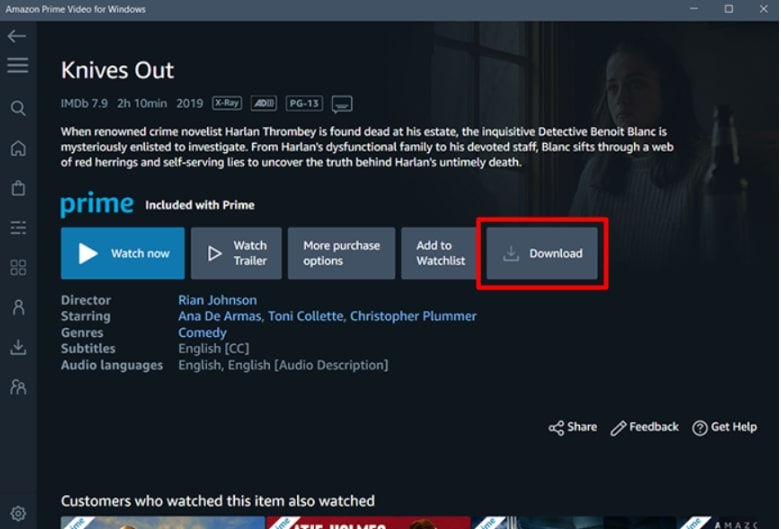
Download Prime Video Movie via Desktop App
Step 3: Wait for the Download to Finish
The official Prime Video app will download the video to your laptop. You can check the video-saving progress in the “Downloads” section of the app. Once completed, the title will be available to watch from this Downloads tab.
Method 3. Download Prime Videos on Laptops with KeepVid
KeepVid is a free web-based tool that can grab videos from a variety of streaming sites. Walk through this guide to learn how to use KeepVid for downloading Amazon Prime video on laptop:
Step 1: Open the KeepVid Downloader Site
Go to the KeepVid website on your laptop’s web browser. You’ll see a URL field on the homepage.
Step 2: Copy the Amazon Prime Video URL
In another tab, sign in to Prime Video on the web and find the movie or episode you want to download. Copy the URL of that video page from your browser’s address bar.
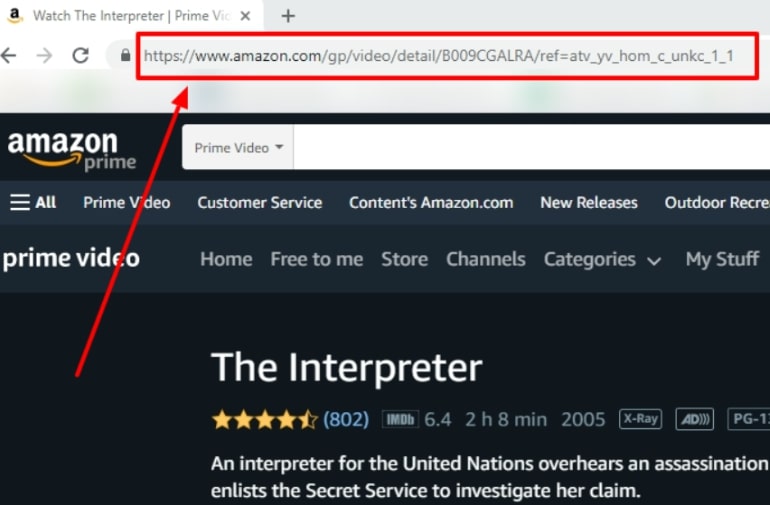
Copy URL of Amazon Prime Video
Step 3: Paste the URL into KeepVid
Switch back to the KeepVid page and paste the Prime Video link into the URL box provided. Then click the “GO” button next to the field to proceed to downloading the relevant video to your laptop.
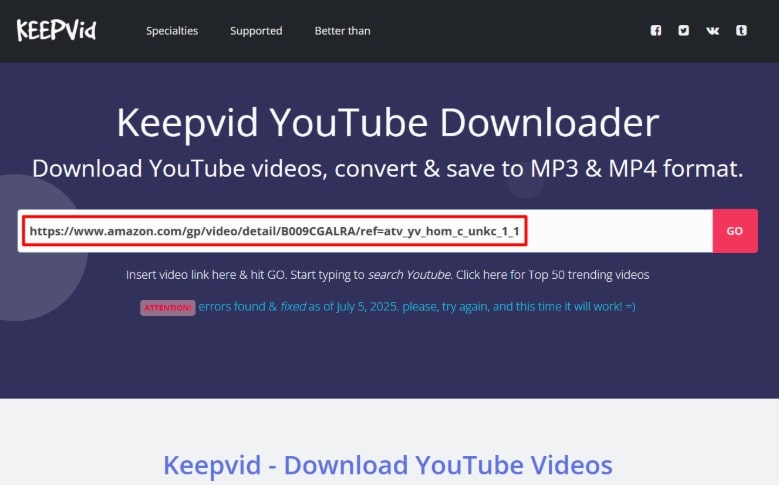
Paste URL of Prime Video in KeepVid
Part 3. FAQs
Q1: Where are Prime Video downloads stored?
On a Windows PC, Prime Video downloads are stored in an encrypted folder on your device under your user profile by default. For example, the path is something like: “C:\Users<YourUserName>\AppData\Local\Packages\AmazonVideo.PrimeVideo_pwbj9vvecjh7j\LocalState\Downloads”. You can also change the default location to save the downloads.
Q2: Why is there no download option on Amazon Prime?
There might be no download option because Amazon’s download feature is only available on supported devices and apps. Secondly, not all videos on Amazon Prime are downloadable even within the app. Some titles (due to licensing agreements or studio restrictions) are marked as “streaming only.”
Conclusion
To sum up, downloading Amazon Prime Video on your laptop is possible. If you just need a quick and official method, use the Prime Video app. If you want to keep videos permanently, a tool like Keeprix Video Downloader is a better choice. And if you prefer not to install software, an online option like KeepVid can also help in some cases. Try out the method that fits you best today and start trying out these methods!



Joy Taylor is a seasoned technical writer with over a decade of experience in mobile technology. At iMobie, she specializes in producing in-depth content on iOS data recovery, iPhone unlocking solutions, and iOS troubleshooting.
Product-related questions? Contact Our Support Team to Get Quick Solution >
