Why Is Prime Video Not Downloading? Diagnosis and Fixes
Prime Video downloads may fail due to app glitches or official limits. Clear cache and check storage first; for expiry, title limits, or licensing issues, Keeprix can save accessible videos as local MP4/MKV files.
Prime Video downloads usually fail due to app glitches, such as a corrupted cache, or because you have hit Amazon’s official 15 to 25-title account-wide download limit. In other cases, licensing restrictions can cause the download button to disappear entirely for specific movies or shows. To get your offline watchlist ready, you first need to fix any technical app errors, then look at how to handle Amazon’s built-in platform limits.
Diagnosis Checklist: App Error vs. Platform Limit
Before spending time on complex fixes, check what kind of download problem you are actually facing:
- Stuck progress bar or error code: This is usually an app cache, storage, or Wi-Fi glitch that can be fixed manually.
- Previously downloaded videos say ‘unavailable’: You have likely hit the 48-hour expiration window.
- The download button is completely missing: This indicates a licensing restriction for that specific title, meaning it cannot be downloaded via the official app.
- The app prompts you to delete videos: You have hit the 15 to 25-title account-wide download limit across all your registered devices.
How to Fix a Stuck Progress Bar on Prime Video
If your download freezes at a certain percentage, the app itself is likely malfunctioning. Follow these steps to get the progress bar moving again:
- Check your device storage: Ensure your phone or tablet has enough free space to accommodate the video file.
- Clear the Prime Video app cache: On Android, go to Settings > Apps > Prime Video > Storage and tap ‘Clear Cache’. On iOS, you will need to offload or reinstall the app to clear the cache.
- Toggle your Wi-Fi connection: Disconnect and reconnect to your Wi-Fi network. Also, check the app’s ‘Data Saver’ settings to ensure downloads aren’t paused on cellular networks.
- Update or reinstall the app: Check your device’s app store for a pending Prime Video update, or delete the app and reinstall it to resolve corrupted background data.
The Hidden Culprits: Amazon’s Official Download Limits
Even when the app works perfectly, Amazon officially caps offline downloads at 15 to 25 total titles across all devices tied to your account, depending on your region. Furthermore, these downloads expire 48 hours after you start watching them, or 30 days if left unwatched.
Because these downloaded files are locked inside the Prime Video app, they cannot be transferred, backed up, or organized in a personal library. Relying solely on app-locked downloads can be incredibly frustrating if you are preparing for a long trip, commuting, or traveling to areas with no Wi-Fi, as your carefully planned watchlist might hit a sudden limit or expire just when you need to download Amazon Prime videos offline.
A Better Offline Library: Prime Video App vs. Local MP4 Files
For users frustrated by disappearing downloads and strict account limits, moving to a file-based workflow is a more reliable way to prepare for travel. Keeprix Video Downloader helps users turn accessible streaming videos into flexible offline files for personal use, allowing you to batch download entire watchlists before a trip without worrying about the 48-hour expiration rule.
| Feature | Prime Video App | Keeprix |
| Storage Format | Encrypted app-locked files | Standard local MP4 or MKV files |
| Expiration | Expires 48 hours after playback | No built-in app expiration |
| Quantity Rules | 15-25 title account limit | Save accessible videos to available local storage |
| Playback Flexibility | Locked to the mobile app | Cross-device playback on compatible screens |
How to Save Prime Videos as MP4 Files Using Keeprix
Using a desktop downloader makes it simple to build a personal offline media library. Here is how to convert Amazon Prime Video To MP4 and save accessible videos to your computer using Keeprix:
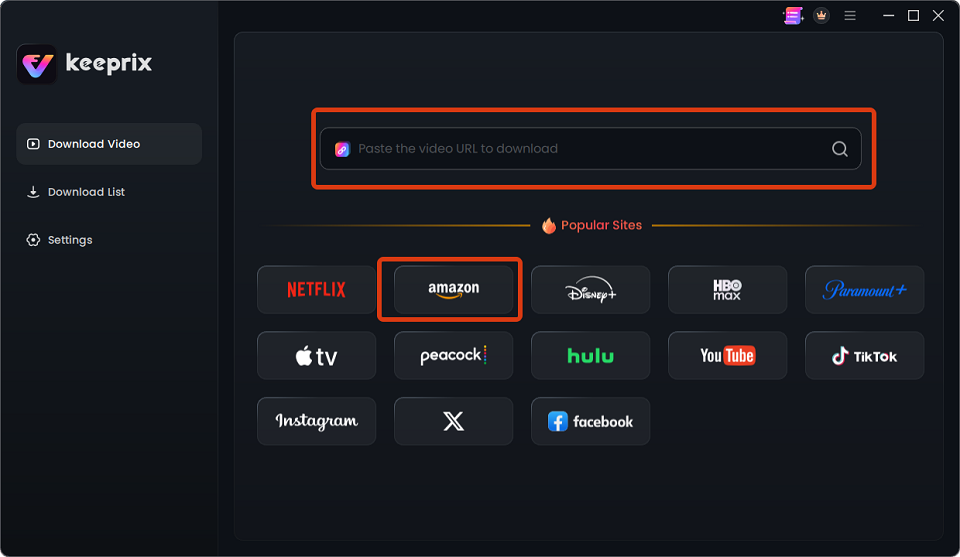
Step 1: Open Keeprix and log in: Launch the Keeprix app on Windows or Mac and use the built-in browser to access Prime Video. You can also paste the link of the video you want to download into the search box.
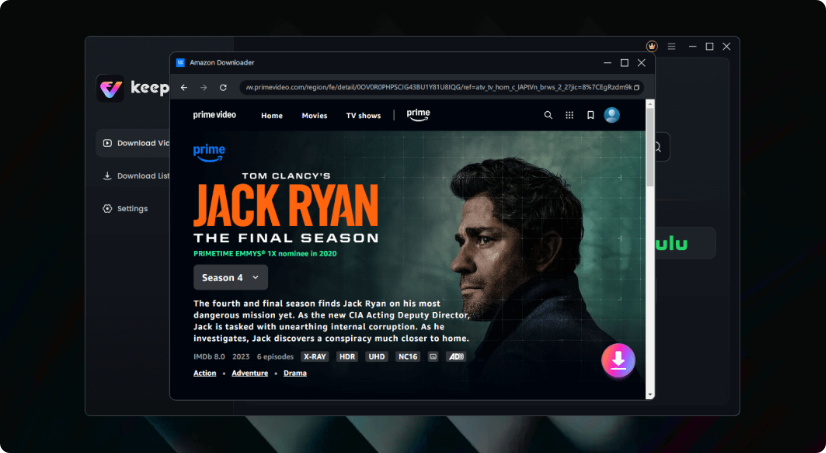
Step 2: Select your video: Find the movie or episode you want to save. Keeprix supports downloading from Prime Video up to 1080p, depending on the source quality and your account access.
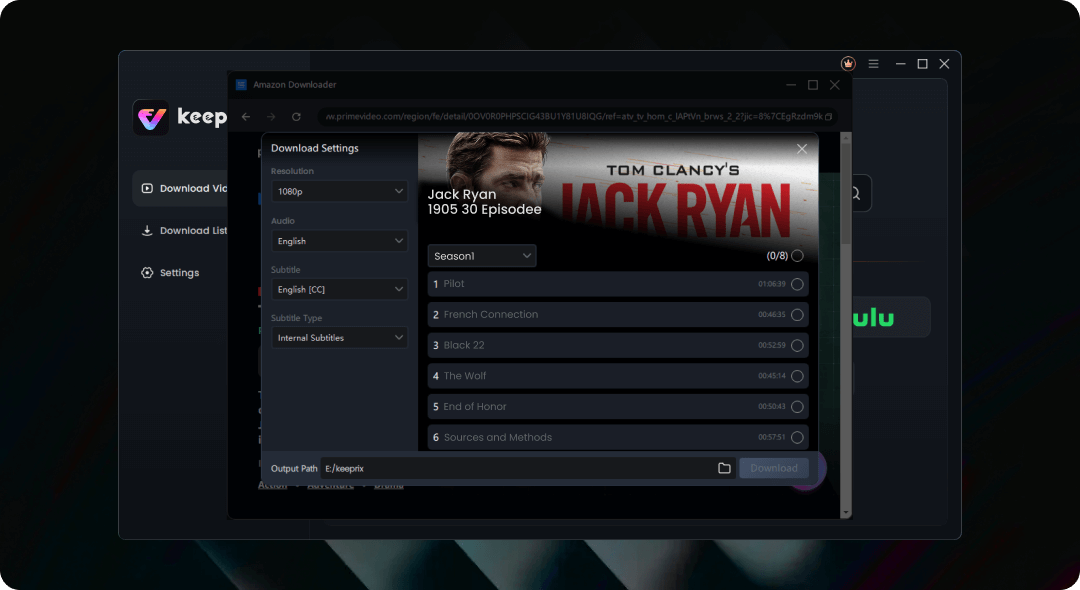
Step 3: Choose your format and languages: Select MP4 or MKV as your output format, and keep the specific audio tracks and subtitle languages you need for your trip.
Step 4: Start downloading: Save the flexible local files to your hard drive, allowing you to easily transfer, organize, or watch them on the screen you actually use.
You might like: Prime Video Download Limit: How to Fix ‘Limit Reached’ Errors in 2026
Frequently Asked Questions
1.Why is the download button missing on certain Prime videos?
Not all content on Prime Video is available for offline viewing. If the download button is missing, it is due to licensing restrictions for that specific movie or show.
2.What is the maximum download limit on Amazon Prime Video?
Amazon restricts users to a total of 15 to 25 downloaded titles at one time across all devices linked to the same account, depending on the user’s region.
3.Do Amazon Prime downloads expire?
Yes, official app downloads expire 48 hours after you start watching them. If left unplayed, they will automatically expire after 30 days.
4.How do I clear the Prime Video cache?
On Android, go to your device Settings, find the Prime Video app, select Storage, and tap ‘Clear Cache’. On iOS, you must uninstall and reinstall the app to clear its cached data.
The Bottom Line: App Glitch or App Limit?
When Prime Video is not downloading, the solution depends entirely on whether you are facing a technical error or an official rule. Basic app glitches like a stuck progress bar can usually be fixed quickly by clearing the cache or checking your device storage. However, the 15 to 25-title download limit and 48-hour expiration window are built-in platform rules that cannot be changed within the app itself.
If you are frustrated by disappearing downloads and want to ensure your watchlist is fully prepared before your next long trip, moving to a file-based workflow is the most reliable solution. Saving accessible videos as flexible MP4 files allows you to build a personal offline media library without worrying about sudden app expirations. Download Keeprix for free today to test the workflow and permanently upgrade your offline viewing experience.



Joy Taylor is a seasoned technical writer with over a decade of experience in mobile technology. At iMobie, she specializes in producing in-depth content on iOS data recovery, iPhone unlocking solutions, and iOS troubleshooting.
Product-related questions? Contact Our Support Team to Get Quick Solution >
