How to Download Disney Plus Movies on Laptop [Full Guide]
Disney+ does not support downloading movies directly on a laptop, as the official download function is limited to mobile apps on smartphones and tablets. For those who need offline playback on a laptop, Keeprix Video Downloader can help you store movies on laptop directly for flexible playback across devices.
How to download Disney Plus movies on laptop is a common question among users, since the platform only supports downloads on mobile devices and not on PCs. In this article, we’ll discuss the reasons and detailed instructions on how to download Disney+ movies on a laptop. Additionally, we offer fixes for common issues. With these solutions, you can enjoy a smoother Disney+ viewing experience and choose the method that best fits your needs. let’s get started!
Why Can’t I Download Disney+ on My Laptop?
Disney+ only provides the official download feature on its mobile apps (iOS, Android, and Fire tablets). On browsers or desktop apps, this option is not available. The main reason lies in Disney+’s use of strict digital rights management (DRM) technology, which is designed to prevent unauthorized copying and distribution of its content. Allowing downloads on laptops or PCs would make files more vulnerable to piracy, so Disney+ limits this function to mobile devices rather than laptops.
Preparations Before Downloading Videos on Disney Plus
Before trying to download any movies or shows from Disney+, it is important to know the Disney+ Download rules:
Subscription plans:
Only Disney+ Standard and Disney+ Premium subscribers are allowed to download movies and shows. The Disney+ Standard with Ads plan cannot be used for downloading, and any saved content will be deleted if the user switches to this plan.
Supported devices:
- Apple iPhones and iPads
- Apple Vision Pro
- Android phones and tablets
- Amazon Fire tablets
Download limits:
- You can download content on up to 10 devices that are supported and have available storage.
- The titles you have downloaded will only be accessible if you are a subscriber in good standing and your device has been online at least once every 30 days.
- Some content may be time-limited or unavailable for download due to licensing restrictions.
- If you log out of your Disney+ account, all previously downloaded content will be deleted.
How to Download Disney Plus Movies on Laptop Directly
Although Disney+ doesn’t officially allow downloads on laptops, the best method is to employ a dependable third-party tool. Keeprix Video Downloader is a dedicated software that lets you save Disney+ movies and shows in MP4 or MKV format on your computer, so that you can transfer the downloads to any device you want. Unlike the Disney+ app, this tool removes all limitations, including device caps, 30-day renewal requirements, 48-hour expiry after playback, and regional restrictions. Whether you’re traveling, offline for long periods, or simply want permanent access, Keeprix Video Downloader gives you full control over your viewing experience.
Main Features of Keeprix Disney Plus Downloader:
- Download and watch on Windows, Mac, phones, or tablets without restrictions.
- Store videos forever without worrying about renewals or removals.
- Disney+ content is accessible from any country, even if it is not within the area.
- Ads are removed during downloads, even on ad-supported plans.
Here are the easy steps to save movies and shows from Disney+ to your laptop:
Step 1: Download Keeprix Video Downloader & Select Disney+ Platform
Get Keeprix Downloader for Windows or Mac. Launch it and pick Disney+ from the options.
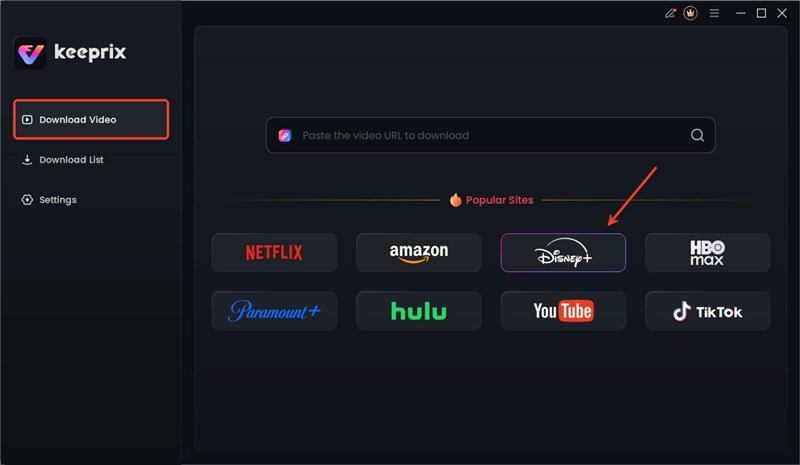
Choose Disney Plus Platform
Step 2: Sign in to Your Disney+ Account
Sign in to your Disney+ account with your credentials. Your login details go here for fetching the video, and they remain secure.

Log in to Disney Plus Account
Step 3: Search for TV Shows/Movies to Save
Either explore the Disney+ collection or use an already existing link. Get the movie or episodes and hit the Download icon.
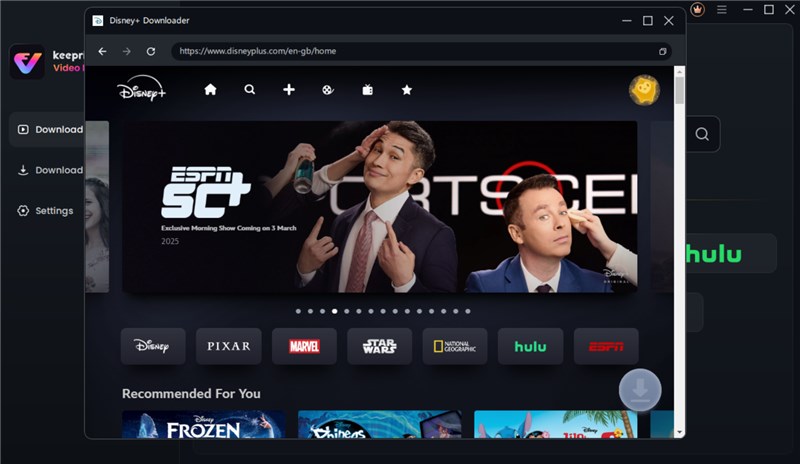
Search Disney Plus Video
Step 4: Download Disney+ Videos
When your downloads are done, they will be shown in the Completed section, and from there, you can access them offline on any device.

Disney Plus Downloads via Keeprix Video Downloader
Bonus Tip: Troubleshooting Disney+ Downloads
Here are some quick fixes for the most frequent problems:
Problem 1: “Download” button missing
If the download button is missing, it may be because you’re on an unsupported device like a computer, laptop, or TV. Switch to a supported mobile device (iOS, Android, or Fire tablet) to save content.
Problem 2: Won’t play offline or downloads fail/disappear
Downloads remain valid only if your device goes online at least once every 30 days; otherwise, they expire automatically. If your content disappears after a subscription change, remember that the Standard with Ads plan doesn’t support downloads. For failed downloads, try clearing the app cache, updating the Disney+ app, and redownloading the content.
Problem 3: Device & stream limits
Disney+ has set the number of downloads allowed up to 10 mobile devices. When you reach those limits, you must delete older downloads or log out of other devices.
To avoid these restrictions altogether, Keeprix Video Downloader can free you from those restrictions. It can also fix the Disney Plus download not working issue, allowing you to download the content directly to your laptop without any worry.
FAQs about How to Download Disney Plus Movies on Laptop
Q1. Can you watch Disney Plus on a laptop offline?
No. Disney Plus does not support offline viewing on laptops or desktops. Its downloads are limited to mobile devices such as iOS, Android, and Fire tablets.
Q2. How to download Disney Plus movies on Mac?
Disney Plus does not allow downloads on Mac directly. If you want to save movies for offline use, you’ll need third-party software that supports downloading Disney+ content to your Mac in MP4 or MKV format.
Q3. Can I download Disney Plus movies to external storage devices?
Not with the official app. However, if you use a tool that lets you set an external hard drive or USB as the destination folder, your downloaded files can be saved there automatically.
Q4. Is it illegal to download Disney Plus movies on laptop?
Disney Plus only authorizes downloads within its app on supported devices. Using third-party tools should be limited to personal use only, and sharing, reselling, or distributing downloaded files is not allowed.
Conclusion
While Disney Plus offers a great library of movies and shows, its official app only supports downloads on mobile devices—not on laptops. This limitation can be frustrating if you want offline access on a bigger screen. As a reliable alternative, Keeprix Disney Plus Downloader lets you save movies and shows directly to your computer without Disney Plus download restrictions. You can transfer the files to any device, watch without time or device limits. Download Keeprix Video Downloader today to watch Disney+ content offline on a laptop now!



Joy Taylor is a seasoned technical writer with over a decade of experience in mobile technology. At iMobie, she specializes in producing in-depth content on iOS data recovery, iPhone unlocking solutions, and iOS troubleshooting.
Product-related questions? Contact Our Support Team to Get Quick Solution >
