How to Download Movies on Disney Plus [All Devices]
To download movies on Disney+, you need the Disney+ app on a supported device, like an iPhone or Android phone/tablet. Also find a more flexible method to download Disney Plus videos without a device limit.
Disney+ has a huge library of movies and shows you don’t want to miss. But streaming isn’t always possible – long flights, poor Wi-Fi, or limited data. That’s where Disney+ movie downloader comes in! In this guide, you’ll see how to download movies on Disney+ and watch them offline. We will cover both desktop and mobile, so no one’s left out. Let’s get started!
Can I Download Movies on Disney+ to Watch Offline?
Yes, you can. Disney+ lets you download movies and shows. This is for watching them offline on your device. But the download feature only works on phones and tablets. You can do it all right inside the Disney+ app. Also, it’s not available for every title. Once saved, your videos stay there as long as your subscription is active.
Disney+ doesn’t officially support downloads on computers, but there’s still a way. In the next section, I’ll show you how you can save Disney+ videos on your desktop and watch them offline without limits.
How to Download Movies on Disney Plus [No Restrictions]
If you want to save Disney+ movies/shows on your computer, Keeprix Video Downloader can help. This Disney+ movie downloader supports saving Disney+ content to Windows or Mac. That way, you can watch offline directly on your desktop. It can save Disney+ movies and shows in MP4 and MKV, easily transferring the downloads to any device you want.
Keeprix Video Downloader is a great tool for saving videos. It will remove ads from the videos, helping you watch shows without any interruptions. With an easy interface and quick downloads, Keeprix makes offline Disney+ viewing on your desktop easy and hassle-free.
Key Features of Keeprix Video Downloader:
- Save Disney+ videos in MP4 and MKV to play on any device.
- Fast-speed download videos with no buffering and lag.
- Download and watch Disney+ content without ad interruption.
- Easy video download interface, no technical knowledge is required.
Steps to Download Disney+ Movies Using Keeprix Video Downloader:
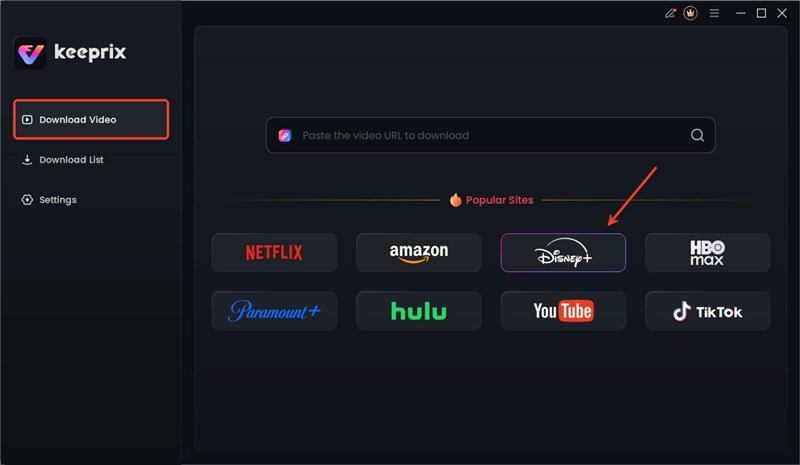
Step 1. Download and install Keeprix Video Downloader on your Windows or Mac computer. Launch the software and choose Disney+ as your streaming platform.
Choose Disney Plus Platform
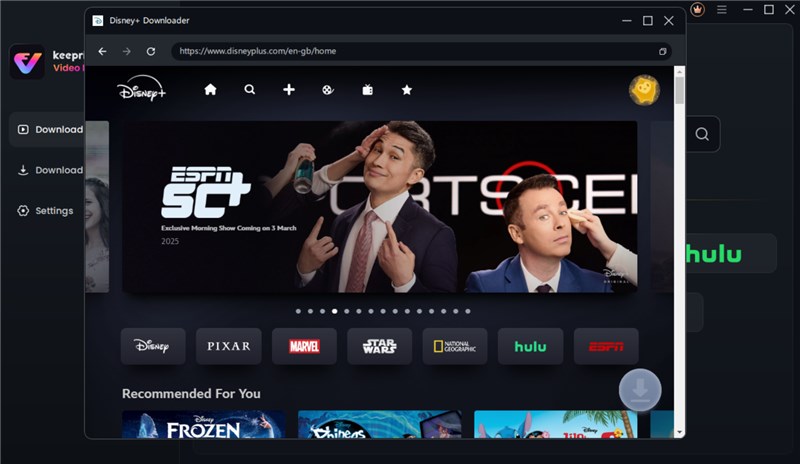
Step 2. Browse movies and TV shows available for download on the Disney Plus website.
Search Disney Plus Video
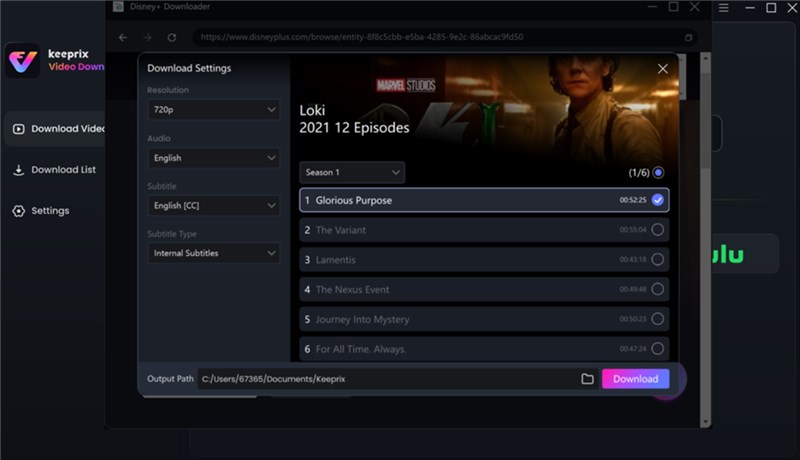
Step 3. Choose the movie or episode that you wish to download. Then you can select the resolution: SD, HD, or 4K, and then choose your favorite format: MP4 or MKV.
Adjust Download Settings
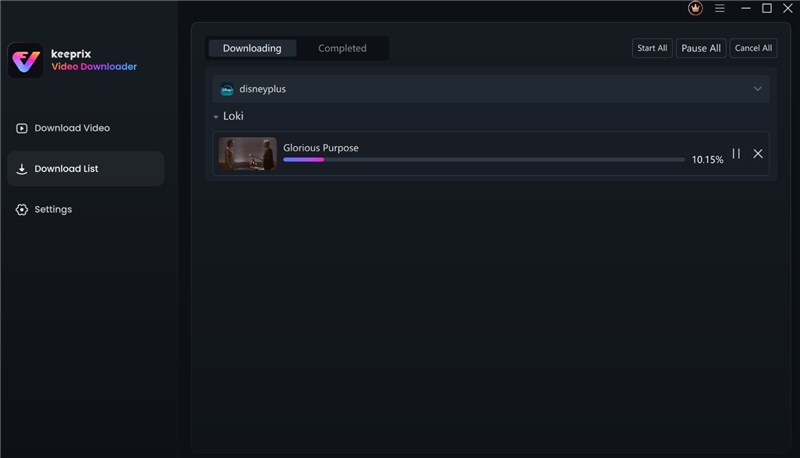
Step 4. Click the Download button, and Keeprix will start downloading the Disney Plus video.
Download Movies on Disney Plus
Download Movies on Disney+ on Mobile Devices [Officially]
The Disney+ app for phones and tablets lets you save movies and shows to the device so that you can watch them when there is no network available. All downloads are corralled into one area, making it a breeze to control and delete files when done to free up the space again. That process is easy, safe, and performs well on each of the advised mobile devices. But downloads through the official app have certain restrictions, and these are not permanent. They expire after a certain period of time and can’t be played on desktops.
Steps to Download Disney Plus Movies on Mobile Devices:
Step 1. First, get the Disney Plus app. You can find it on your mobile device or tablet. Just open it up once it is installed.
Step 2. Search for the movie/ show that you wish to download or simply browse to it.
Step 3. Change the download quality by going to “App Settings” and selecting “Download Quality”.
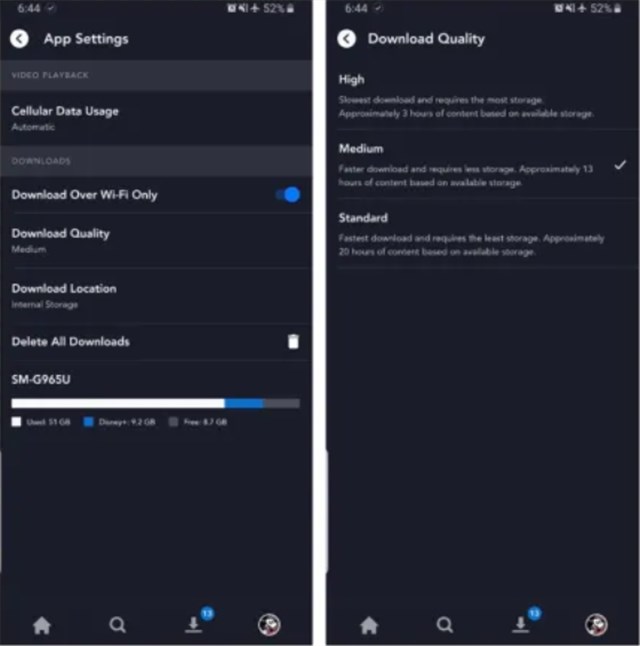
Select Download Quality
Step 4. Select the title and “Download” icon to save the title on your device. Note: The file is not always available for download: the file can only be downloaded if a download option has been set up.
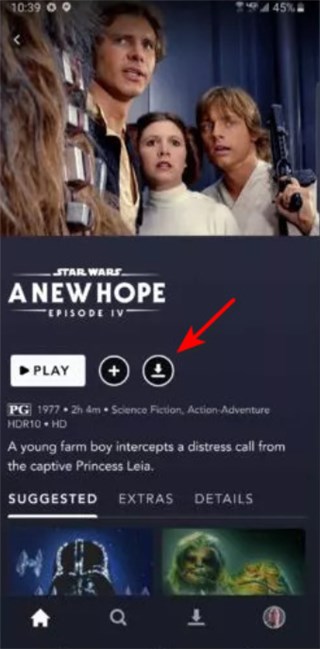
Click Download Icon
Step 5. You can click the “Downloads” button at the bottom of the app to access your downloaded content. Once the download is complete, tap on the content to begin watching offline.
FAQs about How to Download Movies on Disney Plus
Q1. Why can’t I download movies on Disney+?
Downloading Disney+ movies contains many limitations. You can only download Disney+ movies on phones or tablets, not on desktops. Some plans, specific titles, outdated apps, or low device storage may also prevent downloads.
Q2. Why does my Disney+ not have a Download button?
If you don’t see a Download button, the title isn’t available for offline viewing. It may also happen if you’re using an unsupported device or your app needs an update.
Q3. How to download Disney movies on a laptop/PC?
There is no direct way to download Disney movies on a desktop. But you can use a special tool like Keeprix Video Downloader to get movies on your laptop or PC.
Conclusion
In summary, this article shares 2 solutions for how to download movies on Disney+. For mobile users, the Disney+ app provides an easy way to download content. For a more flexible method, Keeprix Video Downloader is more reliable. It can help you download Disney+ videos without Disney Plus download limitations. Download Keeprix Video Downloader to enjoy a hassle-free downloading experience!



Joy Taylor is a seasoned technical writer with over a decade of experience in mobile technology. At iMobie, she specializes in producing in-depth content on iOS data recovery, iPhone unlocking solutions, and iOS troubleshooting.
Product-related questions? Contact Our Support Team to Get Quick Solution >
