3 Methods to Download Movies on Netflix on Mac
Netflix doesn’t present a download option for Mac like it does for some mobile devices. To watch Netflix offline on macOS, you’ll need to use alternatives. Some good options include using third-party video downloaders, screen recording from an iOS device. This guide explains three methods to download Netflix movies on a Mac so you can enjoy your favourites anytime without an internet connection.
We have all been enjoying offline access to Netflix movies on mobile devices. But doing the same on a Mac can be an issue. Unlike the Netflix app for iOS, the macOS version doesn’t include a direct download option.
That doesn’t mean it’s impossible. You can overcome this limitation through various techniques. In this guide, we’ll walk you through three practical ways to download Netflix movies on a Mac: using a trusted third-party downloader, mirroring from an iOS device, or recording your screen.
Part 1. Can You Download Netflix on a Mac?
No, Netflix doesn’t support the direct download option on MacBook or any Mac devices. You can watch Netflix in a web browser (Safari or Chrome), but you won’t see a “Download” button.
The download feature is only available in the Netflix app on Android and Windows. This is primarily due to licensing rules, DRM protection, and the fact that Netflix hasn’t made a Mac app with offline viewing. If you want to watch Netflix offline on your Mac, you’ll need to explore an alternative.
Part 2. How to Download Netflix Movies on Mac to Watch Offline
Below, we’ll look at three simple methods that let you save or watch Netflix movies offline on your Mac.
Method 1. Download Netflix Videos on Mac via Third-party Software
Third-party software like Keeprix Video Downloader allows you to download Netflix movies directly to your Mac in high quality, complete with audio and subtitles. It’s user-friendly and ideal for offline playback without Wi-Fi.
Why Keeprix Video Downloader?
- Save videos in MP4 or MKV format without DRM restrictions
- Keep downloaded movies forever, without expiration limits
- Download in 4K quality with super-fast speed
Steps to Use Keeprix Video Downloader:
Step 1: Please download and install Keeprix Video Downloader on your computer.
Step 2: Open Keeprix Video Downloader and find Netflix from the main screen.
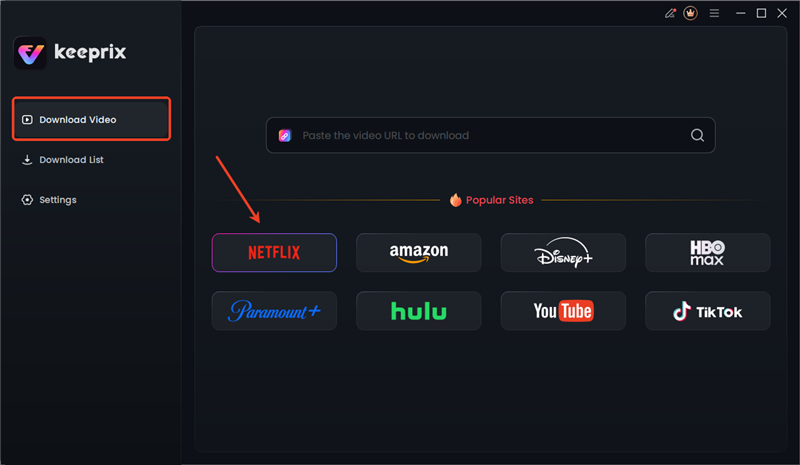
Choose Netflix in Keeprix
Step 3: Log in to your Netflix account, paste the movie link into the built-in browser, and let Keeprix Video Downloader instantly detect it for you.
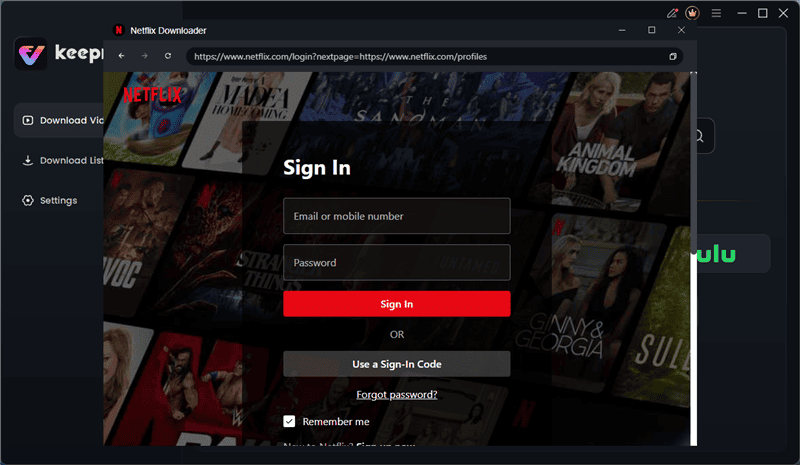
Log in to Netflix in Keeprix
Step 4: Press the download button to keep the movie on your MacBook for watching anywhere, no internet required.
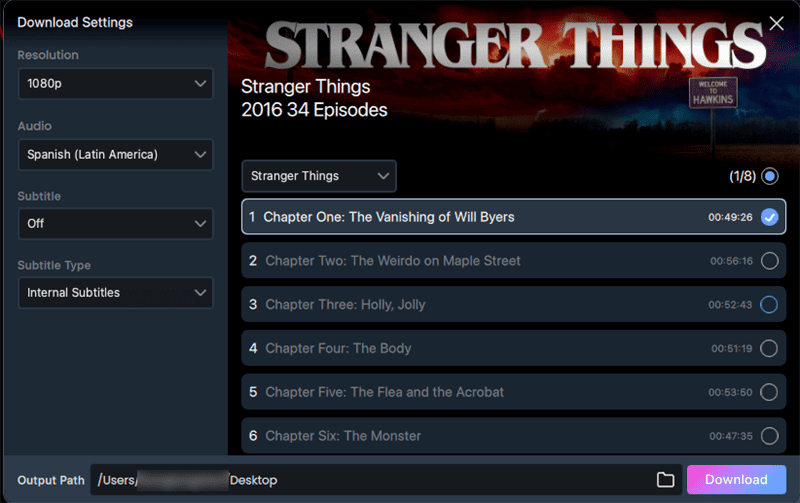
Download Netflix Video in Keeprix
Now you can find your downloaded Netflix videos on your Mac and then just enjoy seamless offline viewing anytime and anywhere.
Method 2. Mirror from iOS Device to Mac
Another option for watching Netflix offline on a Mac is using QuickTime Player. This approach works if you already have Netflix videos saved on your iOS device.
Here’s what you need before starting:
- A Lightning-to-USB cable
- A Mac with QuickTime Player installed
- An iPhone or iPad
- Netflix app and downloaded videos
Step 1: Link your iPhone or iPad to your Mac using the USB cable
Step 2: Open QuickTime Player on your Mac from Launchpad or the Applications folder
Step 3: Go to the File at the top, and there, you will need to choose “New Movie Recording”
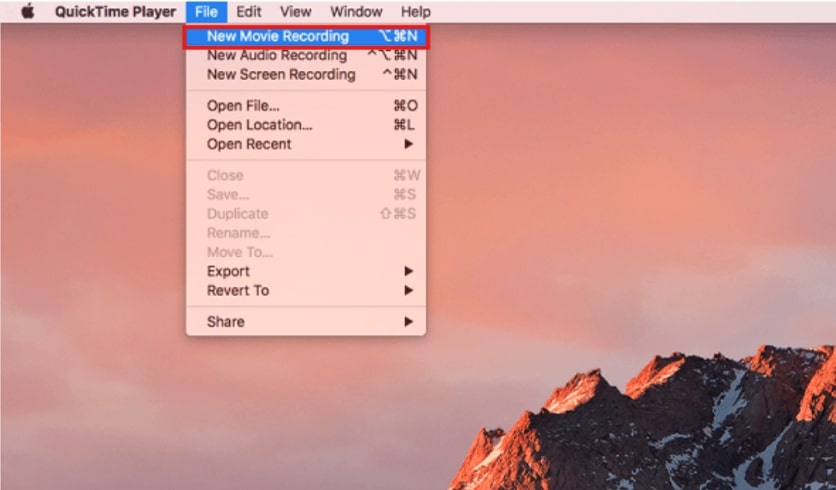
Choose New Movie Recording
Step 4: In the control panel, click the small arrow next to the record button. Under Camera and Microphone, choose your iPhone or iPad. You can also set the video quality here (note that higher quality means a larger file size).
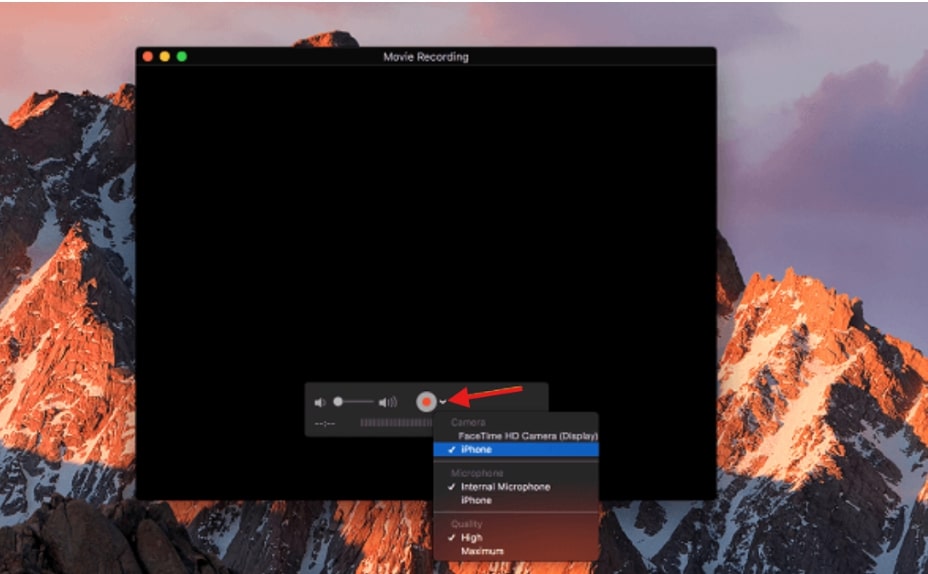
QuickTime Player interface during mirroring
Step 5: Now get back to the Netflix app on your iPad or iPhone. Once there, play your downloaded video.
Step 6: Tap the Record button in QuickTime Player to record the media
Step 7: Let the video play through completely. Don’t disconnect your iPhone or iPad during this time
Step 8: When it’s done, click the Stop button in QuickTime Player
Final step to complete mirroring in QuickTime Player: For saving the recording, you can go to File > Save. You can keep it as a .MOV file on your Mac.
Method 3. Screen Record Netflix Videos on Mac
If you can’t download or mirror Netflix, the third option is to record it directly on your Mac while it plays. FocuSee makes this process simple with different recording modes and editing options. Here’s how to use it:
Step 1: Download FocuSee for free, install it on your Mac, and open the app. FocuSee offers three recording modes (Full Screen, Custom, and Window). Choose the mode that works best for recording your Netflix video
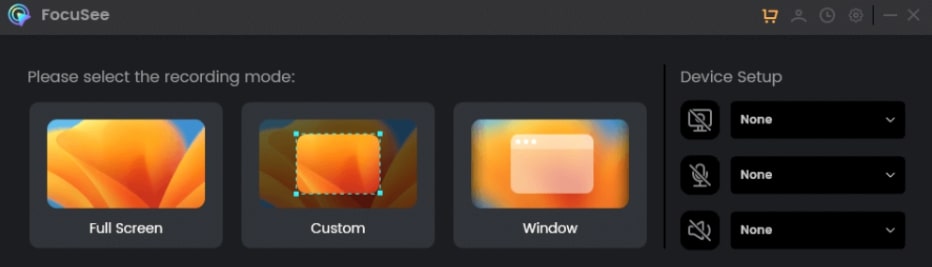
FocuSee Recording Modes
Step 2: Resize and move the recording frame to fit your video. Press REC to start.
Step 3: Now start Netflix in your browser and play the movie you want to save.
Step 4: When you’re finished, navigate to the red Stop icon on the toolbar and save the recording
Step 5: After recording, you can edit the video by changing the cursor style, adding click effects, spotlight, or zoom if needed.
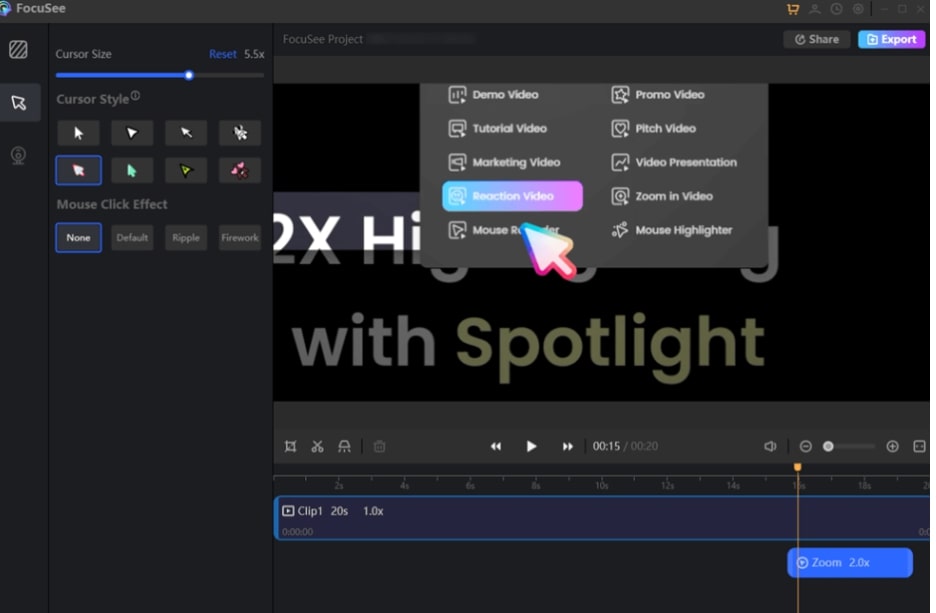
Editing Recorded Video with Cursor and Effects
Part 3. FAQs
Q1. Why can’t I download from Netflix on a Mac?
You’re unable to save Netflix series or films on a Mac since there isn’t an authorised Netflix application for macOS. Netflix provides apps only for gadgets such as the iPhone, iPad, and Apple TV.
Q2. Why is there no download option on Netflix on my laptop?
There was no download option on Netflix before they removed the download feature in their July update. The app can only be used for online streaming. If you want to save Netflix movies on your laptop, use other tools like Keeprix Video Downloader.
Q3. Why is Netflix not allowing me to download anything?
Because of licensing regulations, some Netflix movies aren’t available for saving. If videos still won’t store on a supported device, try updating the application or clearing extra storage space.
Conclusion
While Netflix doesn’t support direct downloads on Mac, you can use alternative methods like Keeprix Video Downloader, iOS device mirroring with QuickTime, or screen recording with FocuSee to enjoy offline viewing. Each method offers unique advantages, so choose the one that best fits your needs for convenience and quality.



Joy Taylor is a seasoned technical writer with over a decade of experience in mobile technology. At iMobie, she specializes in producing in-depth content on iOS data recovery, iPhone unlocking solutions, and iOS troubleshooting.
Product-related questions? Contact Our Support Team to Get Quick Solution >
