Hulu Downloads Not Working? 9 Fixes for Missing, Failed, or Expired Downloads
If Hulu downloads are not working, first check whether you’re using an eligible Hulu (No Ads) plan, a supported mobile device, and a downloadable title. If the download button is missing, the title, plan, or device may not support downloads. If downloads fail, keep loading, disappear, or expire, the issue may come from network problems, low storage, app glitches, or Hulu’s official download limits. This guide helps you diagnose the cause and fix Hulu download issues step by step.
Hulu downloads can stop working for two different reasons: a real app/device problem, or an official Hulu download rule. For example, slow Wi-Fi, low storage, an outdated app, or a corrupted download can cause downloads to fail. But if the download icon is missing, your plan, device, or the selected title may simply not support offline downloads. Below, we’ll help you identify the exact reason and walk through the best fixes, from quick checks to a more flexible offline saving option for Windows and Mac.
Why Are Hulu Downloads Not Working?
If you cannot play your downloads or save content from Hulu, below are the most common reasons for this issue:
- Your Hulu plan does not support downloads.
- The movie or episode does not have a Download icon.
- Your device does not support Hulu offline downloads.
- Your internet connection is slow or unstable.
- Your device does not have enough free storage.
- The Hulu app is outdated or temporarily stuck.
- Your downloads expired or were removed after logout.
- You reached a download/device limit.
- The title is no longer available under your current subscription or region.
Quick Diagnosis: Why Hulu Downloads Are Not Working
Before trying every fix, use this table to identify the most likely reason behind your Hulu download problem.
| Problem | Likely Reason | What to Try First |
| Download button is missing | Your plan, device, or selected title may not support downloads. | Check your Hulu plan, device compatibility, and whether the title has a download icon. |
| Download fails or keeps loading | Network instability, low storage, app bugs, or background activity may interrupt the download. | Switch to a stable Wi-Fi network, free up storage, and restart the Hulu app. |
| Downloads disappeared | You may have logged out, switched accounts, removed the app, or the downloads expired. | Sign back in, check the Downloads tab, and re-download or renew titles when available. |
| Downloads expired | Hulu downloads are time-limited and may need renewal after the viewing window ends. | Reconnect to the internet and tap Renew Download if the title is still available. |
| Can’t download on PC, Mac, or TV | Hulu’s official download feature is limited to supported mobile devices and Fire tablets. | Use the Hulu app on a supported device, or consider a personal offline saving option on Windows/Mac. |
8 Regular Ways to Fix Hulu Downloads Not Working
Beyond using a third-party tool, there are several other ways to fix this issue. Go through these solutions one by one to find the one that works for you.
Way 1. Check Whether Your Hulu Plan Supports Downloads
Hulu downloads are available only with eligible Hulu plans, such as Hulu (No Ads) and Hulu (No Ads) + Live TV. If you are using a Hulu plan with ads, a bundle that does not include Hulu’s ad-free tier, or a third-party billing setup with limited features, the download button may not appear.
To check your subscription:
- Go to Hulu.com and sign in.
- Open your Account page.
- Check your current subscription under Your Subscription.
- If your plan does not support downloads, upgrade to an eligible No Ads plan before trying again.
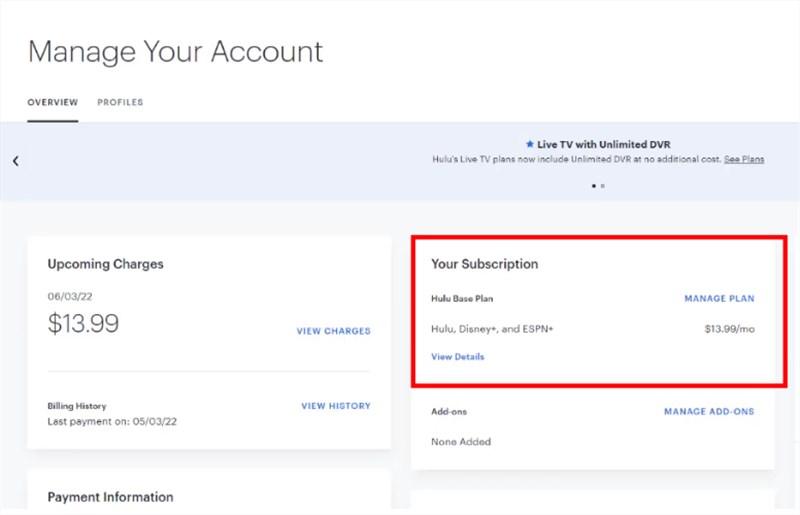
Check Your Hulu Subscription
Way 2. Confirm the Title Has a Download Icon
Not every Hulu movie or show is available for offline download. If the title does not show a Download icon, it cannot be downloaded through the official Hulu app. This is not an app error; it usually depends on licensing and content availability.
Steps:
- Open the Hulu app.
- Search for the movie or episode.
- Look for the Download icon on the details page.
- If no Download icon appears, choose another downloadable title or use an alternative offline saving option for personal use.
Way 3. Confirm Device Compatibility
Hulu downloads work only on supported mobile devices and Fire tablets. If you are trying to download Hulu videos on a Mac, Windows browser, smart TV, Roku, or gaming console, the official download feature will not work.
- Android phones and tablets with Android 7.1 or higher.
- iPhone/iPad/iPod touch running iOS 16.4 or later.
- Fire Tablets running Fire OS 7 or above.
If you need Hulu offline viewing on Windows or Mac, use a personal offline saving option such as Keeprix instead of the official Hulu app.
Way 4. Check Your Internet Connection
A slow or unstable connection can cause Hulu downloads to stay pending, fail halfway, or keep loading. For best results, use a stable Wi-Fi connection and avoid downloading while many other devices are using the same network.
If your speed meets Hulu’s recommendations, use these steps to improve your connection.
Step 1. Disconnect other devices using your home Wi-Fi.
Step 2. Close all background programs operating on your device.
Step 3. Use an Ethernet cable to link directly to the router.
Step 4. Place your modem closer to your device. Or move your device closer to it.
Way 5. Free Up Storage Space
If you’re trying to download a high-resolution video, your device should have enough free storage to save the content. If your device is almost full, Hulu may fail to start or finish a download even if no clear error message appears. To check and free storage:
On Android:
- Open “Settings > Device Care > Storage.”
- Check the unused space you have
- Empty the Recycle bin. Or, delete unused apps, duplicates, and large files.
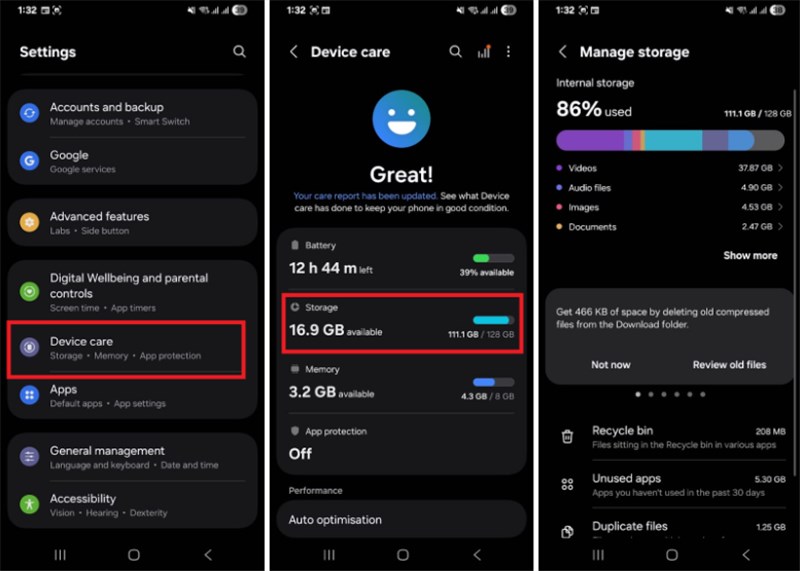
View Available Android Space
On iOS:
- Go to “Settings > General.”
- Select “iPhone Storage” (or iPad Storage).
- Check available space.
- Remove unused apps or delete large photos/videos.
On Fire Tablet:
- Open “Settings > Storage.”
- Review the available storage. Tap “Internal Storage.”
- Remove unnecessary apps and downloads.
Way 6. Restart and Update the Hulu App
Close Hulu completely, reopen it, then try downloading again. If the issue continues, update Hulu from the App Store, Google Play, or Amazon Appstore. App updates often fix download bugs, login issues, and compatibility problems.
Way 7. Check for Expired or Corrupted Downloads
Hulu downloads do not stay available forever inside the official app. Unwatched downloads may expire after a set period, and once you start watching, the playback window may become shorter. If a download expires, reconnect to the internet and renew it if the title is still available.
Step 1. Open the Hulu app.
Step 2. Go to the “Downloads” section.
Step 3. Find titles marked with an Alert icon.
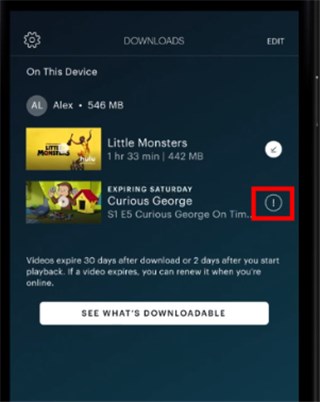
Tap the Alert Icon for Hulu Downloads
Step 4. Tap “Renew Download” if it’s still available.
Way 8. Reinstall Hulu
Reinstalling Hulu may remove downloaded videos from that device. If your downloads disappeared after logging out, switching accounts, or reinstalling the app, you may need to download them again.
Here’s how to remove the app.
For Android:
- Long-press the Hulu app icon.
- Tap “Uninstall” from the pop-up.
For iOS:
- Press and hold the Hulu app.
- Tap “Delete App” from the menu.
For Fire Tablet:
- Hold the app icon with your finger.
- Tap “Uninstall” from the top-right.
When Official Fixes Still Fall Short
The 8 fixes above solve most Hulu app issues. But some problems can’t be fixed from inside the app:
- Hulu downloads expire after 30 days (or 48 hours after you start watching)
- You can only download on phones, tablets, and Fire Tablets — not on Windows or Mac
- Downloaded files stay inside the Hulu app and can’t be moved to USB drives or media players
- Only the Hulu (No Ads) plan supports downloads
- Some titles are not available for download due to licensing
Alternative: Save Hulu Videos for Personal Offline Viewing with Keeprix
If Hulu’s official download rules are the reason you cannot save or keep a title, Keeprix Hulu Video Downloader offers a more flexible option for personal offline viewing. It lets you save Hulu shows and movies you can already access as local MP4 or MKV files on a Windows or Mac computer. This can be useful when you want to prepare a travel watchlist, organize episodes in local folders, or watch offline without relying only on the Hulu app’s temporary downloads.
Keeprix is intended for personal offline viewing only. You should only save videos you can legally access and should not redistribute, upload, sell, or share downloaded content.
Key Benefits of Keeprix Video Downloader:
- Save Hulu videos you can access as local MP4/MKV files for personal offline viewing.
- Download selected shows or episodes on Windows or Mac.
- Batch save multiple episodes to prepare an offline watchlist faster.
- Keep available subtitles and audio tracks when supported.
- Organize saved videos in local folders, external drives, or a personal media library.
Steps to Download Hulu Videos with Keeprix Video Downloader:
Step 1. Download and install Keeprix Video Downloader on your computer. Launch it and select the “Hulu” platform.
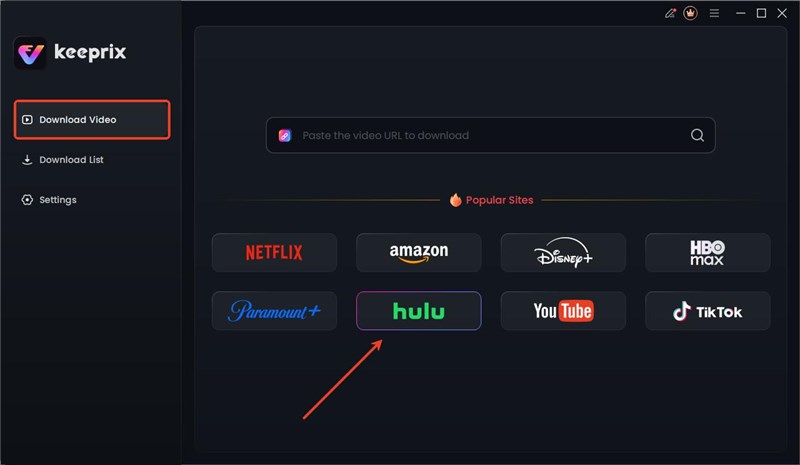
Choose Hulu in Keeprix Video Downloader
Step 2. Log in to your Hulu account and search for your desired video. Then, select from the results.
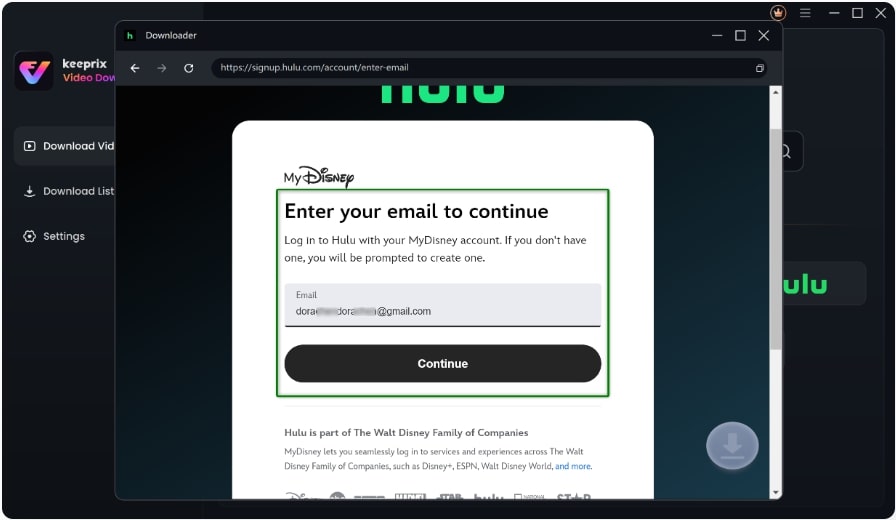
Step 3. Select the video you want to save. Set the desired download settings for this video. Then, click “Download.” After the download process is completed, you can watch Hulu shows offline.

Hulu Official Downloads vs. Keeprix Offline Saving
Hulu’s official download feature is useful for short-term offline viewing on supported devices, but it comes with plan, device, title, and expiration limits. If those limits are the real reason Hulu downloads are not working for you, Keeprix provides another option for personal offline viewing on Windows or Mac.
| User Need | Hulu Official App | Keeprix Offline Saving |
| Download Hulu for offline viewing | Available only for selected titles with the Download icon. | Save accessible Hulu videos as local files for personal offline viewing. |
| Supported devices | Supported mobile devices and Fire tablets only. | Works on Windows and Mac computers. |
| Watch on PC or Mac | Official downloads are not supported on desktop browsers. | Save Hulu videos locally on Windows or Mac. |
| Export as MP4/MKV | Not supported. Downloads stay inside the Hulu app. | Save videos as MP4/MKV files for easier local playback and organization. |
| Transfer to USB or external drive | Not supported as normal video files. | Save and organize local files on your computer or external drive. |
| Download expiration | Downloads may expire and need renewal inside the Hulu app. | Local files are easier to manage as part of a personal offline library. |
| Best for | Short-term offline viewing inside the Hulu app. | Personal offline viewing and local video organization on Windows/Mac. |
You might like: Prime Video Download Limit: How to Fix ‘Limit Reached’ Errors in 2026
FAQs about Hulu Downloads Not Working
Q1: Why won’t my downloads work on Hulu?
Hulu downloads can fail due to an incompatible device, ad-supported plan, low storage, slow internet, outdated app, or expired downloads. Check your plan first -downloads only work on Hulu (No Ads) and Hulu + Live TV plans.
Q2: Why do my Hulu downloads disappear?
Hulu downloads expire after 30 days if unopened, or 48 hours after you start watching. Once expired, they are removed from your downloads list. Reconnect to the internet and try downloading again if the title is still available.
Q3: Why do my Hulu downloads fail or keep loading?
This is usually caused by slow internet, insufficient storage, or an outdated app version. Restart the app, check your connection, free up space, and try again.
Q4: Can I download Hulu on Windows or Mac?
No. The Hulu app on desktop does not support offline downloads. If you want to save Hulu videos for offline viewing on a computer, you’ll need a separate desktop workflow for videos you can already access.
Q5: How long do Hulu downloads last? Downloads are available for 30 days after downloading. Once you start watching, you have 48 hours to finish before the download expires.
Q6: Why is the Hulu download button missing?
The download button only appears on eligible titles under the Hulu (No Ads) or Hulu + Live TV plan. If you’re on the ad-supported plan, the download button won’t show up at all. Some titles are also not available for download due to licensing.
Q7: Can I transfer Hulu downloads to another device?
No. Hulu downloads are tied to the app and device that downloaded them. They cannot be exported or moved. To watch on another device, download directly through the Hulu app on that device.
Conclusion
That wraps up our guide on fixing the issue of Hulu downloads not working. Among all these fixes, Keeprix Video Downloader offers the best solution to enjoy your favorite shows offline without any issues. It lets you download Hulu content in MP4 or MKV format, without limits or expiry! Download and try it now to stream Hulu videos on Mac and Windows offline anywhere!



Joy Taylor is a seasoned technical writer with over a decade of experience in mobile technology. At iMobie, she specializes in producing in-depth content on iOS data recovery, iPhone unlocking solutions, and iOS troubleshooting.
Product-related questions? Contact Our Support Team to Get Quick Solution >
