Fixed ‘Hulu Is Not Available in Your Region’ Error
Did you get the notification ‘Hulu is not available in your region’? Read more and discover how to watch Hulu without location restrictions in 2025.
If you try to stream Hulu using an unsupported or non-U.S. network, you may encounter the ‘Hulu is not available in your region’ error. This mistake prevents you from watching your favourite series and can occur even when you are in the U.S., possibly when Hulu detects location mismatches.
In this guide, we will explain why Hulu returns such an error, walk you through some effective workarounds, and show you how to download Hulu videos so that you can watch them offline and stop worrying about geo-blocks.

Hulu Is Not Available in Your Region
Part 1. Why Is Hulu Telling Me It’s Not Available in My Region?
The error message ‘Hulu is not available in your region’ should be displayed when Hulu is unable to verify that you are in a supported region, currently limited to the U.S. and select U.S. territories.
Hulu uses your IP address, your GPS, and your account details to confirm your location. Additionally, Hulu will block playback in case one of these cue points towards you being somewhere other than the allowed location.
Some common causes are:
- Typically, being outside the U.S: Hulu is not licensed to stream internationally.
- Using a VPN or proxy: Traffic rerouting may fool Hulu into thinking it is in a different location.
- Wrong configuration of account settings: Your domestic location or billing details may not be reflective of your current location.
- Device location inconsistency: GPS and IP information fail to match, and this results in locking the region.
Part 2. How to Fix “Your account is not valid in this region” on Hulu
Users may still see the message Hulu is not available in your region, which usually points to location or network setup issues. Let’s walk through how to resolve this issue with simple steps:
1. Verify Location Services and Network Connection
Before you attempt tricky troubleshooting to resolve the error, it is good to check your location services or network connection. Make sure that your location is enabled and that Hulu can access it to verify you are in the right region without using the VPN.
For Mobile:
From the mobile Settings, navigate to the “Location” and then opt for the “Location Services”. After that, make sure to turn the toggle on for the “Location Accuracy”.
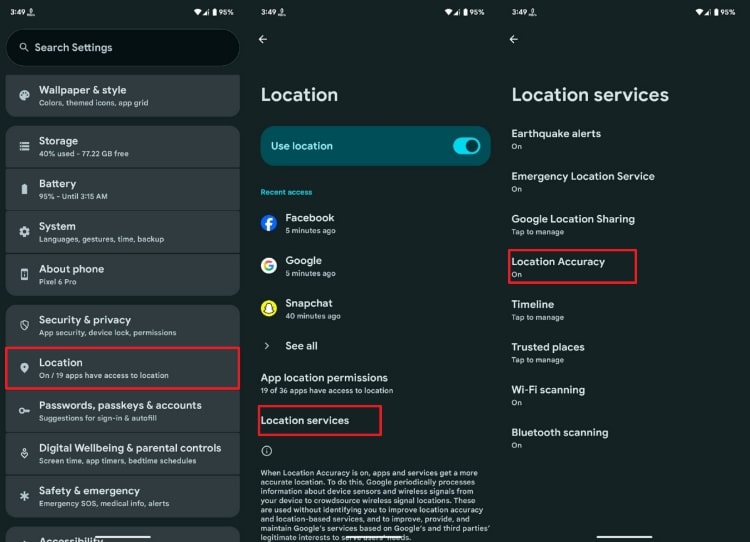
Configure Mobile Settings
For Computer:
Click the “3 dots” on the right side of the screen and select “Settings.” Afterwards, navigate to the “Privacy and Security” and then select the “Site Settings.” Scroll down and choose the “Location” under the “Permissions” section, and make sure the “Sites can ask for your location” is turned on.
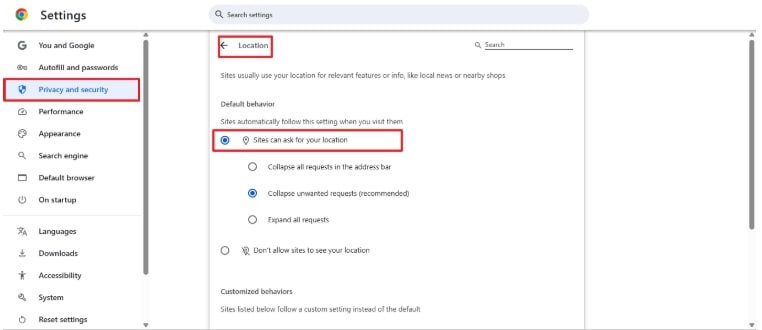
Turn on Sites Can Ask for Your Location
2. Troubleshoot the Hulu App and Account
Ensure your Hulu app is updated to the latest version to avoid compatibility and playback issues. Make sure you’re signed in with the correct Hulu account and subscription to access all your content. Clear the Hulu app’s cache or reinstall it to remove corrupted files causing performance and streaming issues.
For Mobile:
Here, navigate to the “Settings” and choose the “Apps” button, and select the “Hulu” app. Then, select the “Storage & Cache” option and clear both the cache and storage to see if the issue is resolved.
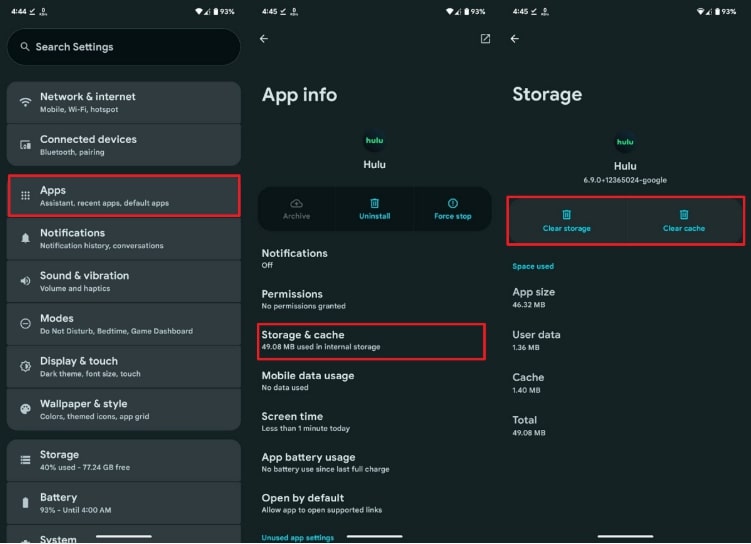
Mobile Clear Storage and Cache
For Desktop:
Step 1: When using it on a desktop, opt for the “View Site Information” button beside the placement of the website link. Afterward, choose the “Cookies and site data” button.
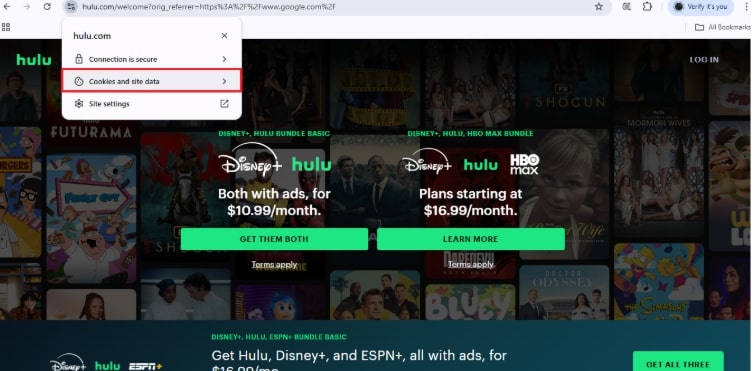
Select Cookies and Site Data
Step 2: Then, choose “Manage on-device site data” to access the cookies and remove any corrupted files.
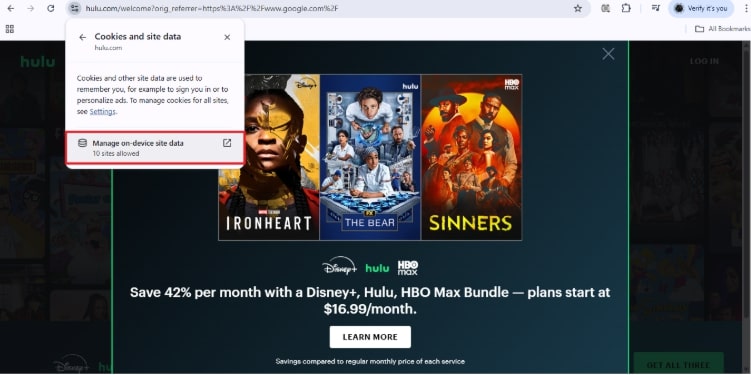
Manage On-device Site Data
3. Address Home Network Issues
There are multiple options to find your connection problems, including restarting your router or troubleshooting WIFI from your PC settings. For this, adhere below and find out the steps to do so:
First of all, connect your device to your Wi-Fi network and check your Wi-Fi proxy settings. For that, open your device’s “Settings” → “Wi-Fi” → tap the “Info/Details” icon next to your connected network. Then, scroll down and set “HTTP Proxy to Off”.
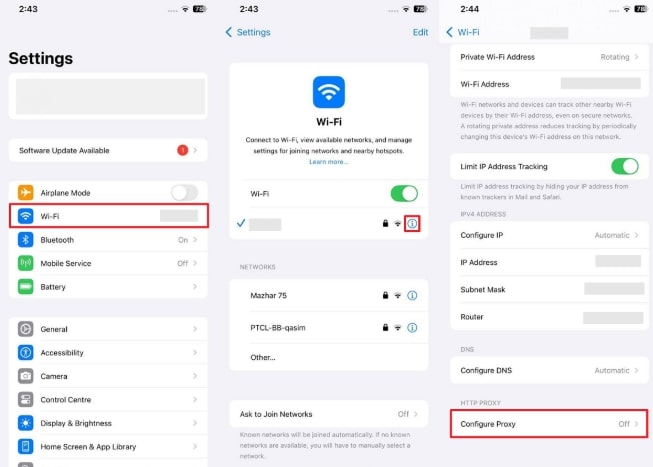
Set HTTP Proxy to Off
For Hulu App:
If the error still appears, access your configuration profiles in the Hulu App. For that, “Open Settings” → “General” → scroll down and tap “Profiles.” If any profiles appear, select the profile → “Delete Profile” and try streaming again.
For Desktop
Step 1: Navigate to the settings and opt for the “System” button from the left side menu. Then, select the “Troubleshoot” button to move on to the next step.
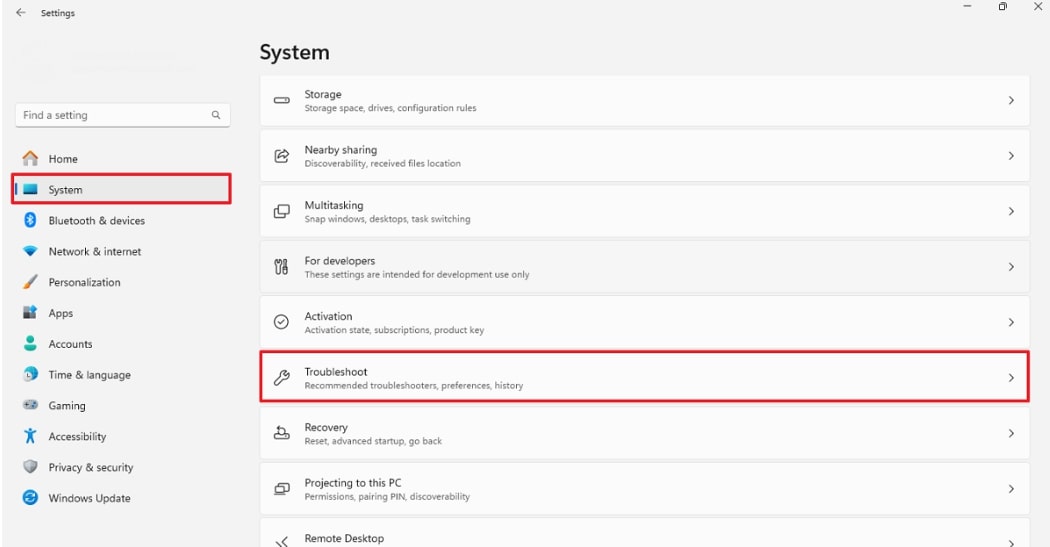
Select Troubleshoot
Step 2: Afterwards, choose the ‘Other Troubleshoot’ button and navigate to the next screen.
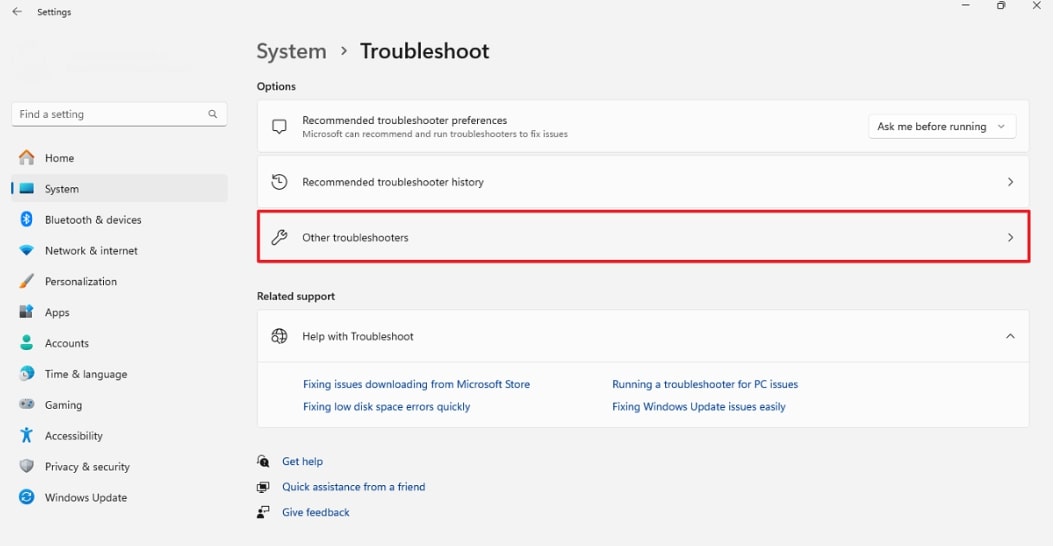
Choose Other Troubleshooter
Step 3: On to the next screen, choose the “Run” button for the “Network and Internet” option to troubleshoot network problems.
4. Message the Hulu Support
If you still see the Hulu is not available in your region error after troubleshooting, contact Hulu Support. They can verify your account details, reset necessary settings, and check if your ISP location is causing conflicts. Direct support ensures issues beyond your control are properly addressed. Listed below are the steps that you can follow to resolve the Hulu is not available in your region issue:
Navigate to this “https://help.hulu.com/” link and then opt for the “Get in Touch” to ask for help from the Hulu community.
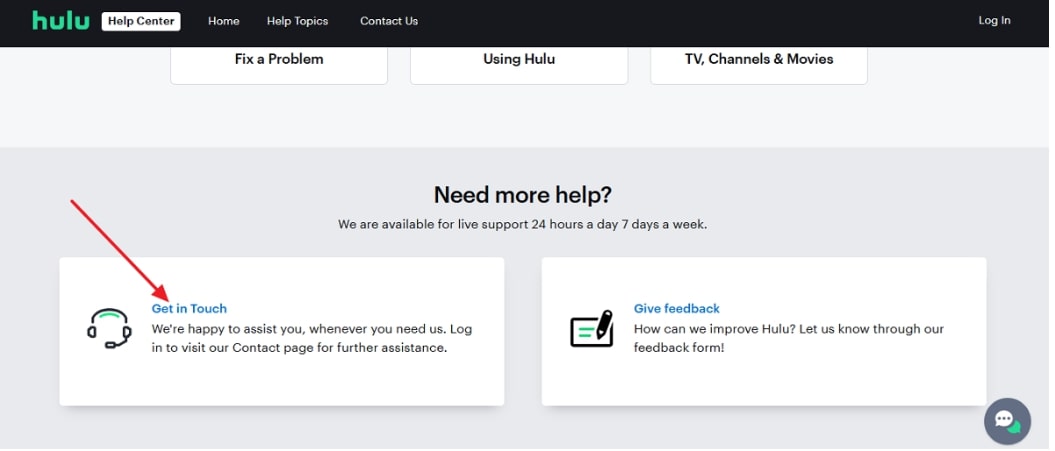
Choose Get in Touch
Part 3. How to Download and Watch Hulu Videos Without Regional Restrictions
If you still face ‘Hulu is not available in your region’ error, even after trying all fixes, you might still want a way to watch your favorite shows without interruptions. One option is to download the videos for offline viewing. This is where the Keeprix Video Downloader can help by letting you save Hulu content to watch anytime, without regional restrictions. Read below and find out the steps on how you can watch Hulu content without regional issues:
Key features of Keeprix Video Downloader:
- Support both for Windows & Mac.
- Save videos in MP4/MKV format so that you can watch the downloads on any device you like.
- Unlimited download quotas for you to bypass the Hulu platform restrictions.
- No ads, no geographical restrictions.
Step 1: Get the Keeprix Downloader and install it on your device
Please start the process by downloading the Keeprix downloader from your browser and installing it on your PC. Afterwards, access it and select “Hulu” from the sites section.
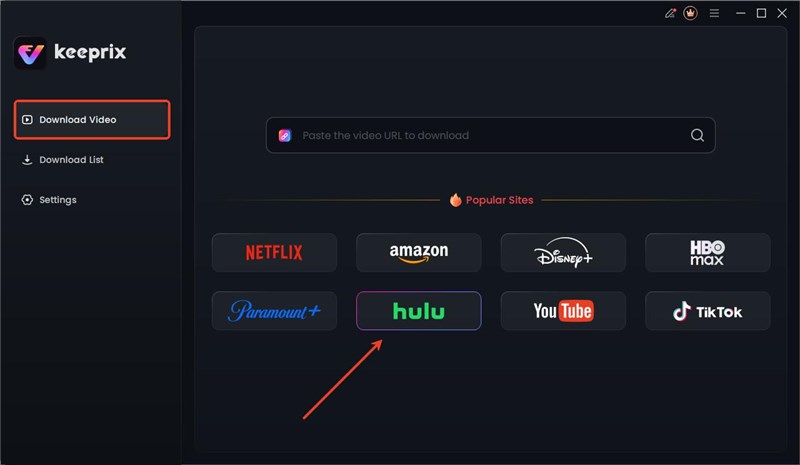
Choose Hulu in Keeprix Video Downloader
Step 2: Sign in To the Hulu Account
After that, log in to your Hulu account, and you can access the titles you want to watch without getting the error message that Hulu is not available in your region.
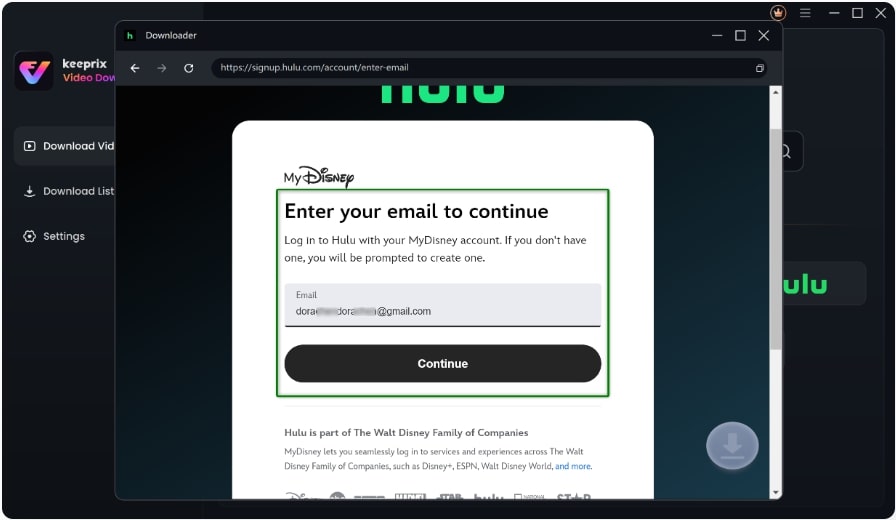
Log Into Hulu Account
Step 3: Search For Your Desired Titles
Here, you can find your movies or TV shows by typing their keywords in the “Search bar” or entering their link in the “Address bar”.
Step 4: Download Hulu Movies in Keeprix Video Downloader
Once you have found your favorite title, opt for the “Download” icon to save it, which you can access later from the “Download List” section.
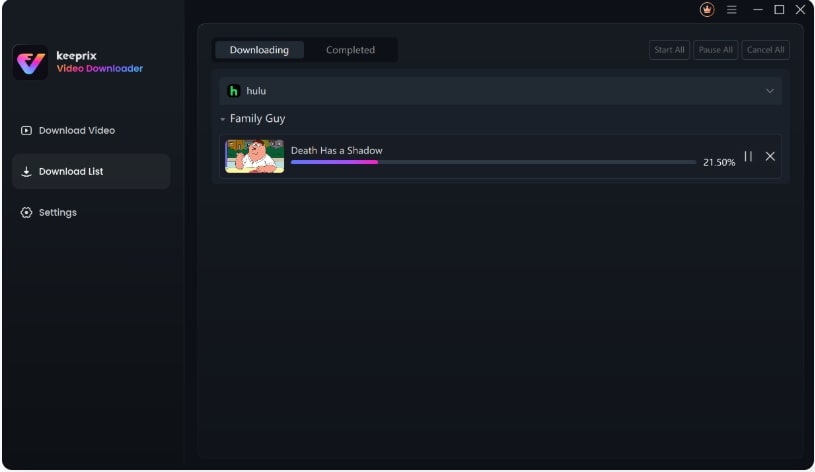
Download Hulu Video
Part 4. FAQs
Q1: Is it possible to resolve the ‘Hulu is not available in your region’ error with the help of a VPN?
In some cases, yes, it’s possible to solve the ‘Hulu is not available in your region’ error, but not always. Hulu actively blocks numerous VPN IPs, and therefore, even high-tier VPN providers are likely to fail more frequently. You have this option: find a VPN whose servers are used to stream, but be ready to experiment a bit now and then.
Q2: Can I switch my Hulu region?
In case of Hulu + Live TV, you can update your home network four times within a year. Regular on-demand Hulu packages do not provide a method of switching your region, as all of the licensing is based on the location you first signed up.
Q3: Why does my Hulu not have local channels?
The available local channel depends on the registered home network. When you are on a different network (e.g., a mobile hotspot) or outside your home and your home network is not available, then Hulu can display national channels rather than your local ones.
Conclusion
In short, the Hulu is not available in your region error often comes from location, network, or account mismatches. You can usually fix it by enabling location services, connecting to your correct home network, or contacting Hulu support. For a lasting solution, use Keeprix Video Downloader to save Hulu videos and watch them anywhere without regional restrictions.



Joy Taylor is a seasoned technical writer with over a decade of experience in mobile technology. At iMobie, she specializes in producing in-depth content on iOS data recovery, iPhone unlocking solutions, and iOS troubleshooting.
Product-related questions? Contact Our Support Team to Get Quick Solution >
