How to Get Voice Chat on Roblox [Step-by-Step Guide]
Roblox’s voice chat feature allows for real-time communication, facilitating teamwork and more engaging games. Adding a voice changer like Vozard adds creativity, allowing players to modify their voices for fun. This article offers detailed instructions for how to get voice chat on Roblox and taking advantage of the most interactive features, whether using ID verification or investigating other options.

How to Get Voice Chat on Roblox [Step-by-Step Guide]
- 180+ lifelike VST and AI voice effects.
- 3 flexible voice-changing methods.
- Compatible with 13 popular third-party platforms.
Have you ever wished to play Roblox and have real-time conversations with friends? You can do that with Roblox voice chat! This feature lets players communicate while playing, facilitating strategy planning, tip sharing, and general enjoyment. It includes Spatial Voice, allowing realistic conversations based on in-game proximity. You can pair it with a voice changer like Vozard to add creativity to your chats. In this guide, we’ll show you how to get voice chat on Roblox with or without an ID and explore fun tools to enhance your experience. So, let’s begin to explore!
Table of ContentsHide
How to Get Voice Chat on Roblox with ID (Step-by-Step Guide)
With features like Spatial Voice for in-game conversations, Roblox voice chat enables you to communicate with friends while playing games. Players who are 13 years of age and older can access it with ID verification. Follow the steps below to activate this fun feature with ID:
Step 1. Log into Roblox either on mobile or desktop and click the “Settings” icon in the top-right corner.
Step 2. Click “Settings” on the drop-down menu to view your account preferences. Click “Account Info” from the options presented.
Step 3. Under your birthday, click on “Verify My Age” to start the verification process.
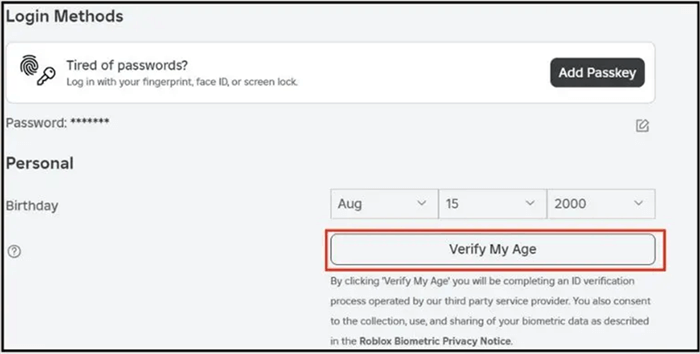
Click Verify My Age
Step 4. Scan the QR code shown on the screen using your mobile device. If you’re on mobile, skip this step.
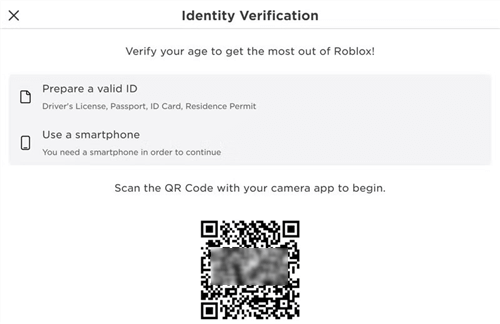
Scan The QR Code
Step 5. Tap “Begin Verifying” on your mobile device to enable camera access for verification.
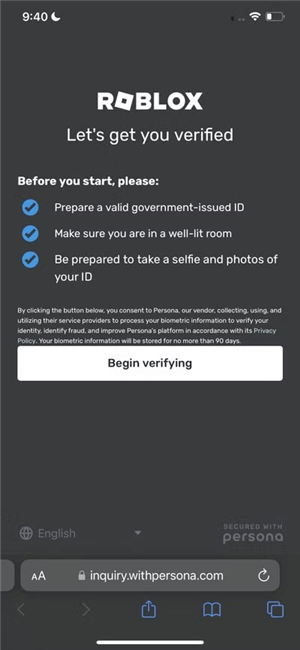
Begin Verifying
Step 6. Scan the front and back of your valid ID in a well-lit area.
Step 7. Take a selfie by aligning your face clearly in the camera frame. Wait for Roblox to verify your ID. This process takes a few minutes.
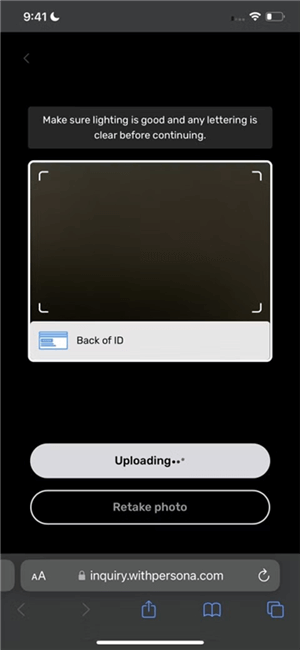
Verify ID
Step 8. Finally, check your verification status on the Account Info page to confirm that your age has been verified.
How to Get Voice Chat on Roblox without ID
Want to use Roblox voice chat but don’t have an ID? Don’t worry; exploring this feature without official verification is possible. While ID is usually required, some players find alternative options to enjoy voice chat. Let’s understand this method step by step for easy access.
Step 1. Log in to the Roblox website using your password and login. Verify that you are at least 13 years old.
Step 2. Click the “Settings” symbol (cogwheel) in the upper-right corner.
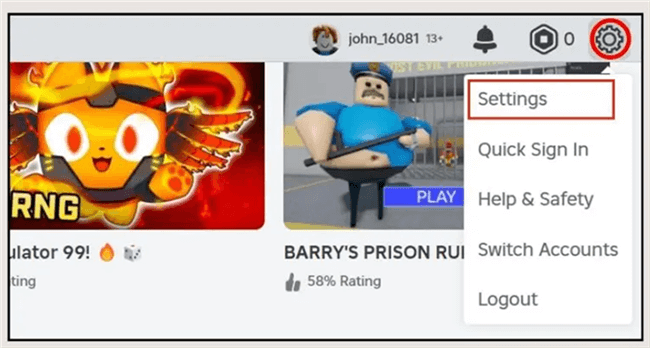
Click Settings
Step 3. Navigate to the “Privacy” menu and then disable “Account Restrictions”. Go to “Parental Controls” and select 13+ in Allowed Experiences.
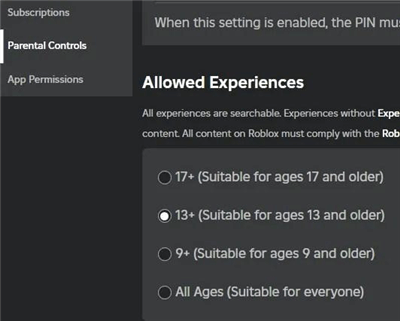
Allowed Experiences
Step 4. Go to “Settings > Account Info. Click “Add Email,” enter your email, and again click “Add Email.” Then, verify it by clicking “Verify Email” in the email sent to you.
Step 5. Click “Add Phone,” enter a phone number, and click “Add Phone.” Verify it by entering the code sent via text.
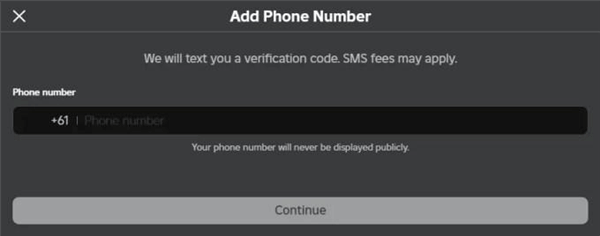
Click Add Phone
Enabling Voice Chat After Verifying with or without ID
After verifying, here are the steps to enable voice chat on Roblox:
Step 1. Launch Roblox on your PC, then enter your login credentials.
Step 2. Click the “Settings” symbol (cogwheel) in the upper-right corner.
Step 3. Choose “Settings” from the menu that drops down.
Step 4. Go to “Privacy Settings” below “Account Info.”
Step 5. Turn on “Enable Voice Chat” under the Beta Features section.
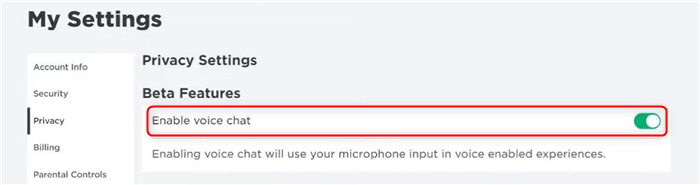
Turn On Enable Voice Chat
How to Get Voice Changer on Roblox | Vozard
Vozard is an incredible voice changer, making your Roblox gaming and chatting more exciting. With 200+ lifelike sound effects, you can sound like SpongeBob, Joe Biden, or Darth Vader, or even add fun background sounds and trending memes. Multiple audio input options let you change your voice in real-time or modify uploaded audio and video files with one click.
Real-time voice changing instantly transforms you into any character, perfect for adding fun to Roblox chats and games. You can also use recording features to create unique voice clips. Vozard works seamlessly with platforms like Discord, Zoom, Twitch, OBS, and more, making it ideal for gaming, online chatting, or live streaming.
Free Download for all windows & 100% safe Free Download for all mac & 100% safe
Free Download100% Clean & Safe
Key Features:
- Enhances live streaming with unique voice transformations to engage and entertain viewers effortlessly.
- Provides a secure, clean, and reliable platform compatible with Windows and Mac systems.
- Includes sound effects library for fun pranks, unique creations, and realistic transformations.
- It supports background effects and trending sound memes to enhance the gaming and online chatting experience.
- Works perfectly for content creators by capturing attention with creative audio and video tools.
Here are some simple steps to get a voice changer on Roblox:
Step 1. Free download and install Vozard on your computer. Ensure you have a stable internet connection for the installation process.
Step 2. Once installed, open Vozard and navigate to the “Settings” menu to configure your “Microphone” and “Speaker.”
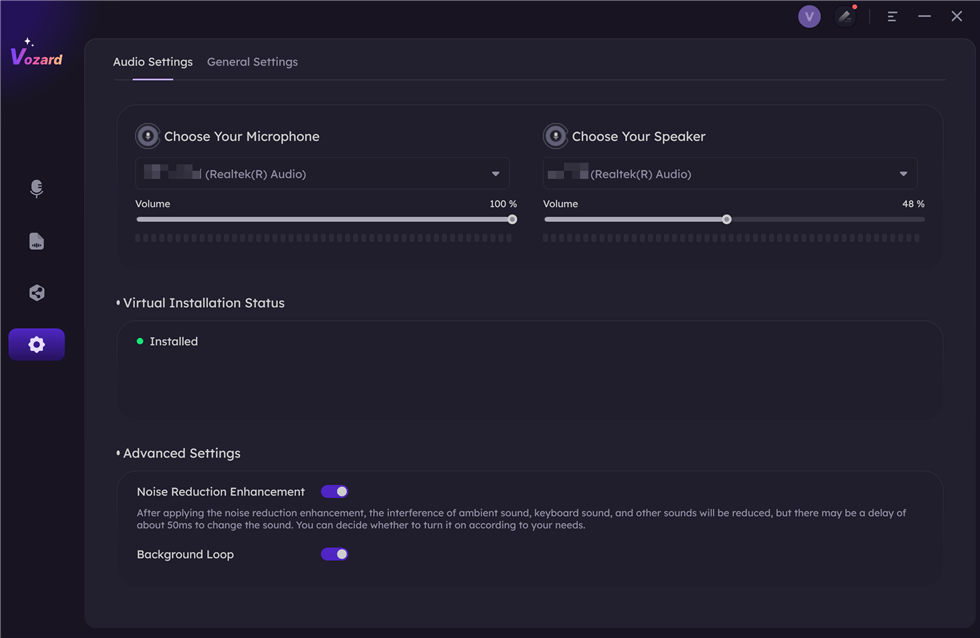
Set The Microphone and Speaker
Step 3. After opening the program, select “Real-time Voice Changer” to begin using the voice-changing features.
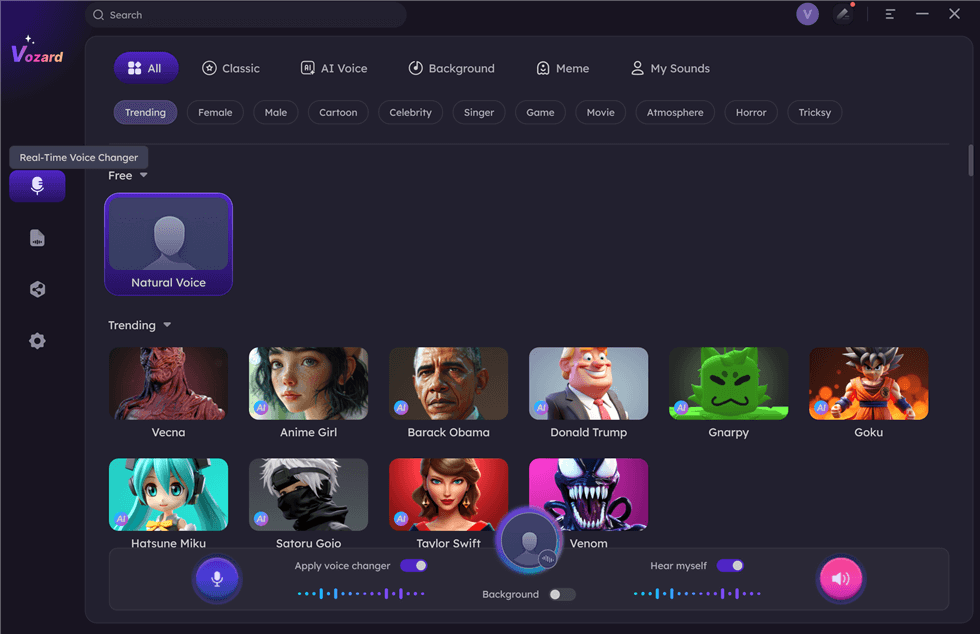
Select Real-Time Mode
Step 4. In Real-time Mode, you will find icons in the voice change area. These icons allow you to:
- Turn your “Microphone” on or off.
- View the currently applied voice effect.
- Listen to the background sound preview.
- Hear your voice with the changed effect.
- Toggle the voice change feature on or off.
- Adjust the background voice change feature.
- Share your voice directly with third-party platforms.
Step 5. Click the “Voice Volume” button to adjust the volume levels for the microphone, speaker, and background sounds.
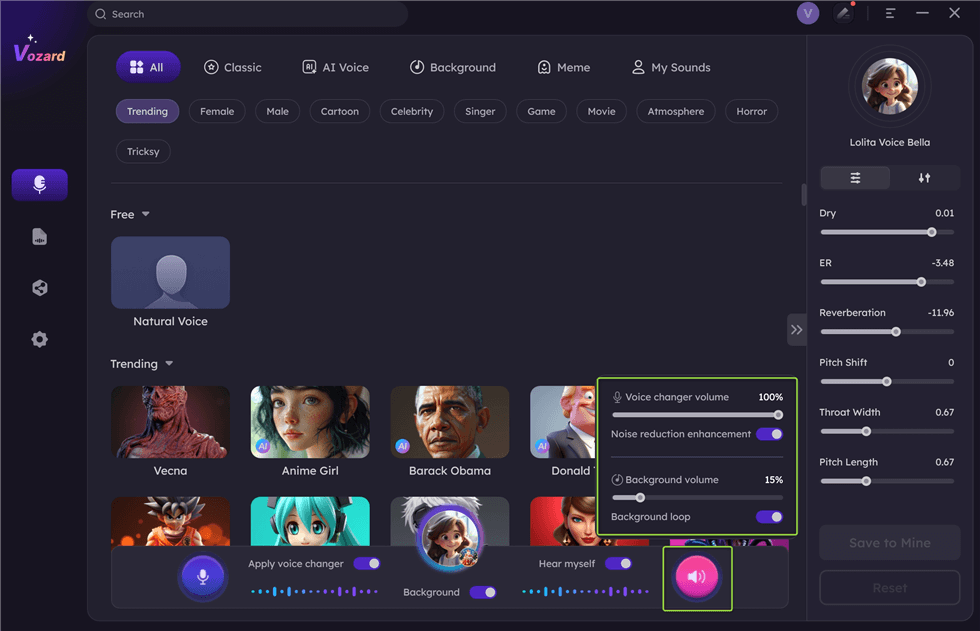
Adjust The Volume
Step 6. Browse the list of available voice effects at the bottom of the screen. Click “Download” to apply and test the desired effect in real-time.
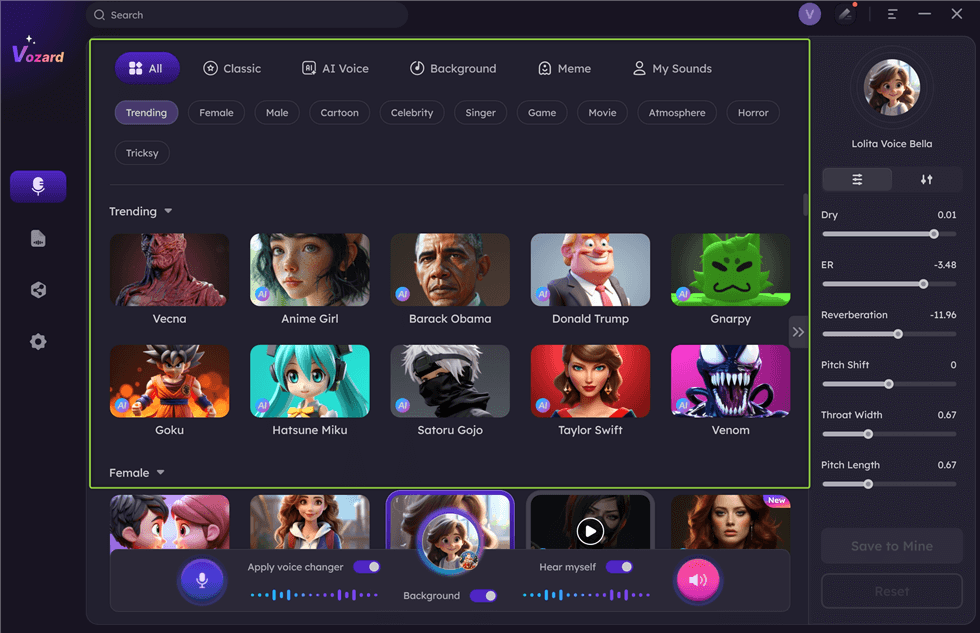
Download Effect
Step 7. Once you’ve set up everything, then open Roblox > Tap ESC to access the game menu.
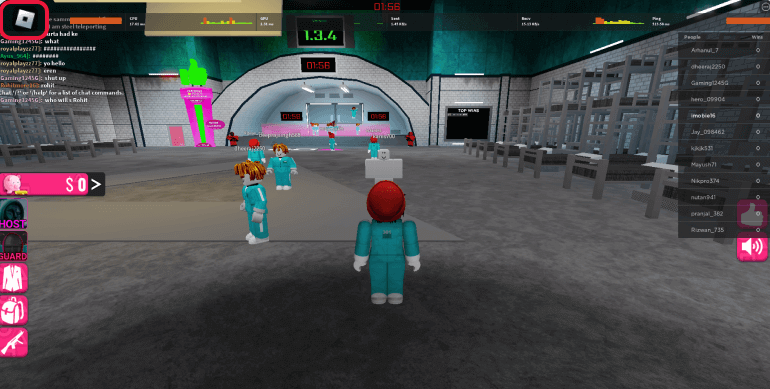
Tap ESC
Step 8. Then go to Settings > Input Device.
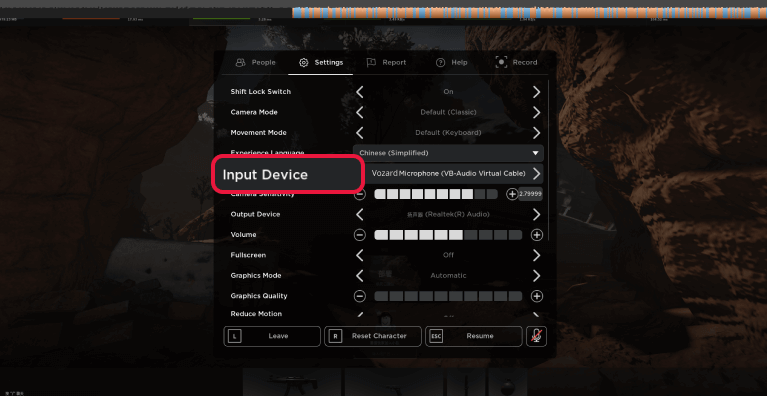
Choose Inpout Device
Step 9. Choose “Vozard Microphone” from the Input Device drop-down list.
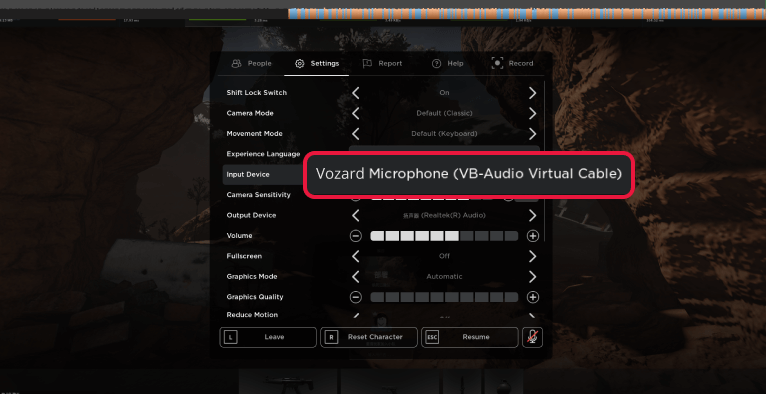
Choose Vozard Microphone
FAQs on Get Voice Chat & Voice Changer on Roblox
For Roblox voice chat, what is the minimum age requirement?
You have to be at least 13 years old to use Roblox voice chat. Roblox enforces this rule to guarantee a safe experience for all players. Before turning on voice chat, confirm your age in your Roblox account settings.
Is it possible to alter my voice when using Roblox voice chat?
Although there isn’t a voice changer in Roblox, you can alter your voice using third-party programs like Vozard. Vozard gives you a distinctive and exciting method to interact in Roblox games by enabling you to apply amusing effects and change your voice in real time.
Is voice chat compatible with mobile devices?
Indeed, voice chat is available on Roblox mobile devices; however, the same age and identity verification rules apply to desktops. As long as voice chat is allowed in your settings, ensure your mobile device has a functional microphone.
Final Remarks
This post provided simple instructions for turning on voice chat on Roblox. Playing games with friends is more enjoyable and engaging when voice chat is used. You can access this fascinating feature by changing your settings and fulfilling the age criteria. Remember to follow the steps carefully and verify your account for the best experience. If you want to enhance your voice chat experience, try Vozard. It’s a simple, reliable voice changer that adds extra fun to your games. Make every Roblox session unique with Vozard!
Product-related questions? Contact Our Support Team to Get Quick Solution >
