How to Transfer Photos from iCloud to Samsung
Don’t know how to transfer photos from iCloud to Samsung at a fast speed? To help you out, this post shall render you several great methods to help you get your photos from iCloud to your Samsung phone.
I just got a Samsung Galaxy mega and I used to have an iPhone 4 so now how do I transfer my pictures from my iCloud account onto my Samsung? Is there an app for the iCloud that I can use or is there some other way that I can retrieve them? I have a whole bunch of pictures on my iPhone and I want them onto my Samsung and I have no idea how to get them there! Thanks for your help!
— A User from Apple Community
iCloud, for most iOS users, is the cloud service built into every Apple device that enables users to store data like photos, music, documents. However, with the frequency of switching mobile devices, we have to transfer data between two different devices with different operating systems. In this case, it sounds not like an easy thing for us to directly transfer photos from iCloud to Samsung device since the format of data may be completely different in the two OS.
Then here in this article, we would like to render you some possible solutions that can help you transfer photos from iCloud to Samsung speedily and easily.
How to Transfer Photos from iCloud to Samsung with AnyDroid
To directly transfer photos from iCloud to Samsung, you should not miss this powerful Android data manager – AnyDroid. As a professional tool that helps you to transfer photos from iCloud/iTunes/iOS devices to Samsung in a breeze. You can simply select the categories of data you would like to transfer from iCloud, then send them to your Samsung without hassle.
- Directly transfer content in iCloud like photos, contacts, music, notes from iCloud to Android device.
- More than iCloud, you can also transfer iOS data from iOS device, iTunes to Android device without hassle.
- Connect your device to computer wirelessly or via USB cable as you like.
- Manage your android device in an easy way. You can manage and transfer all your Android data like contacts, messages, photos, music, calendar and so on from Android to computer and vice versa, from one Android device to another.
AnyDroid – iOS to Android Mover
Want to transfer photos from iCloud to Samsung directly and speedily? AnyDroid can be a great helper that enables you to transfer iOS data from iCloud/iTunes/iDevice to Android device like Samsung with ease.

Now get AnyDroid on your PC or Mac and follow the steps below to know how to transfer photos from iCloud to Samsung in a quick and easy way:
Step 1. Connect your Samsung device with the computer via Wi-Fi or USB cable > You can install AnyTrans app on your Samsung device, then scan the QR code with the app to connect your phone with computer.
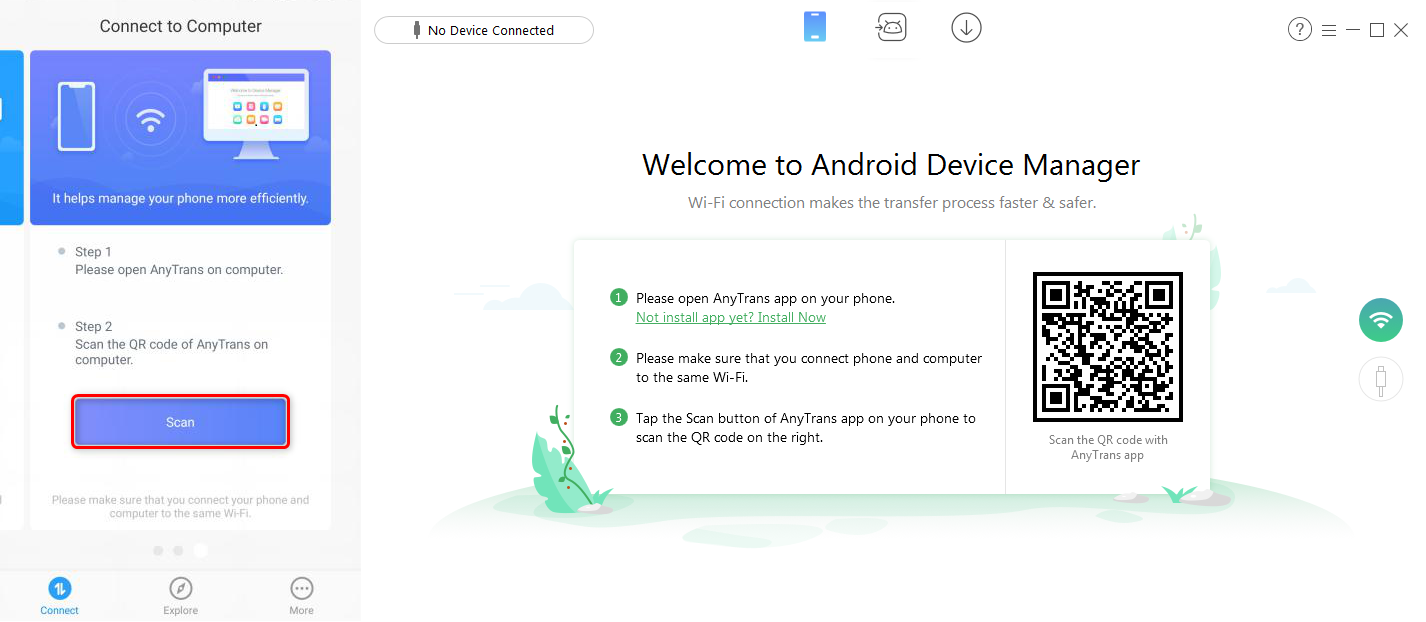
How to Transfer Photos from iCloud to Samsung with AnyDroid – Step 1
Step 2. Click the “Android Mover” button > Choose “iCloud to Android” > Sign in with your Apple ID and password.
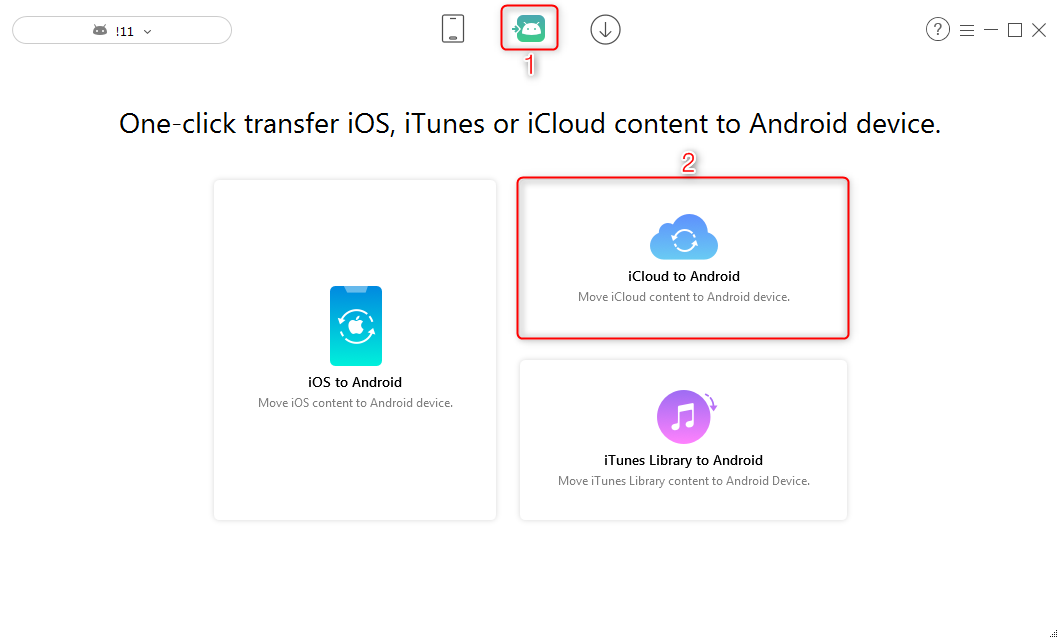
How to Transfer Photos from iCloud to Samsung with AnyDroid – Step 2
Step 3. Select “Photos” > Click the arrow icon to start the transfer.
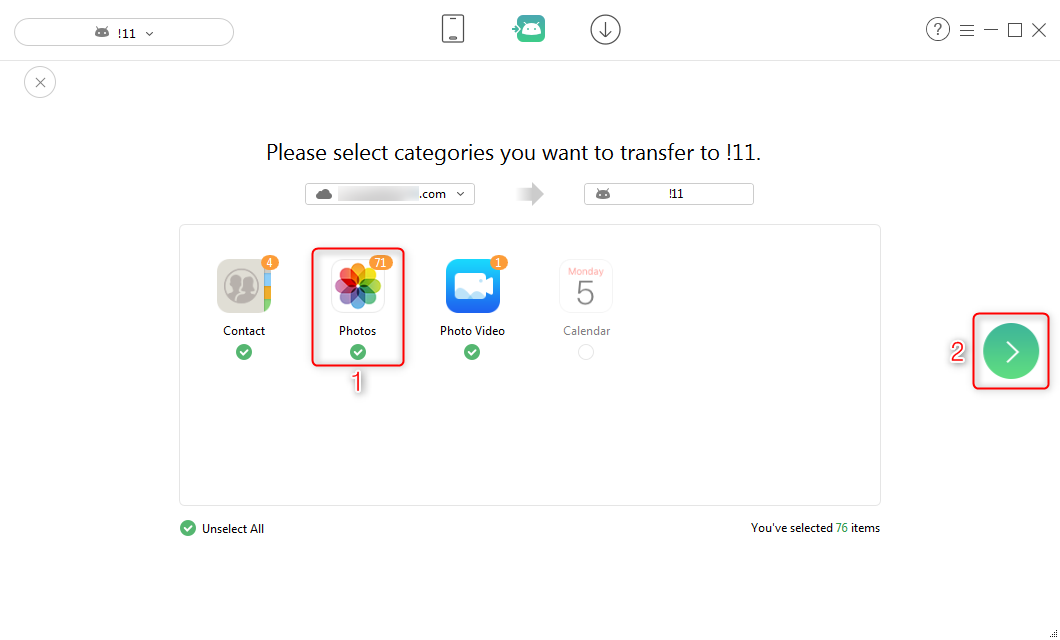
How to Transfer Photos from iCloud to Samsung with AnyDroid – Step 3
How to Transfer Photos from iCloud to Samsung with iCloud
While, you can also find a way to download photos from iCloud, then transfer these photos directly to your Samsung device.
Step 1. Go to iCloud.com > Log in with your Apple ID and passwork > Then choose Photos.
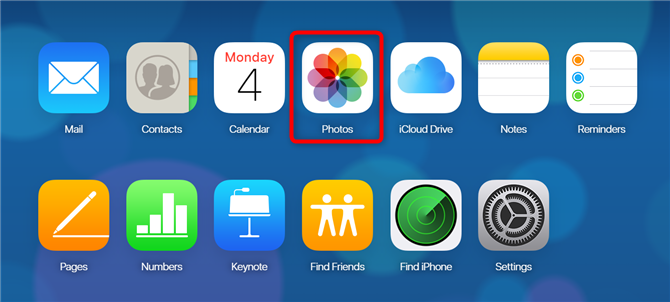
How to Transfer Photos from iCloud to Samsung with iCloud – Step 1
Step 2. Select the photos you want to transfer to Samsung > Click the download icon on the menu bar.
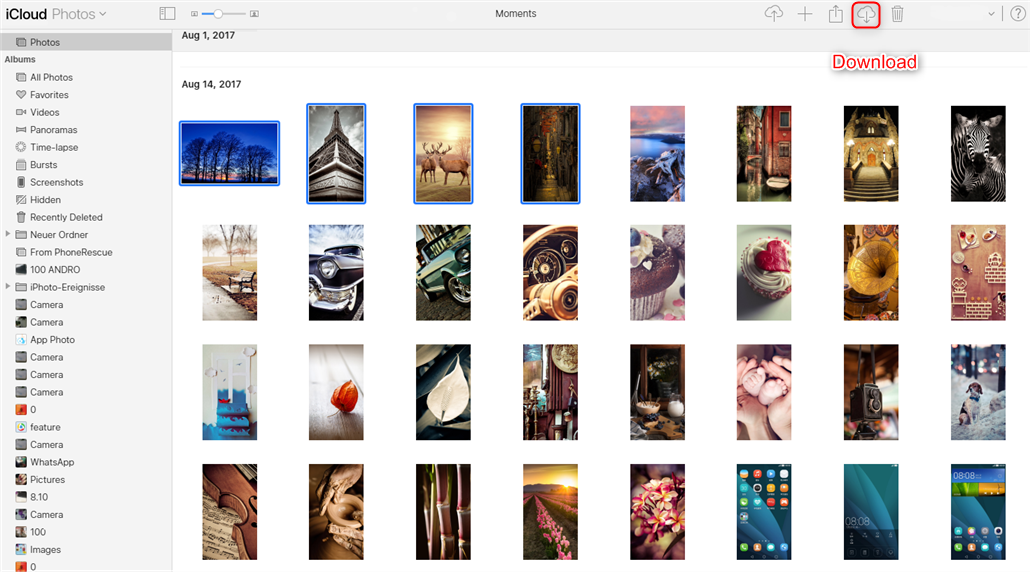
How to Transfer Photos from iCloud to Samsung with iCloud – Step 2
Step 3. After downloading these photos to your computer, plug in your Samsung phone to your computer > Locate the folder which saved all your iCloud photos > Drag and drop the photos from the folder on your computer to the folder on your Samsung device.
The Bottom Line
That’s all the two ways on how to transfer photos from iCloud to Samsung. As you can see, with the help of a professional Android data manager, you can do more things in an easier way to manage and transfer your data from/to Android device without hassle. Why not give a try to AnyDroid now!



Member of iMobie team as well as an Apple fan, love to help more users solve various types of iPhone related issues.
Product-related questions? Contact Our Support Team to Get Quick Solution >
