How to Fix iPhone App Not Updating iOS 17/18/26
Apps stuck on “Waiting” or “Loading” in the App Store? Don’t panic! Common issues like weak Wi-Fi or low storage are easy to fix. Follow these 10 steps for iOS 26 to get seamless updates without data loss.
AnyFix – Fix iPhone App Not Updating in Clicks
Download AnyFix to repair the iPhone App not updating issue on iPhone 15/16/17. Only takes several clicks and makes your iPhone back to normal easily and safely.
A Reddit user a while ago posted a statement which could not be clearer about their frustration: “My iPhone simply doesn’t update apps… I have tried everything, but nothing works.” I bet most iPhone users can empathize with such a dreadful scenario – the update is supposed to start, but it never does, and the app is stuck on “waiting.” The fact that you might have an iPhone 13, 14, 15, or even the latest 16 does not change the situation, as app update issues are still persistent.
The app updates on your iPhone should not be a reason for you to panic. Usually, it is not a problem with the iPhone itself. The issue can result from a variety of factors, such as network issues, the App Store’s status, or a software bug. We have compiled 10 reliable solutions to the iPhone app updates error in 2025 so that your best-loved apps can function perfectly again.
Part 1. Why Are My Apps Not Updating on My iPhone?
If apps on your iPhone are not updating, there might be several typical problems that are causing this. Most frequent causes are:
- Bad or unstable internet connection: If your Wi-Fi signal is poor or you are only using mobile data, then the app update process might be stopped.
- Lack of storage space: Free space is a must in iPhones if one wants to download and install app updates.
- Background App Refresh Disabled: Some applications may even fail to update properly if they are restricted from running in the background.
- Pending iOS Updates: If a system update is queued, app refreshes pause until it’s installed.
- Automatic updates turned off: If the auto-updates feature is disabled, apps will not be updated automatically.
- App Store errors: A temporary issue in the App Store may be why you cannot start or finish the updates.
- Outdated iOS version: An outdated system software version may lead to incompatibility with the latest app versions.
- Problems with Apple ID: If updates won’t work for some apps because you are signed in with a different Apple ID, then the results will not be successful.
Part 2. How to Fix iPhone Apps That Won’t Update
If your iPhone is not updating apps and you have tried everything, don’t worry —this is a common problem, and most of the time it can be fixed very easily. These few workarounds will bring your updates back to normal running, step by step.
Solution 1. Ensure Wi-Fi Connection
It is necessary to have a solid Wi-Fi connection if you want to update or download apps. A weak or unstable internet connection can interrupt the process or prevent updates from being enabled at all.
Solution 2. Restart Your iPhone
By rebooting, certain tasks might be performed automatically, such as removing minor system bugs that prevent updates from installing. Consequently, it refreshes your iPhone’s background processes.
Solution 3. Manually Update the App
If automatic updates are not working, a manual update gives you direct control and often solves sync errors between the App Store and your iPhone.
Step 1. Launch the App Store and go to the “Apps” section.
Step 3. Scroll down to locate the updates waiting to be installed.
Step 4. Tap Update next to the app you want to upgrade or tap Update All to refresh everything at once.
Solution 4. Free iPhone Storage
One of the reasons that an app update can fail without showing any error is that the device does not have enough storage space. So, look at the amount of storage that is available on your device and make some space by removing large files and deleting the apps that you do not use. Go to Settings > General > iPhone Storage.
Solution 5. Refresh the App
There are instances when the App Store is the culprit for the failure of updates to your iPhone apps. A mere refresh and a re-login to your account can be the solution in most cases.
Step 1. Force-quit the App Store and reopen it.
Step 2. Go to Settings > [Your Name] > Media & Purchases > Sign Out, then sign back in.
Step 3. Turn off any active VPN and ensure Low Data Mode is disabled under Cellular Data Options.
Step 4. Try updating your apps again.
Solution 6. Add or Change a Payment Method
It could be that the free apps you installed require a proper billing account to be associated with your Apple ID. In case the payment method is old or invalid, then it will not be possible to update the apps.
Step 1. Open Settings > [Your Name] > Payment & Shipping.
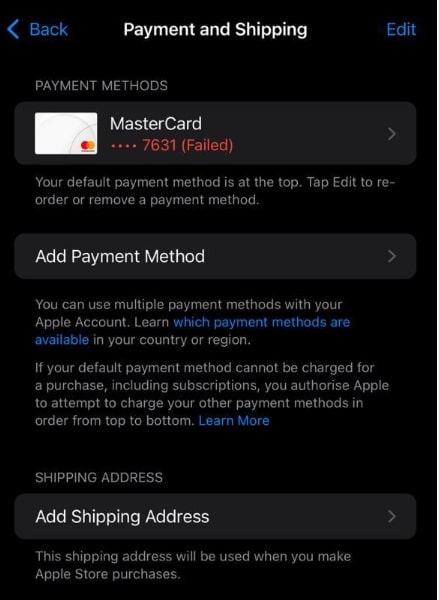
Step 2. Add or update your payment method.
Step 3. Reopen the App Store and try again.
Solution 7. Pause and Restart the Update
If the app shows “Waiting” or “Loading” and is frozen, you can try pausing and then resuming it to refresh the process.
Step 1. Find the app that is stuck on your Home Screen.
Step 2. Tap it once to stop the update.
Step 3. Tap again to continue downloading.
Solution 8. Uninstall and Reinstall the App
It is just possible to uninstall the app and reinstall it afterward, which will provide you with a fresh start. The corrupted part of the data that hampers the app from updating will be eliminated.
Step 1. Long-press on the app icon.
Step 2. Tap Remove App > Delete App.
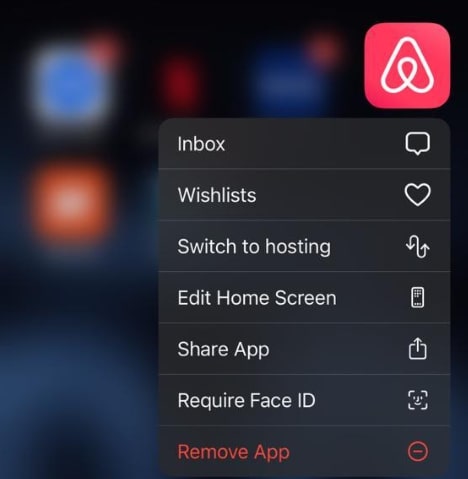
Step 3. Reinstall it from the App Store.
Solution 9. Fix System Issues Without Data Loss-AnyFix
If your iPhone is still not willing to update apps after trying different ways, then it might be the case that your device has system issues deep inside. AnyFix from iMobie is a professional-level tool that can fix over 150 issues on iOS, iPadOS, and tvOS without requiring data erasure, like being stuck on the Apple logo, black screen, and so on, making it a safe way to resolve app update failures and other system bugs.
Key Feature:
- It can repair more than 150 system issues on iPhone, iPad, and Apple TV.
- There are three modes: Standard Repair (no data loss), Advanced Repair, and Ultimate Repair.
- When a device needs to be put in Recovery or DFU mode, the tool will do it automatically.
- It works with both Windows and Mac.
Steps to fix iPhone system issues with AnyFix:
Step 1. Download AnyFix and install it on your computer. It is also necessary to provide a stable internet connection on your device during the whole process.
Free Download * 100% Clean & Safe
Step 2. Launch AnyFix, select the System Repair option, and then click on Repair Now. In case your iPhone is disconnected, connect it and follow the on-screen instructions to put it into Recovery or DFU mode.
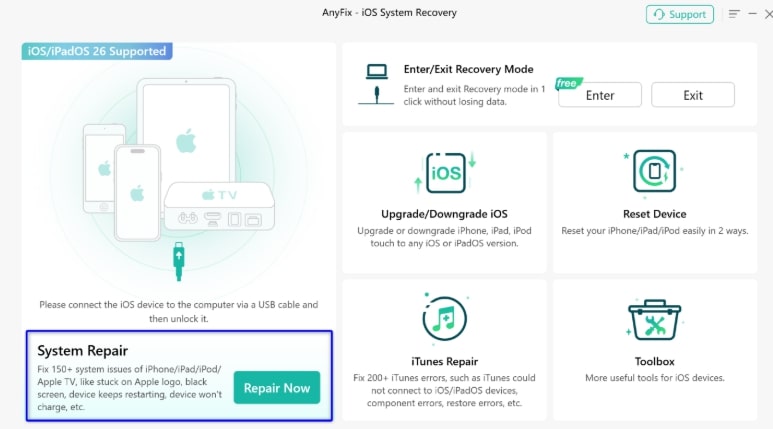
Step 3. If you want to fix the iPhone and save the data, you should go for the Standard Repair option, which only features the most common issues of the system.

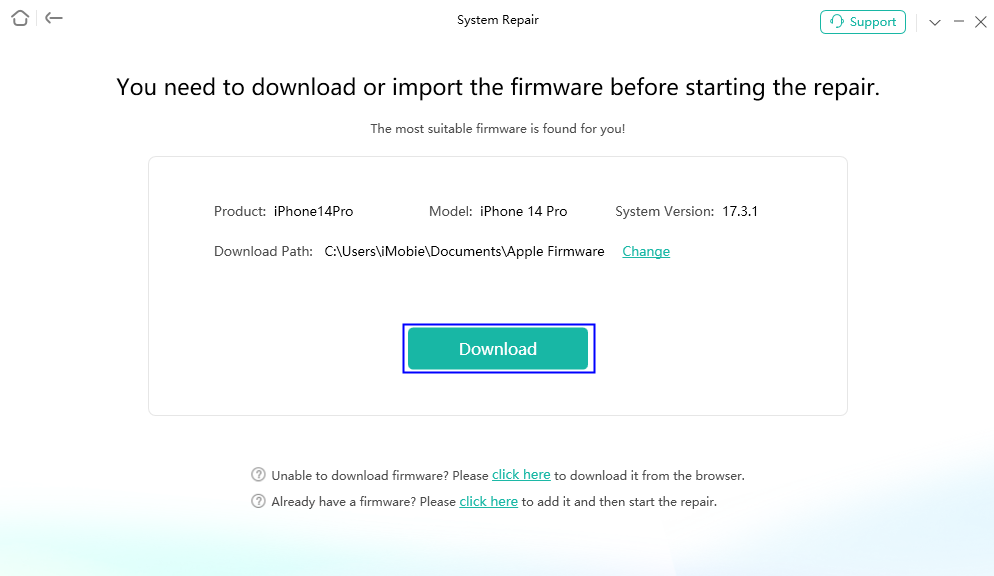
Step 4. After checking the device information, click Download to get the right firmware pack. Make sure that the connection is still good during the download.
Step 5. Press the button Start System Repair and wait until your iPhone is fixed by AnyFix. It is advisable not to disconnect the device until the whole process is completed, and your iPhone has restarted.
Solution 10. Factory Reset Your iPhone
A factory reset can resolve an extremely stubborn app update when you have tried all the other fixes and nothing has worked. It reverts your iPhone to its original state and removes any software glitches.
Step 1. On your iPhone, launch the Settings app and navigate to General > Transfer or Reset iPhone > Erase All Content and Settings.
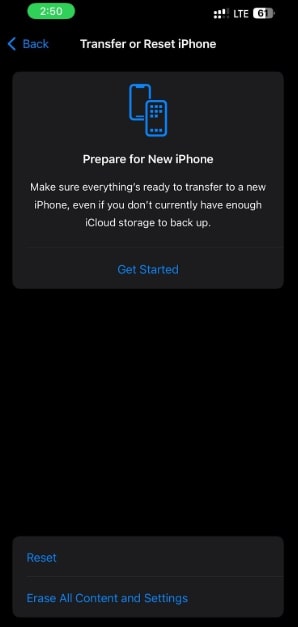
Step 2. Provide your passcode and allow the action by clicking on Erase iPhone.
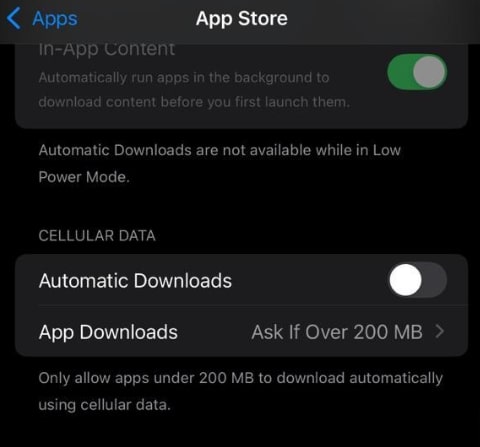
Part 3. How to Turn Automatic App Updates on or off
Controlling automatic app updates will allow your applications to be constantly updated without your manual intervention, or it will give you the option to control the updates to save data or storage. Here is how you can change this setting on your iPhone:
Step 1. Launch the Settings app on your iPhone.
Step 2. Scroll down and select App Store.
Step 3. Toggle to turn off Automatic Downloads.
Conclusion
There are countless methods to fix a situation where an iPhone 13, 14, or 15 can’t update apps. Initially, one may check the Wi-Fi connection and restart the device. If these actions don’t help, then more advanced solutions such as AnyFix or a factory reset can be used. By implementing these 10 solutions in a stepwise manner, you can fix your app update issues without data loss. Additionally, the automatic app update feature keeps your apps up to date and running smoothly. This allows you to continue using your iPhone seamlessly, with all apps updating automatically.
Free Download * 100% Clean & Safe



Wanda Norris is a junior author in iMobie specializing in iOS tips and solutions. She keeps a close eye on every iOS update to provide practical, easy-to-understand guides that help users solve problems and master their Apple devices.
Product-related questions? Contact Our Support Team to Get Quick Solution >
