Best 4 iOS Downgrade Tools in 2025
iOS updates can sometimes cause bugs, lag, or battery problems. This guide shows the top four iOS downgrade tools of iTunes/Finder, AnyFix, TinyUmbrella, and Futurerestore. They help you safely downgrade your iPhone or iPad.
Not every new iOS update goes smoothly; some cause problems, battery drain, or lag, making your iPhone difficult to use. You may easily roll back using reliable iOS downgrade tools if you miss the stability of an earlier version. In this guide, we’ve rounded up the best 4 iOS downgrade tools in 2025, so you can safely downgrade your iPhone or iPad without hassle.
1. iTunes/Finder – Free iOS Downgrade Tool
iTunes or Finder is a dependable and free way to downgrade an iPhone. It is Apple’s own method, so it offers a safe and secure process when used correctly. You can always downgrade to the previous iOS version by means of an IPSW file. Back up your iPhone or iPad. Downgrading will erase everything on your device, so make sure your important data is safe.
How to Downgrade iOS with iTunes or Finder:
Step 1: Go to the IPSW site and download the firmware. Make sure Apple is still signing it.
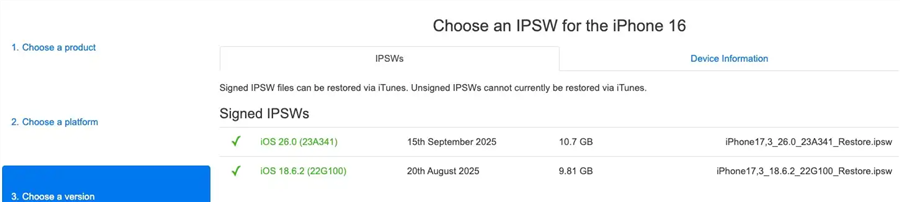
Step 2: Connect your iPhone or iPad to your computer and open iTunes (Windows) or Finder (Mac).
Step 3: If your device isn’t showing up, don’t panic. Put it into Recovery Mode following Apple’s simple guide.
Step 4: Now start the restore. On Windows, hold the Shift key and click Restore iPhone. On a Mac, hold Option and click Restore iPhone in Finder.
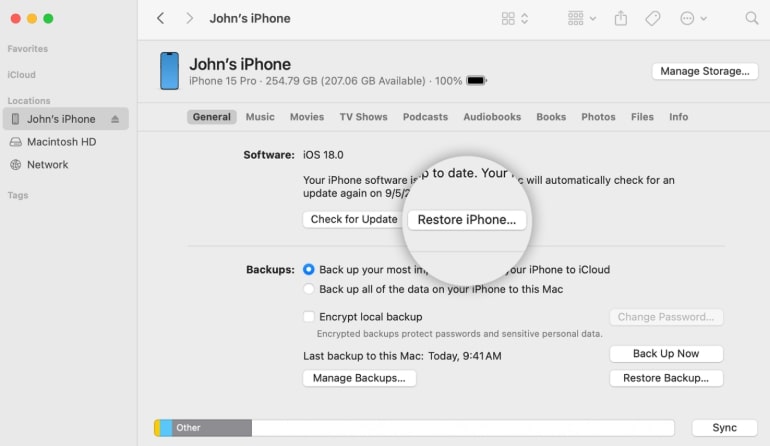
Step 5: Pick the IPSW file you downloaded and confirm. iTunes or Finder will replace your current iOS with the older version. When your device restarts, it’s good to go.
| Advantages: | Disadvantages: |
|
Free and official Apple method. Works on both Mac and Windows. No need for third-party tools. Safe and reliable process. |
Erases all device data. Only supports signed firmware versions. Requires manual steps and technical understanding. Takes more time than professional downgrade tools. |
2. AnyFix [Easy-to-Use]
AnyFix turns the iOS downgrade process into a reliable and easy one, which doesn’t require complicated iTunes steps. iOS downgrading or upgrading with the program is a matter of a few clicks. It comes with no data loss, no manual downloads, and no jailbreaking needed.
However, AnyFix is not limited to downgrades only. It can also fix over 150 iOS system issues, rectify iTunes problems, and even unlock a locked iPhone or iPad by resetting it. The software is compatible with all iOS versions, even iOS 26.
| Advantages: | Disadvantages: |
|
Simple and beginner-friendly interface. No data loss during downgrade or upgrade. Works on both Windows and Mac. No need for iTunes or manual IPSW files. Support downgrading to unsigned iOS. Support all iPhone models and iOS versions up to iOS 26. |
Requires a computer to operate. |
Steps to Downgrade iOS Using AnyFix:
Step 1: Download AnyFix to your computer and install it.
Free Download * 100% Clean & Safe
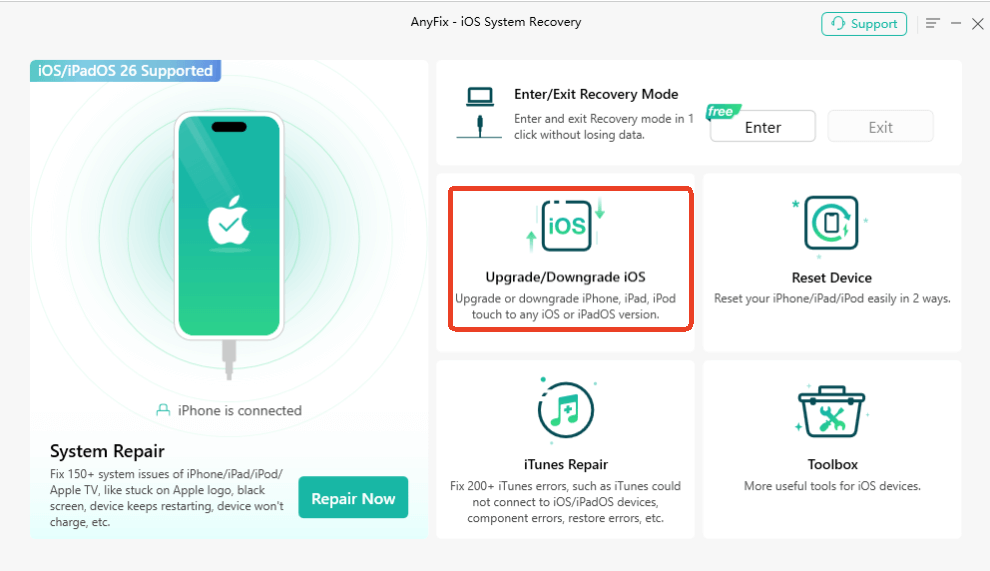
Step 2. Run the software and click on Upgrade/Downgrade iOS today the Homepage.
Step 3: Use a USB cable to connect your iPhone or iPad to the computer. Once AnyFix recognizes it, click 1-Click to Downgrade iOS/iPadOS and Start Now.
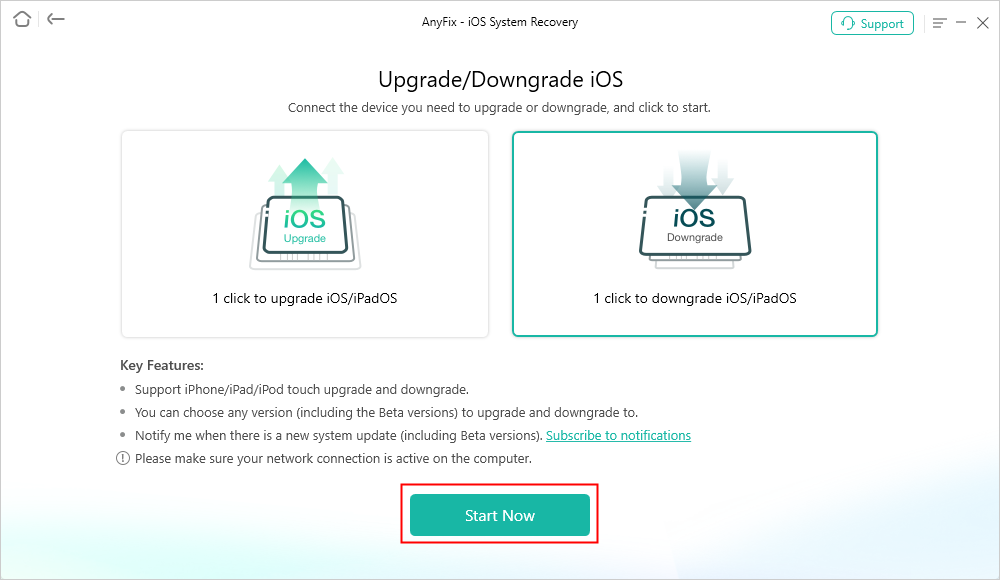
AnyFix Downgrade iOS
Step 4: AnyFix will show older iOS versions. Pick the one you want to install.
Step 5: After the firmware is completely downloaded, hit Downgrade. AnyFix will now continue to install the chosen iOS version on your device.
Step 6: Once the process finishes, click OK to return to the main screen. Then your iPhone is now successfully downgraded!
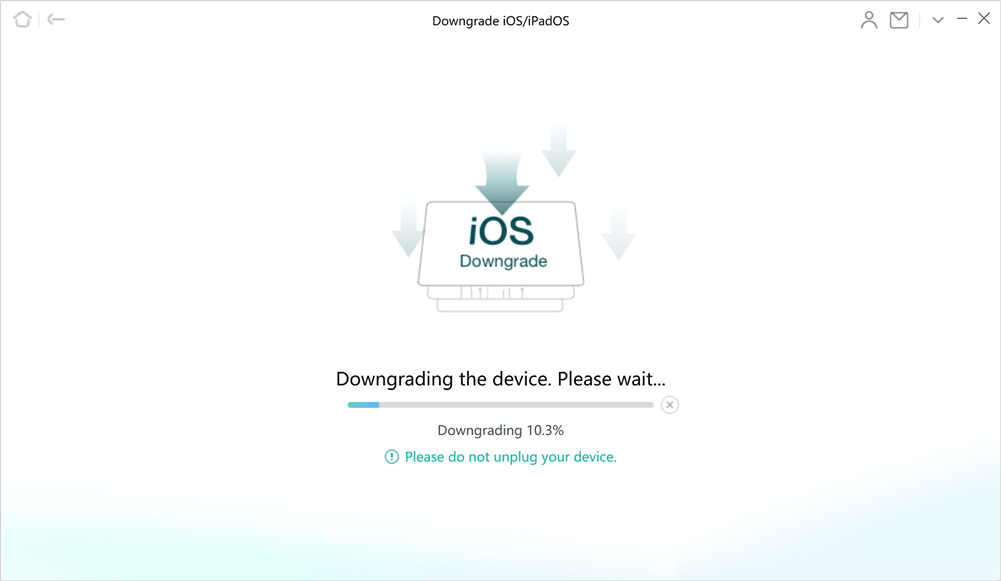
AnyFix is Downgrading the Device
3. TinyUmbrella
TinyUmbrella is a handy tool for iPhone, iPad, and iPod users. It lets you save SHSH blobs, recover devices stuck during updates, and safely downgrade iOS.
Steps to Downgrade iOS with TinyUmbrella:
Step 1: Download and install TinyUmbrella on your computer. Mac users should ensure Java is installed.
Step 2: Connect your device via USB. TinyUmbrella will recognize it automatically.
Step 3: Store the SHSH blobs locally or on the server.
Step 4: Open iTunes and restore your device using the saved SHSH blobs and IPSW file.
| Advantages: | Disadvantages: |
|
Allows downgrading to older iOS versions with saved SHSH blobs. Fixes devices stuck in recovery mode. Works with multiple iOS versions and devices. Resolves common iTunes errors like error 3194. |
Requires technical knowledge. Needs saved SHSH blobs for each iOS version. Not easy for non-experts. Support for new iOS versions is very limited (iOS 17 and higher). Java is required for running. |
4. Futurerestore
Futurerestore allows you to downgrade your iPhone, iPad, or iPod to an earlier iOS version. The procedure works even if Apple has ceased signing that version. It supports both official and beta releases, but you’ll need the correct files and a device that’s ready to use.
Steps to Downgrade iOS Using Futurerestore GUI on Windows:
Step 1: Download and install Futurerestore GUI on your computer running Windows.
Step 2: Click on Select Blob File and select the SHSH blob for your device.
Step 3: Choose the Target IPSW File and pick the desired iOS firmware to install.
Step 4: To proceed with the setting, click Next.
Step 5: Click Start Futurerestore after connecting your device to the computer via a USB cord while it is switched up.
Step 6: Be patient as Futurerestore carries out the installation of the firmware. Your device may restart or display various screen colors during this period.
| Advantages: | Disadvantages: |
|
Downgrade to any iOS version, including unsigned versions and betas. Fixes many software problems after the downgrade. Completely free to use. Works for advanced users who need full control over the process. |
Requires a PC to operate. Some advanced features may require additional files or steps. Less beginner-friendly and relatively complex. Slightly less safe if instructions are not followed correctly. |
Comparison Chart of iOS Downgrade Tools
By checking the detailed features and steps to downgrade iOS with the best 4 iOS downgraders, you can have an overall understanding of the tools. To choose your preferred one, you can also check the comparison table below:
| Tool | Ease of Use | Data Loss | iOS Support | Additional Features |
| iTunes/Finder | Medium | Yes | Limited to signed firmware | Official Apple restore |
| AnyFix | Very Easy | No | All versions up to iOS 26 | Fix 150+ iOS issues, upgrade/downgrade |
| TinyUmbrella | Hard | No | Only with saved SHSH blobs | Save SHSH blobs, exit recovery, fix iTunes errors |
| Futurerestore | Hard | No | Unsigned versions & betas | Advanced downgrade options |
Conclusion
Downgrading iOS doesn’t have to be stressful. You can easily go back to an older version and keep your iPhone or iPad running smoothly with the right iOS downgrade tools. I’ve found AnyFix to be really handy. It handles both upgrades and downgrades, and it can fix common iOS issues without any extra hassle. Give it a try, and your device will be back to normal in no time.
Free Download * 100% Clean & Safe



Joy Taylor is a seasoned technical writer with over a decade of experience in mobile technology. At iMobie, she specializes in producing in-depth content on iOS data recovery, iPhone unlocking solutions, and iOS troubleshooting.
Product-related questions? Contact Our Support Team to Get Quick Solution >
