How to Fix ‘iOS 26/27 Draining Battery’ Issue on iPhone [11 Ways]
The iOS 26、27 draining battery issue often comes from background re-indexing, app bugs, or system glitches. You can fix it by adjusting settings, updating apps, or reinstalling iOS. For a faster solution, AnyFix supports fixing iOS 26 draining battery issue in easy steps, restoring battery performance quickly.
AnyFix – Fix iOS 26/27 Draining Battery Within Minutes
Download AnyFix to repair iOS 26/27 draining battery caused by system issues in easy steps. No technical skills & knowledge are required. Support the latest iPhone 17 models.
With the rollout of iOS 26/27, many users have reported significant drops in battery performance, and some report their phones draining faster than ever. This issue has quickly become one of the most talked-about concerns among iPhone users after iOS 26/27 updates. Luckily, this guide explores reasons for iOS 26/27 draining battery, and walks you through 11 proven fixes to restore your iPhone’s battery efficiency. It also shares some tips to keep iPhone battery health. Let’s explore!
Why Is My Battery Draining So Fast on iOS 26/27?
According to Apple’s official support documents, it is normal to experience a temporary dip in battery life and thermal performance after a major software update, including iOS 26/27. Also, this post-update behavior isn’t necessarily a flaw. It’s a result of how iOS optimizes itself in the background to match your usage patterns and integrate the new features properly. This happens for several reasons:
1. Post-Update Background Activity
After a major update, your iPhone runs multiple background processes, such as photo re-indexing, Spotlight optimization, and system reconfiguration. These background processes consume significant power for a few hours or even days.
2. More Demanding Visual Features
iOS 26/27 introduces new animations, transitions, and graphical enhancements that may appear smooth but require more GPU and CPU power. This visual polish increases overall energy consumption, especially on older devices.
3. Adaptive Power Mode & Battery Features
While iOS 26/27 includes smarter battery tools, the transition period may lead to aggressive battery learning behaviors, where the system recalibrates power allocation based on your usage. During this phase, battery performance might seem erratic.
4. Heat & Thermal Overhead
After updating, the device can overheat temporarily due to high system load. Thermal pressure causes the processor to throttle and the battery to discharge faster, particularly when multitasking or charging during use.
5. Unoptimized Apps
Some third-party apps haven’t yet been optimized for iOS 26/27, leading to excess background refreshes or rogue processes that consume battery unnoticed. App updates usually lag behind major iOS releases.
6. Software Bugs or Glitches
Like any new version, iOS 26/27 may contain bugs affecting battery reporting, charging cycles, or power management. Apple typically addresses these bugs in follow-up minor updates.
In short, Apple points out that the battery draining after updating to iOS 26/27 is a normal and temporary occurrence, usually resolving itself within a few days. However, there are steps you can take immediately to help accelerate the recovery process. In the next section, we’ll share 10 regular ways to fix the iOS 26/27 battery draining issue.
10 Regular Fixes for ‘iOS 26/27 Draining Battery’ Issue
iOS 26/27 draining battery isn’t difficult to deal with. Below are 10 common and effective fixes you can apply to reduce power consumption and extend your battery life.
Way 1. Turn Off Always-On Display
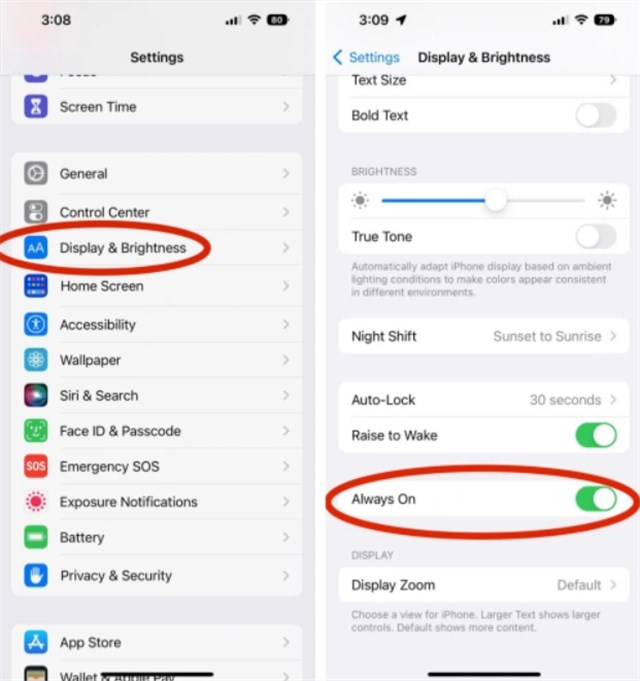
To fix iOS 26/27 draining battery issue, you can check the Always-On Display feature first. This feature keeps your iPhone’s screen partially lit at all times. Turning it off eliminates this background power consumption, thereby improving battery life. To do this, you can disable it by going to Settings > Display & Brightness > Always On and toggling it off.
Way 2. Reboot Your iPhone
After updating to iOS 26/27, your iPhone may experience temporary software glitches, leading to rapid battery drain. A simple reboot helps by clearing the device’s temporary memory (RAM) and forcing all apps and system services to restart cleanly. This quick reset often resolves hidden issues that are quietly draining your battery in the background.
How to reboot your iPhone to fix iOS 26/27 draining battery:
Step 1. Press and hold the Power button and either Volume button simultaneously.
Step 2. When the “slide to power off” slider appears, drag it to turn off your iPhone.
Step 3. Wait for about 10–15 seconds. Press and hold the Power button again until you see the Apple logo.
Way 3. Activate Low Power Mode
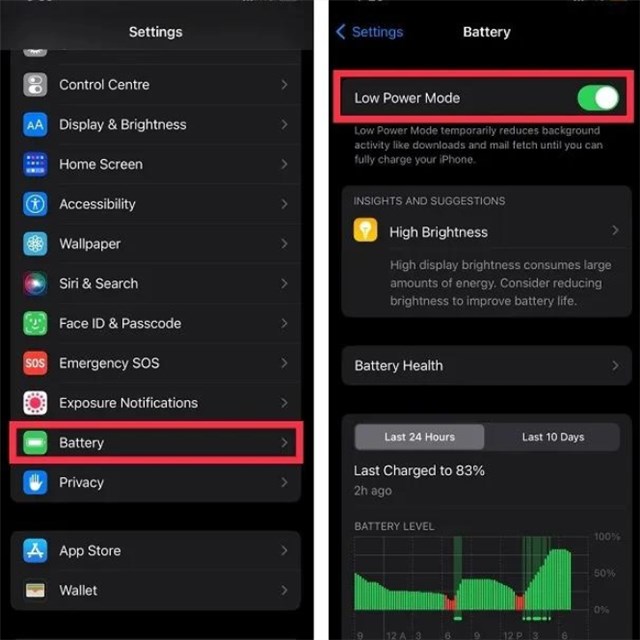
Low Power Mode is a built-in feature designed to temporarily reduce your iPhone’s power consumption. It works by pausing background app refresh, automatic downloads, and certain visual effects. This is a great short-term solution to conserve battery when you’re running low on charge. To turn on Low Power Mode, easily go to Settings > Battery, and toggle on Low Power Mode.
Way 4. Identify & Manage Battery-Draining Apps
After updating to iOS 26/27, some apps, especially those not yet optimized for the new system, may behave abnormally and consume excessive power in the background. Fortunately, iOS 26/27 offers detailed battery usage insights so you can pinpoint and manage these apps effectively to fix iOS 26/27 draining battery issue.
How to find and manage battery-draining apps:
Step 1. Open the Settings app on your iPhone.
Step 2. Tap Battery. Scroll down to the Battery Usage by App section.
Step 3. Look for apps with high battery percentages or orange activity bars, indicating unusual power consumption.
Step 4. Take appropriate action, such as limit background activity, disable notifications, force close the app, or uninstall it if necessary.
Way 5. Update Your Apps
Another reason for iOS 26/27 draining battery might be the outdated apps on your iPhone. After installing the latest iOS version, some of your apps may not yet be fully optimized for the new system. This can lead to background crashes, inefficiencies, or excessive power consumption. App developers typically release updates shortly after a major iOS release to ensure compatibility and improve performance. By updating your apps, you can eliminate bugs or conflicts that may be contributing to the battery drain.
How to update your apps:
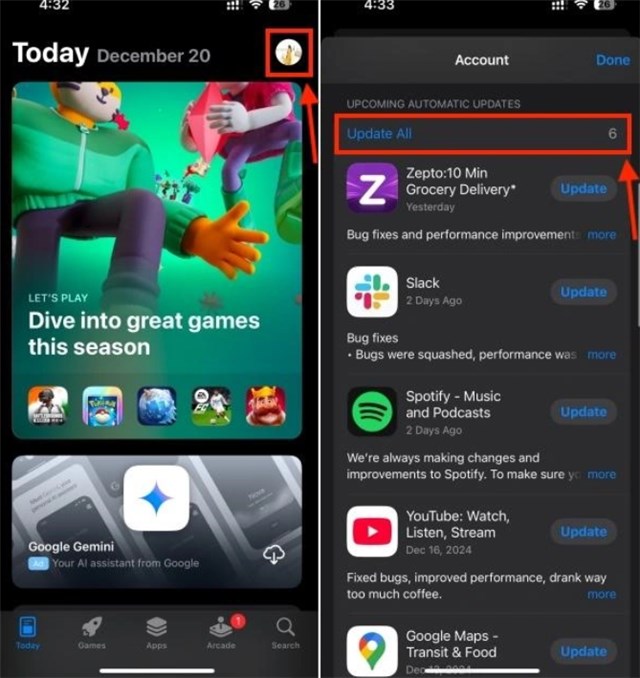
Step 1. Open the App Store on your iPhone.
Step 2. Tap your profile icon in the top-right corner of the screen.
Step 3. Scroll down and tap Update All to install the latest updates for all available apps.
Way 6. Using Adaptive Power Mode
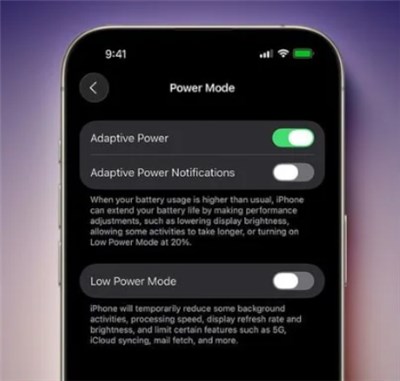
Adaptive Power Mode is a new feature in iOS 26/27. It uses machine learning to understand your daily usage patterns. It proactively manages power consumption by making minor performance adjustments throughout the day. This intelligent optimization helps your phone last longer, especially on days when you’re using it more heavily. This feature is typically on by default. You can also check for suggestions related to it in Settings > Battery.
Way 7. Reset All Settings
iOS 26/27 battery draining may be due to hidden configuration conflicts or corrupted settings. Resetting all settings can help by restoring your device’s system preferences, like network, privacy, and display settings, to their default state. This can eliminate background glitches that are silently consuming power. And don’t worry, it won’t delete your personal data such as photos, apps, or contacts.
How to reset all settings on iOS 26/27:
Step 1. Open the Settings app. Tap General.
Step 2. Scroll down and select Transfer or Reset iPhone.
Step 3. Tap Reset, then choose Reset All Settings.
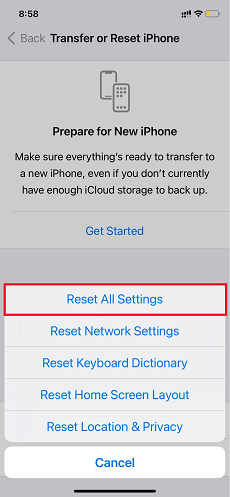
Step 4. Enter your passcode to confirm the reset.
Way 8. Reinstall iOS 26/27
When none of the basic fixes have worked, it’s possible that your iOS 26/27 update was incomplete or corrupted during installation, leading to system instability and ongoing battery drain. Reinstalling iOS 26/27 ensures that all system files are correctly installed and functioning. This way not only fixes iOS 26/27 battery draining, but also resolves deeper software issues that might not be visible or fixable through regular settings. Before reinstalling iOS 26/27, remember to back up your iPhone using iCloud or a computer to avoid data loss.
How to reinstall iOS 26/27:
Step 1. Connect your iPhone to a computer.
Step 2. Put your device into Recovery Mode.
Step 3. In Finder (for Mac) or iTunes (for Win), select your device and click Restore to reinstall iOS 26/27.
Step 4. Once the process is complete, restore your backup during setup.
Way 9. Revert to iOS 18
If iOS 26/27 is consistently causing excessive battery drain, reverting to a more stable previous version like iOS 18 could be a practical solution, especially if you noticed better battery performance before the update. It allows you to return to a known-good software environment while waiting for Apple to release further optimizations or bug fixes. This process will erase your device, so make sure to back up your iPhone to iCloud or a computer before proceeding.
How to revert from iOS 26/27 to iOS 18:
Step 1. Download the correct iOS 18 IPSW firmware file for your device from a trusted source.
Step 2. Connect your iPhone to a Mac (using Finder) or Windows PC (using iTunes).
Step 3. Put your device into Recovery Mode.
Step 4. In Finder or iTunes, select your device, then hold Option (Mac) or Shift (Windows) and click Restore.
Step 5. Select the iOS 18 IPSW file and begin the downgrade process.
Step 6. After installation, restore your backup to recover your data.
Downgrading is only possible if Apple is still signing the iOS 18 version for your device. And if the above steps are complex, easily download AnyFix to downgrade from iOS 26/27 to iOS 18 with only a few clicks.
Way 10. Await the Next iOS Update
iOS 26/27 draining battery is a common issue reported by many users, and Apple is likely already working on a fix. To address such problems, the company usually releases a minor follow-up update (e.g., iOS 26.0.1 or 26.1) shortly after a major version. These updates usually resolve bugs and improve overall system performance, and they often include important battery optimizations. Waiting for the next update can be the most straightforward solution if you prefer not to try more advanced fixes.
How to Fix iOS 26/27 Battery Drain Issues via AnyFix [One-click]
When regular fixes don’t solve the iOS 26/27 draining battery issue, AnyFix offers an easier and more reliable solution. This professional iOS system repair tool is designed to fix a wide range of iOS system problems, including excessive battery drain, iOS 26/27 laggy, software glitches, and hidden system errors that can affect performance. Except for these function, AnyFix also supports both iOS upgrades and downgrades, giving you full flexibility to move between iOS versions safely without data loss. With AnyFix, you can restore your iPhone’s battery performance quickly, enjoying full control over your iOS version.
Main Features of AnyFix:
- One-click repair for iOS 26/27 draining battery within minutes.
- Fixes over 150+ iOS/iPadOS problems, including iPhone won’t turn on, frozen screen, etc.
- Allows safe iOS upgrade or downgrade without data loss.
- User-friendly interface, ideal for both beginners and advanced users.
Free Download * 100% Clean & Safe
Here is the steps to fix iOS 26/27 battery drain via AnyFix:
Step 1. Download and install AnyFix on your computer. Launch it and select the System Repair option.
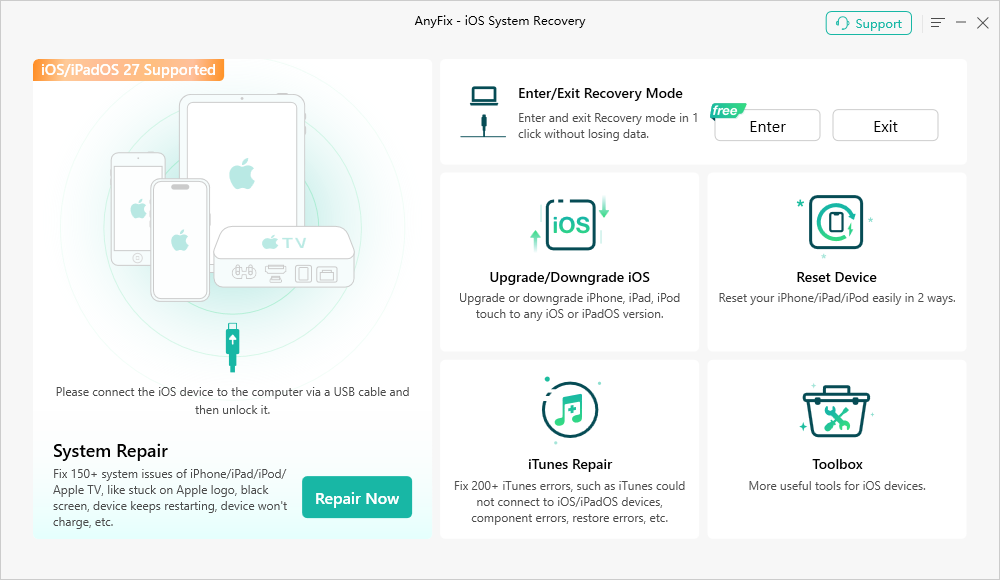
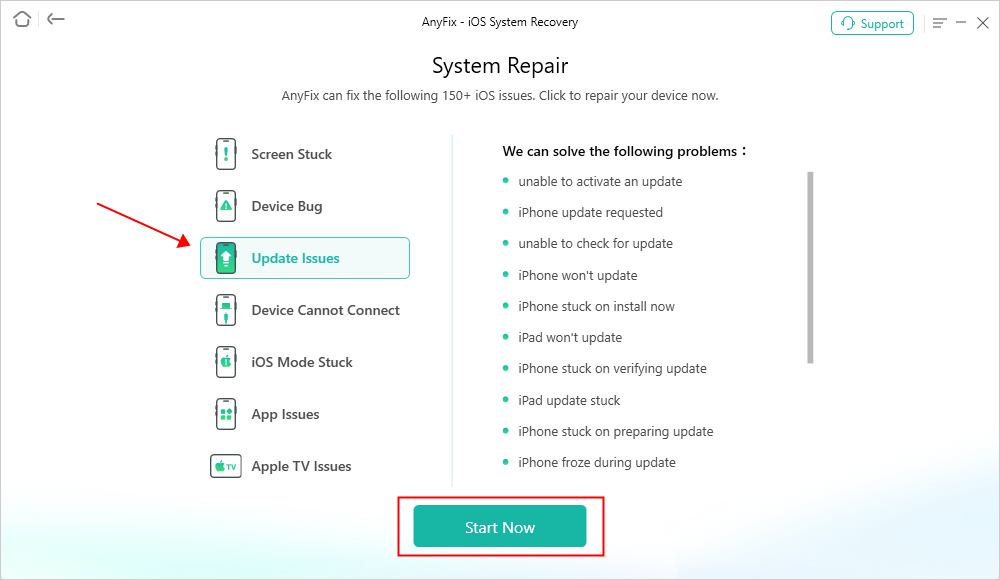
Step 2. Connect your iPhone to your computer via USB cable and click on the Start Now button.
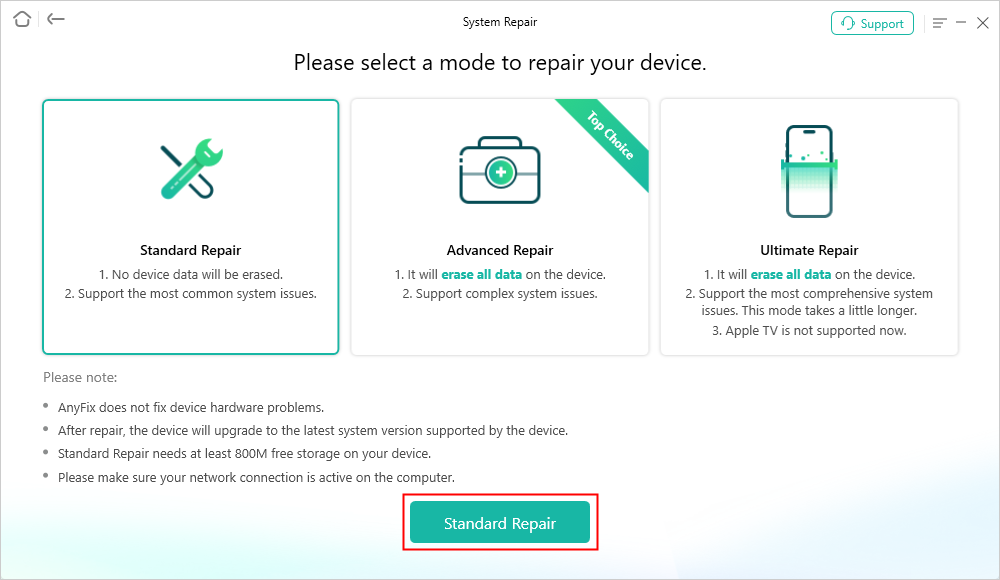
Step 3. Choose the Standard Repair mode supports. It can fix the most common system issues without data loss, including iOS 26/27 draining battery.
Step 4. AnyFix will check your iPhone model and you need to click Download to get a matching firmware.
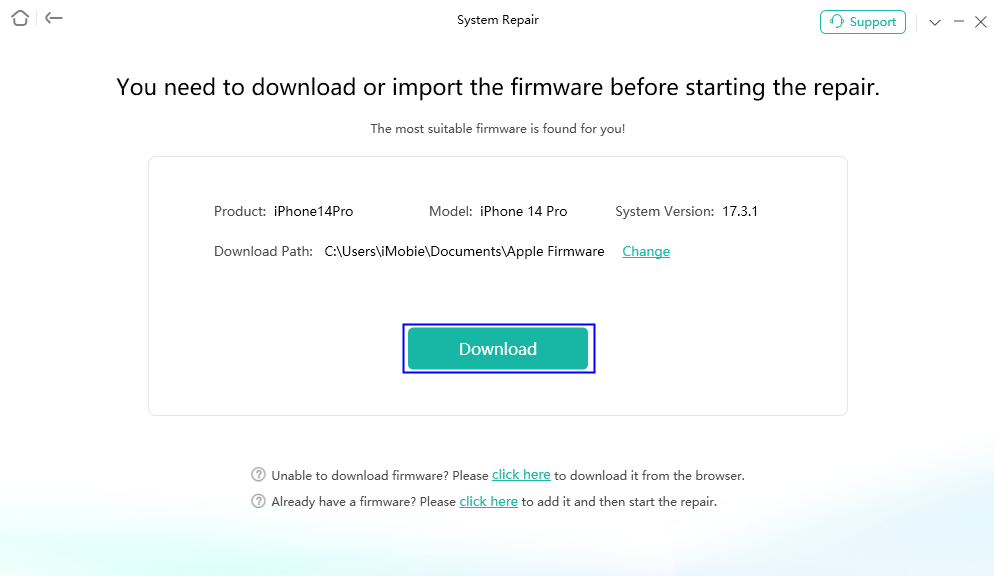
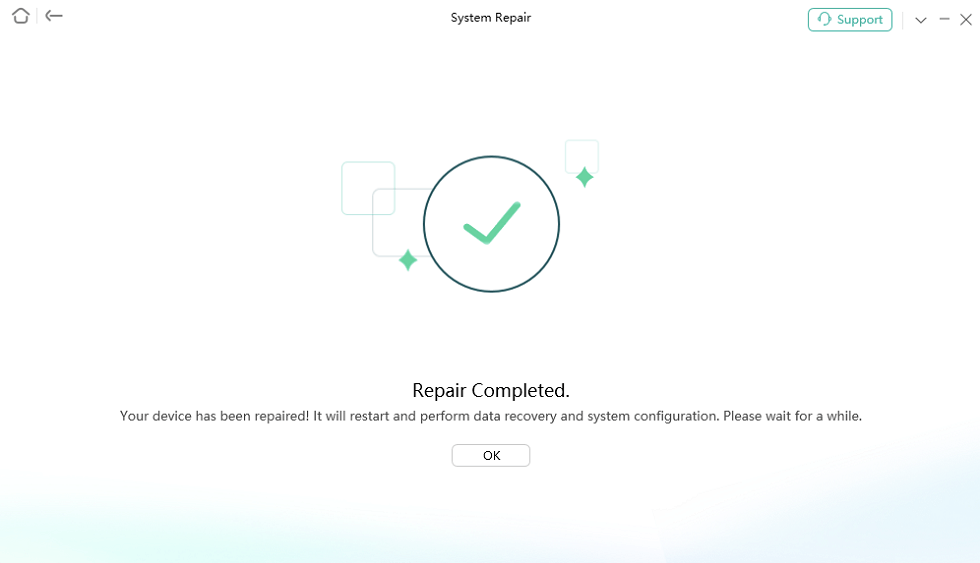
Step 5. Then AnyFix will automatically start to repair your device. Wait for a while, and then the iOS 26/27 battery draining issue will be fixed with ease.
Important Tips for iPhone Battery Health
While iOS 26/27 draining battery is easy to fix, it’s equally important to maintain good charging and usage habits to preserve your iPhone’s battery health in the long run. Following these tips can help you maintain your battery health in the long run:
- Avoid 0%–100% extremes: For optimal battery health, try to keep your charge between 20% and 80%.
- Don’t keep it plugged in all night: Overcharging can cause your battery to degrade faster. Use the “Optimized Battery Charging” feature to help with this.
- Avoid cheap or uncertified chargers: These can damage your battery and charging port. Always use Apple-certified chargers and cables.
- Avoid heat: High temperatures are the number one enemy of lithium-ion batteries. Don’t leave your phone in a hot car or direct sunlight.
- Enable Auto-Brightness or reduce brightness manually: A bright screen is one of the biggest power consumers.
- Use Optimized Battery Charging: This feature learns your charging habits to reduce battery aging. You can enable it in Settings > Battery > Battery Health & Charging.
- Keep iOS and apps updated: Updates often include bug fixes and performance improvements that can help with battery life.
- Check Battery Health regularly: Go to Settings > Battery > Battery Health & Charging to monitor your battery’s maximum capacity and health.
By adopting these best practices, you’ll not only extend the lifespan of your battery but also reduce the risk of running into problems like iOS 26/27 draining battery after future updates.
FAQ about iOS 26/27 Draining Battery
Q1: How to Stop iOS 26/27 from Draining Battery?
To stop iOS 26/27 from draining battery, you can use Low Power Mode, update your apps, disable Always-On Display, and consider system repair via AnyFix in easy steps.
Q2: How to Save Battery in iOS 26/27?
To save battery in iOS 26/27, you can lower screen brightness, restrict background activity, and keep your iOS up to date. Also, monitor battery-hungry apps.
Q3: What Other Bugs Are There in iOS 26/27?
Except for iOS 26/27 draining battery, some users still report app crashes, overheating, and notification delays. These are expected with early releases and often fixed in minor updates.
Conclusion
The iOS 26/27 draining battery issue is indeed frustrating, while it is often a temporary bug of a major software update. By using the fixes mentioned in this guide, you can significantly improve your iPhone’s battery performance. For a more reliable solution, AnyFix can help you fix iOS 26/27 draining battery issue in easy steps. As professional iPhone repair software, this tool can not only fix iOS system issues, but also support iOS upgrades and downgrades. Try AnyFix now to get your battery life back on track!
Free Download * 100% Clean & Safe



Wanda Norris is a junior author in iMobie specializing in iOS tips and solutions. She keeps a close eye on every iOS update to provide practical, easy-to-understand guides that help users solve problems and master their Apple devices.
Product-related questions? Contact Our Support Team to Get Quick Solution >
