[Don’t Miss] Does Recovery Mode Erase Data iPhone? iOS 26 Supported
Not all iPhone data is erased by recovery mode. An iTunes restore wipes the iPhone clean, while AnyFix is a safe fixer, and PhoneRescue enables data recovery.
AnyFix – Restore iPhone Without Losing Data
Get AnyFix free to enter the Recovery Mode and fix system issues without data loss. This tool can fix 150+ iOS system issues for iPhone/iPad/iPod touch/Apple TV without data loss. Support the latest iOS 26.
When your iPhone is stuck or not responding, you can fix it by putting it in recovery mode. However, many users ask: Does recovery mode erase data on iPhone? The answer, at first glance, would be no, as simply entering recovery mode won’t delete your data. But if you decide to restore or update your device via iTunes, data loss may happen depending on what you do.
In this guide, we’ll explain what really happens to your data in recovery mode, show how to restore your iPhone without losing data using AnyFix Standard Repair. We’ll also cover how to recover permanently deleted files with PhoneRescue.
Part 1. Does Recovery Mode Delete Data on iPhone?
Basically, it depends on the actions you take after putting the phone into recovery mode. A mere recovery mode on an iPhone will not result in data deletion. There is a possibility of data loss if you choose to do certain things during the process. Situations to break down:
- Entering Recovery Mode Only: If your iPhone is frozen or unresponsive and you just boot into recovery mode (without further action), all your data stays safe and untouched. You can exit by restarting normally or using button combos.
- “Update” choice in iTunes or Finder: If you connect your iPhone to recovery mode and choose to update, iTunes will reinstall iOS without erasing your photos, apps, and files.
- “Restore” option in iTunes or Finder: The case when your system is severely corrupted and you want to remove it, but it also removes everything unless you have made a backup before.
In short, recovery mode is a tool, not a delete button. Misinformation online often confuses the mode itself with the restore action, leading to unnecessary panic. If you want to restore your iPhone in recovery mode without losing data, then follow our tutorial.
Part 2. [Recommend] Restore iPhone in Recovery Mode Without Losing Data
If you fear losing data while repairing your iPhone that is stuck in recovery mode or has system glitches, then AnyFix – iOS System Repair is the perfect solution for you. This tool, developed by iMobie, is like a repairman who can fix your device when it is stuck on the Apple logo, not turning on, or has a frozen screen, etc., without losing data. In addition, AnyFix covers versatile functions that put your device into or take it out of recovery mode, update or downgrade iOS, and even fix iTunes errors with a few simple clicks.
Free Download * 100% Clean & Safe
Steps to Restore in Recovery Mode Without Data Loss Using AnyFix:
Step 1: Download and install AnyFix on your computer (Windows or Mac). Launch the program and select “System Repair” from the main menu.
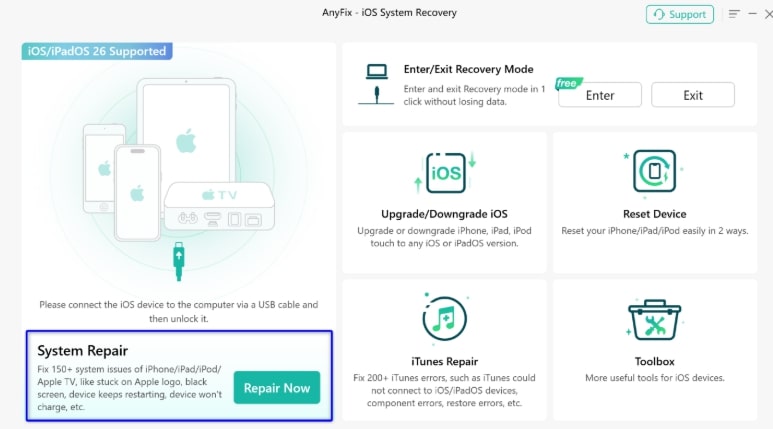
Step 2: Connect your iPhone to the computer using a USB cable. Once detected, click “Repair Now.” If your device isn’t recognized, follow the on-screen instructions to put it into Recovery Mode or DFU Mode.
Step 3: Choose “Standard Repair” to fix the most common system issues without erasing data.

Step 4: Click “Download” to get the latest firmware package for your iPhone.
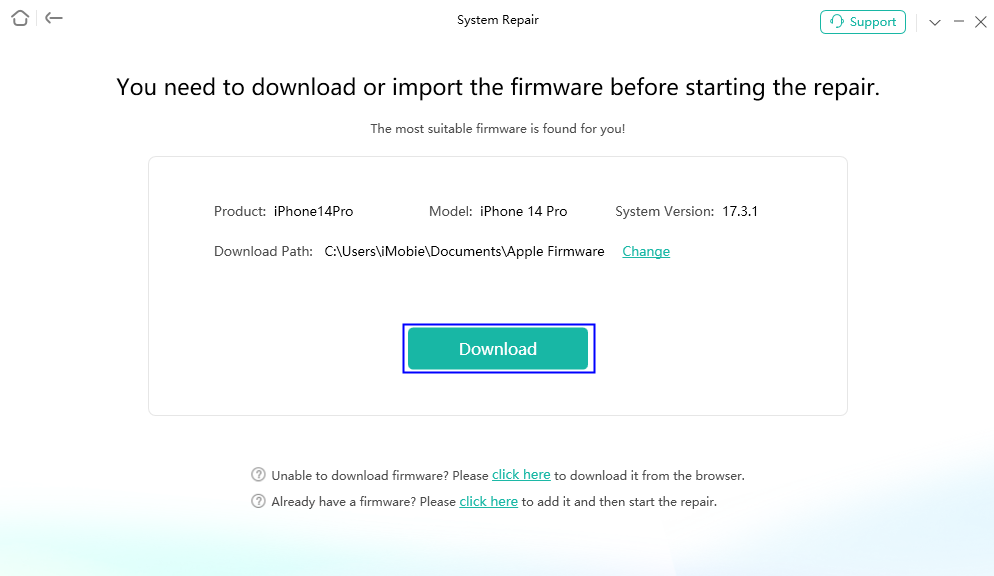
Step 5: Let AnyFix automatically repair your iPhone. Keep your device connected until the process finishes.

Part 3. Restore iPhone in iPhone Recovery Mode via iTunes | With Data Loss
If you decide to go with iTunes to revive your iPhone in recovery mode, be aware that this operation will remove your entire data set, such as pictures, contacts, apps, and device configurations. It is mostly chosen when the device encounters a very serious problem with the system term, for example, when it is stuck on the Apple logo or it cannot be updated.
How to Restore iPhone in Recovery Mode with iTunes:
Step 1: After connecting your iPhone to the computer with a USB cable, open iTunes.
Step 2: Put your iPhone into Recovery Mode:
For iPhone 8 or later: To quickly press and release the Volume Up button, then press and release the Volume Down button, and finally press and hold the Side button until the recovery mode screen shows up. (For older models like iPhone 7: Hold Volume Down + Side button.)
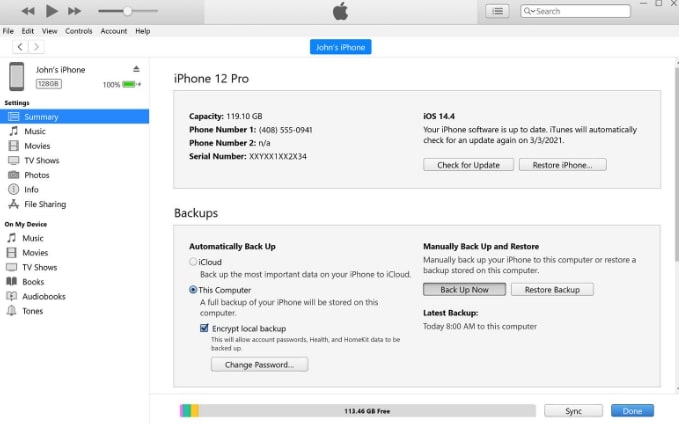
Step 3: Choose Restore iPhone.
Part 4. Other Common iPhone Restore Situations
Recovery mode isn’t the only way to reset, here are related methods, each with data implications.
1. Reset iPhone to factory settings
A factory reset is a reset that deletes all your files and user settings from your iPhone.
Step 1. Go to the Settings app. Then tap General > Transfer or Reset iPhone. Press Erase All Content and Settings.
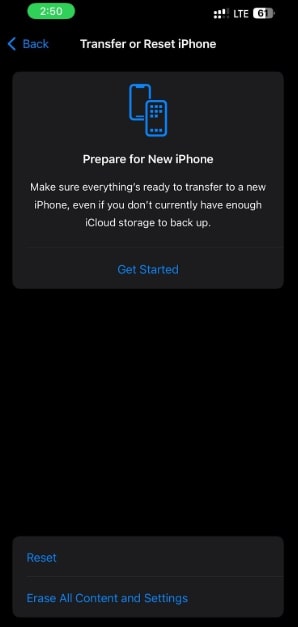
Step 2. Input your security code when it is requested and confirm your action.
2. Restore iPhone from iTunes backup
Use iTunes as a backup location only if you wish to be able to restore your iPhone data, applications, and settings fast after a factory reset or system crash.
Step 1. After plugging your iPhone into the PC with a cable, start iTunes (or Finder, if you are using macOS Catalina or later).
Step 2. Under the Summary section, hit the Restore iPhone option.
3. iPhone Recovery with iCloud backup
If you are allowed to recover from iCloud, you can retrieve the data in your backup by simply using the Internet connection on your device. However, you still need to have backed up to iCloud beforehand. No computer is needed.
Step 1. Switch on your iPhone and follow the setup steps until you reach the Apps & Data screen. Here, tap on Restore from iCloud Backup.
Step 2. Choose the most recent iCloud backup from the list of backups.
Part 5. Bonus. How to Restore Permanently Deleted Data With/Without Backup | PhoneRescue
In the case that you have wiped out essential info such as pictures, contacts, or messages on your iPhone — backing up or not — a tool called PhoneRescue from iMobie is the answer. It offers 3 modes to meet different situations: Recover from iOS device, recover from Backup, and recover from iCloud.
Free Download * 100% Clean & Safe
Steps to recover data using PhoneRescue without backup:
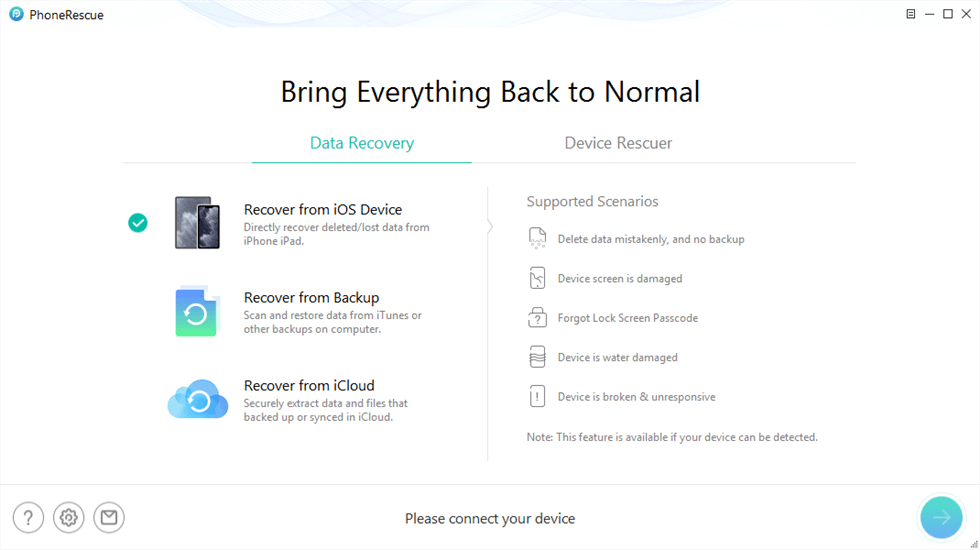
Step 1. Free download PhoneRescue for iOS on your computer and choose Recover from iOS Device in the Data Recovery list.
Step 2. Then you need to choose the data type. You can select All, or choose what you want selectively.
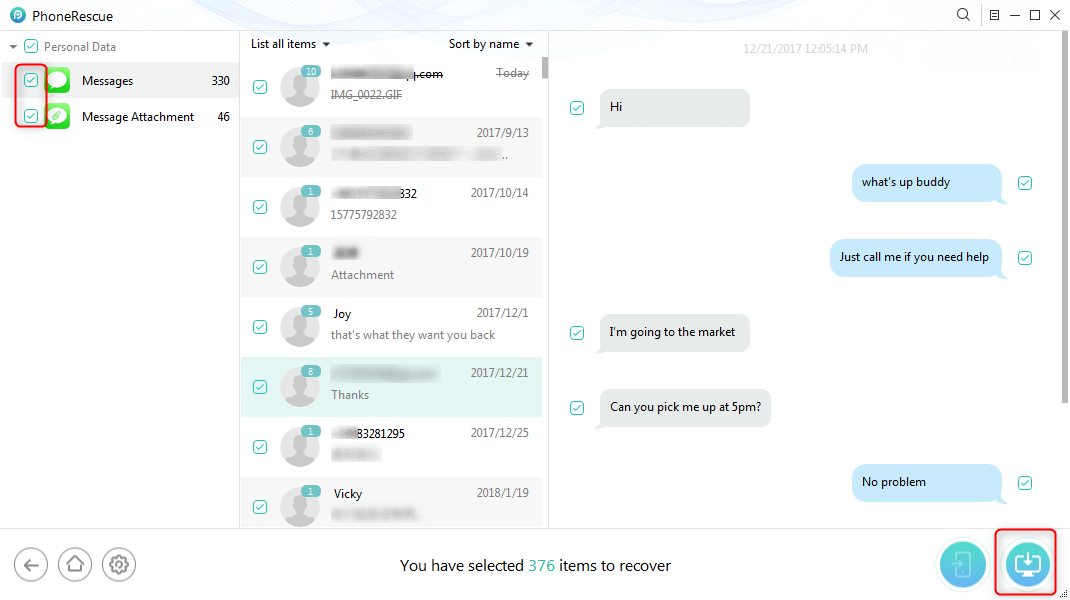
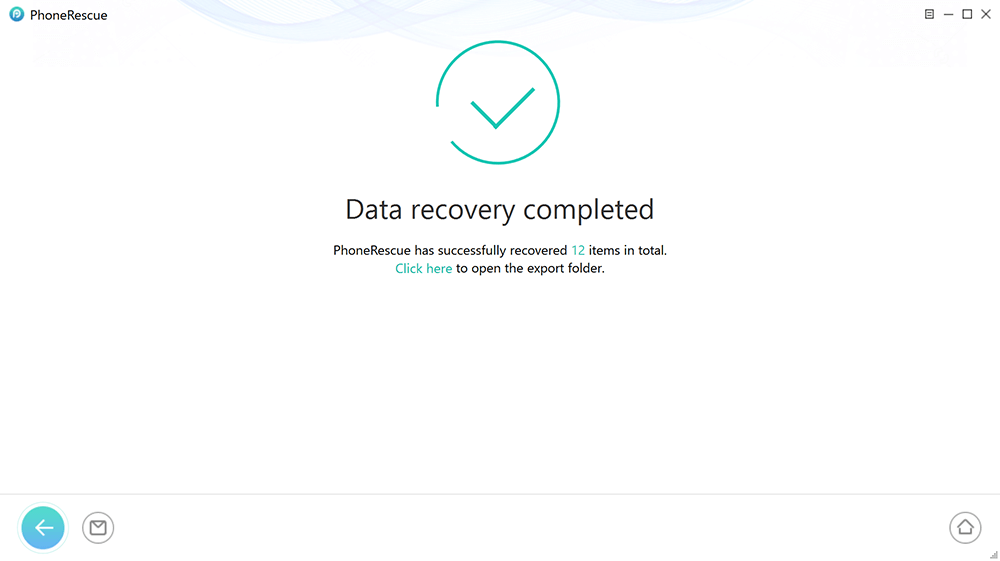
Step 3. Then tap the To Computer or To Device button to get the data back. When it completes the recovery, you can see the interface below.
Part 6. FAQs
Q1. What effect does putting a phone into recovery mode have?
Recovery mode is a reset of the device via iTunes or Finder, used to fix a software issue on a device where the software update or recovery process has failed, or the device is stuck at the Apple logo. Therefore, iTunes or Finder identifies the device as new and can perform a reset.
Q2. What is the outcome of the iPhone entering recovery mode?
In case your iPhone is in recovery mode, it is a temporary disabling of the device from its standard operations, and the only connection it can make is with iTunes or Finder for the purpose of fixing. The iPhone can be updated to the latest version or restored. If it is restored, the data will be deleted if it hasn’t been saved.
Q3. How long can the recovery mode of an iPhone be?
The time depends on the unit and the data volume. Normally, the recovery process takes 10–30 minutes; however, if the internet connection is very slow or the iPhone is full of big files, it can take more time.
Part 7. Conclusion
To sum up, the result of a recovery mode on iPhone is not necessarily a data wipe – it depends on what you do next. In case you restore your iPhone via iTunes, your data will be deleted unless you back up first. Conversely, AnyFix Standard Repair can be your solution to system issues without compromising data safety. And if your data happened to be erased, PhoneRescue could be the one to help you recover it without a backup. Therefore, the right method is what saves not only your iPhone but also its content, be it fixing system errors or recovering lost data.
Free Download * 100% Clean & Safe



Wanda Norris is a junior author in iMobie specializing in iOS tips and solutions. She keeps a close eye on every iOS update to provide practical, easy-to-understand guides that help users solve problems and master their Apple devices.
Product-related questions? Contact Our Support Team to Get Quick Solution >
