Emergency Alerts iPhone Not Working? 9 Fixes Here!
To fix not getting emergency alerts on your iPhone, you can try basic fixes like checking alert toggles or updating iOS. For a more reliable solution, use AnyFix to quickly restore your iPhone’s alert functions easily.
AnyFix – Fix Emergency Alerts iPhone Not Working
Download AnyFix to repair emergency alerts iPhone not working caused by hidden system issues. Save time on manual troubleshooting and restore normal alert delivery effortlessly. Supports the latest iOS 26.
If your iPhone doesn’t alert you during an evacuation or storm, that silence could put you in real danger. Sometimes, it’s just a simple setting turned off, a missed update, or your phone being on silent, but those small things can keep you from getting alerts that are meant to protect you. It happens more often than you think; people assume alerts are automatic, until the one time they aren’t.
Fortunately, most causes are simple to fix. This guide walks through the quick checks that fix 90%+ of cases, and if the problem runs deeper, tools like AnyFix can reset your iPhone and its alert system safely.
Why Do My Emergency Alerts Not Work?
When your iPhone suddenly stops receiving emergency alerts, it often points to small issues in how the system processes or delivers these critical messages. Here are some possible reasons:
- The alert settings might be turned off.
- iPhone might be in silent or Do Not Disturb mode.
- Airplane Mode or a weak network signal often interrupts alert delivery.
- An outdated iOS version can cause software glitches affecting alerts.
- In rare cases, the issue may come from your carrier’s network.
Fix Emergency Alerts iPhone Not Working [Regular Ways]
Let’s start with a few simple fixes that often help restore emergency alerts on iPhone before moving to advanced solutions.
Way 1. Restart Your iPhone
A quick restart usually can fix emergency alerts not working by refreshing your iPhone’s internal system and clearing minor glitches that interrupt notifications. Simply press and hold the Power and Volume buttons (or just the Power button on older models) to power off your device, wait a moment, and then turn it back on. This simple action helps reinitialize system processes and often restores normal alert delivery.
Way 2. Ensure Emergency Alerts Are Enabled
Before assuming there’s a deeper issue, make sure emergency alerts are actually turned on in your settings. Many users overlook this simple toggle, which can instantly restore alerts once re-enabled. This quick check often resolves the problem without further troubleshooting. Here are the steps to check:
Step 1. Open your iPhone “Settings” and go to the “Notification” option.
Step 2. Then scroll to the bottom and make sure “Government Alerts” or “Emergency Alerts” are turned on.
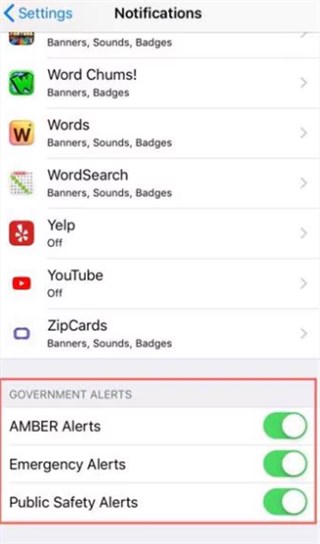
Way 3. Check Do Not Disturb and Silent Mode
If Do Not Disturb is on or the phone is silent, alerts may be muted. To check that, start the process by launching the “Settings” on your device, and then go to the “Do Not Disturb” option. You need to turn it off (or allow calls/alerts from “Favorites”). Also, ensure the side mute switch isn’t turned on.
Way 4. Turn Airplane Mode On and Off
Emergency alerts iPhone not working might be caused by temporary network glitches. Turning Airplane Mode on and off helps reset your cellular connection and reestablish communication with alert networks. Simply enable Airplane Mode for about a minute and then turn it off again—either from Settings or the Control Center.
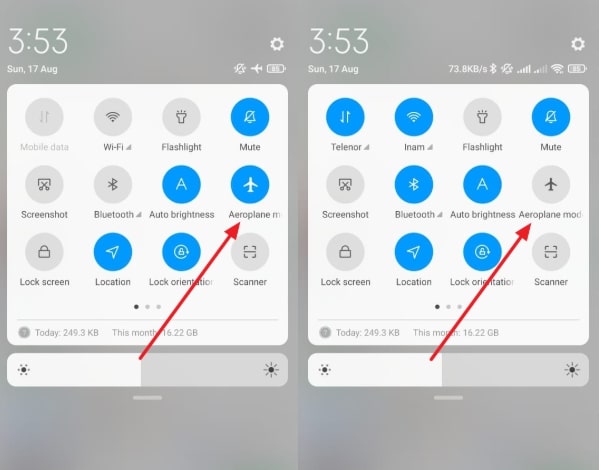
Tap Airplane Mode
Way 5. Upgrade iOS to the Latest Version
Running an outdated iOS version can sometimes interfere with how emergency alerts are delivered. Updating your iPhone to the latest iOS helps fix underlying system bugs and ensures compatibility with your carrier’s alert network. Keeping your device up to date not only restores proper alert function but also improves overall stability and security. Follow the steps below to upgrade the iOS version:
Step 1. Go to “Settings,” followed by the “General” settings, and tap on the “Software Update” option.
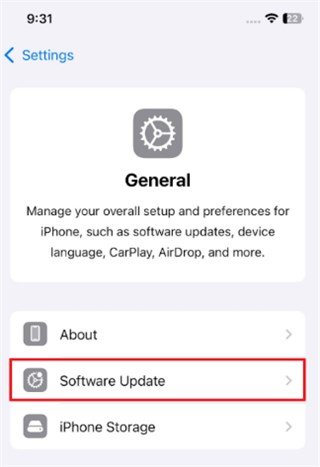
Step 2. If an iOS update is available, tap “Download and Install.” Once it has been updated, check if emergency alerts return to normal.
Way 6. Reset All Settings
If emergency alerts still don’t appear after trying earlier fixes, resetting all settings can help clear hidden configuration conflicts. This process restores system preferences like network, sound, and notifications to their default state without deleting personal data. Simply go to your iPhone settings and choose to reset all settings.
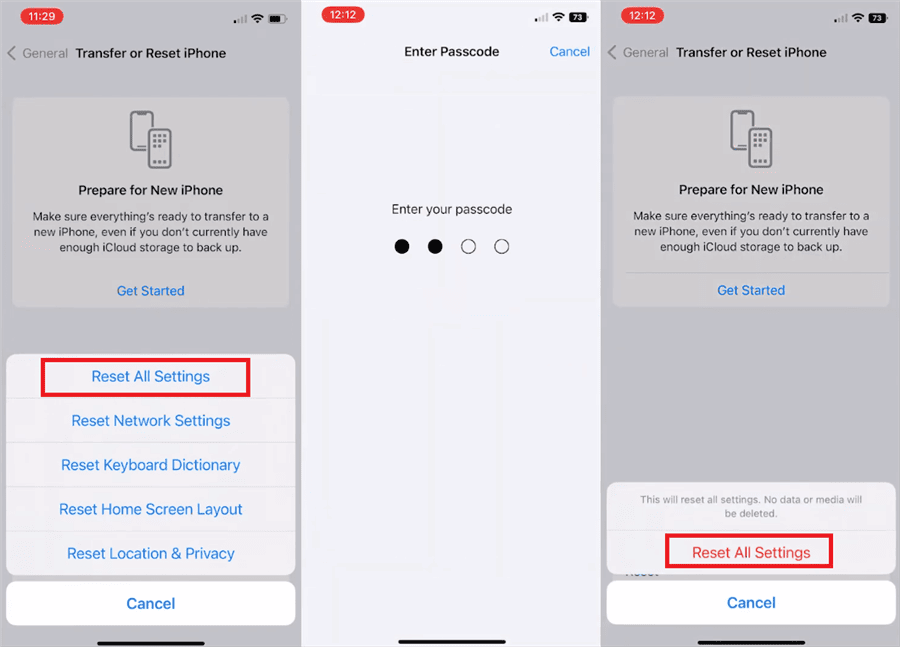
Way 7. Factory Reset Your iPhone
A factory reset serves as the final option when all other fixes fail to restore emergency alerts. This process completely erases your iPhone and reinstalls a fresh version of iOS, removing any deep-seated software conflicts that might block notifications. Before performing it, back up important data on iPhone, then reset and set up your device again to check whether the alerts are now functioning normally. Proceed to the following steps:
Step 1. Open “Settings” on your device and go to the “General” settings. After that, tap on the “Reset” option.
Step 2. Then choose “Erase All Content and Settings.” This removes everything and reinstalls iOS. Test the alerts again after setting up and restoring your backup.
Way 8. Contact Your Carrier or Apple Support Center
If the above recommendations do not help your case, the problem may instead be a network or account issue. For this, reach out to your cellular carrier and have them check your account settings related to cellular network settings for emergency alerts. You can also talk to Apple support for individual troubleshooting or if you are in need of a diagnosis for a hardware issue.
How to Fix Emergency Alerts iPhone Not Working [One-click]
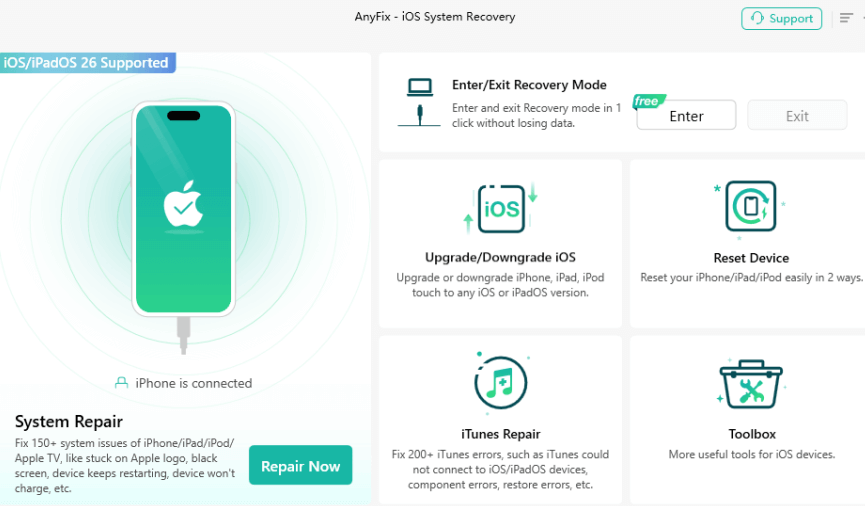
When emergency alerts fail to appear due to hidden system glitches, AnyFix offers a fast and reliable solution. This professional iPhone repair tool deeply scans your device, repairs notification and network-related errors, and restores normal alert delivery without data loss. Compatible with the latest iOS 26, AnyFix lets you fix the emergency alerts iPhone not working” issue in just one click, ensuring your iPhone runs smoothly and keeps you informed when it matters most. In addition to iOS system repair, this tool can also help you reset your iPhone, downgrade iOS versions, and more.
Main Benefits of AnyFix:
- Quickly resolves notification and system glitches that block emergency alerts from appearing.
- Repairs underlying network-related iOS errors that can prevent alert delivery.
- Safely fixes system issues without erasing your personal data or settings.
- Ensures full compatibility with the newest devices and updates for smooth, reliable performance.
Free Download * 100% Clean & Safe
You can follow this guide to fix the emergency alert issues using Anyfix:
Step 1. Free download and launch AnyFix, choose System Repair, and connect your iPad to the PC.
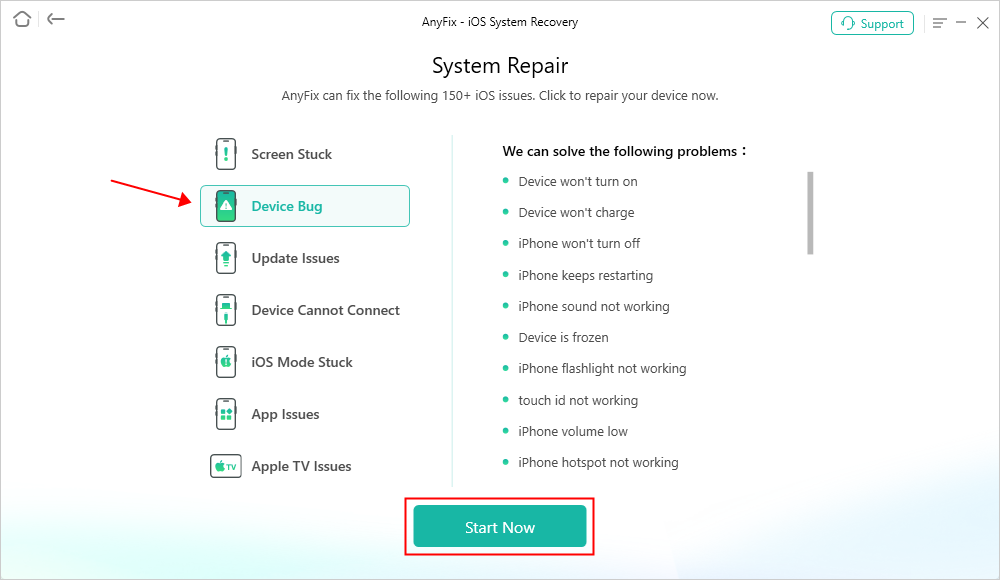
Step 2. Upon detecting your device, choose the corresponding issue and hit the “Start Now” button.
Step 3. Once you see a new screen, select “Standard Repair” mode.

Step 4. Wait until the process finishes. After that, your iPhone will restart, and the issue will be fixed.

FAQs about Emergency Alerts iPhone Not Working Issue
Q1. Why did my iPhone not alert me to a tornado warning?
iPhones with identical settings can behave differently since emergency alerts are sent through the cellular network. You may not receive the alert if it never reached the network.
Q2. How can I see an emergency alert again?
To view cleared emergency alerts, open the Notification Center. On the Lock Screen, swipe up from the middle; if you’re already using your phone, swipe down from the top center. Then scroll through to check any previous alerts.
Q3. How do I turn on emergency alerts on iPhone?
Select Settings > Notifications, and scroll down to the Government Alerts section. You are able to turn on the alerts that you wish to receive in the toggle, such as Emergency Alerts, AMBER Alerts, and more.
Conclusion
This guide has covered 9 effective ways to fix the emergency alerts iPhone not working issue. While most of these regular fixes can solve minor glitches, some problems stem from deeper iOS system errors that manual methods can’t address. As powerful iPhone repair software, AnyFix offers a professional one-click solution to repair hidden system glitches that disrupt emergency alerts. It safely restores normal alert functions without data loss and supports the latest iOS 26 and iPhone models. Download AnyFix today to keep your device ready to receive every critical alert when it matters most!
Free Download * 100% Clean & Safe



Joy Taylor is a seasoned technical writer with over a decade of experience in mobile technology. At iMobie, she specializes in producing in-depth content on iOS data recovery, iPhone unlocking solutions, and iOS troubleshooting.
Product-related questions? Contact Our Support Team to Get Quick Solution >
