Fix iPhone Error 4013 in 10 Ways | 2025 Update
This article shares 10 efficient methods to solve the iPhone error 4013 problem, such as verifying the cables, updating iTunes, and using recovery or DFU mode. It also points out AnyFix as a trustworthy tool for a fast and secure solution.
AnyFix – Fix iPhone Error 4013 in Minutes
Download AnyFix to repair iPhone error 4013 in clicks. No need to try out all possible fixes, therefore saving you time and effort. Support the latest iOS 26.
Imagine the moment when you are updating your iPhone 14 Pro and the update is interrupted. An error appears saying the iPhone could not be restored. An unknown error occurred (4013). That’s pretty much what happened to the users after that long stretch of easy updates. So, we will present to you 10 different methods to fix the iPhone error 4013 in our guide, thus making your phone function as it used to in 2025.
Part 1. What is iPhone error 4013 & causes?
Error 4013 signals a failure in iTunes/Finder’s communication with your iPhone during restore/update, often halting at 50–80%. It’s not a software bug per se, but a handshake issue between the device and the computer.
Several factors can cause this problem:
- A worn-out cable or unstable port can break the data transfer process between your iPhone and PC.
- An old or buggy version may not allow proper synchronization.
- System bugs that are temporary or partially updated files can cause error 4013.
- Not enough space can stop the update process at the halfway point.
- On occasion, internal hardware problems such as a failing logic board or memory chip may be the reason for this error.
Part 2. How to Fix iPhone Error 4013
These are the best methods to repair and get your iPhone 4013 error back to working properly again.
Method 1. Inspect USB cables and ports
In case you want the connection to be long-lasting, careful checking of your cables and ports is a must.
Step 1. Try another USB port on your computer to plug in the cable and find out if it works.
Step 2. If you desire continuous data transfer, do not use USB hubs, docks, or extension cables as they can be the reasons for the data transfer interruptions.
Step 3. To have a solid connection, use an original Apple Lightning or USB-C cable.
Method 2. Restarting the iPhone
One software solution to the problem is restarting the iPhone. The reboot, performed in a short time, refreshes the system and clears minor issues that hamper the update or restore process.
Step 1. Quickly press and release the Volume Up and Down buttons. Continue holding the Power button until the Apple logo appears.
Step 2. The iPhone will perform the update or restoration after a new boot.
Method 3. Disable cybersecurity software
Occasionally, the situation may be that antivirus or firewall software may conflict with iTunes or Finder in such a way that they prevent your computer from establishing a proper connection with your iPhone. The solution to this is to temporarily turn off security software, such as antivirus, firewall, or any other security software on your computer. After that, plug in your iPhone once more and carry out the update or restore process.
Method 4. Fix System Issue via AnyFix
When your iPhone displays error 4013 and the basic remedies don’t work, a system repair tool like AnyFix can help restore your iOS to normal at a deep level without losing data. iMobie AnyFix is a reliable system repair and recovery software for iOS that can handle more than 150 iPhone, iPad, and Apple TV system situations — that is, besides iTunes connection and restore errors like 4013. The software is user-friendly, secure, and does not require knowledge of technical or advanced knowledge.
AnyFix has the following main features:
- Fix 150+ iOS system issues that minimally cover cases of a device being stuck on the Apple logo, boot loop, or recovery mode.
- Repair 200+ iTunes errors that minimally include scenarios of iTunes errors.
- Supports three repair modes — Standard, Advanced, and Ultimate — which correspond to different severity levels.
- No data loss in Standard Repair mode.
- With one click, you can get into or out of Recovery Mode without paying a dime.
- It is available for both Windows and Mac users.
How to fix iPhone error 4013 via Anyfix
Step 1. Navigate to the iMobie AnyFix official site and download the tool.
Free Download * 100% Clean & Safe
Step 2. Launch AnyFix and click the System Repair option. Connect your iPhone to the computer using the original USB cable. Once the device is detected, click Repair Now.
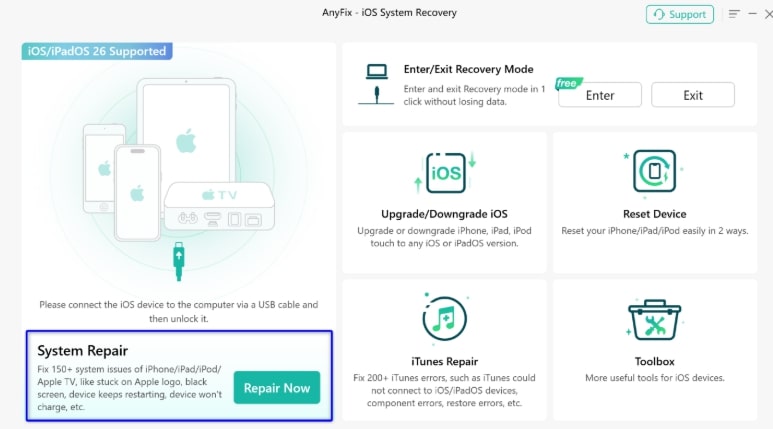
Step 3. You will be shown three repair modes — Standard, Advanced, and Ultimate. Pick Standard Repair because it handles most incidents of error 4013 without erasing data.

Step 4. Check if the gadget appearing on the display is your own, and after that point hit Download to acquire the recent iOS firmware bundle. Keep the download going patiently and don’t stop your network until the whole download is done.
Step 5. Click the button Start Standard Repair to launch the fixing process after the firmware has been downloaded. Do not disconnect or use your iPhone until it restarts automatically.
Step 6. A “Repair Completed” screen will be displayed after the repair is done.

Your iPhone should be able to reboot now without error 4013. Unplug your device and carry on with your work as normal.
Method 5. Update iTunes to the latest version
iPhone error 4013 is very often the consequence of an out-of-date iTunes or Finder program. The main cause of the problem may be the incompatibility and connection difficulties when the device is being updated or restored.
Step 1. Launch iTunes on your computer.
Step 2. On Windows, click on Help. Choose Check for Updates. On Mac, go to the App Store and click Updates.
If there is an update, follow the prompts to install it.
Method 6. Check the operating system
Incorrectly functioning or outdated computer operating systems may also cause iTunes or Finder files service communication error 4013, which cannot establish a proper connection.
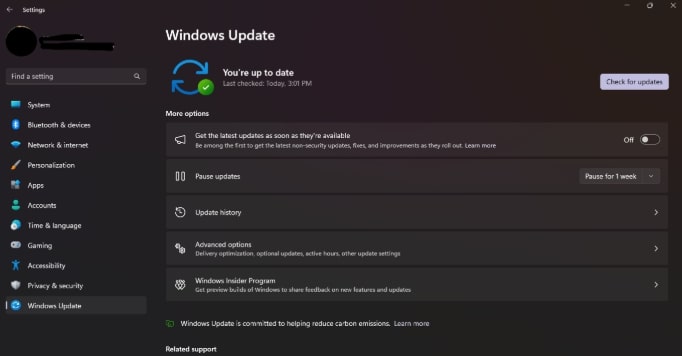
Step 1. On Windows, navigate to Settings > Windows Update, then click Check for updates.
Step 2. On Mac, go to Apple menu > System Settings > General > Software Update.
Method 7. Update iOS in recovery mode
When your iPhone doesn’t respond and you can’t restore it in the usual way, you may think of an iOS upgrade in Recovery Mode to fix error 4013.
Step 1. Connect your iPhone to your PC with a USB cable that is original and not a fake one.
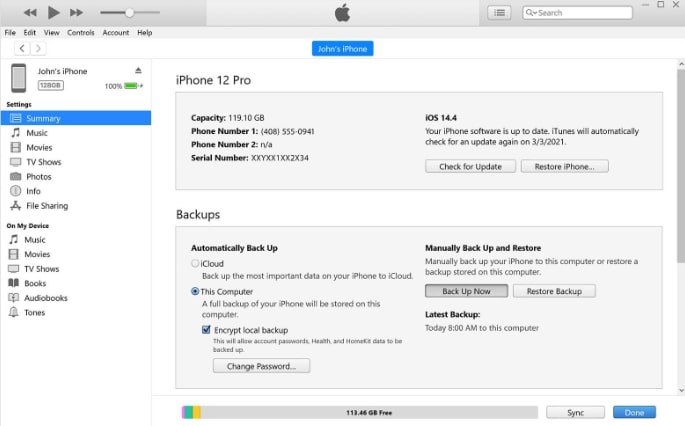
Step 2. Open iTunes. Put the device into Recovery Mode. Click on Check for Update to install iOS again in a fresh manner, but without data loss.
Method 8. Restore on another computer
As a matter of fact, the trouble may not be with your iPhone but with the computer. Therefore, a restore on another device will allow you to know if your computer is the one that has a problem.
Step 1. Remove the iPhone from the present computer.
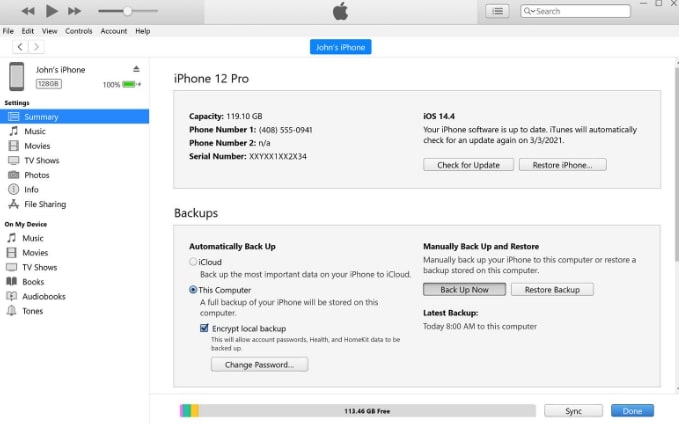
Step 2. Get it connected to a different PC with the latest version of iTunes or Finder installed.
Step 3. Put the phone in Recovery Mode and tap Restore iPhone when asked.
Method 9. Check the Hardware
If error 4013 on an iPhone is not fixed by software solutions, it may be hardware-related. The replacement of the cable, the fixing of the connector, or the repair of the logic board might be the cause of the failure to establish communication during the iPhone restoration.
Method 10. Use DFU mode
In case of failure of all other approaches, DFU mode (Device Firmware Update) is the option that remains with you.
Step 1. Make sure the iPhone is connected to the computer with an original USB cable.
Step 2. Start iTunes or Finder. Quickly press and release the Volume Up, then Volume Down. Hold the Power button for a few seconds.
Step 3. Once your iPhone enters DFU mode, iTunes or Finder will notify you.
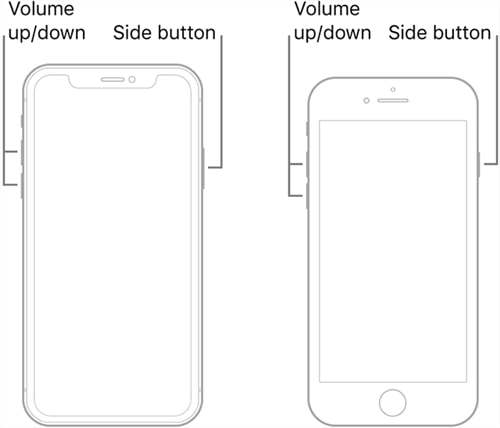
Select Restore iPhone to do a fresh install of the firmware.
Part 3. FAQs
Q1. Can water damage cause error 4013?
Yes, water damage can cause an iPhone error 4013 in some instances. If the internal circuits are contaminated with moisture, the device will malfunction.
Q2. How do you fix an iPhone that cannot be restored?
If it is impossible to restore your iPhone, you will need to try recovery mode or DFU mode for a new iOS installation.
Part 4. Conclusion
An iPhone error 4013 may look frightening, but it can generally be fixed just by applying the proper method. The fixes are usually at home and include actions such as checking cables, updating iTunes, or restoring in recovery mode. But, if you have tested everything and the trouble still exists, a professional-level tool, such as AnyFix – iOS System Recovery, can help you out. AnyFix is a great tool that can fix more than 150 different iOS system issues, such as iPhone error 4013, failure to update, and the device being stuck in recovery mode.
Free Download * 100% Clean & Safe



Joy Taylor is a seasoned technical writer with over a decade of experience in mobile technology. At iMobie, she specializes in producing in-depth content on iOS data recovery, iPhone unlocking solutions, and iOS troubleshooting.
Product-related questions? Contact Our Support Team to Get Quick Solution >
