Fix iOS App Store Not Working: Tested Solutions
The passage describes an iPhone 16 Pro Max on iOS 27 experiencing post-update issues where the App Store becomes unresponsive, apps get stuck in “download pending,” and it outlines a planned step-by-step troubleshooting guide to restore normal system functionality.
Facing a locked device when you need it most can be a significant obstacle. I recently replicated a highly frustrating scenario on an iPhone 16 Pro Max running iOS 27 to understand exactly what users are going through. Immediately after the system update, the device felt like an expensive paperweight. The App Store was completely unresponsive. It would get stuck on a loading screen, search functions returned zero results, and newly downloaded apps were frozen in a perpetual “download pending” state.
If you are experiencing this exact post-update lockout, I understand your anxiety. A smartphone without access to its application hub is barely functional.
In this guide, we are going to walk through verified, step-by-step procedures to resolve these exact iOS 27 connection errors. We will start with the easiest, most overlooked diagnostics and move down to deeper system fixes, ensuring your device gets fully operational again without unnecessary stress.
Step 1: Check Apple System Status First
Experts agree on one golden rule of troubleshooting: always check the source before dismantling your own device’s settings. When your App Store refuses to load or process downloads, the problem might not be your phone or your Wi-Fi at all.
Occasionally, Apple’s own servers go offline for maintenance or experience an unexpected outage. If there is a documented Apple services outage, no amount of device restarting or network tweaking will grant you access.
- Before doing anything else, follow these steps:
- Open Safari or another web browser on your device.
- Search for the Apple System Status page (or navigate directly to Apple’s official support site).
- Look for the App Store and Apple ID entries on the list.
- If you see a green circle next to these services, Apple’s servers are fully operational, meaning the issue is localized to your specific device or network.
- If you see a yellow or red indicator, the servers are down. You simply need to wait for Apple to resolve the issue on their end.
Step 2: Re-authenticate Apple ID and Reset Network Settings
If the Apple servers are green, the most common culprits for download failures are local network configuration errors and Apple ID authentication glitches. Often, an iCloud authentication error or a silent login failure blocks access to the store behind the scenes.
By securely signing out of your Apple ID and performing a network reset, you force your iPhone to completely rebuild its connection to Apple’s servers.
How to Sign Out and Sign Back In to Apple ID on iOS 27
To force the system to re-authenticate your credentials, follow these exact steps:
1. Open the Settings app on your iPhone.
2. Tap your name (the Apple ID banner) at the very top of the screen.
3. Scroll down to the absolute bottom of this menu and tap Sign Out.
4. You will be prompted to enter your Apple ID password to disable Find My iPhone. This is a standard iOS 27 security requirement. Enter your password and tap Turn Off in the top right corner.
5. The system will ask if you want to keep a copy of your data (like Contacts or Keychain) locally on the phone. Toggle the switches for the data you wish to keep, then confirm by tapping Sign Out again in the top right.
6. Once signed out, restart your iPhone.
7. After the phone reboots, open Settings, tap Sign in to your iPhone at the top, and enter your credentials to log back in.
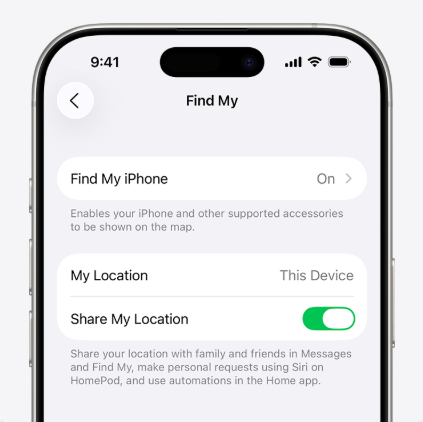
How to Reset Network Settings
Next, clear out any corrupted background data that might be stalling your app downloads.
This process clears out outdated Wi-Fi data, Bluetooth connections, and VPN configurations. You will need to re-enter your Wi-Fi password after the device restarts, so ensure you have it handy.
1. Open the Settings app.
2. Tap on General, then scroll down to the bottom and select Transfer or Reset iPhone.
3. Tap Reset at the bottom of the screen.
4. From the pop-up menu, select Reset Network Settings.
5. Enter your device passcode to confirm.
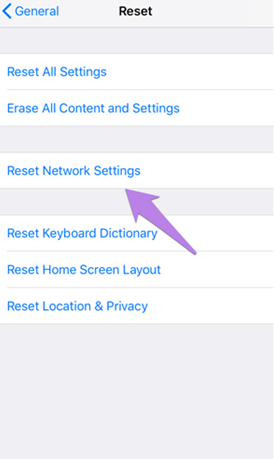
After executing both of these procedures, open the App Store. In my hands-on testing, this specific combination of re-authenticating the Apple ID and resetting the network restored full functionality in the vast majority of cases.
Step 3: Advanced Manual Techniques for Persistent Loading Errors
If your screen continues to display a loading icon endlessly, standard restarts might not be enough. In these scenarios, applying advanced manual tactics is necessary to restore proper communication.
The App Store Forced Cache Reset
On modern devices running iOS 27, a corrupted temporary cache can prevent pages from loading. You can perform a forced cache refresh using a simple hardware trick.
1. Open the App Store.
2. Rapidly tap any of the bottom navigation tabs (such as Today, Games, or Apps) 10 consecutive times.
3. The screen will briefly flash blank, indicating that the cache has been successfully dumped and rebuilt. Try searching for an app again.
Fix Date and Time Synchronization
Apple’s secure servers require precise time synchronization to establish a secure connection. If your phone’s internal clock is off by even a few minutes, it will immediately halt secure server handshakes, leaving the store stuck loading.
1. Navigate to Settings > General > Date & Time.
2. Ensure the Set Automatically switch is toggled to the green “On” position.
3. If it was already on, toggle it off, wait ten seconds, and toggle it back on to force a re-sync with Apple’s time servers.
Configure a Custom DNS
If your local Wi-Fi router is assigning a poor Domain Name System (DNS) server, it can leave an app download queue completely stuck. Changing your Wi-Fi settings to use a highly reliable public DNS is a proven method to bypass localized network blockages.
1. Go to Settings > Wi-Fi and tap the blue i icon next to your currently connected network.
2. Scroll down to the bottom and tap Configure DNS.
3. Change the setting from Automatic to Manual.
4. Tap the red minus icon to delete the existing DNS servers.
5. Tap Add Server and type in a trusted public server, such as Google (8.8.8.8 and 8.8.4.4) or Cloudflare (1.1.1.1 and 1.0.0.1).
6. Tap Save in the top right corner, then retry your pending app downloads.
Step 4: The Last Resort: Repairing iOS 27 Software Conflicts
It is critical to distinguish between a simple background refresh restriction and a deep software update conflict. If you have verified that Apple’s servers are online, signed out of your Apple ID, reset your network, and changed your DNS—yet your App Store is still a blank screen—you are likely dealing with OS-level corruption.
When core iOS files become corrupted during a recent over-the-air installation patch (like moving to iOS 27), it creates structural barriers. This explains why simple reboots or basic network resets frequently fail to cure persistent issues. When operating system files are damaged, the device requires a procedure that can rewrite and repair the underlying code.
If you have reached this point and prefer not to perform a complete factory wipe (which results in data loss) or pay for a costly visit to a repair shop, an automated system repair tool is your next best option.
Resolving Underlying Code with AnyFix
AnyFix is a specialized, premium software tool designed to resolve underlying software errors automatically. While it is a paid program, it is specifically built for users dealing with complex update conflicts who wish to avoid the risks of manual factory restores.
To address the fear of data loss, AnyFix features a “Standard Repair” mode that resolves underlying iOS system conflicts without erasing your photos, messages, or local files.

AnyFix – Your iOS System Repair Expert
With AnyFix, you can enjoy a one-stop solution to fix various iOS, iPadOS, tvOS, and iTunes issues within minutes, restoring your Apple device to normal without any data loss.
The process requires minimal technical skill:
1. Download and install AnyFix on your Mac or PC. Select System Repair from the main dashboard.
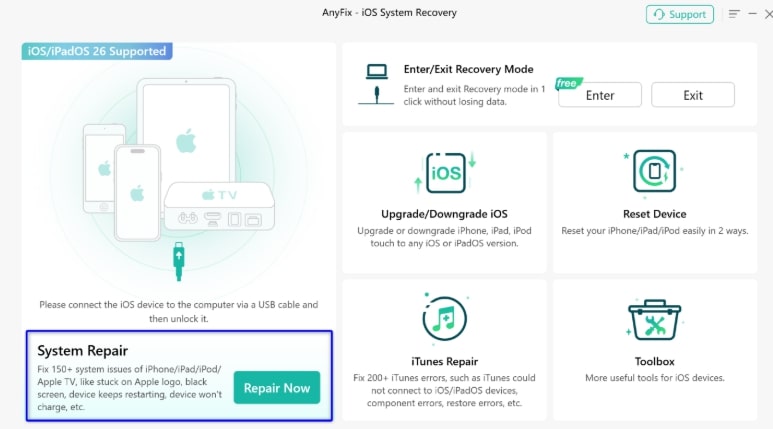
2. Choose Standard Repair (to preserve your local data).
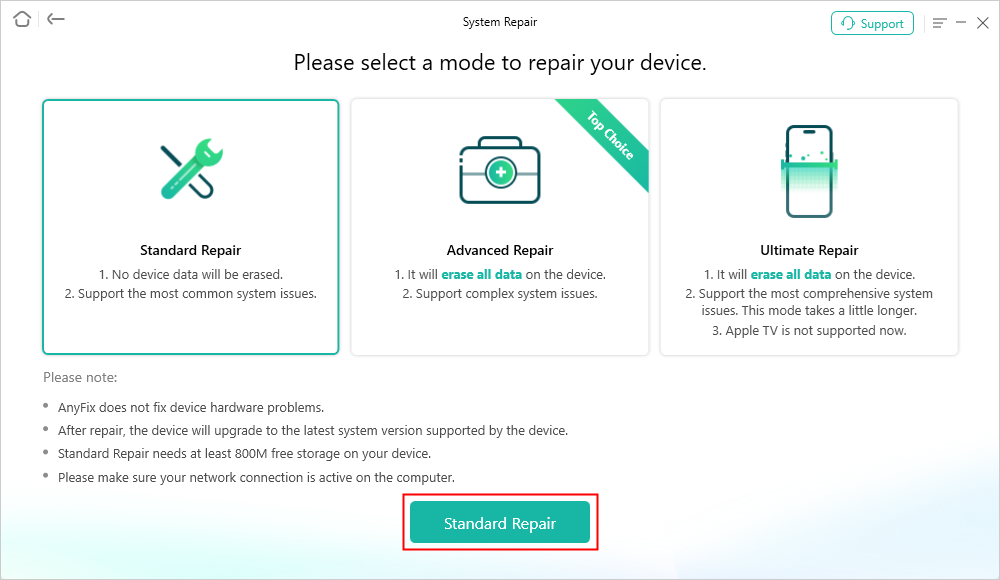
3. Follow the on-screen prompts to allow the software to download the correct, uncorrupted iOS 27 firmware and patch the damaged files on your device.
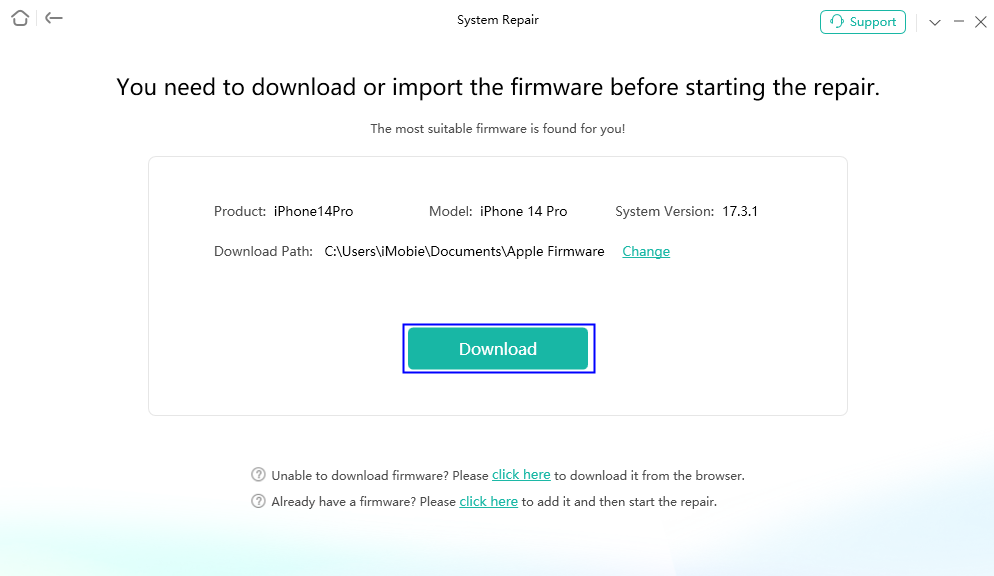
4. When the firmware package has been downloaded successfully, please click Start Standard Repair button.
By diagnosing and repairing the core operating system framework directly, this tool bypasses the need to wait for official patch updates from Apple. It should be considered your strongest last resort when all manual troubleshooting avenues have been exhausted.
Frequently Asked Questions
When dealing with a frustrating connection block, users frequently have specific questions about symptoms and solutions. Here are the most common inquiries to help you finalize your troubleshooting process.
Why is my iOS App Store not working after an update?
The root cause can range from a minor network connectivity issue to a severe software update conflict. Newly released system updates, like iOS 27, can occasionally trigger bugs due to unexpected software conflicts during the installation process.
Is the App Store down or is it my device problem?
Always check Apple’s official System Status webpage first. If the page reports an outage with a yellow or red icon, you simply need to wait for Apple to resolve it. If the status is green, the issue is localized to your specific device or Wi-Fi network.
How do I fix App Store loading issues on my iPhone?
If you cannot download applications or load pages, experts recommend first resetting your network settings and re-authenticating your Apple ID by signing out and back in. If the loading icon persists, applying a forced cache reset often removes the blockage.
Regain Control of Your Device Today
Experiencing unresponsive applications abruptly halts your mobile experience. Whether you face a broken search function, apps stuck in a download pending state, or a store that refuses to open after an iOS 27 update, these structural bugs demand precise methods.
By starting with Apple’s System Status page, manually re-authenticating your Apple ID, and correcting your DNS settings, you can resolve the vast majority of loading issues independently. If you remain completely locked out after applying these manual resets, utilizing a dedicated system repair tool provides a secure, immediate solution. Do not let persistent software errors disrupt your workflow—follow these steps to safely restore your full mobile functionality today.
AnyFix – Your iOS System Repair Expert
With AnyFix, you can enjoy a one-stop solution to fix various iOS, iPadOS, tvOS, and iTunes issues within minutes, restoring your Apple device to normal without any data loss.
Free Download for all windows & 100% safe
Free Download for all mac & 100% safe
Free Download 100% Clean & Safe



Wanda Norris is a junior author in iMobie specializing in iOS tips and solutions. She keeps a close eye on every iOS update to provide practical, easy-to-understand guides that help users solve problems and master their Apple devices.
Product-related questions? Contact Our Support Team to Get Quick Solution >
