How to Fix iPhone Back Tap Not Working 2025
If your iPhone Back Tap does not work, first check if your device supports this feature. Then make sure Back Tap is turned on in settings. Restart the phone if the problem continues. Finally, update iOS or use AnyFix to repair all system issues in minutes and restore Back Tap to its normal function.
Back Tap on iPhone makes it effortless to perform quick actions. You can take screenshots or open apps – all with a double or triple-tap on the back of your device. But sometimes, this feature doesn’t respond to the touch. And if you’ve been using it regularly to perform tasks, this can be frustrating. But don’t worry. This guide explains the reasons behind the iPhone Back Tap not working issue and how to fix it using 7 effective ways.
Also read: How to fix iPhone screen not responding to touch
Why is iPhone Back Tap Not Working?
The main reason why back tap isn’t working is that your device simply cannot sense your fingers tapping. Here are more specific reasons behind it:
- Incompatible Device: Your device does not support the Back Tap feature.
- Thick Case: Your iPhone’s case is too rugged to allow the phone to sense your taps.
- Improper Settings: BackTap is either turned off or you’ve configured incorrect settings.
- Software Issues: Random bugs with your device system are blocking the Back Tap function.
- Outdated iOS: Your phone has a pending iOS update you haven’t installed yet.
How to Fix iPhone Back Tap Not Working
Below, we’ve listed the most helpful solutions to help you restore BackTap. Go through each to find the one that works for you.
Method 1. Check iPhone Compatibility
The first thing to do is to make sure your device supports the Back Tap feature. The function was introduced with iOS 14. While iOS 14 is available on iPhone 6s and later, be aware that only devices from iPhone 8 and later can use Back Tap. So, make sure your device fits these criteria for this function to work.
Method 2. Remove iPhone Case
Your phone’s case can also cause the iPhone Back Tap not working issue. This is because BackTap uses gyroscope and accelerometer sensors. These help your phone recognize pressure or touch sensitivity. A thick or rugged case will block these signals.
To confirm it, remove your case. Then, test the feature again. If it’s working, switch to a thinner case or discard it altogether to resolve the issue.
Method 3. Confirm Back Tap Settings
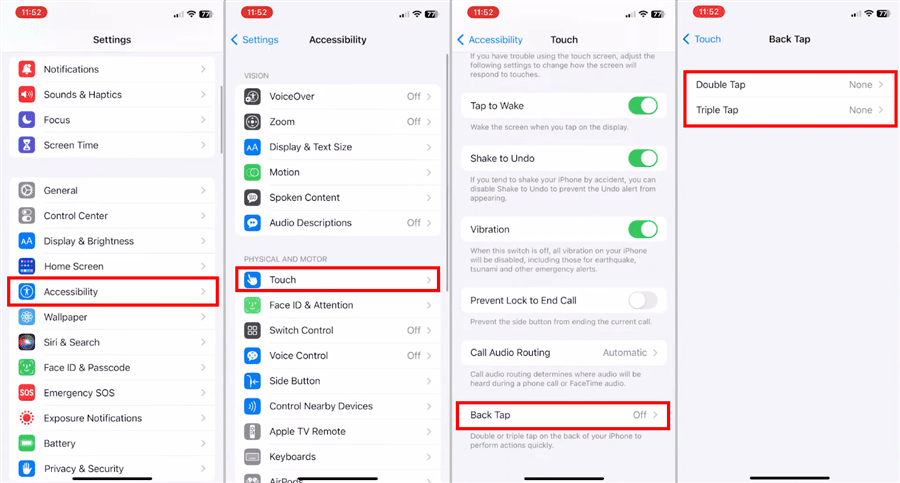
The next thing you can do is to make sure the back tap feature is turned on in settings. If it is already active, switch it off once. Then turn it on again to refresh the function. This will help remove any glitches interfering with back tap. Here are the steps:
- Open the Settings app. Then, select the “Accessibility” option.
- Select the “Touch” option. Then, tap “Back Tap.”
- Choose “Double Tap” or “Triple Tap.” Then set it to “None.”
- Close the Settings app. Go back to Accessibility > Touch > Back Tap.
- Tap on “Double Tap” or “Triple Tap” and set it to your desired action.
Method 4. Restart Your iPhone
Back Tap can also stop working due to random glitches with your device’s system. A restart can help fix the problem if there’s no complicated issue.
The steps vary for different iPhone models:
For iPhone 8 and SE (2nd/3rd gen):
Hold the Side button > Slide to power off > Press the Side button again.
For iPhone X or later:
Press and hold the Side + Volume buttons > Slide to power off > Hold the Side button to restart.
You may also like: iPhone force restart not working
Method 5. Reset All Settings
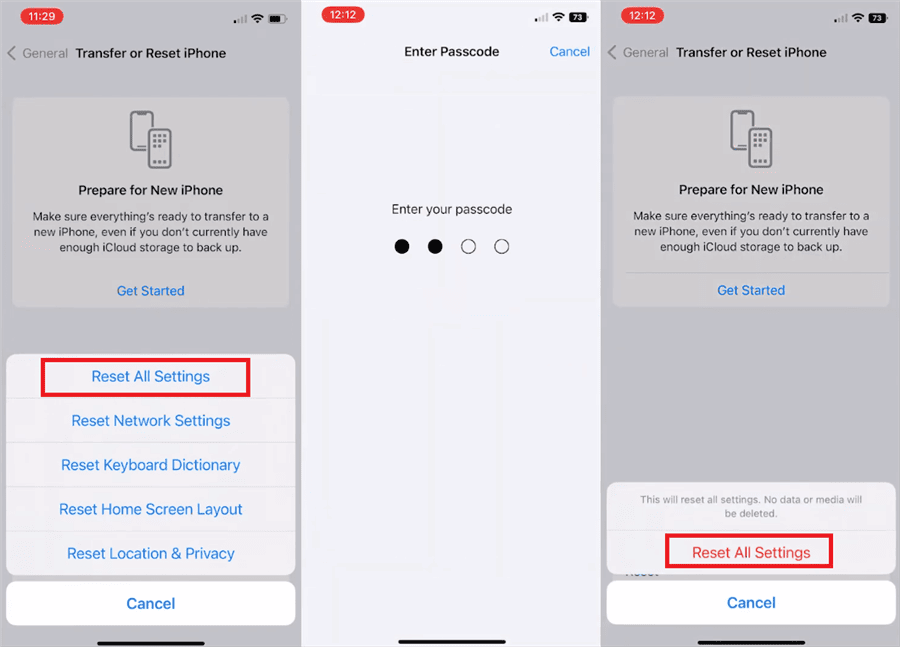
If the issue of iPhone Back Tap not working persists even after a restart, try resetting your device’s settings. This will restore all customized settings. But it will not affect your stored data.
- Go to “Settings” and tap “General.” Then, select “Transfer or Reset iPhone.”
- Tap “Reset” > “Reset All Settings.”
- Enter your passcode. Tap “Reset All Settings.”
Method 6. Update iOS Version
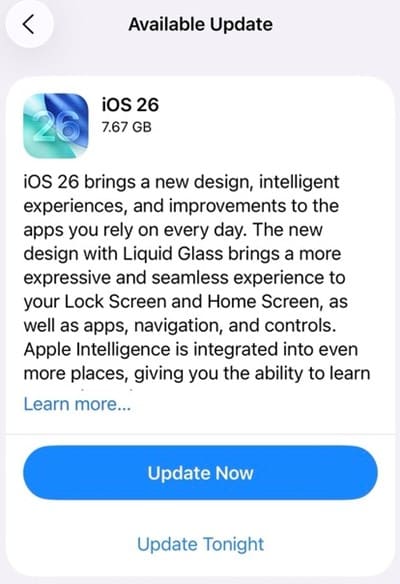
Sometimes the problem comes from outdated software. Older iOS versions contain bugs and cause compatibility issues. Newer updates can fix these bugs and improve your device’s performance.
To update your device:
- Open “Settings” and go to “General”. Then, select “Software Update.”
- Check if any updates are available. Then, press the “Download and Install” button.
Method 7. Fix iPhone System in AnyFix [iOS 26 Supported]
If the methods above do not work, there might be something wrong with your iPhone’s system. Finding the exact cause on your own takes time. In this case, you can use AnyFix to repair the problem. It is an iOS system repair tool that can fix common system issues without data loss. With 3 flexible repair modes from AnyFix, you can pick the right level based on the complexity of your problem.
AnyFix does more than fix Back Tap issues. It also resolves serious iTunes errors with ease. You can upgrade or downgrade iOS, reset a locked iPhone without a password, and more. It’s a complete toolkit to keep your device in the best condition.
Key Features of AnyFix:
- Fixes over 150 system issues in just minutes.
- 3 repair modes based on your needs: Standard, Advanced, Ultimate.
- Works for common issues and more complex problems with a high success rate.
- Also resolves over 200 complex iTunes errors without data loss.
- Repair issues in a few clicks without needing technical skills.
- Supports all iPhone models with iOS 12.3 or later (including iOS 26).
Download AnyFix now and fix iPhone back tap not working issue in just clicks!
Free Download * 100% Clean & Safe
Steps to Fix iPhone System With AnyFix:
Step 1. Open AnyFix and select the System Repair mode.
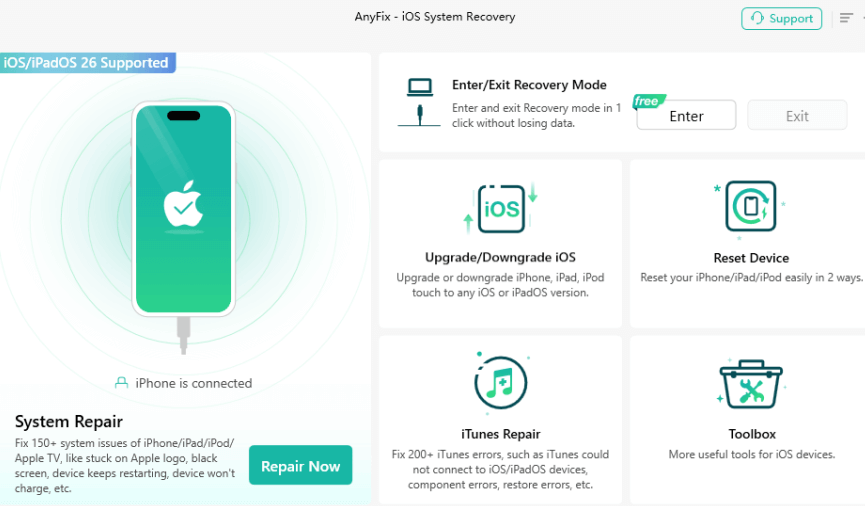
Step 2. Connect your device to your PC with a USB cable. Then choose Device Bug from the given list.
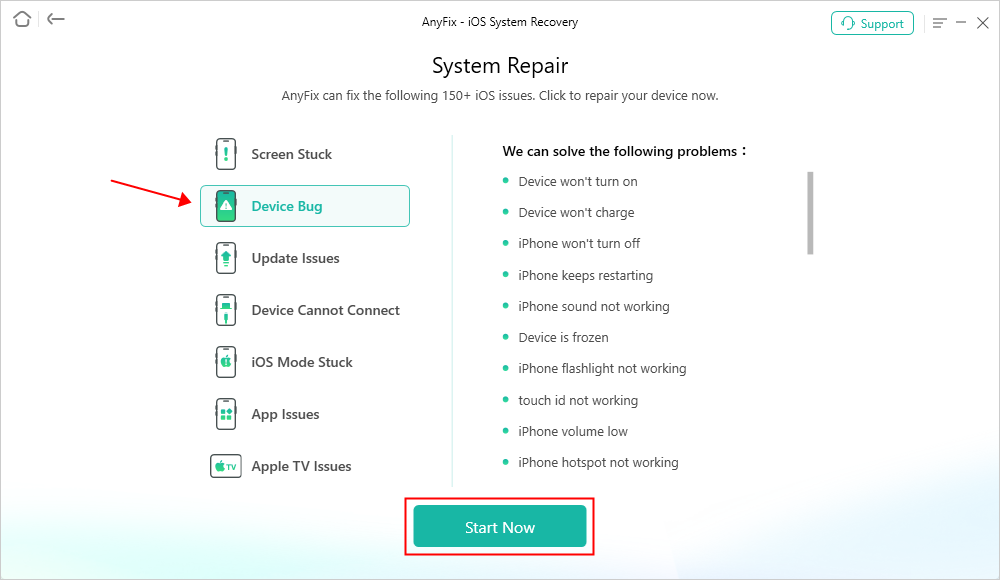
Step 3. Select Standard Repair mode, which won’t cause data loss.

Step 4. Follow the on-screen instructions to finish downloading firmware for your iPhone. Then, click Start Standard Repair to start the repair process.
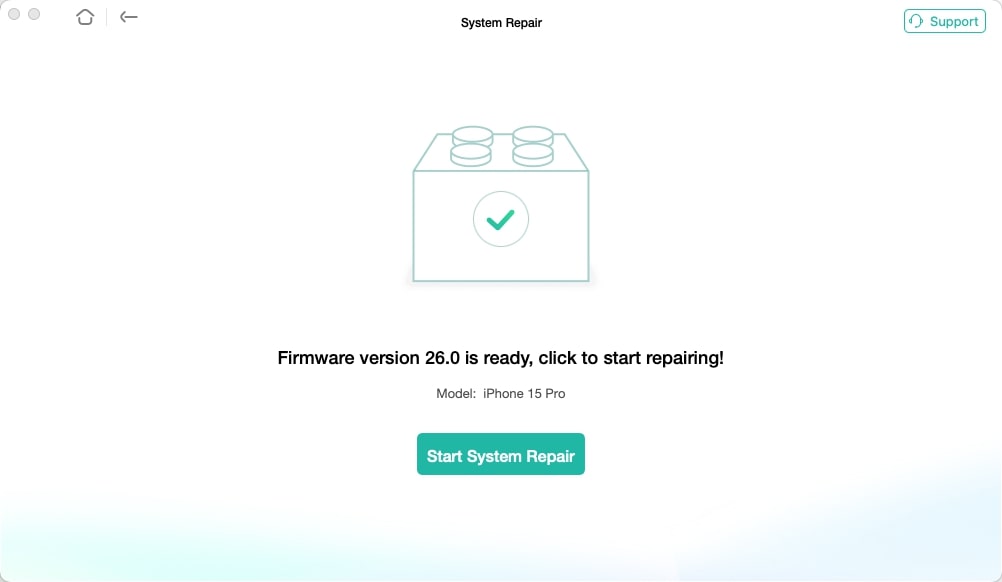
Step 5. AnyFix will repair any system issues on your device. Once done, your iPhone will update to the latest version and the back tap issue should have been fixed.

Conclusion
iPhone back tap not working is a common issue. But you can take simple steps like checking settings or removing the case to resolve it effectively. When there is a deeper system issue involved, AnyFix can help you tackle it quickly. It provides diverse repair modes, each with a high success rate. It also supports many iPhone models, including iOS 26. If you want to fix Back Tap issues without any lengthy steps and keep your device running flawlessly, download and try AnyFix today.
Free Download * 100% Clean & Safe



Joy Taylor is a seasoned technical writer with over a decade of experience in mobile technology. At iMobie, she specializes in producing in-depth content on iOS data recovery, iPhone unlocking solutions, and iOS troubleshooting.
Product-related questions? Contact Our Support Team to Get Quick Solution >
