iPhone Screen Black But Still Working? 6 Ways to Fix It
Is your iPhone screen black but on? This guide explains common causes: software glitches, power faults, and hardware damage, and gives step-by-step fixes: force restart, charge, repair iOS with AnyFix, use Recovery Mode or iTunes restore, and when to contact Apple Support for hardware repair and to get your iPhone back to normal functioning.
You pick up your iPhone and notice something strange — it’s still working.
Calls are coming in, notifications keep popping up, but the screen stays completely black.
This issue, commonly known as “iPhone screen black but still on,” can feel confusing because the phone itself is not actually turned off.
In most cases, the problem is caused by a temporary system crash, a display failure, or a power-related issue. The good news is that it can often be fixed without professional repair.
In this guide, you will learn what causes the black screen issue and step-by-step solutions to bring your iPhone display back to normal.
Why Does My iPhone Work But the Screen Is Black?
When your iPhone is still running but the screen is black, it usually means the system is active but the display is not responding properly.
This issue is typically linked to software glitches, power problems, or hardware failures.
1. Software or system glitches
A system crash can happen after an iOS update, app conflict, or unexpected restart.
In this case, your iPhone may still ring, vibrate, or receive notifications, but the display system becomes unresponsive due to a corrupted graphics or firmware process.
2. Battery or Power Problems
If your iPhone battery is extremely low or unstable, the screen may fail to turn on even though the device is still partially running.
Faulty charging cables or adapters can also prevent enough stable power from reaching the display system.
3. Display or hardware faults
Physical damage is another common reason.
A dropped iPhone may loosen the display connector or damage internal components such as the backlight or LCD/OLED panel, resulting in a completely black screen while the phone remains on.
4. Sensor or brightness issues
Sometimes the issue is not a failure, but a misconfiguration.
Auto-brightness errors or ambient light sensor issues can make the screen appear completely off, especially in dark environments.
How to Fix iPhone Screen Black But On
Below are the most effective methods to fix the iPhone black screen issue, starting from the simplest solutions.
Method 1. Force Restart Your iPhone
A force restart is often the fastest way to fix a black screen issue caused by temporary system glitches.
It forces your iPhone to shut down and restart the operating system without affecting your data.
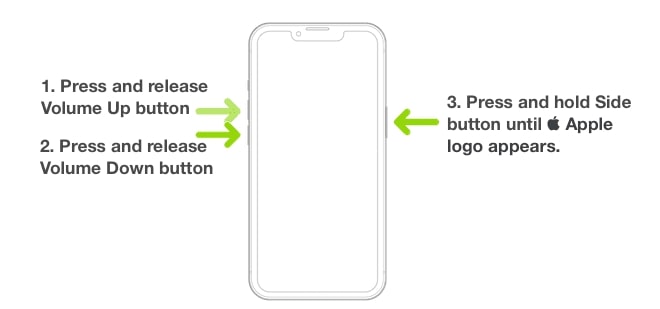
Here is how to restart iPhone 8 – 17 (Face ID models):
Step 1: Locate the “Volume Up button,” press and release it quickly.
Step 2: Next, find the “Volume Down button,” hit it with your finger, and quickly release it.
Step 3: Finally, you have to go for the “Side Button.” Put your finger on this button and apply pressure for 10 – 20 seconds. Remove the pressure once you spot the Apple logo.
These simple steps allow you to restart iPhone 7 / 7 Plus:
Step 1: You have to locate the “Volume Down button” and the “Side or Power button”.
Step 2: Using your fingers, click both buttons. Keep the pressure on them for ten or more seconds. Remove the pressure once you see the Apple logo on the screen.
Method 2. Charge the iPhone for a While
If your iPhone battery is completely drained, the display may not turn on immediately even though the device is still functioning.
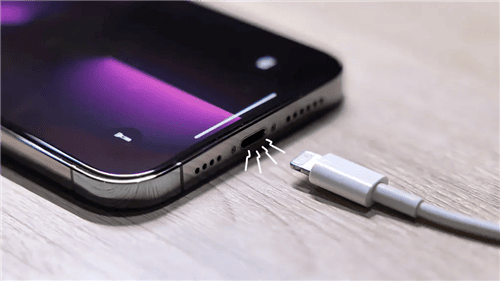
Charge your iPhone for at least 30–60 minutes using a certified Apple cable and adapter, then try turning it on again.
Method 3. Repair iOS with AnyFix
One possible way to fix iPhone black screen issues is by repairing the iOS system.
In some cases where the issue is caused by system-level errors such as corrupted files, failed updates, or boot failures, a computer-based iOS repair tool may help analyze and repair the operating system.
These types of tools work by connecting the iPhone to a computer and scanning for software issues that may affect system stability and the display process. Depending on the severity of the problem, they may attempt a standard repair that preserves user data such as photos and apps.
For deeper system corruption, a full firmware reinstall may be required to replace damaged system components with a fresh official version of iOS.
For example, tools like AnyFix can perform these types of system repairs on iOS devices through a guided desktop process. After the repair is completed, many users report that the display returns to normal and the device functions properly again.
AnyFix – Fix iPhone Black Screen Minutes
Download AnyFix to repair iPhone system-related issues. Save time on refreshing your iPhone and use it normally. Support the latest iPhone 17 and iOS 26.
Steps to Repair iOS with AnyFix:
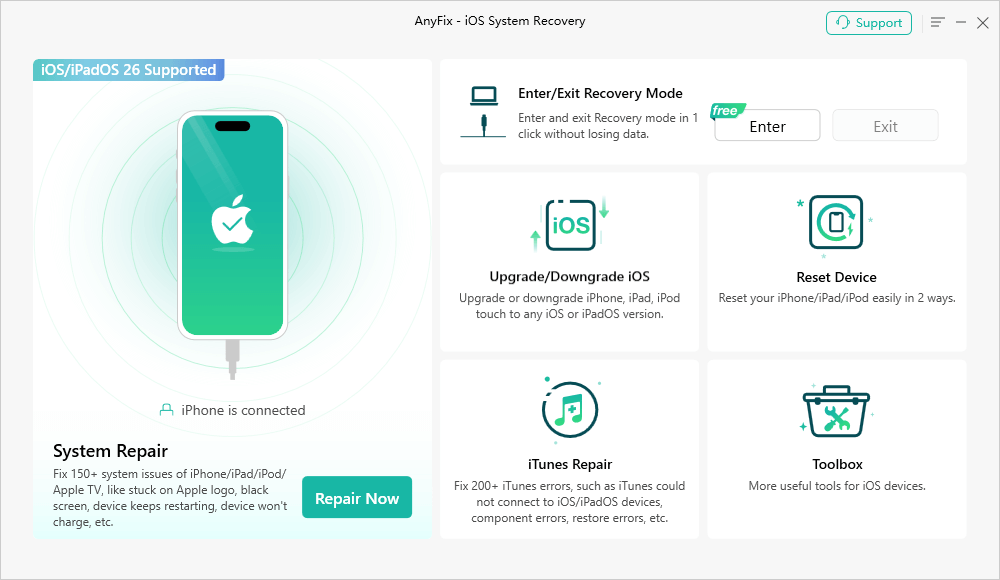
Step 1: Download and install AnyFix on your computer. Then launch the tool and select “System Repair” mode. Next, click the “Repair Now” button.
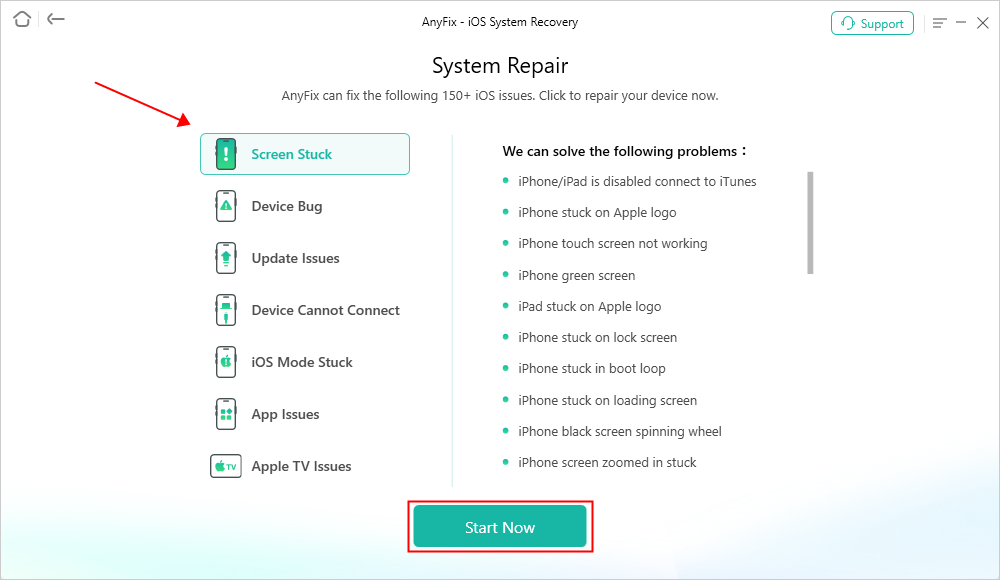
Step 2: Now, choose the “Screen Stuck” option and hit the “Start Now” button in order to bring this tool to function.
Step 3: In the next immediate screen, you will spot a new menu. From there, choose Standard Repair mode > Standard Repair.

Step 4: Click the Download button to download the Firmware package.
Step 5: Firmware package downloaded successfully. Next, click the Start Standard Repair button now.
Step 6: Wait for the repair process. Once completed, your iPhone will restart and work normally.

AnyFix cannot fix physical damage, such as a cracked backlight or a loose connector. But it repairs iOS issues efficiently and easily.
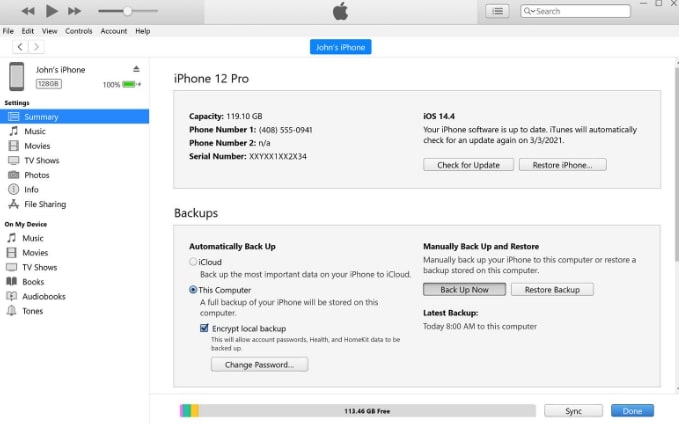
Method 4. Restore iPhone in iTunes/Finder
If the issue persists, restoring your iPhone can fix deeper system errors.
However, this method will erase all data on your device, so it should only be used after other solutions fail.
Step 1: First, connect your iPhone to your computer via USB or Wi-Fi.
Step 2: Open the iTunes app on your PC. Next, click the Device button near the top left of the iTunes window.
Step 4: Click Summary. Then, click Restore and follow the onscreen instructions.
Method 5. Contact Support
If none of the software solutions work, the issue is likely hardware-related.
In this case, you should contact Apple Support or an authorized repair provider to inspect internal components such as the display connector, backlight, or logic board.
FAQs About iPhone Screen Black But On
1. How to restart an iPhone without a touch screen?
If the screen is not responsive or dead, you can still restart an iPhone. Find the volume up button, press and release it quickly. Then perform the same action with the volume down button. Finally, press and keep holding the side button until you see the Apple logo.
2. Why does my iPhone screen go black but still receive calls?
This usually happens when the iOS system is running normally, but the display system has crashed or stopped responding.
3. Can a force restart fix a black screen?
Yes. In many cases, a force restart can resolve temporary system glitches that cause display failure.
4. Does restoring iPhone delete everything?
Yes. A full restore removes all data unless you have a backup saved in iCloud or a computer.
Conclusion
Your iPhone may be running even when the display is dark. This guide discussed common causes and simple fixes for an iPhone screen black but on. Try a force restart first. Charge the phone and check cables next. Repair software issues with tools like AnyFix when basic steps fail.
Use iPhone Recovery Mode or a Finder/iTunes restore if you need to restore your device. If there is a hardware issue, contact Apple Support or an authorized repair shop. Back up your data before major fixes. AnyFix often restores the screen without a complete erase. Download AnyFix to try a fast, guided repair on your computer.
Free Download * 100% Clean & Safe



Joy Taylor is a seasoned technical writer with over a decade of experience in mobile technology. At iMobie, she specializes in producing in-depth content on iOS data recovery, iPhone unlocking solutions, and iOS troubleshooting.
Product-related questions? Contact Our Support Team to Get Quick Solution >
