How to Fix iPhone WiFi Greyed Out on iOS 27 (100% Working)
I have an iPhone 14 Pro which I recently updated. My Wifi button has been greyed out for 3 days now and I have not been able to get it back.” —Apple Community (Note: While this classic glitch started on legacy systems, it has evolved into a persistent nightmare even for users who recently updated to iOS 27
You may be worried about not being able to connect to the Internet when you find that the Wi-Fi button on your iPhone turns gray. This “iPhone WiFi grayed out” problem often leaves users confused and helpless, especially when they need to connect to the Internet urgently.
In fact, as of early April 2024, a total of 5.44 billion people in the world use the Internet, equivalent to 67.1% of the world’s total population. This means that not being able to connect to Wi-Fi is not only a minor annoyance, but it may also affect your daily life and work. In this article, we will learn about the common reasons why iPhone WiFi grayed out and provide effective solutions to help you restore a normal WiFi connection as soon as possible.
Part 1. Why Is the WiFi Greyed Out on My iPhone?
Encountering the “iPhone WiFi Greyed Out” issue can be very frustrating. Here are some common reasons why you see WiFi Greyed Out on your iPhone:
- Hardware-level Chip Failure: Due to the extreme integration of modern iPhone architecture, the Wi-Fi module is no longer connected via a simple, detachable antenna. This issue typically occurs when physical impacts or prolonged thermal stress cause micro-solder joints to crack or disconnect within the sandwich-board (layered PCB) structure or the core RF micro-module.
- Software glitches and iOS errors: Conflicts or errors that may be caused by iOS updates or new app installations.
- Overheating issues: When the device overheats, the iPhone disables WiFi to prevent further heat generation.
- Corrupted network settings: This can also affect WiFi functionality.
- Interference from third-party apps: Conflicts caused by apps that require deep access to system settings, such as VPN or firewall apps.
- Satellite Connectivity & Radio Firmware Glitches: In the iOS 27 era, iPhones feature advanced direct-to-satellite capabilities. If the device frequently switches communication bands in extreme or weak-signal environments, a temporary firmware deadlock within the baseband or satellite module can inadvertently lock up the Wi-Fi/Bluetooth component, which shares the same underlying wireless subsystem.
These are the main reasons why WiFi Greyed Out on iPhone. Fixing these issues can help restore WiFi functionality. Below are general methods on how to fix “WiFi Greyed Out on iPhone”.
Part 2. How to Fix Greyed Out WiFi on iPhone
Now that you know why your iPhone’s wifi button is greyed out, here are some basic fixes you can follow.
1. Restart your iPhone
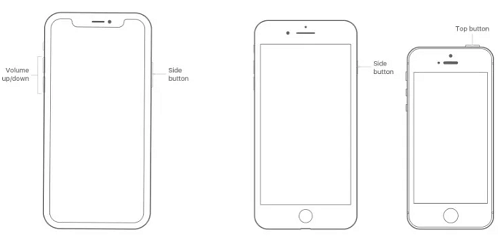
A simple restart can fix many minor software glitches. If you encounter a situation like iphone wifi greyed out, try restarting first. Here are the steps to restart your iPhone to fix grayed out wifi on iphone:
- Step 1: Press and hold the power button until the slider appears.
- Step 2: Drag the slider to turn off your iPhone.
- Step 3: Once the device is off, press and hold the power button again to turn it back on.
2. Check for iOS updates
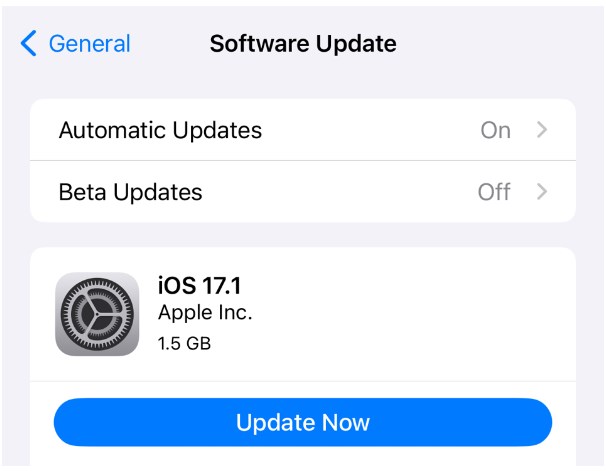
Sometimes, outdated iOS systems can conflict with your phone. Make sure your iPhone is running the latest version of iOS. Go to Settings > General > Software Update. Since your device operates in the modern iOS 27 ecosystem, ensure you also check for any Rapid Security Responses or emergency firmware patches tailored to the current architecture, and prioritize installing them.
3. Reset network settings
If none of the above methods fix the iphone wifi greyed out problem, consider resetting your network settings. Resetting network settings can fix corrupted settings that affect Wi-Fi.
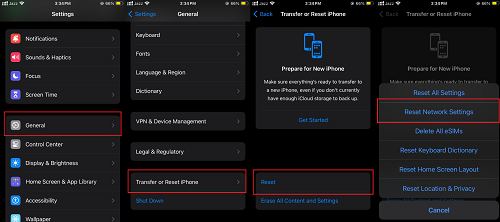
Here are the steps to reset network settings to fix iphone wifi greyed out:
Go to Settings > General > Transfer or Reset iPhone > Reset > Reset Network Settings. If prompted, enter your passcode and confirm the reset.
4. Turn off Airplane Mode
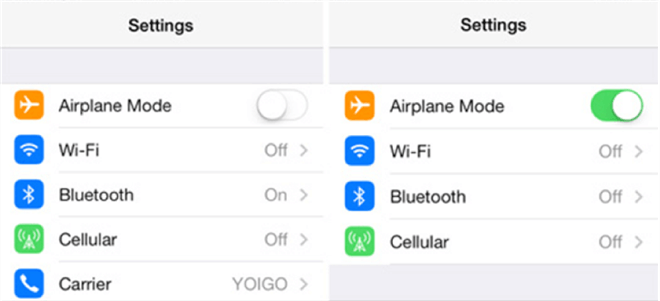
When you turn on Airplane Mode, your iPhone automatically turns off all wireless network connections, so when your iPhone’s Wi-Fi button turns gray, check if you forgot to turn off Airplane Mode. You need to swipe down from the top right corner of the screen to access the Control Center. Make sure the Airplane Mode icon is not highlighted.
5. Disable VPN
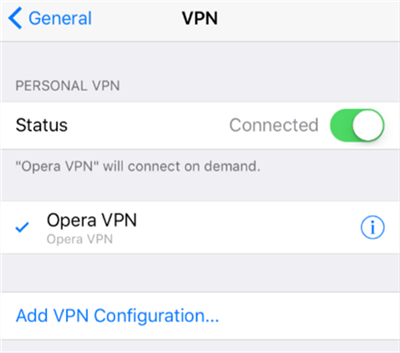
When you turn on certain VPN apps, it can cause your iPhone’s Wi-Fi button to turn gray, making it impossible to connect to any Wi-Fi network. This usually happens because the VPN app needs to access your device settings deeply, which may conflict with iOS’s network management system, causing the Wi-Fi function to not work properly.
Go to Settings > VPN and turn it off. Alternatively, open your VPN app and disconnect.
6. Forget WiFi Network
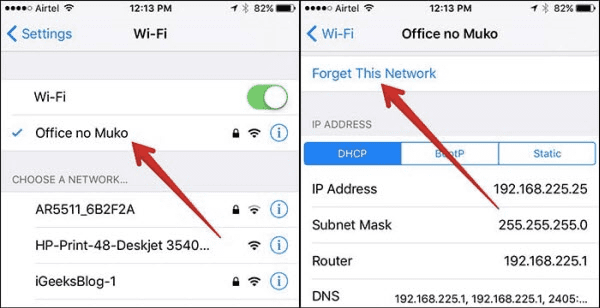
If the VPN is not the reason for the grayed-out Wi-Fi on your iPhone, you can try to forget and rejoin the Wi-Fi network. This method can sometimes solve connection problems.
7. Reset All Settings
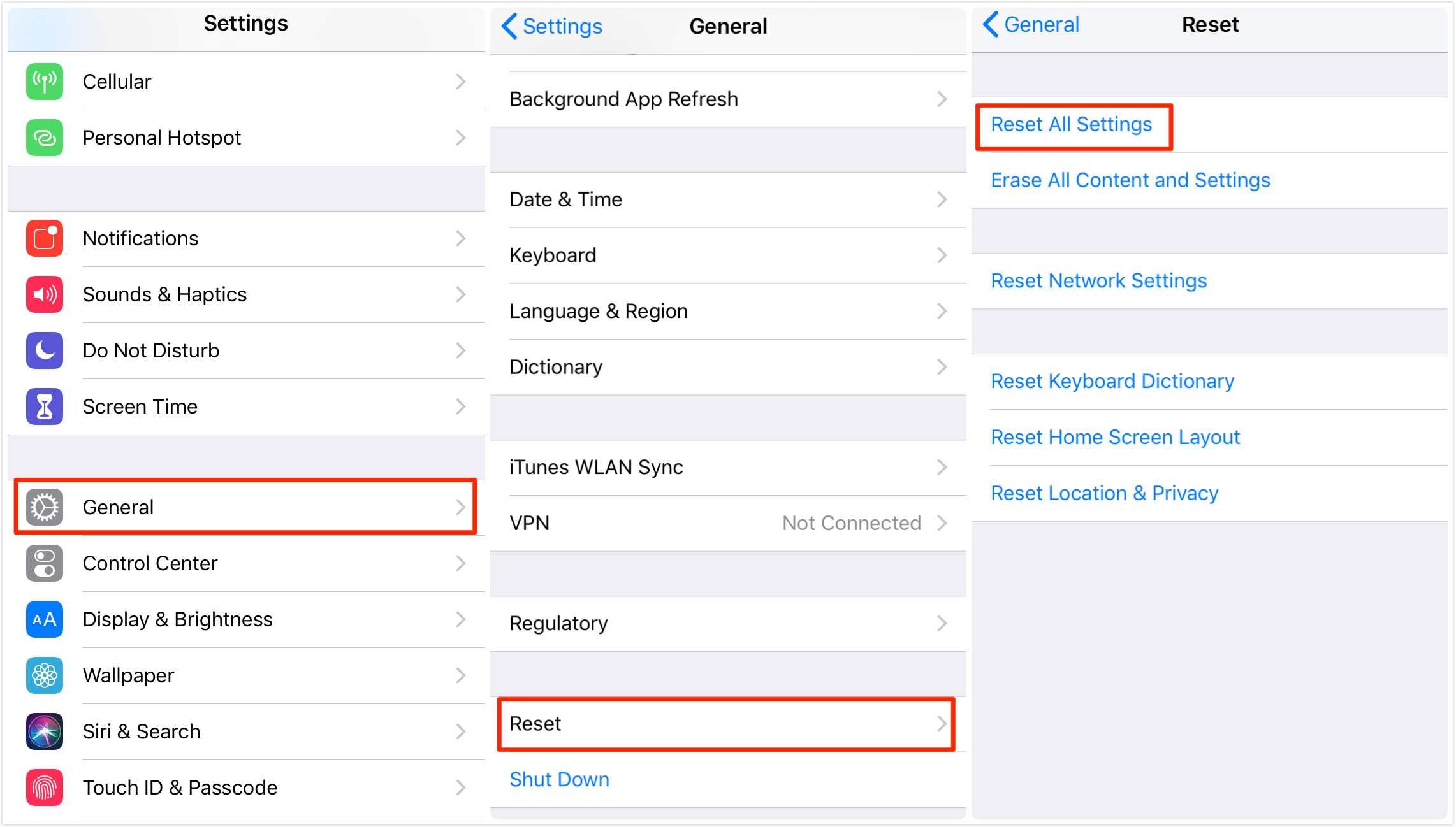
If other methods fail, resetting all settings may help. Go to Settings > General > Reset > Reset All Settings. This will reset all system settings but will not delete your data.
8. Cool down your iPhone
If your iPhone is overheating, it may disable Wi-Fi to prevent further heat generation. Turn off your iPhone and place it in a cool environment for a few minutes to let it cool down.
If none of the above methods fix the iPhone’s wifi turns gray problem, then you should consider an iOS system repair.
9. Check Advanced Security Protection & Lockdown Mode
Modern iOS security frameworks are highly sensitive to hardware integrity. If the system detects potential firmware tampering or a transient voltage anomaly in the network chip, it may trigger a security tripwire, actively disabling the Wi-Fi toggle to protect user data. Navigate to Settings > Privacy & Security to ensure Lockdown Mode or advanced hardware defenses haven’t put the wireless subsystem into a protective freeze. A hard force-restart is usually required to clear this state.
Part 3. How to Fix Greyed Out WiFi on iPhone [Verified]
While a greyed-out Wi-Fi toggle in the iOS 27 era can sometimes stem from deep-layer hardware solder cracks, a significant portion of cases are triggered by complex firmware deadlocks, baseband driver crashes, or security state freezes. Before rushing to an expensive repair shop, using a dedicated diagnostics and recovery tool like AnyFix is highly recommended as your essential first line of defense.
AnyFix serves as the ultimate “cross-verification” solution: it can completely refresh and rebuild your iOS network architecture and firmware layer without losing your data. If AnyFix fully repairs the system software but the button remains grey, you will have definitive proof of a hardware failure, saving you from wasted troubleshooting time.
Key Features:
- Repair your iPhone’s operating system to fix iPhone Wi-Fi grayed out
- Downgrade from the latest iOS version if needed.
- No data is lost during the standard repair process.
- Support the latest iPhone 16 and iOS 18.
Free Download * 100% Clean & Safe
The steps to fix iPhone wifi grayed out using AnyFIx are as follows:
Step 1. Free download AnyFix on your computer. From the home page window, select System Repair.
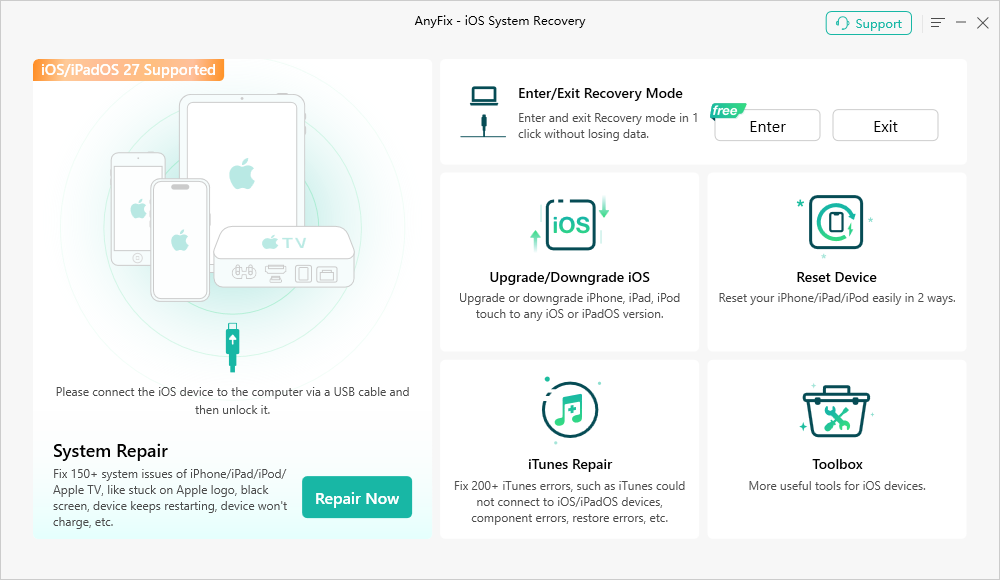
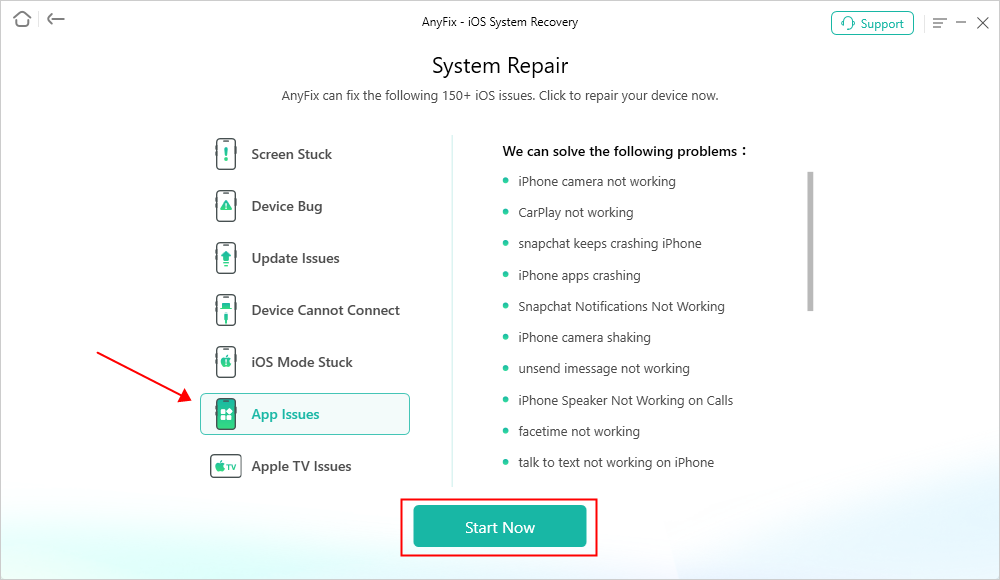
Step 2. Connect the iPhone to your computer and select the App Issues from the program window. Then click on the Start Now button to proceed.
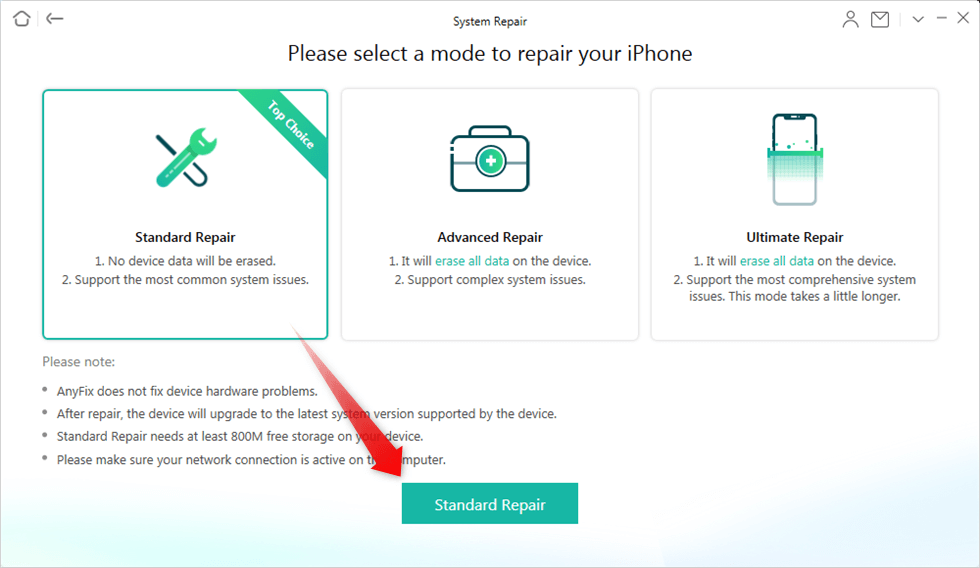
Step 3. Choose the Standard Repair option from the program window.
Step 4. Confirm the device information and click on the Download button to download the device firmware package.
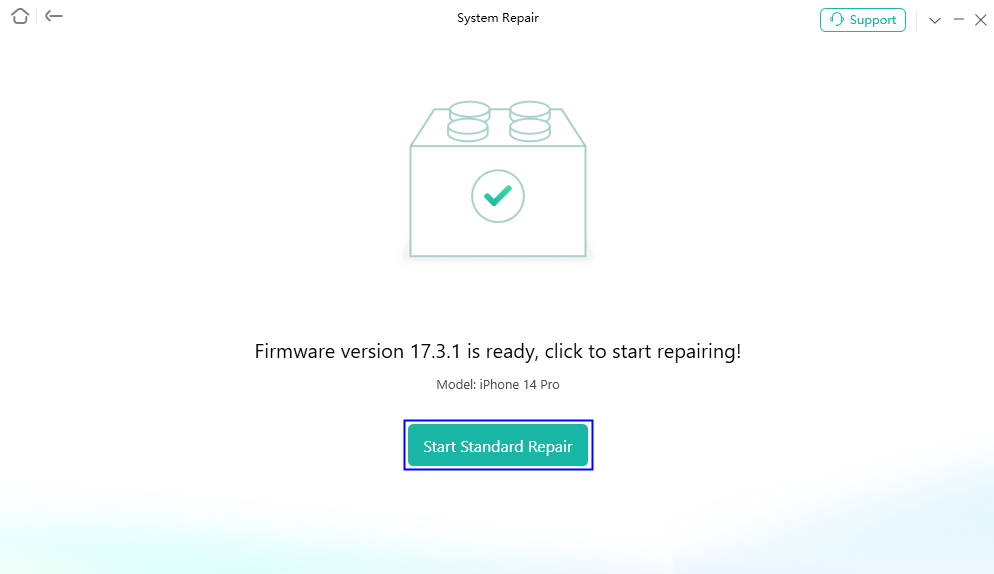
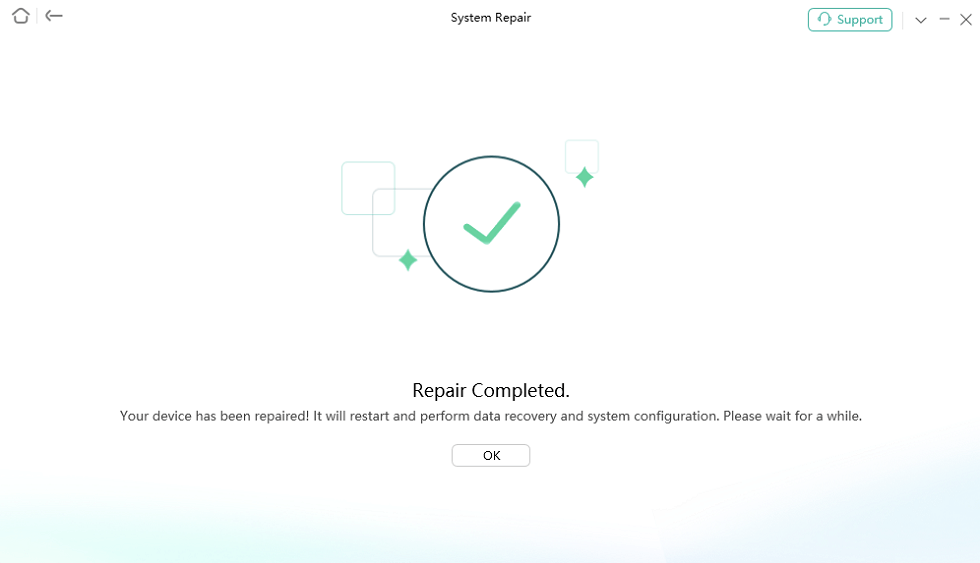
Step 5. Click on the Start Standard Repair button to start the repair process. Wait till the process finishes and make sure that the device stays connected to your computer.
Faq about iPhone WiFi Greyed out
1.Why can’t I turn off Wi-Fi assist on my iPhone?
Wi-Fi Assist is a feature designed to automatically switch to cellular data when Wi-Fi connectivity is poor. It cannot be turned off in some older iOS versions due to software limitations.
2.Why is my iPhones Wi-Fi disabled?
Your iPhone’s Wi-Fi might be disabled due to Airplane Mode being turned on, software glitches, or hardware issues.
3.How do I stop my iPhone from enabling Wi-Fi?
To prevent your iPhone from automatically joining Wi-Fi networks:
- Open Settings > Wi-Fi.
- Disable Ask to Join Networks.
- Forget unwanted networks by tapping the (i) next to their names and selecting Forget This Network. This prevents automatic connections and prompts before joining new networks.
Final Thought
Solving the problem of grey WiFi on your iPhone is crucial. By following the solutions above, such as resetting network settings, updating iOS, etc., you can usually resolve the problem.
For a more comprehensive and user-friendly solution, consider using AnyFix. AnyFix is a professional iOS system repair tool that can fix persistent WiFi issues. Its intuitive interface and powerful features make it an invaluable tool for effectively resolving iPhone Wi-Fi issues.
Free Download * 100% Clean & Safe



Joy Taylor is a seasoned technical writer with over a decade of experience in mobile technology. At iMobie, she specializes in producing in-depth content on iOS data recovery, iPhone unlocking solutions, and iOS troubleshooting.
Product-related questions? Contact Our Support Team to Get Quick Solution >
