iOS 26 Spatial Scene: Create Your 3D Wallpaper
This article introduces iOS 26 spatial scene concept, main features, supported devices, and how to create spatial content with a stepwise guide. Moreover, you can learn how to fix iOS 26 spatial scene not working issues with effective methods.
Apple’s latest iOS 26 has just rolled out worldwide, bringing a suite of impressive AI-driven enhancements, redesigned widgets, and powerful privacy updates. While the entire OS is a significant leap forward, one feature has been hotly discussed since iOS 26 beta: Spatial Scene. This revolutionary framework allows you to break the flat confines of your screen, transforming your personal photos and videos into 3D wallpapers on iOS 26 that react to your every move.
Most users failed to enjoy this feature due to device incompatibility. In this comprehensive guide, we’ll dive deep into what Spatial Scene is, how you can create 3D wallpapers on iOS 26, and what to do if you run into any issues.
What is iOS 26 Spatial Scene?
Generally speaking, iOS 26 Spatial Scene is an advanced software framework that uses on-device artificial intelligence and computational photography to convert a standard 2D photo or a spatial video into a fully interactive 3D environment for your iPhone’s lock screen and home screen.
With iOS 26 spatial scene, your wallpaper gains real depth. Every time you tilt your phone, you can peer around the subject of your photo, see the layers of the background shift, and experience a sense of presence that was previously impossible.
Spatial Scene Working Principles
The principle of spatial scene is understanding the layout and volume of the environment. This involves processing visual cues like occlusion (one object blocking another), relative size (closer objects appear larger), and perspective (parallel lines converging in the distance) to build a mental model of the scene. Our brains use these cues to perceive depth, navigate, and interact with our surroundings, distinguishing between foreground, mid-ground, and background elements to comprehend the overall structure.
Main Features of iOS 26 Spatial Scene
Spatial Scene is more than just a parallax effect. It’s powered by a sophisticated set of technologies built into the A-series Bionic chips.
- Advanced 2D-to-3D Conversion: Using a powerful new Neural Engine algorithm, iOS 26 can analyze a standard 2D photograph, identify the subject and background layers, and intelligently generate a 3D depth map to create the scene.
- Interactive Gyroscopic Viewing: The scene responds dynamically to your iPhone’s gyroscope and accelerometer. Tilt your phone up, down, left, or right to change your perspective and look around the objects in your photo.
- Dynamic Lighting and Environmental Effects: You can add studio-quality lighting effects that interact with the depth of your photo. Even more impressively, you can add environmental effects like falling snow or gentle rain that will realistically fall behind the main subject and in front of the background, enhancing the sense of immersion.
- Native Spatial Video Integration: If you have an iPhone 15 Pro or newer, you can use the Spatial Videos you record as the source for your scene. This provides an even more realistic and high-fidelity 3D experience, as the scene is built from two distinct camera perspectives.
- Customizable Focus Points: Just like in Cinematic mode, you can tap on different parts of your scene to shift the focus and depth of field, allowing you to highlight different elements of your memory at any time.
Understanding what iOS 26 spatial scene is, you may wonder what the differences are between spatial scene and dynamic scene. Simply check the following comparison table and learn how this feature improves your iPhone performance.
Spatial Scene VS Dynamic Scene
Before Spatial Scene, the most advanced wallpaper option on iOS was the “Dynamic Wallpaper,” introduced back in iOS 7. While the names sound similar, the technologies are worlds apart. Dynamic Scenes were simple, pre-made animations, whereas Spatial Scenes are interactive, user-generated 3D environments.
Here is a clear breakdown of the main differences:
| Feature | Spatial Scene (iOS 26) | Dynamic Scene (iOS 7 – 25) |
| Source Material | Any user photo or Spatial Video | A limited set of pre-installed Apple animations |
| Dimensionality | True 3D depth and parallax effect | Flat 2D looping animation |
| Interactivity | Responds to device tilt and user touch | Non-interactive, plays on a fixed loop |
| Customization | High (lighting, depth, focus, environmental effects) | None (users cannot edit or create their own) |
| Artificial Intelligence | Heavily reliant on the Neural Engine for 3D generation | Minimal processing required |
| Device Requirements | High (A18 Bionic chip or newer recommended) | Low (supported by most iPhones over the last decade) |
| Personalization | Extremely high, based on your own memories | Low, limited to the stock options provided by Apple |
In short, Dynamic Scenes were a passive animation, while Spatial Scenes are an active, personal experience.
How to Take Spatial Photos & Record Spatial Videos
Creating spatial photos or videos on iOS 26 starts with capturing the right source material. While you can use any photo in your library, the best results come from using new spatial ones directly within iOS 26. This feature is optimized for iPhones with advanced camera systems, including:
| iPhone Models | iOS Version |
| iPhone 15 Pro
iPhone 15 Pro Max iPhone 16 iPhone 16 Plus iPhone 16 Pro iPhone 16 Pro Max iPhone 17 iPhone 17 Pro iPhone 17 Pro Max |
iOS 26 Only |
According to Apple Support, you can create spatial content in the Camera app or turn photos into 3D in the Photos app directly.
Step-by-Step Guide to Capturing Spatial Content on iOS 26
Step 1. Launch the Camera app on your compatible iPhone.
Step 2. Choose either Photo or Video mode from the mode switcher.
Step 3. Look for the Spatial icon, which looks like a headset. Tap it to enable spatial capture. You’ll see the icon highlighted in yellow when it’s active.
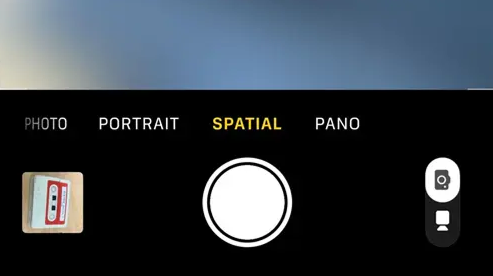
Take Spatial Photos on iOS 26
Step 4. Hold your iPhone in the horizontal orientation. This captures a wider field of view that is ideal for creating an immersive scene.
Step 5. Position the main subject of your photo or video within the frame. The system works best when there is a clear distinction between the foreground subject and the background. Try to keep the subject between 3 to 10 feet away.
Step 6. Hold your iPhone as steady as possible. Then start capturing the content you want.
After capturing, you can find your new Spatial Photos and Videos in the Photos app, marked with the same Spatial icon. Now you’re ready to turn them into a Spatial Scene.
How to Create and Set a Spatial Scene Wallpaper
Using spatial photos as wallpaper on iOS 26 is popular among most users. Matched with the brand-new liquid glass theme, 3D wallpapers are unique compared with traditional ones.
Steps to Set iOS 26 Spatial Wallpaper
Step 1. Navigate to Settings > Wallpaper > Add New Wallpaper.
Step 2. From the top row of options, select Spatial Scene.
Step 3. Your iPhone will automatically suggest photos from your library that are ideal for this effect. Or you can tap Albums to browse your Spatial Photos and Videos.
Step 4. Select the image or video you want to use. It will take a few moments to process and generate the 3D scene.
Step 5. You can now customize your 3D wallpaper and make it perfect on your iPhone lock screen or home screen.
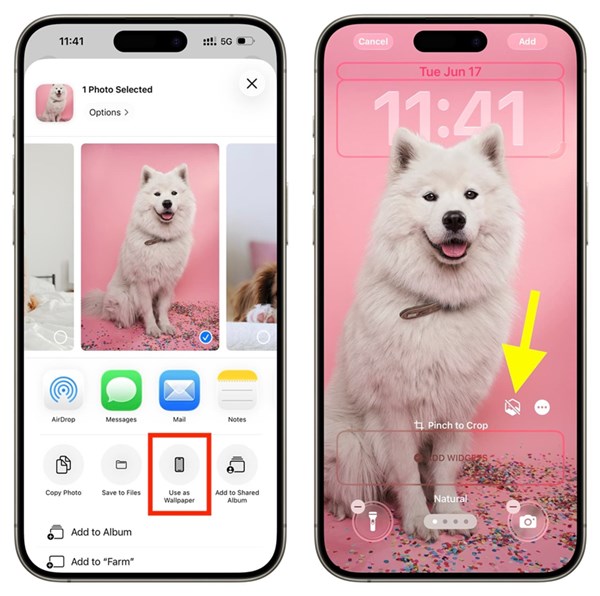
Set Spatial Wallpaper on iOS 26
That’s how to set iOS 26 3D wallpaper on supported devices. You can also check the following part and download some hot spatial wallpapers.
Hot iOS 26 Spatial Wallpapers Free Download

iOS 26 Wallpaper 1

iOS 26 Wallpaper 2

iOS 26 Wallpaper 3

iOS 26 Wallpaper 4

iOS 26 Wallpaper 5

iOS 26 Wallpaper 6
Wallpaper source: techpp. com
What To Do If iOS 26 Spatial Scene Not Working?
As with any major new software feature, iOS 26 Spatial Scene has some limitations and may encounter bugs, especially in its initial release. If you’re having trouble getting it to work, here are some common issues and a powerful solution.
Known Bugs About iOS 26 Spatial Scene
You can also check some known issues that users have encountered after using the spatial scene on iOS 26.
- High Battery Drain: The constant processing of a 3D scene can lead to faster-than-usual battery consumption.
- Processing Failure: Some complex photos with reflections, intricate patterns, or low light may fail to convert into a scene.
- Lag on Home Screen: Some users have reported minor stuttering when swiping between Home Screen pages with a complex Spatial Scene active.
- Incorrect Depth Mapping: The AI may occasionally misinterpret layers, causing odd visual artifacts in the 3D scene.
Recommended Solution: Repair or Downgrade with AnyFix
If you’re experiencing persistent bugs, crashes, or if you find that iOS 26 is too unstable for your liking, a professional iOS system recovery tool like AnyFix can be a lifesaver. It is designed to solve over 150 iOS-related problems without data loss. There will be 2 major ways to help you out of trouble.
Solution 1. Repair iOS 26
Using the AnyFix system repair feature can resolve most of the system-related issues. The standard repair mode is straightforward, which will not cause data loss. Follow the steps below to finish the system repair with AnyFix:
Step 1. Download and install AnyFix on your computer.
Free Download * 100% Clean & Safe
Step 2. Launch the software and select System Repair.
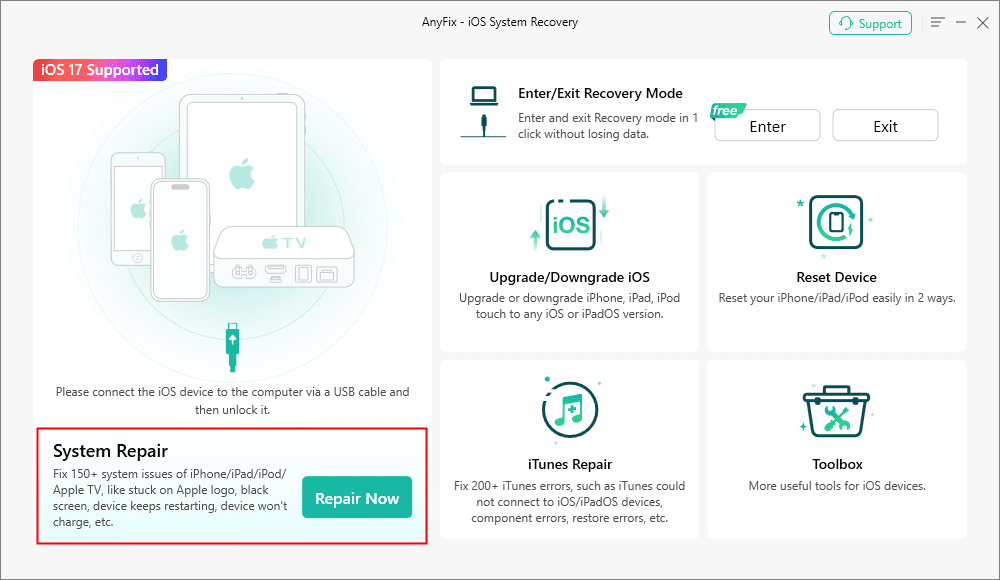
AnyFix System Repair Option
Step 3. Connect your iPhone and choose Device Bug from the problem list. Then click Start Now.
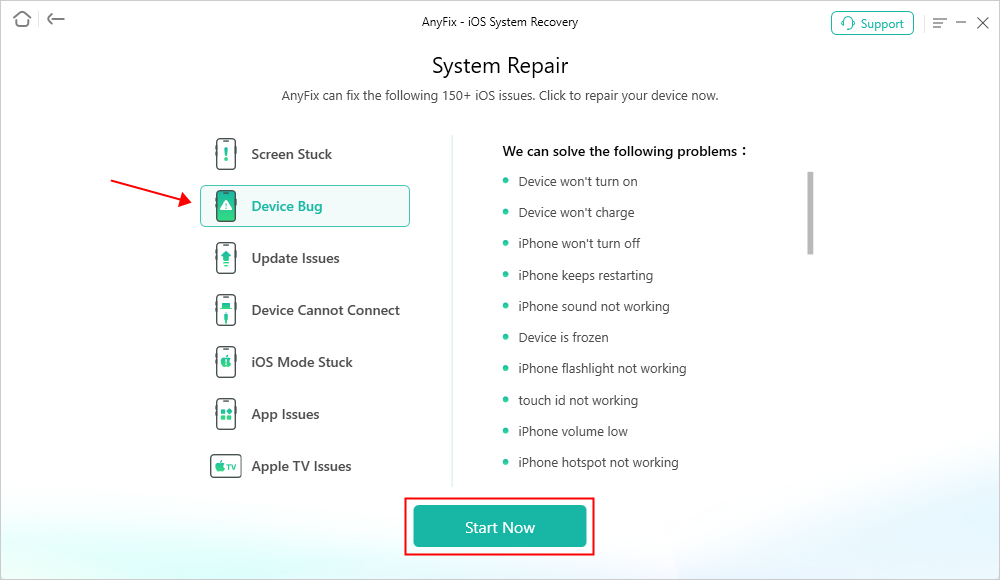
AnyFix System Repair Device Bug
Step 4. Choose the Standard Repair mode. After that, AnyFix will help download the firmware for your iPhone.
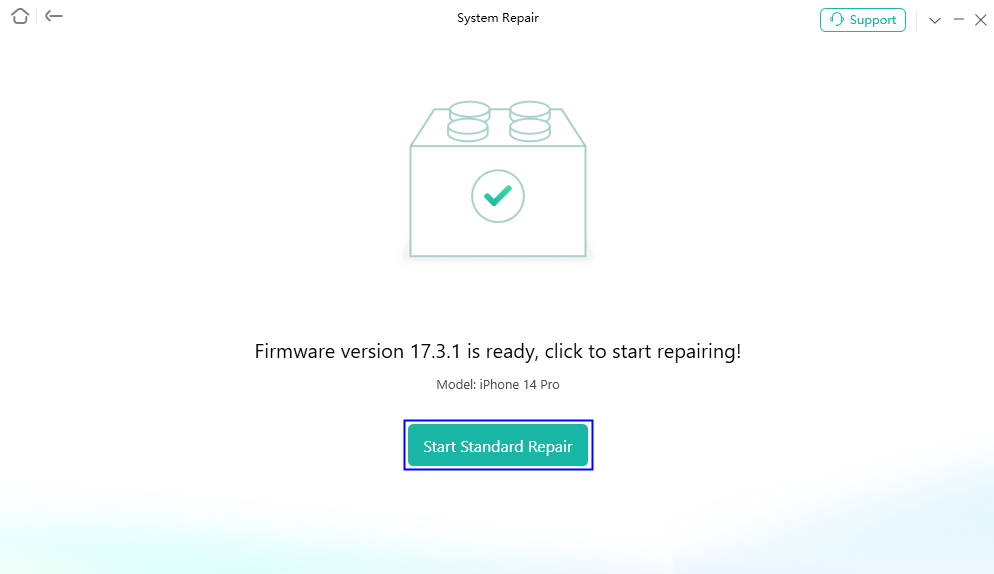
AnyFix System Repair Firmware Finish Downloading
Step 5. Follow the instructions to finish system repair.
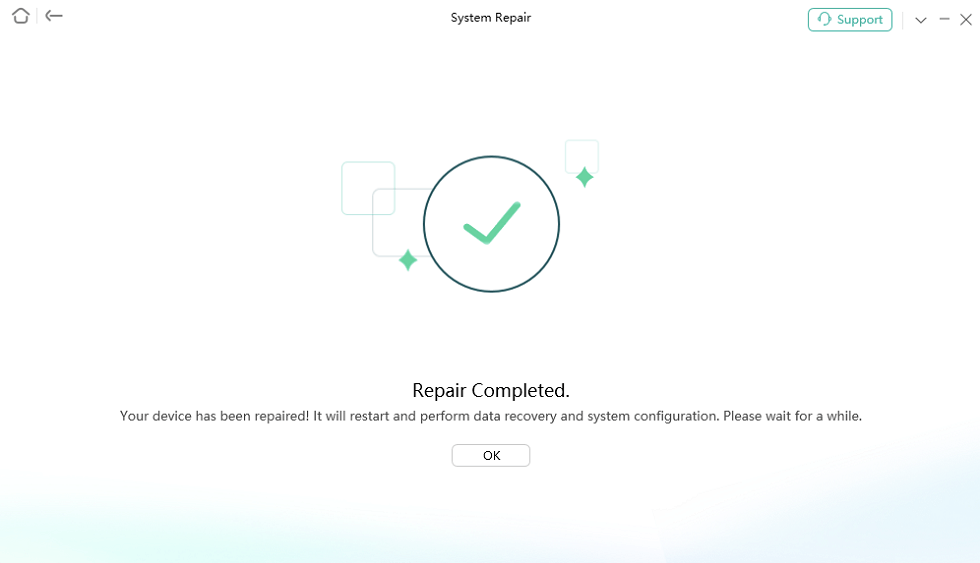
Repair Is Completed
Once finished, your iPhone will restart and the problems are supposed to be fixed.
Solution 2. Downgrade iOS 26
If your older device is struggling with iOS 26, downgrading iOS 26 to iOS 18 or another stable version can be a better choice. In AnyFix, you are allowed to roll back iOS to an older version with just a few clicks.
Steps to use AnyFix to downgrade from iOS 26:
Step 1. In AnyFix, click Upgrade/Downgrade iOS from the homepage.
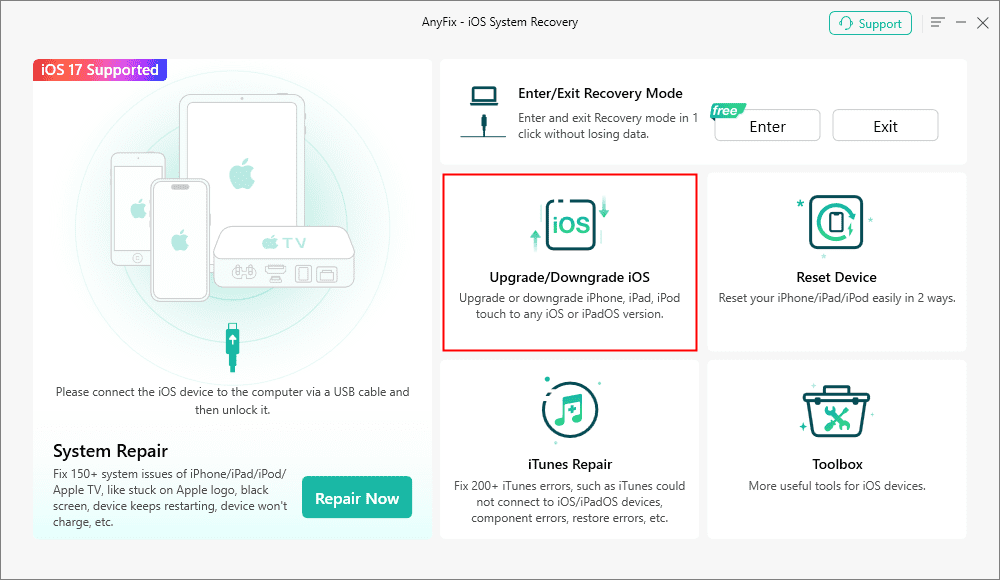
AnyFix Upgrade/Downgrade iOS Option
Step 2. Choose iOS Downgrade and click Start Now.
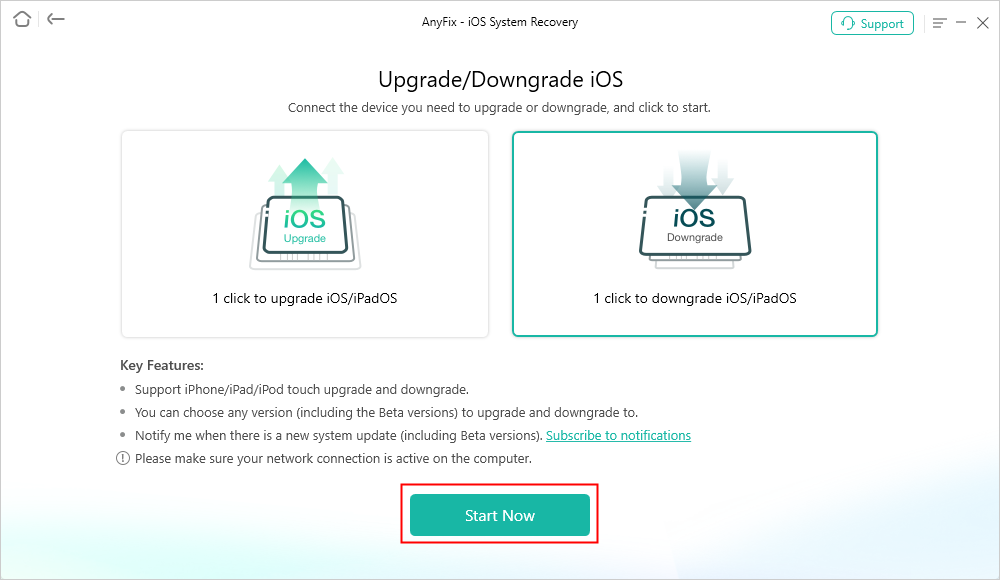
AnyFix Downgrade iOS
Step 3. Download the firmware that is necessary for iOS 26 downgrade.
AnyFix System Repair Firmware Finish Downloading
Step 4. Click the Downgrade button when the firmware is downloaded. It will start the downgrade process.
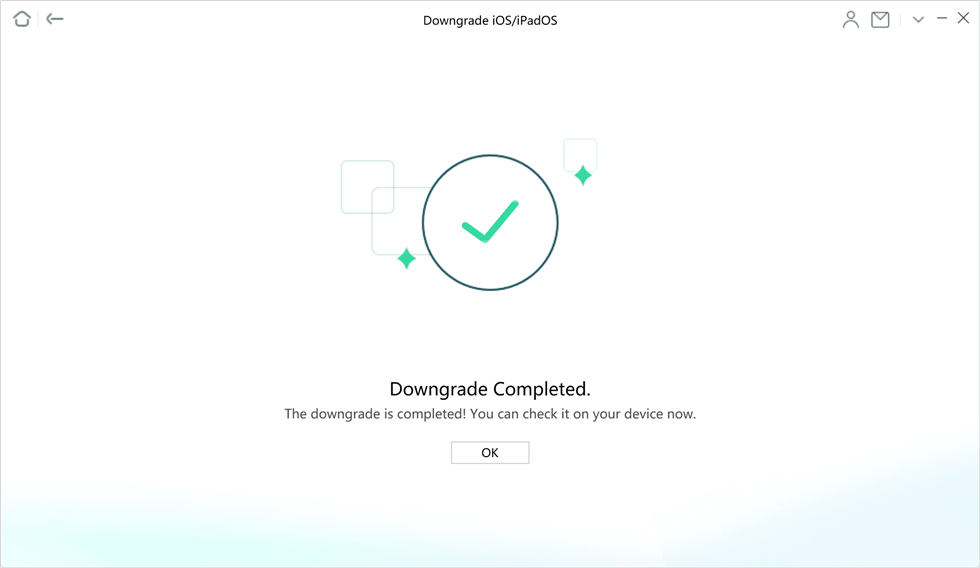
Downgrade Completed Page
Once finished, your iPhone should be downgraded to the previous version you want.
FAQs About iOS 26 Spatial Scene
1. What does spatial scene mean?
A spatial scene is an interactive, three-dimensional wallpaper created from one of your personal photos or videos. It has real depth and responds to the motion of your iPhone, allowing you to “look around” inside your photo. It’s a feature designed to make your phone’s interface more immersive and personal.
2. Is the spatial scene available on all iPhones?
No, it is not. Due to the high processing demands of its AI-driven 3D conversion, Spatial Scene is only fully available on newer iPhone models, specifically the iPhone 15 Pro and newer ones. Older devices lack the necessary Neural Engine power to create and display these scenes effectively.
3. Does iPhone 11 support spatial wallpaper on iOS 26?
Unfortunately, the iPhone 11 does not support the Spatial Scene wallpaper feature on iOS 26. The A13 Bionic chip and the camera system in the iPhone 11 do not meet the hardware requirements for capturing Spatial Video or for processing photos into complex 3D scenes.
Conclusion
iOS 26 Spatial Scene is not just a visual gimmick, but represents a fundamental shift in how we personalize our devices. By creating spatial photos, videos, and setting 3D wallpaper on iOS 26, the newer iPhone models gain more attention among Apple users. Additionally, if you encounter any bugs related to iOS 26 spatial scene, try repairing your iPhone system or downgrading it to older versions with AnyFix. Hope you can always enjoy your spatial experience on iOS 26.



Wanda Norris is a junior author in iMobie specializing in iOS tips and solutions. She keeps a close eye on every iOS update to provide practical, easy-to-understand guides that help users solve problems and master their Apple devices.
Product-related questions? Contact Our Support Team to Get Quick Solution >
