Facebook Dating Location Not Working ? Here’s the Real Fix
Facebook Dating showing the wrong city? This guide explains why Facebook Dating location isn’t working properly and provides clear, tested fixes. Learn how to resolve location errors, refresh your matches, and get back to seeing accurate, local profiles fast.
When Facebook Dating gets stuck showing you profiles from the wrong city, the entire experience feels broken. If you’re seeing a Facebook Dating location not working correctly, you’re not alone. Many users report this frustrating glitch, even when their phone’s GPS works perfectly for other apps.
This guide gets straight to the point. We’ll walk you through clear, tested solutions that address the root causes of a facebook dating location error, getting you back to seeing relevant, local matches.
How a Stuck Location Breaks Your Experience
Before we dive into the fixes, it’s important to understand why this matters. The app uses your current location as the center point for its distance filter. If it incorrectly thinks you’re in another state, setting a 20-mile radius will show you matches around that wrong location, not where you actually are. This directly harms your profile visibility to local users. Fixing the underlying location source is the only way to make your distance and proximity filters work as intended.
First, Check Your Phone’s Master Location Setting
Before trying app-specific fixes, let’s confirm your phone’s main location services are enabled. If this master switch is off, no app can access your location, regardless of its individual settings.
- Step 0: The Master Switch Check
- On iOS (iPhone): Go to `Settings` > `Privacy & Security` > `Location Services`. Ensure the main `Location Services` toggle at the top is ON.
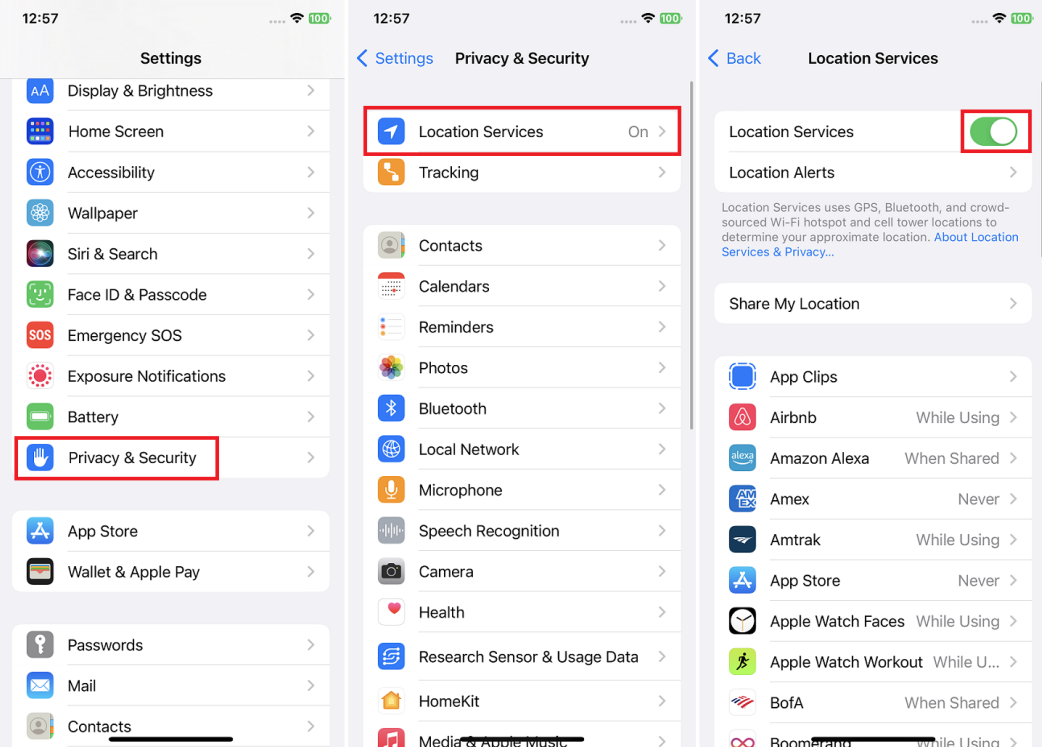
- On Android: Go to `Settings` > `Location`. Make sure the main `Use location` toggle at the very top is ON.
6 Proven Methods to Fix a Facebook Dating Location Error
The following steps are the most common and effective solutions that resolve the vast majority of these glitches. Start with the first one and work your way down the list.
1. Enable “Precise Location” for the Facebook App
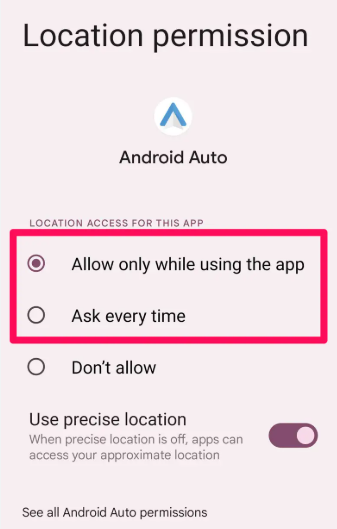
This is the single most important setting and the most common cause of a facebook dating wrong location issue. Modern operating systems allow you to give apps an approximate location (within a few square miles) or a precise one. Dating apps need the latter. If this is turned off, Facebook can only guess where you are.
- On iOS (iPhone): Go to `Settings` > `Privacy & Security` > `Location Services`. Find “Facebook” in the list, tap it, and ensure that `Precise Location` is toggled on.
- On Android: Go to `Settings` > `Location` > `App permissions`. Select “Facebook,” and make sure “Use precise location” is enabled.
You Must Restart the App
After you enable “Precise Location,” the change won’t take effect immediately. You must force-quit the Facebook app (see step 3) and reopen it for the new setting to stick. Just toggling it on and switching back to the app won’t work.
2. Disable Battery Saver or Low Power Mode
Aggressive power-saving modes are a primary cause of a facebook dating location stuck error. To conserve battery, these modes often limit background app activity and reduce the frequency of GPS updates. While useful for extending your phone’s life, this can prevent Facebook from getting the real-time location data it needs. Temporarily disable any battery-saving mode, reopen Facebook Dating, and see if your location refreshes.
3. Force-Quit and Restart the Facebook App
The simplest solution is often highly effective. When you just swipe an app away, it often remains running in the background. A force-quit completely shuts it down, clearing out temporary glitches and forcing it to re-establish a connection with your phone’s location services when you reopen it. This is also essential for applying permission changes you made in Step 1.
- On iOS (iPhone): Swipe up from the bottom of the screen (or double-press the Home button on older models), find the Facebook app card, and swipe it up and off the screen.
- On Android: Go to `Settings` > `Apps` > `Facebook`. Tap `Force stop`.
4. Restart Your Entire Phone
If restarting the app doesn’t work, a full device reboot can resolve deeper, system-level issues. Restarting your phone clears its temporary memory (RAM) and can fix minor software conflicts between the operating system and the apps that rely on its GPS hardware.
5. Clear the Facebook App’s Cache (Android)
Over time, the app stores temporary data (cache) that can become corrupted, causing the location feature to get stuck on old information. Clearing this cache can force the app to pull fresh data.
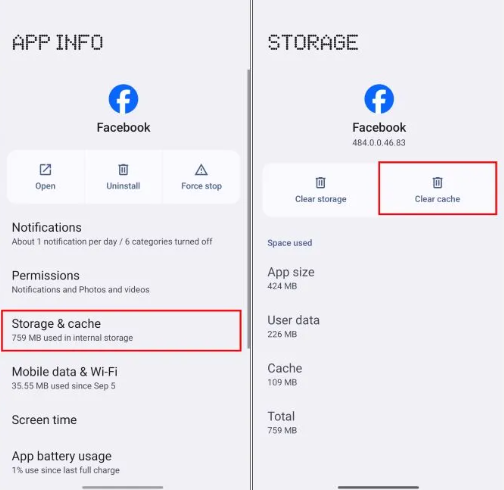
- On Android: Go to `Settings` > `Apps` > `Facebook` > `Storage & cache`. Tap `Clear cache`.
- On iOS (iPhone): iOS doesn’t offer a direct “clear cache” button. The equivalent is to offload and reinstall the app, which is a more involved step. Try the other methods first.
6. Update the Facebook App
Location bugs are often identified and fixed by developers in subsequent app updates. You might be running an older version that contains a known facebook dating app location bug. Head to the App Store (iOS) or Google Play Store (Android), search for Facebook, and see if an “Update” button is available. Running the latest version is a critical step in ensuring all features work as intended.
Why Your Facebook Dating Location is Wrong: App Bugs vs. Phone Issues
Understanding the source of a location error helps determine the best solution. The problem generally falls into one of two categories: a device-level issue with your phone’s hardware or operating system, or an app-specific bug within Facebook itself.
Device-Level GPS Issues
These problems originate from your phone, not the Facebook app, and would likely affect other location-based apps like Google Maps or Uber.
- Weak GPS Signal: Being indoors, in a dense “urban canyon,” or in a rural area with poor satellite visibility can prevent an accurate GPS lock.
- Outdated OS: Your phone’s operating system manages the GPS hardware. Bugs in older versions can interfere with location services for all apps.
- Hardware Malfunction: In very rare cases, the physical GPS chip in your phone could be failing. If no app can find your location accurately, this might be the cause.
App-Specific Location Bugs
These issues are isolated to the Facebook app. Your GPS works perfectly in other applications, but Facebook Dating remains incorrect.
- Corrupted Cache: As mentioned in our fix, old files stored by the app can cause it to report a stale location.
- Incorrect Permissions: You may have accidentally denied a specific location permission, like “Precise Location,” in the past.
- Server-Side Glitch: Sometimes the problem is on Facebook’s end, where their servers are not correctly processing the location data your phone is sending.
- Awaiting a Patch: A recent app update may have introduced a new bug that requires a fix from Facebook’s developers.
Advanced Fix: Solving Location Conflicts from Multiple Devices
A unique and often overlooked problem occurs when you access your Facebook account from multiple devices, like a phone, tablet, and a desktop computer. While Facebook Dating is a mobile-only feature, your account’s general location data can be influenced by logins from other devices.
If you use Facebook on a desktop at home, the platform might associate your profile with your home’s fixed IP address. When you later open Dating on your phone across town, the app may struggle to reconcile these two conflicting location signals. This can cause your Dating profile to lag, get stuck, or default to the location of your last desktop session.
To resolve this cross-device conflict, follow these steps:
1. Log Out Everywhere: On a computer, go to Facebook’s `Settings & Privacy` > `Security and Login`. Under “Where you’re logged in,” click “See all” and then “Log out of all sessions.”
2. Establish a Single Source: On your primary mobile phone, force-quit the Facebook app and restart your device.
3. Refresh Your Location: Open Facebook Dating. This action forces the app to pull a fresh, unambiguous GPS signal from your phone.
4. Log In Elsewhere (Optional): Once your location is correct in Dating, you can log back in on your other devices if needed.
Recommended Tool for Managing Facebook Dating Location Issues
Facebook Dating depends heavily on accurate GPS, Wi-Fi, and account region data to match users within nearby areas. As explained in Facebook Dating Location Guide, problems such as incorrect city detection, frozen locations, or unavailable matches are often caused by unstable location permissions or conflicting network signals.
Some users also use Fonelora Location Changer when testing GPS behavior or managing location simulation more consistently across iPhone and Android devices.
Why Users Try Fonelora Location Changer
According to Fonelora Location Changer, the software supports several GPS simulation features:
- Teleport Mode
- GPS Joystick Control
- Multi-Spot Route Simulation
- Adjustable Walking Speed
- GPX Route Import
- Cooldown Timer
The platform also advertises compatibility with:
- iPhone and iPad
- Android devices
- iPhone 17 series
- iOS 18 and iOS 26
- Android 15 and newer systems
Unlike many browser-based GPS tricks, desktop-based tools attempt to apply location changes at the system level for more stable behavior.
Key Highlights for Facebook Dating Users
More Stable Location Simulation
Users often report Facebook Dating showing outdated cities or failing to refresh nearby matches because GPS and Wi-Fi signals conflict with each other.
Fonelora promotes smoother route-based movement simulation instead of repeated instant jumps, helping maintain more consistent location behavior.
GPS Joystick Support
Joystick mode allows gradual movement adjustments instead of abrupt location changes.
Route-Based Movement
Users can simulate:
- walking
- cycling
- driving routes
with adjustable speed settings for more natural movement patterns.
No Jailbreak or Root Required
Fonelora advertises support for modern iOS and Android devices without requiring jailbreak or root access.
How to Use Fonelora Location Changer
Step 1: Install the Software
Download and install Fonelora Location Changer on your Windows or Mac computer.

Step 2: Connect Your Device
Connect your iPhone or Android device using:
- USB
- Wi-Fi
- Bluetooth
depending on your preferred setup.

Step 3: Select a GPS Mode
Choose one of the available modes:
- Teleport Mode
- Joystick Mode
- Multi-Spot Route
- Jump Teleport

Step 4: Click “Move” to complete the location change.

Frequently Asked Questions
Here are direct answers to the most common questions about Facebook Dating location issues.
Why isn’t Facebook Dating updating my location?
Your location may not be updating for several reasons: “Precise Location” is disabled, an aggressive battery saver mode is limiting GPS, the app’s cache is corrupted, or there’s a temporary app glitch. The most common culprit is the “Precise Location” setting, which you can fix in your phone’s privacy settings.
How do I fix Facebook Dating location not working?
The fastest way to fix this is to work through the primary solutions in order: check your phone’s master location toggle, enable “Precise Location” for the Facebook app, disable battery saver mode, force-quit the app, restart your phone, clear the app cache, and check for updates. These steps resolve the majority of location problems.
Does Facebook Dating use my Facebook location automatically?
Yes, but with a key distinction. Facebook Dating uses your phone’s live location services (GPS) to find your current position for matching. It does not use a city you may have manually set on your main Facebook profile. This reliance on live data is why correct permissions are so critical.
Can location issues affect who I see in Facebook Dating?
Absolutely. A location mismatch or a stuck location directly controls who you see and who sees you. The app uses your geographic position as the basis for its distance filters. If your location is wrong, your profile visibility is optimized for that incorrect area, meaning you won’t see relevant local matches and they won’t see you.
Get Back to Making Local Connections
Fixing a Facebook Dating location issue is about restoring the app’s core function—connecting you with people nearby. By checking permissions, refreshing app data, and stabilizing your GPS environment, you can resolve mismatched locations. Some users also use Fonelora Location Changer to better manage location behavior when testing or troubleshooting. Start with these fixes and regain control of your dating experience today.
More Related Articles



Joy Taylor is a seasoned technical writer with over a decade of experience in mobile technology. At iMobie, she specializes in producing in-depth content on iOS data recovery, iPhone unlocking solutions, and iOS troubleshooting.
Product-related questions? Contact Our Support Team to Get Quick Solution >
