Family Link Location Not Working? Your Step-by-Step Fix
Seeing location unavailable in Google Family Link? This guide explains why updates and battery-saving settings can silently break location sharing, and provides tested, step-by-step solutions to restore accurate tracking and dependable parental monitoring.
When you open Google Family Link and see “location unavailable,” a wave of concern is perfectly understandable. That message creates a frustrating blind spot, especially when you’re relying on the service for peace of mind. Many parents, like Melissa, have faced this exact issue. After a routine software update on her daughter’s phone, the location feature simply stopped. She later found the update had quietly reset the app’s permissions—a small, hidden change that broke the entire system. Her experience reveals a critical truth: modern Android phones are designed to save battery, often at the expense of background apps like Family Link. This guide provides the tested solutions you need to fix the problem for good.
First Steps: 5 Critical Checks When Family Link Can’t Find a Device
Before diving into more complex troubleshooting, the solution is often a simple setting on your child’s phone. When Family Link can’t find device location, it’s usually not a bug, but a misconfiguration. You will need physical access to your child’s device to perform these five essential checks, which resolve the majority of location-related issues.
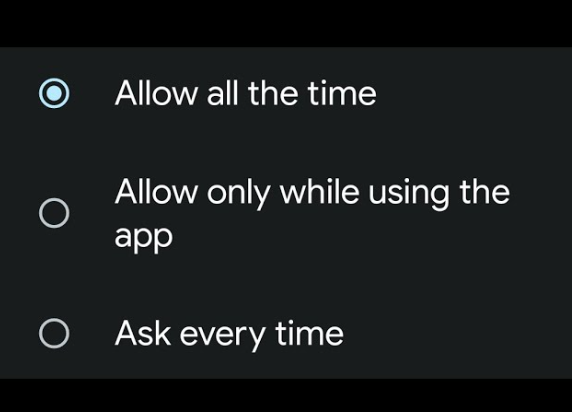
1. Confirm “Allow All The Time” Location Permissions
This is the most common culprit. Modern Android versions often default to stricter permissions to protect privacy and save battery. Family Link needs constant access to work correctly from the background.
- Navigate to `Settings` > `Location` > `App permissions`.
- Find `Family Link` in the list.
- Ensure location access is set to `Allow all the time`. If it’s set to `Allow only while using the app`, it will fail to update when the app is closed.
2. Enable High Accuracy Location Mode
GPS signals can be weak indoors. Android uses Wi-Fi and Bluetooth to improve location accuracy, but this feature must be enabled.
- Go to `Settings` > `Location` > `Location services`.
- Tap on `Google Location Accuracy`.
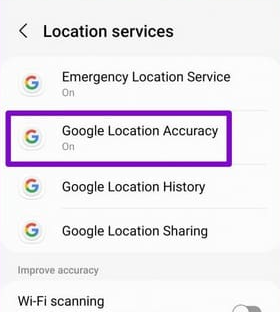
- Make sure the toggle for `Improve Location Accuracy` is turned ON.
3. Disable Aggressive Battery Saver Settings
Battery optimization is the silent enemy of `child phone tracking` apps. Because parental technology experts explain that Family Link relies on Android system services, any interruption from power-saving rules can stop location sharing entirely until manually corrected. These settings are designed to freeze background processes, which is exactly what Family Link needs to function.
Because every Android brand handles this differently, we’ve provided specific instructions for the most popular models.
For Samsung Phones:
Samsung’s power management is particularly aggressive. You need to add Family Link to the “Never sleeping apps” list.
- Open `Settings` > `Battery and device care`.
- Tap `Battery`, then select `Background usage limits`.
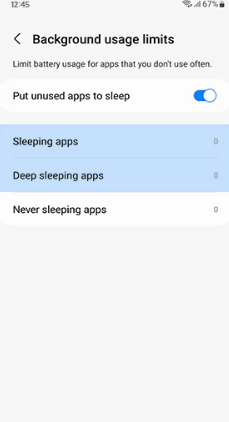
- Tap on `Never sleeping apps`.
- Tap the plus icon (+) in the top right, find Family Link and Google Play Services in the list, and tap `Add`.
For Google Pixel & Stock Android Phones (Motorola, Nokia):
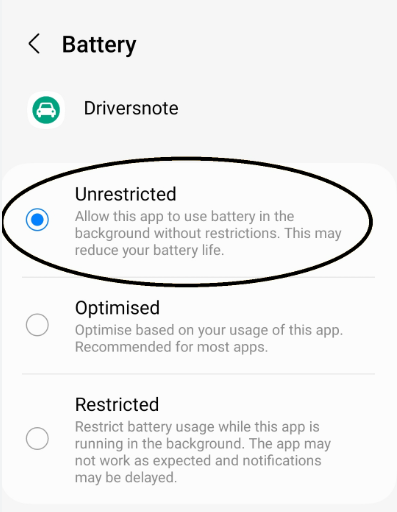
These devices use a setting called “Unrestricted” to exempt an app from battery optimization.
- Open `Settings` > `Apps`.
- Find and tap on `Family Link`.
- Select `App battery usage` (or just `Battery` on older versions).
- Set it to `Unrestricted`.
- Repeat these steps for Google Play Services.
4. Verify Active Internet Connectivity
Family Link cannot send location data without an internet connection. This may seem obvious, but it’s a frequent point of failure.
- On the child’s phone, ensure Wi-Fi or Mobile Data is enabled.
- Open a web browser and try to load a new page (like google.com) to confirm the connection is active and working. A device showing connection bars isn’t always actively connected.
5. Perform a Simple Device Reboot
If all the settings appear correct, a classic reboot can solve countless temporary software glitches. This action forces the phone’s operating system and all related background services (like Google Play Services) to restart, often re-establishing the connection Family Link needs.
Did an Android Update Cause the “Location Unavailable” Error? The Step Everyone Misses
Recalling Melissa’s story, her perfectly working setup failed immediately after a system update. This happens because Android updates often reset app permissions as a security precaution. An app that you previously granted permission to access location `all the time` can be silently downgraded, instantly causing the Family Link location unavailable error.
While you may have already checked the Family Link app itself, the real fix often lies with a core system service most people overlook.
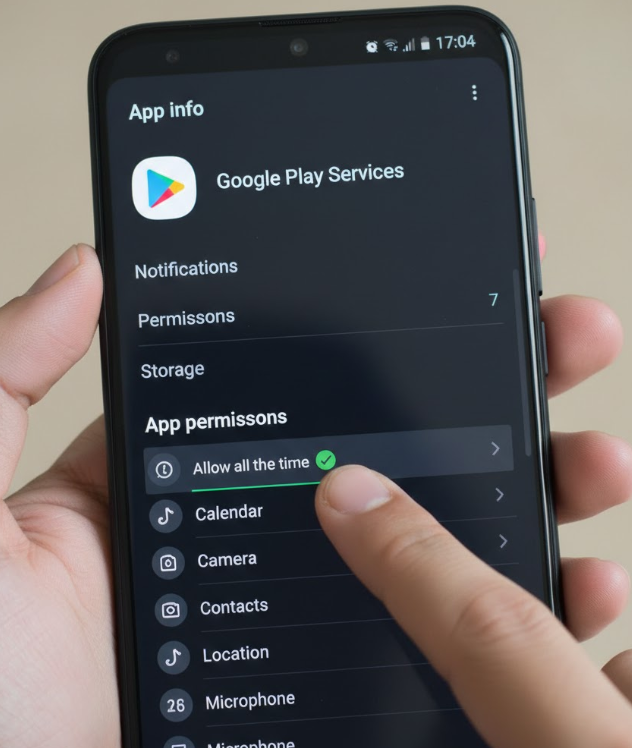
Check Permissions for Google Play Services (The Critical Step)
Google Play Services is the background engine that actually manages location reporting for many apps, including Family Link. If its permissions are reset, Family Link goes blind.
- On your child’s phone, go to `Settings` > `Apps`.
- Find and tap on `Google Play Services`. You may need to enable “Show system apps” from the menu.
- Tap `Permissions` > `Location`.
- Ensure this is also set to `Allow all the time`. This is the single most common reason location tracking fails after an update, and verifying it is essential for reliable tracking.
Solving a ‘Family Link Location Failed’ Error: Check Account Sync
If device-level settings are correct, a persistent ‘Family Link location failed’ error often points to an issue with the child’s `supervised Google account`. Family Link is deeply integrated with Google’s infrastructure, and any problem with how the device communicates with Google’s servers will stop location sharing.
Verify Google Account Synchronization
The child’s device needs to regularly sync its data with Google. If a sync error occurs, new location data won’t be uploaded, and you’ll see the last known location or an error message.
- On the child’s phone, navigate to `Settings` > `Passwords and accounts` (this may just be called `Accounts` on some devices).
- Tap on your child’s Google account profile.
- Select `Account sync`.
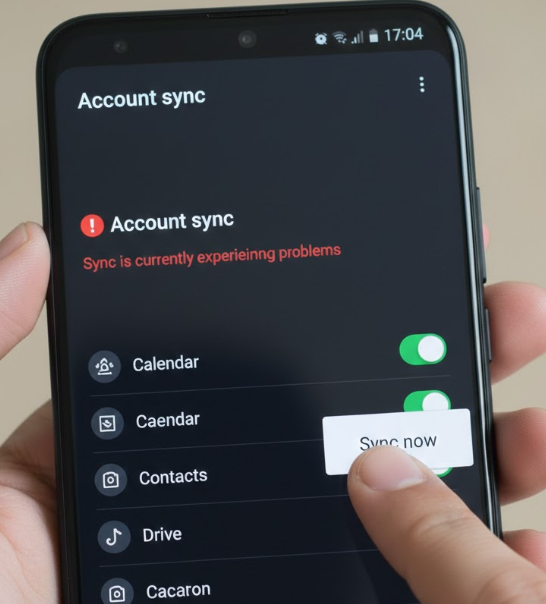
- Look for any red error icons or “Sync is currently experiencing problems” messages. If you see an error, tap the three-dot menu in the top right and select `Sync now` to force a refresh.
Ensure Device Activity Reporting is Enabled
For `google parental controls` to function, the core `device activity reporting` setting must be active. This is typically enabled during the initial Family Link setup but can be accidentally turned off. You can check this from your own device using the parent Family Link app. Go to your child’s profile, select `Controls` > `Account settings` > `Privacy settings` > `Google activity controls`, and ensure `Web & App Activity` is on.
Why Family Link GPS Is Not Working: Understanding Inactivity and Doze Mode
It can be confusing when location tracking works for a while and then stops for hours at a time. When it seems like Family Link GPS is not working at all, you’re likely observing a deliberate Android power-saving feature, not a bug.
Android’s primary goal is to maximize battery life. If a phone is stationary for a long time—for example, sitting in a backpack or on a desk at school—the operating system enters a deep sleep state known as “Doze mode.” During this mode, non-essential background activities, including location pings from Google Play Services, are paused to conserve power.
This is a core function of the operating system. The location service is intentionally put to sleep and will only wake up and resume reporting once the phone’s sensors detect significant movement (i.e., it’s picked up and used again).
What This Means for You
This behavior explains why you might see an accurate location in the morning, followed by “location unavailable” for several hours during school, and then an accurate report again in the afternoon when your child is on the move.
Important: You cannot disable Doze mode, as it’s built into the Android operating system. However, now you know that seeing “location unavailable” during long periods of inactivity is normal and not a sign that the app has failed. This understanding helps manage expectations and prevents unnecessary worry.
By regularly checking these settings after major Android updates, you can ensure Family Link remains a reliable tool. For persistent issues, consulting your device manufacturer’s support page for model-specific power management settings is a recommended next step.
A More Reliable Way to Manage Location: Fonelora Location Changer
If Family Link location is not updating or showing incorrect data, the issue often comes from unstable GPS signals, background restrictions, or system-level syncing delays. In these cases, simply toggling settings may not fully solve the problem.
A more consistent approach is using a desktop-based GPS tool like Fonelora Location Changer, which works by modifying your device’s location externally rather than relying on unstable in-app tracking. This method is commonly considered more stable because it avoids system conflicts and doesn’t require risky jailbreak or root access.
Fonelora allows you to set a fixed location or simulate movement with customizable routes and speeds, helping maintain consistent location data across apps. It also supports both iOS and Android devices and offers multiple modes such as teleportation and joystick control, making it useful for both troubleshooting and privacy management.
How to Use Fonelora Location Changer
Follow these simple steps to stabilize or change your device location:
Step 1: Connect Your Device
Download and install Fonelora on your Windows or Mac computer. Launch the program and connect your phone via USB, then tap “Trust” on your device.

Step 2: Choose a Location Mode
Select one of the available modes:
- Modify Location (Teleport) – set a fixed location
- Multi-Spot Mode – simulate movement between multiple points
- Joystick Mode – control movement in real time

Step 3: Set Your Location
Enter a location or select a point on the map, then click “Move” (or “Confirm”) to update your GPS location instantly.

Frequently Asked Questions
Here are direct answers to the most common questions about Family Link location issues.
Does Family Link require constant internet access?
Yes. To report its current location, the child’s supervised device must be connected to the internet via Wi-Fi or mobile data. Without a connection, the app will either show the last known location or display an unavailable message.
Can a child turn off Family Link location tracking?
On a properly supervised Google account, a child cannot disable location tracking directly from the app’s settings. However, they can effectively stop location sharing by turning off the phone, enabling Airplane Mode, or disabling all Wi-Fi and mobile data connections. These actions prevent the device from communicating its location to Google’s servers.
Does rebooting the device affect Family Link location?
Rebooting is a highly effective troubleshooting step. It resolves temporary software glitches within the operating system or the background services that Family Link depends on. The process forces all services to restart, which can re-establish a stable connection for location reporting and is often the quickest solution.
Get Your Peace of Mind Back
Seeing a “location unavailable” message in Family Link is stressful. The solutions in this guide target the real causes of the problem, from hidden permission resets after an update to brand-specific battery settings that block the app. By methodically working through these steps—especially the critical check on Google Play Services—you can fix the issue and restore this important safety feature. Knowing that periods of inactivity will show a blank location also provides clarity, so you can distinguish normal device behavior from a genuine problem.



Joy Taylor is a seasoned technical writer with over a decade of experience in mobile technology. At iMobie, she specializes in producing in-depth content on iOS data recovery, iPhone unlocking solutions, and iOS troubleshooting.
Product-related questions? Contact Our Support Team to Get Quick Solution >
