Managing your digital privacy with location-tracking apps like Life360 can feel like a balancing act. If you’re searching for how to turn off Life360 on your iPhone, you’re likely looking for moments of privacy without causing unnecessary alarm. The core problem isn’t just about flipping a switch; it’s about the uncertainty of what happens next. What exactly will your Circle members see?
This guide provides clear, tested answers. We’ll explore the app’s built-in features and dive deep into your iPhone’s core settings to show you how to pause Life360 location on an iPhone. More importantly, we’ll show you exactly what notifications and status changes these actions trigger on another person’s phone. Our goal is to give you the knowledge to make informed decisions and control your own location data with confidence.
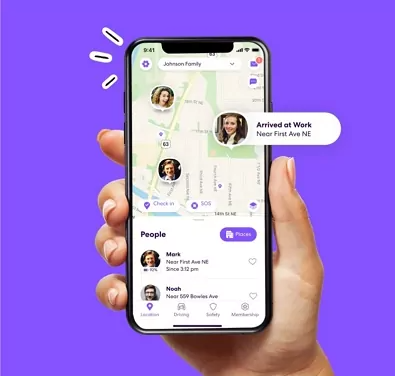
3 Ways to Stop Life360 Tracking on iPhone: A Comparison
Before changing any settings, it’s critical to understand that every method has a different outcome. There is no perfectly invisible way to turn off Life360. Each technique to stop Life360 tracking on an iPhone creates a different alert or status change for your Circle members. Understanding these differences is the first step toward managing your location privacy controls effectively.
We will compare three primary methods:
- Pause (In-App): Uses Life360’s official feature. It’s the most transparent option and is guaranteed to send a direct notification.
- Restrict (iOS Settings): Involves changing specific iPhone location permissions for the app, offering a middle ground with less obvious alerts.
- Disable (iOS Settings): Completely revokes the app’s ability to see your location, providing the highest privacy but also creating noticeable status changes.
The following table breaks down how each method performs across key criteria, helping you decide which solution is best for you.
| Method | Notification Risk | Privacy Level | Technical Skill | Reversibility | Best For |
| Pause (In-App) | High (Direct notification sent) | Medium (Freezes last location) | Low | Easy | Situations where you’ve communicated a need for temporary privacy. |
| Restrict (iOS) | Low (No direct notification) | Medium-High (Location becomes vague) | Medium | Easy | Creating ambiguity about your exact location without raising major alarms. |
| Disable (iOS) | Medium (Creates a visible status error) | High (Location completely hidden) | Medium | Easy | Completely stopping location sharing, knowing it will be noticeable. |
Method 1: Use the In-App ‘Pause Location Sharing’ Feature
The most direct way to stop sharing your location is by using Life360’s built-in pause feature. This function is designed to temporarily stop broadcasting your real-time location to a specific Circle.
While this method is simple and easily reversible, it has one crucial consequence: it will send a clear notification to your Circle members that your location sharing has been paused.
When you use the Life360 location pause feature, your icon on the map freezes at your last known location, and a “Location Paused” message becomes visible to everyone in that Circle. This transparency is intentional, making it the least discreet option. However, it’s an official feature and can be useful if you’ve already discussed a need for temporary privacy.
Step-by-Step Guide to Pausing Location Sharing
1. Open the Life360 app on your iPhone.
2. Tap the Settings gear icon in the corner of the screen.
3. Select the ‘Location Sharing’ menu option.
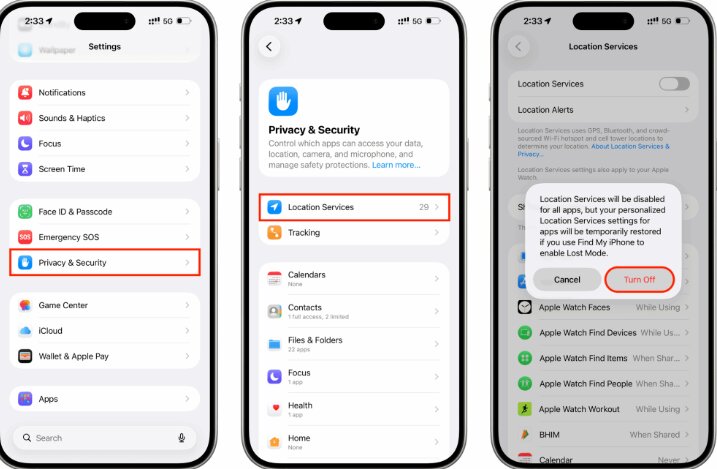
4. You will see a slider next to your Circle’s name. Toggle this switch to the ‘Off’ position to stop sharing your location.
To resume, simply follow the same steps and toggle the switch back on. This will also send a notification that location sharing has resumed.
Method 2: Adjust iPhone Settings for More Subtle Control
For more granular control, you can manage how Life360 accesses your data through your iPhone’s core privacy settings. This approach allows you to disable Life360 tracking iphone permissions without using the in-app pause function, which avoids sending a direct notification.
Here’s a critical insight: Life360 relies on continuous background location access and an internet connection to work. By adjusting how iOS grants the app this access, you can effectively disrupt its ability to report your position. These methods create status changes that can often be mistaken for technical issues like poor reception or a low battery.
How to Find Life360’s Location Permissions
- Navigate to Settings > Privacy & Security > Location Services.
- Scroll down the list of apps and tap on Life360.
- Here you can adjust three key location permissions iOS controls.
1. Change Location Access to ‘Never’
Setting this option to Never completely cuts off Life360’s access to your iPhone’s GPS. This is the most effective way to implement Life360 location off iphone settings.
What Circle Members See: Your location will be frozen at its last reported position. The app will display a status indicator next to your name, like “Location Permissions Off” or “GPS Off,” which is a clear signal that a setting was manually changed.
2. Turn Off ‘Precise Location’
This is the most subtle technique. By disabling the Precise Location toggle, you prevent Life360 from pinpointing your exact spot.
What Circle Members See: Instead of seeing your icon at a specific address, they will see a large, semi-transparent circle on the map indicating your general area. This creates plausible deniability, as it looks very similar to a weak GPS signal rather than an intentional change. It’s an excellent method for anyone looking for how to hide location on Life360 iPhone without being obvious.
3. Turn Off ‘Background App Refresh’
Life360 updates your location even when the app is closed. Turning off Background App Refresh prevents this.
What Circle Members See: Your location will only update when you physically open the Life360 app. If you don’t open it for hours, your location will appear stale or frozen at the last known spot. This can look similar to having a dead phone battery or poor service, but a savvy user might notice the pattern over time. You can find this setting under Settings > General > Background App Refresh.
How to Combine iOS Settings for the Best Result
These three settings are not mutually exclusive; you can combine them for different effects. Here’s our recommendation based on your privacy needs:
- For Maximum Subtlety: Start by only turning off ‘Precise Location’. This is the least likely option to raise suspicion, as it mimics poor GPS.
- For Believable “Phone Issues”: Combine turning off ‘Precise Location’ and ‘Background App Refresh’. Your location will be vague and will only update when you open the app, making it look like your phone is having connectivity problems.
- For a Complete Stop: If you need to stop sharing entirely and are okay with them knowing a setting was changed, set Location Access to ‘Never’. The other two settings become irrelevant at this point.
Understanding Life360 Alerts: What Your Circle Members Actually See
Much of the anxiety around managing Life360 location sharing comes from not knowing what triggers an alert. The app needs both a location signal (GPS) and an internet connection (Wi-Fi or Cellular) to update your position. If either one is missing, your location will stop updating.
Understanding this technical detail is key. An alert like “No Network” could simply mean you entered a subway or a building with poor reception, not that you intentionally turned something off. This “cause and effect” table clarifies what they see on their screen.
| Cause (Your Action) | Effect (What Your Circle Sees) |
| You use the in-app ‘Pause’ feature. | A direct notification is sent. Your status shows a “Location Paused” icon. |
| You turn off Location Services (to ‘Never’). | Your location freezes. Your status shows “Location Permissions Off” or “GPS Off.” |
| You turn off ‘Precise Location’. | Your precise location is replaced by a large, general radius on the map. |
| You turn off Wi-Fi and Cellular Data. | Your location freezes. Your status may show “No Network” or your icon may be greyed out. |
| Your phone’s battery dies. | A “Low Battery” alert may be sent (if enabled). Your location freezes at its last point. |
Life360 vs. Apple’s Find My: Key Differences
Many users wonder how Life360 differs from Apple’s built-in Find My app. While both track location, they operate differently, especially regarding notifications.
- Notification Style: Life360 is designed for proactive alerts (e.g., “Taylor has left school”). Find My is passive; another person must actively open the app and look for your location. Find My does not send automatic notifications when you arrive at or leave a location unless the other person has specifically set one up for you.
- Disabling Sharing: In Find My, if you “Stop Sharing My Location,” the other person simply sees “Location Not Available.” It doesn’t give a specific reason like Life360’s “Location Permissions Off.” This can be more discreet but may also prompt questions.
- Features: Life360 offers features like driving reports, crash detection, and place alerts that Find My lacks. Find My is a simpler, more straightforward location-sharing tool integrated into the Apple ecosystem.
Ultimately, changes in Find My are often less noticeable than in Life360, but Life360’s detailed status messages can sometimes provide plausible deniability (e.g., “No Network”).
A Privacy-Focused GPS Management Tool for Life360 Users
As explained in Life360 Privacy Guide, many users feel frustrated when location-sharing apps continue tracking precise movements throughout the day. Community discussions also show that people often misunderstand what Life360 can actually detect, especially regarding GPS permissions, frozen locations, and network status updates.
For users who want more control over how their device reports location data, some explore tools like Fonelora Location Changer for GPS simulation and route management.
Why Some Users Prefer GPS Simulation Over Disabling Location
Completely turning off GPS, cellular data, or app permissions can sometimes create obvious status indicators inside Life360, such as:
- “No Network”
- “Location Permissions Off”
- frozen last locations
as documented in multiple user reports and technical guides.
Because of this, some users prefer route-based GPS simulation tools that focus on maintaining more natural movement behavior instead of simply disconnecting the app.
According to the official website, Fonelora supports:
- Real-Time GPS Teleportation
- Joystick Navigation
- Multi-Spot Route Simulation
- Adjustable Walking Speeds
- GPX Route Import
- Historical Route Saving
The software also advertises support for:
- iPhone 17 series
- iPad
- Android smartphones
- iOS 18 and iOS 26
- Android 15+
Key Features That Appeal to Life360 Users
Route-Based Movement Instead of Frozen Locations
One common issue reported by users is that abrupt GPS shutdowns may leave suspicious “stuck” locations or inactive statuses.
Fonelora emphasizes simulated movement routes instead of relying only on static teleportation.
Adjustable Travel Speeds
Users can simulate:
- walking
- jogging
- driving routes
with customizable speed settings for smoother movement behavior.
Saved Locations and Reusable Routes
The software allows users to:
- bookmark locations
- save common routes
- reuse travel paths
without manually configuring GPS coordinates every time.
No Jailbreak Required
Fonelora advertises compatibility with modern iOS and Android devices without requiring jailbreak or root access.
How to Use Fonelora Location Changer
Step 1: Install the Software
Download and install Fonelora Location Changer on your Windows or Mac computer.

Step 2: Connect Your Device
Connect your iPhone or Android device using:
- USB
- Wi-Fi
- Bluetooth
depending on your preferred setup.

Step 3: Select a GPS Simulation Mode
Choose from:
- Teleport Mode
- Joystick Navigation
- Multi-Spot Routes
- GPX Route Simulation

Step 4: Click “Move” to complete the location change.

Your Life360 & iPhone Privacy Questions Answered
Here are direct answers to the most common questions about managing Life360 and location privacy controls on an iPhone.
How does Life360 track location on iPhone?
Life360 uses a combination of your iPhone’s GPS, nearby Wi-Fi networks, and cellular data. It requires both location access permission and an active internet connection to update your position for Life360 circle members in real-time.
What happens if Life360 location services are turned off?
If you disable Life360 location services in your iPhone’s settings by setting access to ‘Never’, the app loses access to your GPS. Your location will freeze, and Circle members will likely see a status indicator next to your profile, such as ‘Location Permissions Off’ or ‘GPS is Off’.
Does Life360 notify when location sharing is turned off?
It depends. Using the in-app ‘pause’ feature sends a direct notification. Changing your iPhone’s system-level permissions does not send a notification like “Taylor has turned off location services.” Instead, it creates visible status changes on the map that others can interpret.
Beyond the Settings: Communicating About Privacy and Trust
While these technical solutions give you control over your device, the most sustainable approach often involves open communication. The goal isn’t just to stop life360 tracking iphone, but to establish reasonable boundaries. The desire for privacy is about gaining independence, not being secretive. Discussing these needs can shift the conversation from one of monitoring to one of mutual trust.
Instead of focusing on hiding your location, consider framing a discussion around building responsibility. You could propose:
- Trial Periods: Suggest turning location sharing off for short, agreed-upon times, like when you are at school or a friend’s house.
- Manual Check-Ins: Offer to send a text when you arrive somewhere as an alternative to constant digital tracking.
- Defining Emergencies: Agree on what situations justify constant tracking (e.g., driving late at night) versus when it’s unnecessary.
Ultimately, a healthy dialogue about expectations can be far more effective than any setting on your phone, building a foundation of respect that technology alone cannot provide
By understanding the technical controls and fostering open dialogue, you can find a balance between privacy and transparency. Instead of relying on guesswork, tools like Fonelora Location Changer can help you better manage how your device reports location data during testing or adjustment. With the right knowledge and tools, you can confidently control your digital footprint and align your settings with your comfort level.
If turning it off completely feels too risky, a great middle-ground is to [pause Life360 location secretly] without triggering notifications.


