How to Pause Your Location on Life360 Without Anyone Knowing (2026 Guide)
Learn how to pause location on Life360 without sending a loud alert. Our guide shows the official, safe method and what your family will see.
You value the security the Life360 app provides for your family, but you also need moments of personal privacy. This creates a common dilemma: how do you pause your location without causing unnecessary alarm or breaking trust? Many users, perhaps searching for how to pause location on Life360, want a discreet way to manage their mobile privacy and go off the map temporarily. They fear sending loud notifications and are often confused by the different privacy options available.
This guide provides the definitive, tested procedure for gaining that privacy while maintaining peace of mind, much like using reliable smartphone management tools to keep your data secure.We’ll show you the official methods that work, explain exactly what your Circle sees, and address the common questions—including how the free “Pause” feature differs from the premium “Ghost Mode.”
Quick Answer
Yes, you can pause your location on Life360 without sending a push notification. The built-in “Location Sharing” toggle quietly stops your live location updates, although Circle members may still see a “Location Sharing Paused” status if they open the app.
For users who want more private location control without showing a paused status, GPS location changers are often used to simulate a different location instead of fully disabling sharing.
The Official Method: How to Pause Location Sharing in the Life360 App
The most reliable way to temporarily suspend your location is by using the feature built directly into the app. One of the most discreet ways to pause Life360 location sharing without triggering notifications. It’s designed to be a clear but passive update for your family.
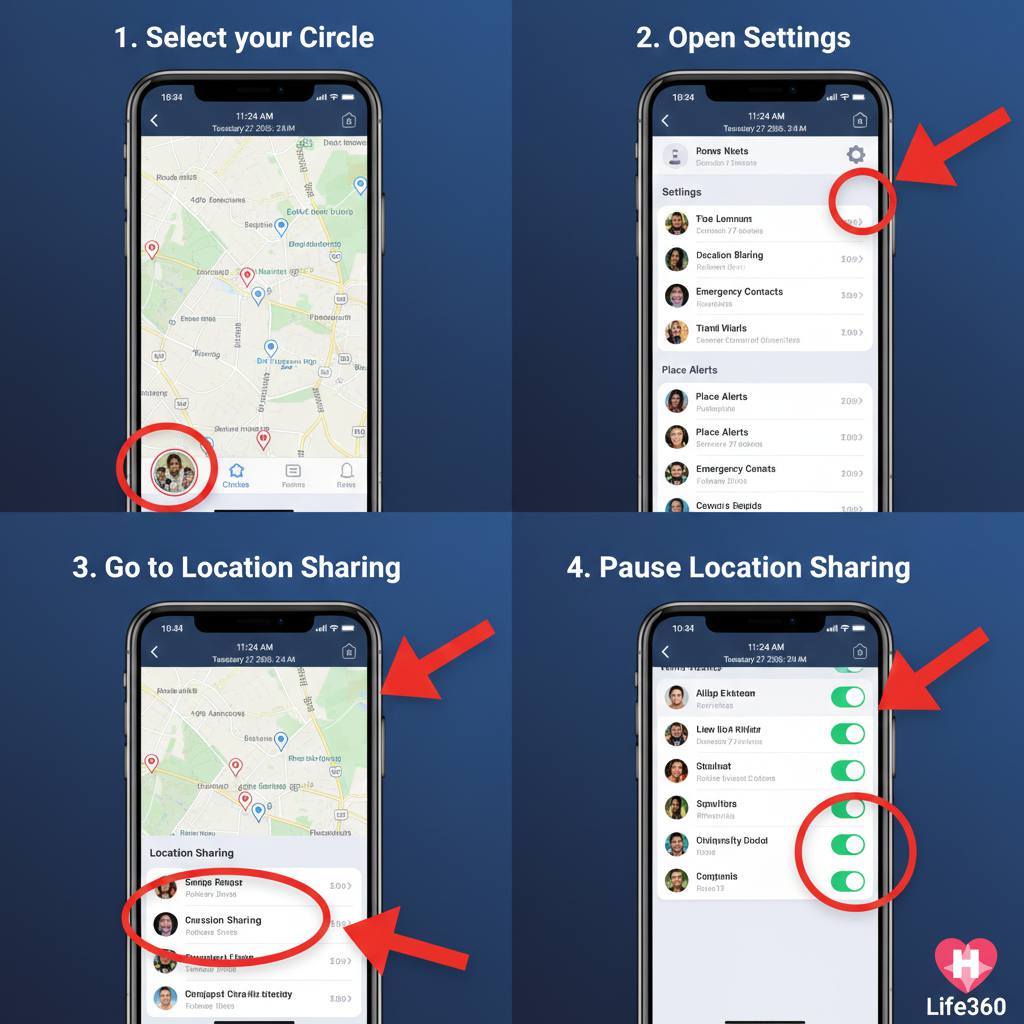
Follow these exact steps:
- Open the Life360 App: Tap the app icon on your home screen to launch it.
- Select the Correct Circle: This is a critical step. At the top of the main screen, tap the dropdown menu and select the specific Circle (e.g., ‘Family Circle’) where you want to pause your location. You must repeat this process for each Circle you want to pause in.
- Navigate to Settings: Tap the Settings gear icon. If your app is unresponsive or you’re facing system glitches, you might need to troubleshoot your device’s performance first.
- Find ‘Location Sharing’: In the Settings menu, scroll and tap on the ‘Location Sharing’ option. This is the central hub for your privacy settings.
- Toggle Off Location Sharing: You will see a slider next to your name. To pause your location, simply toggle this switch to the off position.
You May Also Like:Life360 “No Network or Phone Off” Meaning Explained>
The app will immediately confirm that your location sharing is now paused for that specific cercle Life360. Your position will stop updating on their map until you re-enable it.
How to Pause Your Location on Life360 Without It Showing
Many users want to pause their location on Life360 without showing a visible “Location Sharing Paused” message to family members or friends. The official in-app pause feature does not send a push notification, but the paused status can still appear if someone manually opens the app and checks your profile.
Because of this, some users prefer GPS-based location changers that simulate a stable location instead of completely disabling location sharing.
What Your Circle Sees: A Clear and Calm Status Update
The biggest concern for most users is causing worry. This is where using the in-app pause sharing location Life360 feature is far superior to other methods. While it’s not completely invisible, it is designed to be calm and clear.
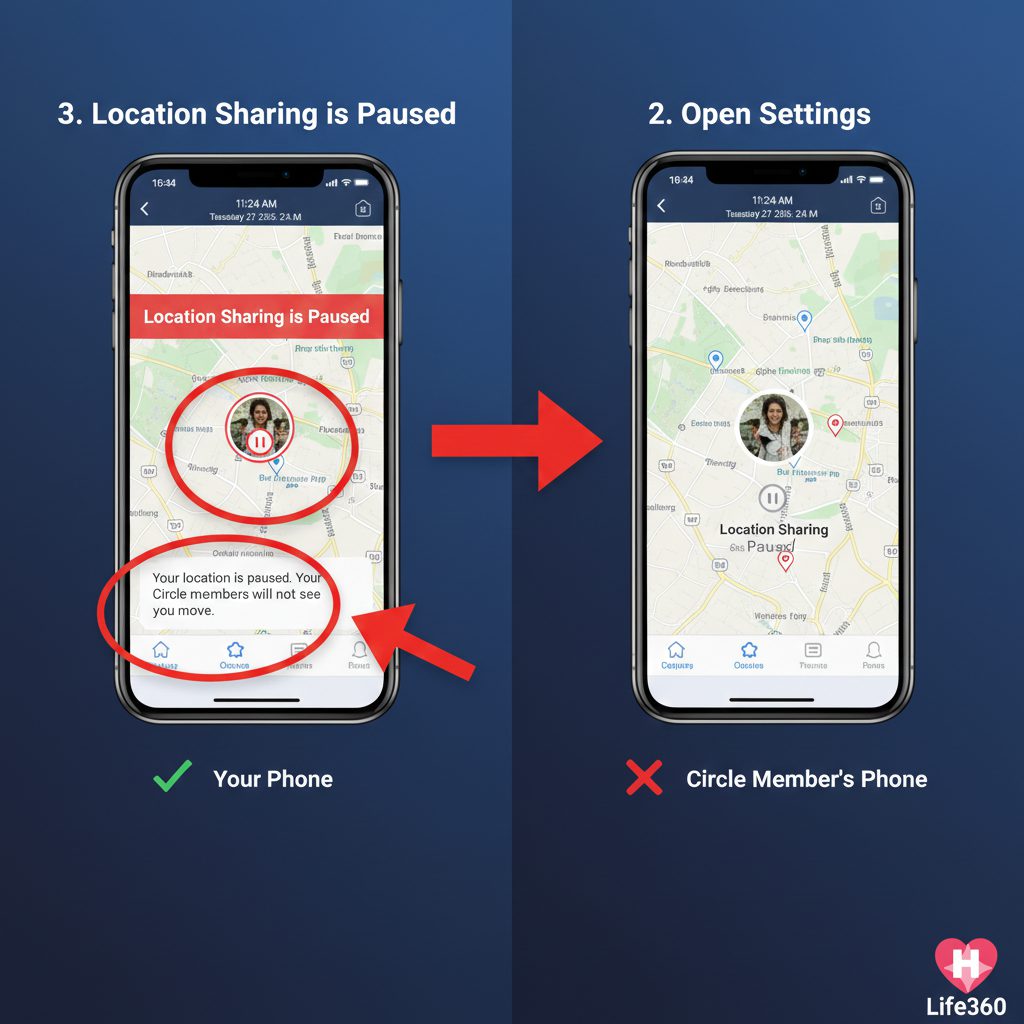
When you pause, your Circle members will not get a push notification. However, if they open the app and look at the map, they will see a status update.
Here’s exactly what they see on their end:
- Your Last Known Location: Your avatar stays on the map at the last precise location recorded before you paused.
- ‘Location Sharing Paused’ Status: Directly beneath your name, the app displays a clear, unambiguous message: ‘Location Sharing Paused’.
This transparency prevents misinterpretation. It doesn’t look like your phone died or you lost signal—scenarios that often show confusing messages like ‘Location not available.’ To prevent such connectivity issues, ensuring your phone’s system is running optimally is essential. The “Paused” status is an intentional signal that you are simply taking a private moment.
Choosing Your Privacy Level: Pause vs. Ghost Mode
The standard “Pause” feature is free and available to all users. However, Life360’s paid subscription plans (Gold and Platinum) offer another option called “Ghost Mode.” Understanding the difference is key to choosing the right tool for your situation.
| Feature Comparison | Pause Location (Free) | Ghost Mode (Premium) |
| What Your Circle Sees | “Location Sharing Paused” at your last exact spot. | A “Ghost Bubble” showing a general, fuzzy area of your location. No precise address. |
| Clarity | Very clear: You have intentionally paused sharing. | Vague: You are somewhere within a general radius. Updates every 15-60 mins. |
| Cost | Free for all users. | Requires a paid Gold or Platinum subscription. |
| Best Use Case | When you want total privacy for a period and are comfortable with your Circle knowing you’ve paused. | When you want to provide a general sense of your whereabouts without revealing your exact location (e.g., shopping for a surprise gift nearby). |
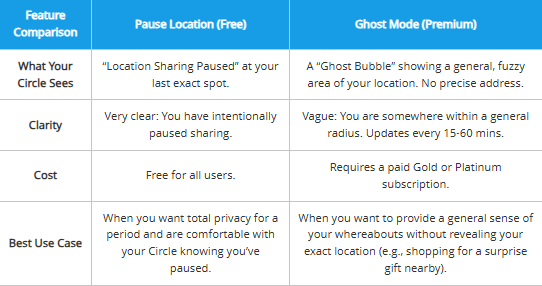
In short, Pause is an on/off switch for your exact location. Ghost Mode is a dimmer switch that makes your location vague.
For many users, the biggest drawback of Life360’s built-in privacy settings is that they still display visible status indicators like “Location Sharing Paused” or Ghost Mode bubbles.
This is why some users look for more discreet location-control methods that maintain a normal-looking location history instead of showing that sharing has been disabled.
Beyond Official Limits: Achieve Total Privacy with Fonelora
While the official “Pause” and “Ghost Mode” features are helpful, they have one major drawback: they let your Circle know you are intentionally hiding your location. If you want to maintain your privacy without the “Paused” status raising questions, a more professional tool like Fonelora Location Changer is the ideal solution.
Fonelora is an all-in-one GPS location changing solution designed for both iOS and Android users. Unlike the built-in app settings, Fonelora allows you to instantly change your GPS coordinates anywhere in the world with just one click, without requiring jailbreak or root.
Why Fonelora is a Game-Changer for Life360 Users:
- True Discreetness: It doesn’t trigger the “Location Paused” message. To your Circle, it looks like you are simply staying at a specific location or moving along a set path.
- Safe Movement Simulation: With its Safe Game Mode, Fonelora simulates realistic movement patterns (walking, cycling, or driving) with customizable speeds, making your location history look completely natural.
- Built-in 360° Joystick: For precise control, the joystick allows you to navigate the map in real-time as if you were actually there.
- Privacy First: It allows you to protect your real-time location from tracking apps while keeping your device’s communication and safety features fully functional.
How to Use Fonelora Location Changer (Step-by-Step Guide)
Getting started with Fonelora is easy, even for beginners:
- Connect Your Device: Download and launch Fonelora Location Changer on your Windows or Mac computer, then connect your iPhone or Android device via USB, Wi-Fi, or Bluetooth.
- Choose a Location Mode: Select Teleport Mode for an instant change, or Multi-Spot Mode to create a realistic route that Life360 will follow as if you were moving.
- Change Your GPS Location: Enter your desired destination or coordinates, click “Move,” and your location will instantly update across all apps, including Life360.

Expert Tips: Real-World Consequences of Pausing Your Location
Using the app every day reveals nuances that aren’t in the manual. Before you pause, consider these real-world impacts to avoid accidentally causing confusion or worry.
Heads Up: Pausing Affects More Than Just Your Dot on the Map
- Place Alerts Will Not Trigger: If you pause your location just before arriving home, your partner won’t get the automated “[Your Name] has arrived Home” notification. This absence of a familiar alert might cause more questions than the “Paused” status itself.
- Drive Detection is Interrupted: If a drive is in progress when you pause, Life360 will stop tracking it. Your trip summary for that drive will be incomplete, which could look unusual if your Circle regularly checks driving reports.
Being mindful of these consequences allows you to use the pause feature strategically and avoid creating new problems while trying to solve another.
Managing Your Privacy: Pause Duration and How to Resume Sharing
Understanding how to manage the pause is key to using the feature effectively.
How Long Does a Pause Last?
When you use the in-app toggle, the pause lasts indefinitely until you manually turn it back on. Life360 does not currently offer a timed pause (e.g., “pause for 2 hours”). This ensures you are always in control of when your location sharing resumes.
How to Resume Location Sharing
Resuming is as simple as pausing. Follow the same procedure:
- Open the Life360 family locator app.
- Navigate to Settings > Location Sharing.
- Select the Circle you wish to resume sharing with.
- Toggle the switch back to the on position. Your location will immediately update for your Circle, and the ‘Location Sharing Paused’ status will disappear.
Frequently Asked Questions (FAQ)
Here are direct answers to the most common questions about managing your location privacy.
How do I pause my location on Life360 without notifying others?
Use the in-app ‘Location Sharing’ toggle. Go to Settings > Location Sharing and turn off the slider for your desired Circle. This procedure does not send a push notification. It will, however, display a ‘Location Sharing Paused’ status on the map if someone in your Circle views it. This is the quietest and clearest option.
What is the difference between pausing and Ghost Mode?
Pausing (free) completely stops location updates and shows a “Paused” status at your last known spot. Ghost Mode (premium) shows a general, approximate area of your location (a “Ghost Bubble”) instead of your precise spot.
Will my family see that I paused my location?
Yes, but in a non-alarming way. They will not get an active alert. If they view the map, they will see a ‘Location Sharing Paused’ message at your last known location.
How long does a location pause last in Life360?
A pause initiated from within the app lasts indefinitely. It will only end when you manually go back into the settings and toggle location sharing back on.
Where is the pause location option in Life360 on iPhone?
On an iPhone, find it by tapping the Settings gear icon (top left), then selecting ‘Location Sharing’. From there, you can toggle your sharing preference for the currently selected Circle.
Can I temporarily pause location for privacy reasons safely?
Yes. Using the built-in pause feature is the safest method. It keeps your phone’s communication and safety features (like calls and data) fully functional while only affecting the Life360 app’s location reporting. It also maintains a clear Life360 location history up to the point of the pause
How do you disable Life360 location without notifying anyone?
Life360 does not send a direct push notification when you disable location sharing using the in-app settings. However, Circle members may still see a “Location Sharing Paused” status if they check the map manually.
Conclusion
By using the official in-app methods, you can confidently suspend position Life360 whenever you need a moment of privacy. You now have a clear understanding of the difference between a controlled Pause and the vague privacy of Ghost Mode. Both options are far superior to disruptive system-wide changes, allowing you to use this powerful family locator tool in a way that respects both your safety and your personal space. You are in full control, able to make an informed choice that maintains trust with your loved ones.



Joy Taylor is a seasoned technical writer with over a decade of experience in mobile technology. At iMobie, she specializes in producing in-depth content on iOS data recovery, iPhone unlocking solutions, and iOS troubleshooting.
Product-related questions? Contact Our Support Team to Get Quick Solution >
