Quick Answer: Does a Factory Reset Remove Activation Lock or FRP?
No, a factory reset does not remove Android Factory Reset Protection (FRP) or iOS Activation Lock.
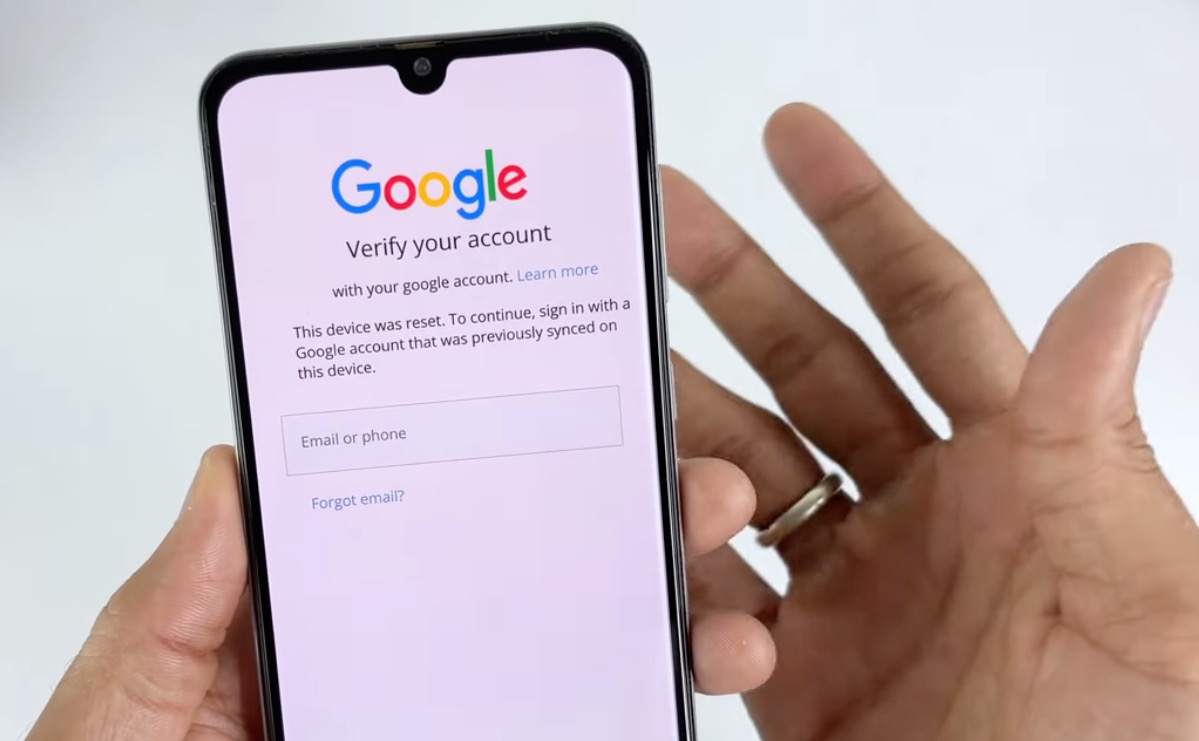
When you wipe a phone using recovery mode, iTunes, or built-in system settings, you are only erasing the local data stored on the device’s physical hardware. However, both FRP and Activation Lock are server-side security features. They are tied directly to Google or Apple servers, not to the local files on the phone.
Think of it like a computer and an online bank account: erasing your computer’s hard drive does not delete your bank account or remove its password requirement. In the same way, wiping a phone’s local storage does not tell Apple or Google to disconnect the device from the previous owner’s cloud account. To bypass these locks, you must either provide the correct account credentials or use specialized, ecosystem-specific recovery methods.
Understanding Your Lock: Android FRP vs. iOS Activation Lock
Before trying to fix a locked device, you need to identify exactly which ecosystem you are dealing with. Because Apple and Google use completely different security servers, a recovery method that works for an iPhone will be entirely useless for a Samsung or Motorola device.
Use the table below to diagnose your current lock screen so you don’t waste time reading irrelevant troubleshooting steps.
| Feature | OS Ecosystem | Security Trigger | Visual Symptoms |
|---|---|---|---|
| Activation Lock | Apple (iOS / iPadOS) | Triggered when “Find My” is enabled and the device is reset without signing out of the Apple ID. | The screen explicitly says “Locked to Owner” or “Activation Lock” and asks for an Apple ID and password. |
| FRP (Factory Reset Protection) | Google (Android) | Triggered when an Android phone is hard-reset via recovery mode without removing the Google account first. | The screen says “Verify your account” or “This device was reset. To continue, sign in with a Google Account that was previously synced on this device.” |
Next Steps: If you are looking at an Apple “Locked to Owner” screen, continue to the iOS sections below. If you are facing a “Verify your account” screen on an Android, skip directly to the Android FRP section.
How to Remove iOS Activation Lock (Official Apple Methods)
If you are facing the “Locked to Owner” screen on an iPhone or iPad, the most secure and reliable path is to use Apple’s official recovery channels. These methods require either the previous owner’s cooperation or original documentation.
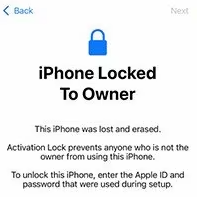
Method 1: Ask the previous owner to remove the lock remotely
If you bought a second-hand iPhone, the original owner does not need to be physically present to unlock it. They can remove the Activation Lock remotely from their own devices:
1. Have the previous owner log into iCloud.com/find with their Apple ID.
2. Click on “All Devices” and select the locked iPhone.
3. Click “Remove from Account” (not just “Erase”). Once removed, you can restart the device and set it up normally.
Method 2: Submit an Activation Lock Support Request to Apple
If you cannot reach the seller, Apple can remove the lock for you, but only under strict conditions. You must prove you are the lawful owner.
1. Go to the official Apple Activation Lock Support portal online.
2. Start a support request and provide the device’s Serial Number or IMEI.
3. Upload your original proof of purchase. This must be the original receipt from an authorized retailer showing the device serial number, date of purchase, and your details.
The Limitation: Official methods are a dead end if you bought the device used from a third-party marketplace, cannot contact the seller, and do not have the original Apple Store receipt. If you are stuck in this situation, you will need to explore authorized tool-assisted workarounds.
Alternative for iOS: Bypassing the Lock When Official Paths Fail
When you legally purchase a second-hand iPhone but the seller disappears and you lack the original receipt, official Apple support cannot help you. In these specific, authorized scenarios, you may find yourself researching third-party desktop utilities. While you can read our frpfile icloud bypass tool review to see how some older software options work, AnyUnlock offers a modernized, guided desktop workflow to bypass the Activation Lock on supported iOS devices and versions.

AnyUnlock – Unlock Any iOS Password
Quickly and easily unlock your iPhone/iPad/iPod touch from various locks such as screen lock, MDM lock, iCloud activation lock, Apple ID, iTunes backup password, and more.
Important Scope Check: AnyUnlock is strictly an iOS/iPadOS toolkit. It does not support Android devices or Android FRP bypassing.
If you have a compatible iPhone or iPad, AnyUnlock can help you move past the “Locked to Owner” screen without needing the previous owner’s Apple ID. However, because Activation Lock is a server-side feature, this bypass is a technical workaround that depends heavily on your specific device model and iOS version.
How to bypass Activation Lock with AnyUnlock:
1. Check Prerequisites: Ensure you have a PC or Mac, a USB cable, and an owned or authorized iOS device.
2. Open AnyUnlock: Download and launch the software on your computer, then select the Bypass iCloud Activation Lock module.
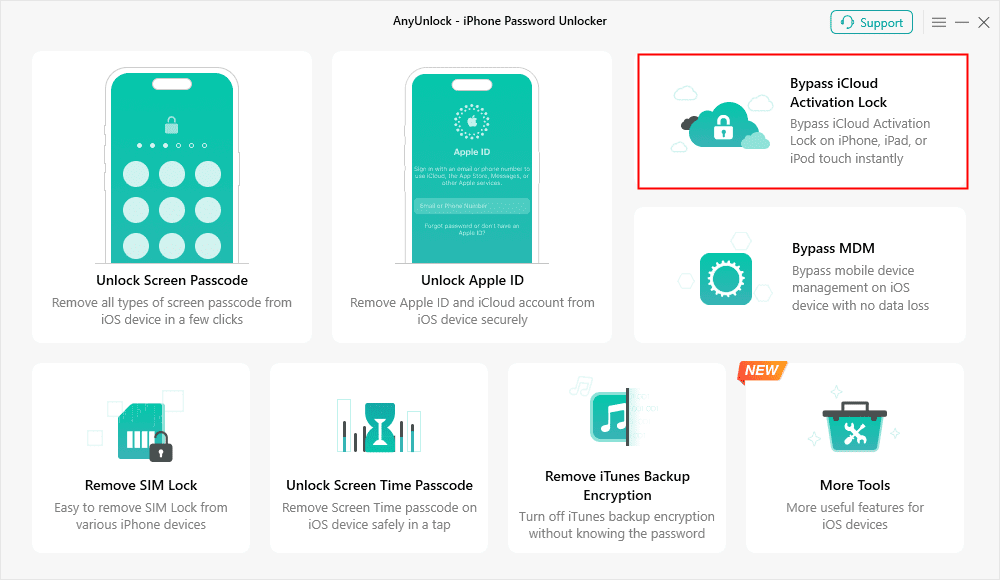
3. Connect the Device: Plug your iPhone or iPad into the computer.
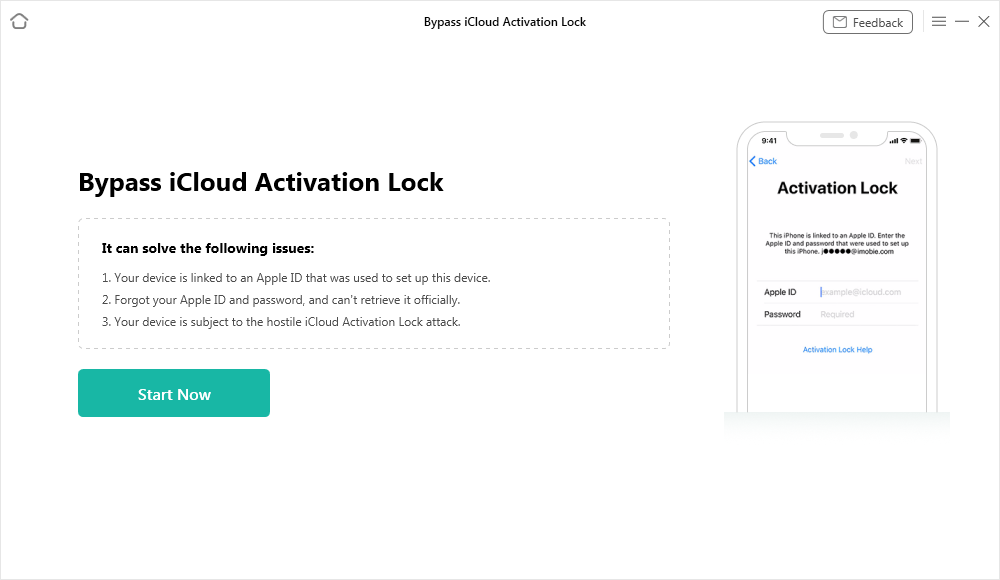
4. Follow the On-Screen Guide: The software will detect if your device and iOS version are supported. If required by your older iOS version, AnyUnlock will guide you through the necessary jailbreak steps.
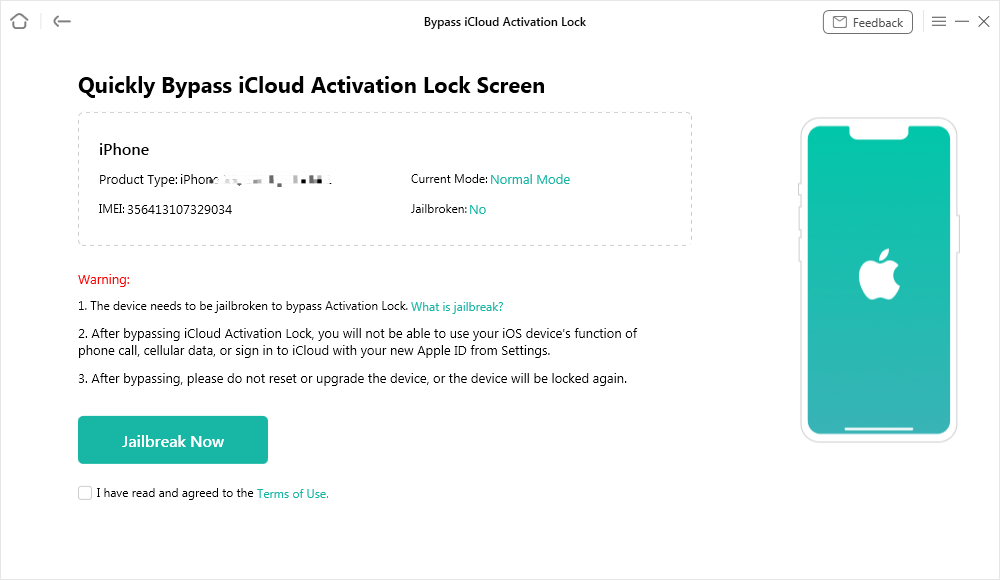
5. Bypass the Lock: Click “Bypass Now.” Once the workflow completes, you can access the device and download apps using a new Apple ID in the App Store.
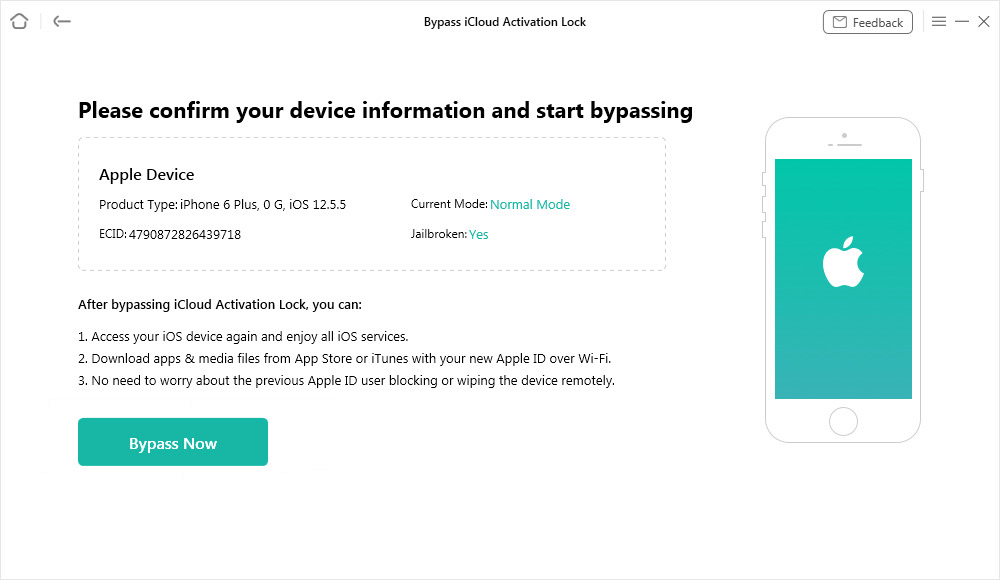
Keep in mind that this workflow is for lawfully obtained devices only. A factory reset or iOS update after the bypass may cause the Activation Lock to return, though you can use AnyUnlock to bypass it again on the same device.
How to Resolve Android FRP After a Factory Reset
If you are dealing with a “Verify your account” screen on an Android device after a factory reset, you have triggered Google’s Factory Reset Protection (FRP).
Because AnyUnlock is an exclusive iOS/iPadOS toolkit, AnyUnlock will not work for Android FRP. To regain access to your Android device, you must rely on Google’s specific ecosystem recovery paths.
The most straightforward method is to use Google’s official Account Recovery tools online. If you are the original owner but simply forgot your password, you can reset your Google account credentials on a computer, wait 24 hours (due to Google’s security cooldown), and then log into the phone.
If you bought the phone second-hand, you must contact the original seller to either provide the login temporarily or walk them through removing the device from their Google account remotely. If you cannot reach the seller, your only remaining options are to contact the device manufacturer with your proof of purchase, or seek out legitimate third-party FRP bypass tools designed specifically for Android devices.
Frequently Asked Questions (FAQs)
Q1: Does a factory reset remove the Activation Lock?
No. A factory reset only deletes the photos, apps, and local files on the physical device. The Activation Lock remains active because it is enforced by Apple’s cloud servers.
Q2: Why does my iPhone still say Locked to Owner after restoring?
Your iPhone communicates with Apple’s servers during the setup process. If the previous owner’s “Find My” setting was left on before the restore, Apple’s servers will recognize the device and trigger the “Locked to Owner” screen.
Q3: Can I bypass FRP by wiping the phone from recovery mode?
No. In fact, wiping an Android phone from recovery mode without first removing the Google account in the settings is exactly what triggers Factory Reset Protection in the first place.
Q4: How do I remove Activation Lock if I bought a used phone?
You should first ask the seller to remove the device remotely via iCloud.com. If they are unreachable and you don’t have the original retail receipt, you can use a compatible tool like AnyUnlock to bypass the lock on supported iOS versions.
The Bottom Line on Post-Reset Device Locks
The core reason why a factory reset does not remove FRP or Activation Lock is simple: hardware wipes only erase local data, while these security locks are permanently anchored to Google and Apple cloud servers.
If you find yourself stuck on a verification screen after resetting a device, your immediate next step is to diagnose your operating system and exhaust all official paths. Always try to contact the previous owner or submit proof of purchase to Apple or your Android manufacturer first.
If you are an iOS user with a lawfully obtained second-hand device, and those official routes are fully blocked, you don’t have to be left with an unusable phone. You can check if your iPhone or iPad model is supported and use a guided desktop workflow like AnyUnlock to bypass the Activation Lock, allowing you to finally set up your device and move forward.
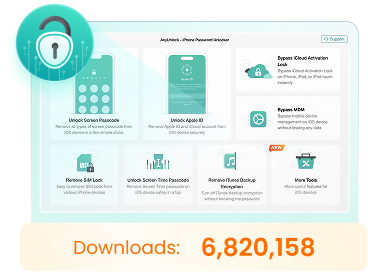
AnyUnlock – Unlock Any iOS Password
- Remove all types of screen locks and bypass Apple ID/iCloud Activation lock instantly.
- Disable “Find My” on iOS devices without password.
- Remove MDM restrictions and Screen Time passcodes securely.
- Recover, back up, and manage all iOS passwords in 1 handy place.
More Related Articles


 AnyUnlock