When you are locked out of a phone, the first step is identifying which security system you are dealing with.
FRP (Factory Reset Protection) is Android’s built-in security measure. It is tied directly to the Google Account synced to the device.
Activation Lock is Apple’s equivalent security feature for iOS devices, such as the iPhone and iPad. It is tied to the Apple ID and the Find My network.
While both locks serve the exact same anti-theft purpose—preventing unauthorized users from wiping and using a stolen or lost device—they belong to completely separate operating systems and ecosystems. A solution for one will never work for the other.
FRP vs Activation Lock: A Side-by-Side Comparison
To help you easily identify which lock you are facing and what triggers it, here is a quick side-by-side comparison:
| Feature | Android FRP Lock | Apple Activation Lock |
|---|---|---|
| OS Ecosystem | Android (Samsung, Google Pixel, Motorola, etc.) | Apple iOS / iPadOS (iPhone, iPad) |
| Tied Account | Google Account | Apple ID |
| Trigger Mechanism | An untrusted factory reset (using hardware buttons) | Erasing or resetting a device while “Find My” is still enabled |
| Screen Message | “Verify your account” or “This device was reset. To continue, sign in with a Google Account…” | “iPhone Locked to Owner” or “Activation Lock” |
Knowing exactly which screen message you are looking at ensures you search for the right OS-specific recovery path.
The Big Misconception: Why Factory Resets Don’t Remove Locks
One of the most dangerous misconceptions about smartphones is that a “hard factory reset” will fix a locked device. In reality, a reset is exactly what triggers these security locks.
If you forget your screen password and use the volume and power buttons to force a factory reset on an Android, the phone will boot up and demand the previous Google Account to verify authorization (triggering FRP).
Similarly, if you erase an iPhone via a computer or settings without first signing out of the Find My network, Apple’s servers will immediately place the device into Activation Lock.
Resetting a phone to “fix” a lost password usually results in being completely locked out and losing all your data. You must always address the account tied to the device before attempting an untrusted reset.
Pre-Purchase Checklist: How to Avoid Buying a Locked Phone
If you are buying a used phone online or in person, you must ensure the device is completely removed from the previous owner’s ecosystem to avoid getting scammed.
Here is your pre-purchase checklist:
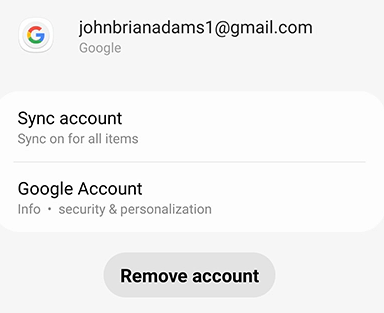
- For Android: Ask the seller to manually remove their Google Account in the device settings (Settings > Accounts > Remove Account) before they perform a factory reset.
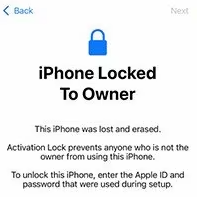
- For iPhone: Verify that the phone reaches the initial “Hello” setup screen and lets you proceed to the Wi-Fi step without asking for an Apple ID or displaying “iPhone Locked to Owner”.
- Physical Inspection: Always try to complete the initial setup process with the seller present. If they refuse to unlock it, sign out, or let you test it, do not buy the phone.
- Check IMEI Status: Run the device’s IMEI number through an online checker to ensure it hasn’t been reported lost or stolen.
How to Deal with Android FRP (Google Lock)
If you are facing the “Verify your account” screen on an Android device, you are dealing with Google’s Factory Reset Protection (FRP). Because this is strictly an Android feature, you must use Android-specific recovery paths.
Step 1: Attempt Official Google Account Recovery
If the phone belongs to you, go to Google’s account recovery page on a separate computer or phone. Reset your Gmail password. Note that Google often imposes a 24-hour security lockout on FRP after a password change, so you may need to wait before logging in on the device.
Step 2: Contact the Previous Owner
If you bought the phone second-hand, contact the seller. They do not need to give you their password. They can simply log into their Google account on a computer, go to their connected devices security settings, and remotely remove the Android phone from their account.
Step 3: Use Android-Specific FRP Bypass Tools
If official methods fail and you cannot reach the seller, you will need a generic Android-specific FRP bypass tool. These tools are built exclusively for Android operating systems.
The internet is full of fake and scammy unlocking services that charge upfront fees while overpromising “universal” or “permanent” FRP bypasses. Always be highly cautious of remote unlocking services. If you must use a tool, stick to well-reviewed desktop software and know that success depends heavily on your specific Android version, security patch level, and phone manufacturer.
How to Remove Apple Activation Lock (Official Methods)
If your screen says “iPhone Locked to Owner,” you are dealing with Apple’s Activation Lock. Before looking for desktop software, you should always exhaust Apple’s official recovery paths first.
Step 1: Use Apple’s iForgot Service
If it is your own device but you forgot the Apple ID password, go to iforgot.apple.com on another device. Follow the prompts to recover your password so you can enter it directly on the iPhone lock screen.
Step 2: Remove the Device via iCloud.com
If you bought the iPhone used, the seller can remove the lock remotely. Ask them to log into iCloud.com/find, select the iPhone from their device list, and click “Remove from Account.” Once they do this, simply restart the iPhone to clear the lock.
Step 3: Submit an Apple Support Request
If you are the original owner and account recovery fails, you can submit an Activation Lock support request to Apple. You will need to provide the original proof of purchase (a store receipt showing the device’s serial number or IMEI).
If none of these official owner-based recovery paths are possible, you may need to consider a desktop-assisted workflow.
Desktop Workflow: Bypassing Activation Lock on iOS with AnyUnlock
When official Apple ID recovery fails or you cannot contact the seller of a used iPhone, you may need a guided desktop solution. While some users might look for alternatives like a frpfile icloud bypass tool, AnyUnlock provides a practical and highly structured next step specifically designed for iOS devices.

AnyUnlock – Unlock Any iOS Password
Quickly and easily unlock your iPhone/iPad/iPod touch from various locks such as screen lock, MDM lock, iCloud activation lock, Apple ID, iTunes backup password, and more.
AnyUnlock is a desktop toolkit designed to handle various iOS locks, and it includes a dedicated “Bypass iCloud Activation Lock” module for supported Apple devices.
AnyUnlock is strictly for the Apple ecosystem and does not support Android FRP.
Here is how the guided workflow works for eligible iPhones and iPads:
1. Connect Your Device: Open AnyUnlock on your computer, select the “Bypass iCloud Activation Lock” module, and connect your iOS device via USB.
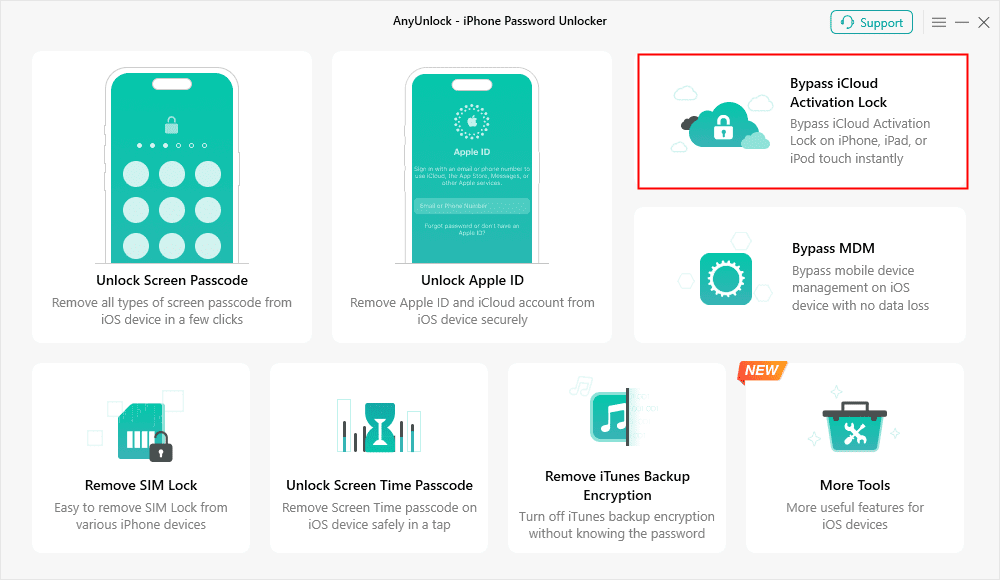
2. Review Conditions: The software will display compatibility notes. Depending on your specific older device model and iOS version, bypassing Activation Lock may require a jailbreak process, which the software will guide you through.
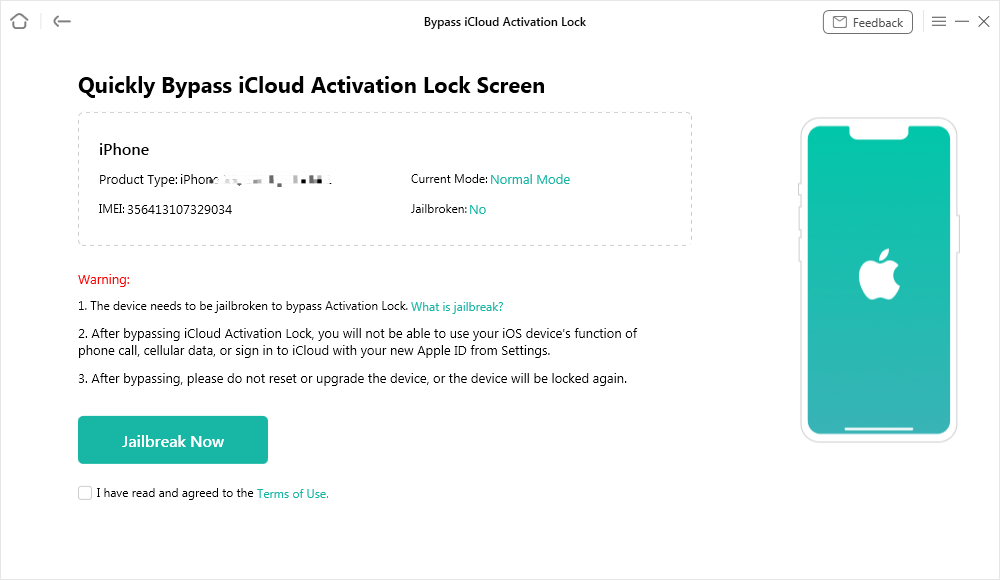
3. Start the Bypass: Follow the on-screen prompts to initiate the bypass workflow.
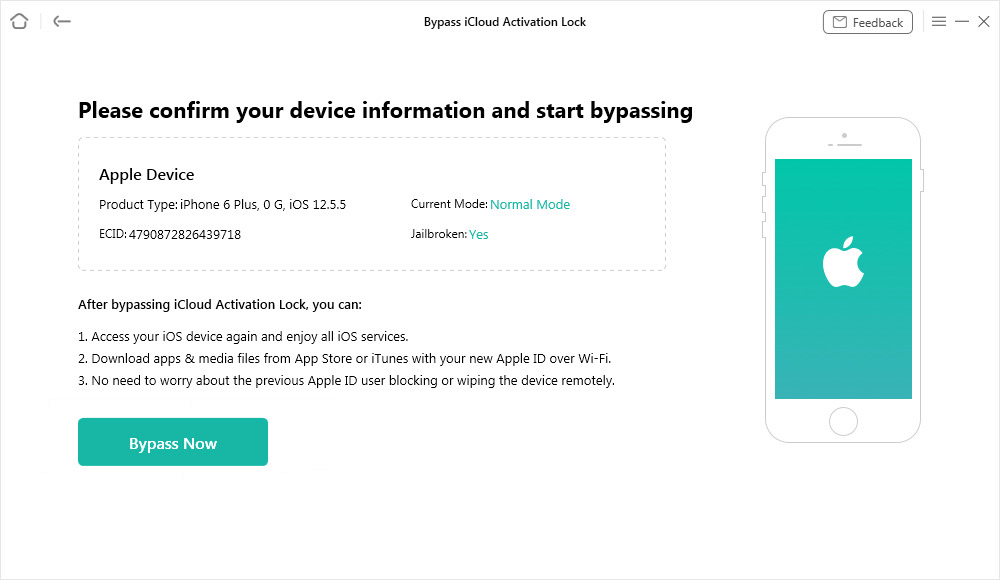
4. Regain Access: Once successful, you can enter the device setup path.
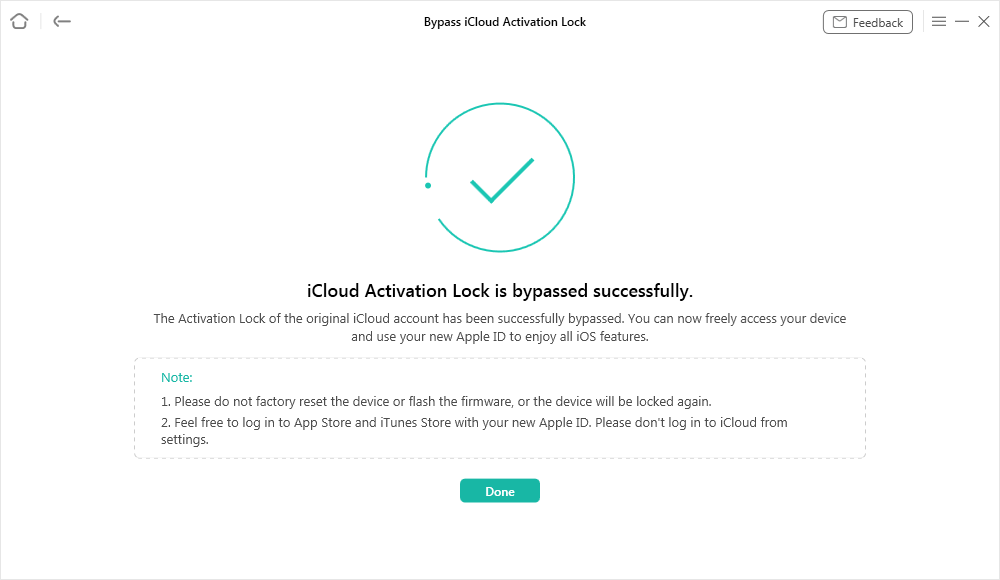
Important Limitation: Bypassing Activation Lock via desktop tools is a condition-aware process. If you restart, factory reset, or flash the firmware of the device later, the Activation Lock screen may reappear depending on the module conditions. Always check if your specific iOS version and device model are currently supported before proceeding.
Ready to bypass the lock on your supported iOS device? Head over to the official AnyUnlock website to download the toolkit and start your guided Activation Lock recovery workflow today.
Frequently Asked Questions (FAQs)
Q1: Is Google FRP harder to bypass than Apple Activation Lock?
Both ecosystems continuously update their security patch levels. Neither is inherently “easier” than the other; difficulty depends entirely on the specific operating system version and device model at the time of the lock. Both provide robust, server-side anti-theft protection.
Q2: Can I unlock a phone if I forgot the Apple ID or Google account?
Yes, but the path depends heavily on your device. For Android, you should use Google’s account recovery page. For iPhone, you should use Apple’s iForgot service or submit an Activation Lock support request with proof of purchase. If official methods fail, you must use an OS-specific desktop tool tailored to your phone.
Q3: Will flashing firmware remove FRP or iCloud locks?
No. Both Google FRP and Apple Activation Lock are tied to remote servers and the device’s boot-level security. Flashing new firmware or forcing a system restore through iTunes or Android recovery mode will not bypass these locks; the device will simply ask for the original account credentials as soon as it reboots.
Summary: Knowing Your Device’s Ecosystem
Understanding the difference between FRP and Activation Lock saves you time, money, and frustration.
To summarize: FRP is exclusively for Android devices tied to a Google Account, while Activation Lock is strictly for iOS devices tied to an Apple ID. The most important step you can take as a second-hand buyer is to thoroughly check the setup screen for these locks before handing over your money.
If you find yourself locked out, always attempt official account recovery (Google or Apple) as your primary step. If you are dealing with a used iPhone and the official seller routes fail, AnyUnlock offers a guided desktop workflow to help you address Apple Activation Lock on supported iOS devices. Identify your ecosystem, follow the right recovery path, and never assume a simple factory reset will bypass modern security.
AnyUnlock – Unlock Any iOS Password
- Remove all types of screen locks and bypass Apple ID/iCloud Activation lock instantly.
- Disable “Find My” on iOS devices without password.
- Remove MDM restrictions and Screen Time passcodes securely.
- Recover, back up, and manage all iOS passwords in 1 handy place.
More Related Articles


 AnyUnlock